• Skip to primary navigation
  • Skip to main content
  • Skip to primary sidebar
  • Skip to footer

SuperTekBoy

Practical Help for Exchange & Office 365

  • Exchange
    • News
    • Tutorials
    • Solve a Problem
  • Office 365
    • News
    • Tutorials
    • Solve a Problem
  • Outlook
    • Tutorials
    • Solve a Problem
  • Books
  • Podcasts
  • Quick Links…
    • Generate or Renew SSL Certs for Exchange
    • Connect PowerShell to Exchange Online
    • Connect PowerShell to Office 365
    • Extend Schema for Exchange
    • Exchange Schema & Build Numbers
  • More…
    • Kemp Load Balancers
    • Other tech…
    • Videos
    • About SuperTekBoy
    • Contact Us

Exchange Solutions

Exchange H1 2023 Cumulative Updates

July 12, 2023 By Gareth Gudger Leave a Comment

Share
Tweet
Share
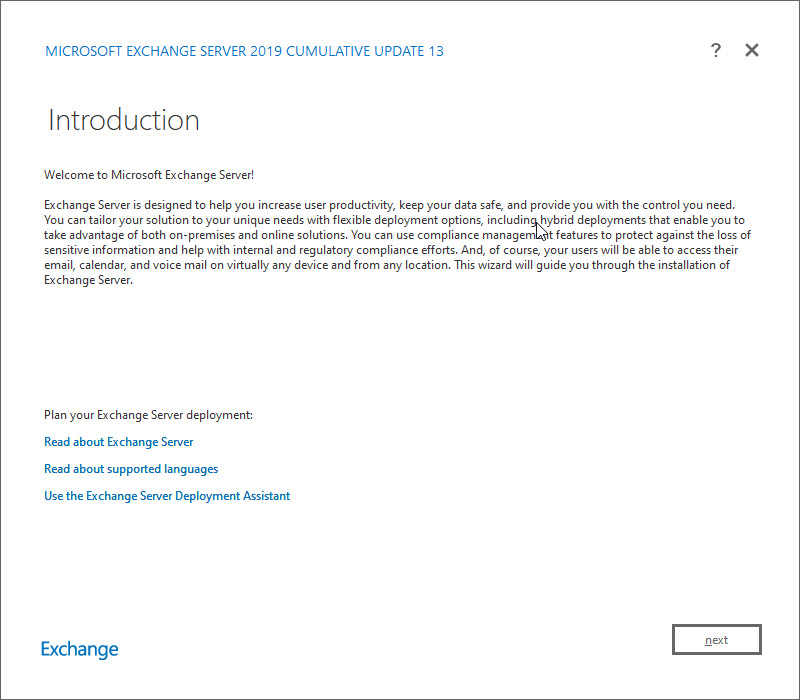
Exchange 2019 CU13

In May, Microsoft released a cumulative update for Exchange 2019. Once you get the H1 2023 cumulative update, be sure to grab the security updates released in June.

While Exchange 2016 did not receive a cumulative update, it did get a June security update, so be sure to install it.

Exchange 2013 did not get any updates as it is officially out of support. If you are on Exchange 2013, you should upgrade to Exchange 2019 or migrate to Exchange Online. No future security updates are planned for Exchange 2013.

If you need guidance on migrating from a specific CU to the latest, check out Microsoft’s Exchange Update Wizard for step-by-step instructions.

The updates are as follows:

Exchange Logo Mini

Exchange 2019:
Cumulative Update 13 (KB5020999) | June 2023 Security Update (for CU13)

Exchange 2013 Cumulative Update 9

Exchange 2016:
No new cumulative update | June 2023 Security Update (for CU23)

Exchange 2013 is out of extended support

Exchange 2013 exited extended support on April 11th, 2023. This means that there are no more security patches or technical support for these products. Any security patches after April 11th, 2023, are at Microsoft’s discretion. At the time of writing, the last update for Exchange 2013, is the March 14th, 2023 security update.

Due to the lack of security patches, it is imperative to upgrade these products to either Exchange 2019 or Exchange Online as soon as possible. For more information on how to migrate to Exchange 2019 or Exchange Online, check out Microsoft’s deployment guides here.

Modern Authentication

Cumulative Update 13 adds native OAuth2.0 support to Exchange 2019. Previously if you wanted to leverage modern authentication with Exchange 2019, you had to establish hybrid connectivity with Exchange Online and implement Hybrid Modern Authentication.

This update removes that requirement allowing you to implement modern auth with entirely on-premises technologies. To implement native modern auth in Exchange 2019, you will need to meet the following requirements:

  • Exchange 2019 CU13 or later
  • Active Directory Federation Services 2019 (ADFS 2019) or later
  • Outlook for Windows (Version 2304 – Build 16327.20214) running on Windows 11 (Version 22H2 with KB5023706 installed)
  • Outlook on the Web

Note: Modern auth support for Outlook for Mac, Outlook Mobile, and native mail apps will be added in a later update. At the time of writing, these clients will continue to use basic auth to connect to Exchange 2019.

Enabling modern auth, either through native modern authentication or hybrid modern authentication, greatly increases the security posture of Exchange on-premises. With native modern auth, organizations leveraging Exchange on-prem can utilize ADFS as their identity provider. This allows for multi-factor authentication, smart card authentication, certificate-based authentication, and integration with third-party authentication providers.

For more information on deploying native modern authentication for Exchange 2019, check this article.

[Read more…] about Exchange H1 2023 Cumulative Updates
Filed Under: Exchange Solutions

RPC/HTTP & Security Defaults may prevent Outlook reconfiguration after migrating to Exchange Online

March 14, 2022 By Gareth Gudger 2 Comments

Share
Tweet
Share

In a previous article, we discussed how a conditional access policy blocking basic authentication prevents Outlook clients (leveraging RPC over HTTP) from reconfiguring after a mailbox migration to Exchange Online. This is due to RPC over HTTP not supporting modern authentication. On the other hand, Outlook clients leveraging MAPI over HTTP would reconfigure without incident. This is due to MAPI over HTTP supporting modern (and basic) authentication.

This article explores how security defaults, which Microsoft has been enabling on all new tenants to block basic auth, could also prevent Outlook clients (leveraging RPC over HTTP) from reconfiguring after migration to Exchange Online.

How to check if Security Defaults are enabled (modern authentication is enforced)

To determine if security defaults are enabled in your tenant.

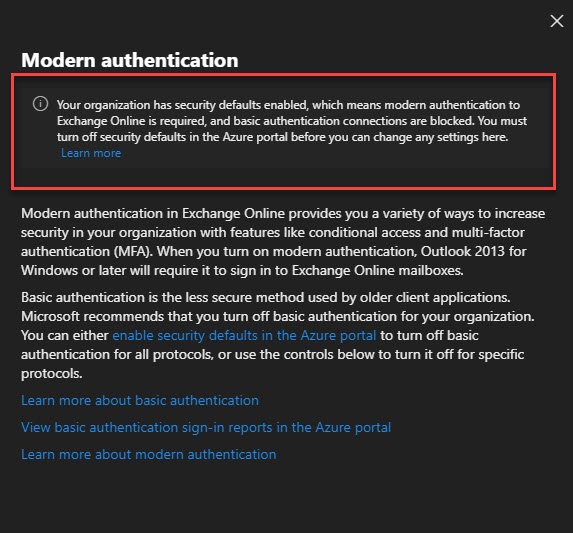
Log into the Microsoft 365 Admin Center. From the left pane expand Settings and select Org Settings. From the Services tab, select Modern Authentication. The Modern Authentication pop-out will identify if security defaults have been enabled.

The screenshot below shows the message that security defaults are enabled, indicating that modern authentication is required and basic auth connections are blocked.

M365 Security Defaults Enabled

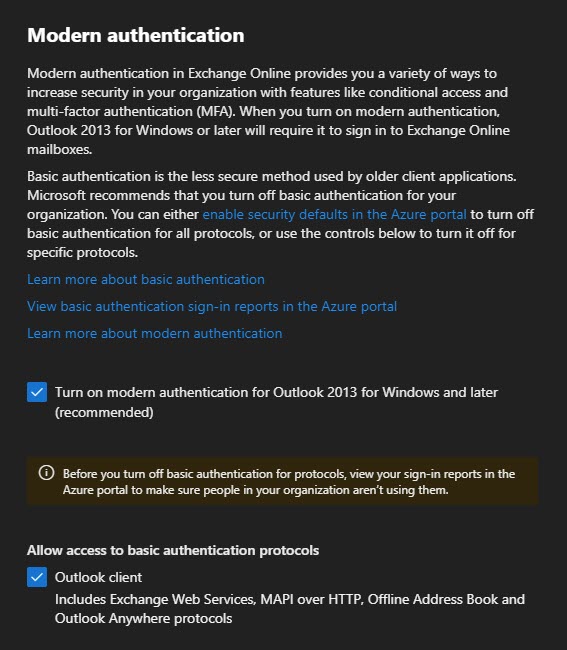
If security defaults have not been enabled in your tenant, the modern authentication pop-out will have configurable options. The screenshot below shows that modern authentication has been enabled (but it is not enforced). We can also see which protocols permit clients to use basic auth. Based on the selections in the screenshots, Outlook clients are still permitted to use basic auth (via either RPC over HTTP or MAPI over HTTP).

M365 Security Defaults Disabled

Tip: While not the focus of this article, I highly recommend working towards disabling basic auth on as many protocols as you can before the October 1st, 2022 deadline. This not only improves your security posture prior to October but also gets you prepared for the retiring of basic auth.

[Read more…] about RPC/HTTP & Security Defaults may prevent Outlook reconfiguration after migrating to Exchange Online

Filed Under: Exchange Solutions, Office 365 Solutions

Exchange Online PowerShell fails to connect with error AADSTS50011

November 16, 2021 By Gareth Gudger Leave a Comment

Share
Tweet
Share

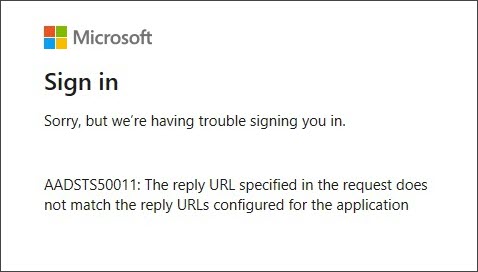
If you receive the following error when trying to connect to Exchange Online via PowerShell, then you will need to upgrade the Connect-ExchangeOnline PowerShell module.

AADSTS50011: The reply URL specified in the request does not match the reply URLs configured for the application
Exchange Online PowerShell fails to connect error AADSTS50011

Resolving AADSTS50011 for Connect-ExchangeOnline

To resolve, launch PowerShell and run the following command. If you do not trust the PowerShell gallery you may also be prompted to confirm the installation from an untrusted gallery. Press “Y” to confirm.

 C:\> Update-Module ExchangeOnlineManagement

You are installing the module from an untrusted repository. If you trust 
this repository, change its InstallationPolicy value by running the 
Set-PSRepository cmdlet. Are you sure you want to install the module 
from 'PSGallery'?
[Y] Yes  [A] Yes to All  [N] No to All  [S] Suspend  [?] Help: Y

At this point, it is best to close and reopen any PowerShell windows you had open and reissue the command Connect-ExchangeOnline. The issue should now be resolved.

[Read more…] about Exchange Online PowerShell fails to connect with error AADSTS50011

Filed Under: Exchange Solutions, Office 365 Solutions

Workaround: Replying to a message with an invalid S/MIME digital signature fails

July 22, 2021 By Gareth Gudger 6 Comments

Share
Tweet
Share

If you received a message with an invalid or untrusted S/MIME digital signature, you might have problems replying to that message with Outlook on the Web (OWA).

The inability to reply is not necessarily a bad thing as it might indicate an impersonation attempt. Impersonation is where a bad actor pretends to be someone you know, often for financial gain. A common example of impersonation is a bad actor pretending to be a CEO asking their company accountant to wire money to the bad actor’s bank account.

So, if you see a failed digital signature, it is a good time to pause and determine if the sender really is who they say they are through other verified mechanisms (e.g., call them on a trusted phone number). Then validate if they are aware of the digital signature issue to see if they are already working to resolve it.

If using a product like Office 365, you can also check if the message has failed any impersonation checks. For example, are safety tips in OWA warning that you don’t typically receive mail from this sender with that email address.

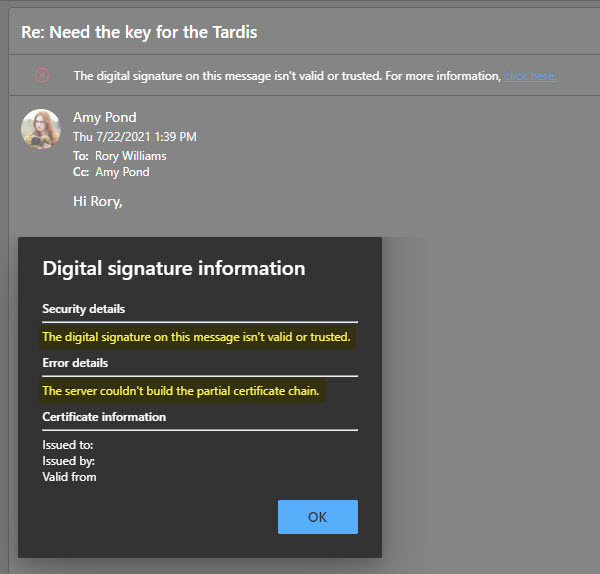
The screenshot below provides an example of a message received in OWA where the S/MIME digital signature is not considered valid or trusted. Clicking the click here link gives us some additional insight into the error. We can see OWA does not trust this certificate because it has a broken certificate chain, more than likely caused by a missing or expired intermediary cert.

The digital signature on this message isn't valid or trusted OWA

When attempting to reply to this message in OWA, you may receive the following error.

This message can't be sent right now. Please try again later.
[Read more…] about Workaround: Replying to a message with an invalid S/MIME digital signature fails

Filed Under: Exchange Solutions, Office 365 Solutions, Outlook Solutions

Former Calendar Delegate still receives meeting notifications

July 21, 2021 By Gareth Gudger 9 Comments

Share
Tweet
Share

Calendar delegation allows a user to manage someone else’s calendar on their behalf. For example, an assistant could be granted delegator rights to their manager’s calendar. Through delegation, the assistant has the right to add, edit, or delete items from their manager’s calendar. A delegate can also be granted the ability to view items marked as private. Aside from calendar permissions, the delegate can receive meeting invites on behalf of the delegator and respond to those invites (accept, decline, tentative, propose new time).

When an assistant no longer needs to access their manager’s calendar, they can be removed as a delegate. Either the manager can do this via the Outlook client or an Exchange administrator by using PowerShell. When their delegation rights have been removed, all access to the calendar is revoked. In addition, meeting invites are no longer sent to the delegate to accept or decline.

It is possible that even when the delegate permissions have been revoked, the assistant could still unexpectantly receive items sent to their manager. In this article, we look at a couple of possible areas that could be forwarding these items to the former delegate.

Let’s get started!

Verify the user is no longer a delegate

The first item to confirm is whether the delegate rights have been properly removed. To do this, connect to Exchange PowerShell and run the following command.

 C:\> Get-MailboxFolderPermission -Identity river.song@xyz.com:\Calendar

FolderName            User                  AccessRights
----------            ----                  ------------
Calendar              Default               {AvailabilityOnly}
Calendar              Rory Williams         {Editor}

In the example above, we are checking the calendar permissions for the user River Song. We use the Get-MailboxFolderPermission command for this purpose. The Identity parameter is a combination of the delegator’s email address and the folder in question. In this case, the calendar folder. You can also use this command against any other folder in the mailbox. In our example, we want to see if River Song’s former assistant, Amy Pond, still has any rights to River’s calendar.

The example output returns two entries. The first is for a user named Rory Williams. We see Rory Williams has editor rights to River’s calendar. We also see a user named Default. Default is the default permission users receive if they have not been granted explicit permissions. In the example above, Rory Williams would receive editor rights to River’s calendar, whereas all other users will only see River’s free/busy information (availability only). Amy Pond is not identified in this output, so she should only receive free/busy information. In this example, Amy is not a delegate.

If the output had returned Amy Pond as a user, we could remove those rights using the Remove-MailboxFolderPermission. For example, to remove all of Amy’s permissions from River’s calendar folder, we would issue the following command.

 C:\> Remove-MailboxFolderPermission -Identity river.song@xyz.com:\Calendar 
-User amy.pond@xyz.com
[Read more…] about Former Calendar Delegate still receives meeting notifications

Filed Under: Exchange Solutions, Outlook Solutions

Cannot find an overload for “CompareTo” and the argument count: “1”

August 24, 2020 By Gareth Gudger Leave a Comment

Share
Tweet
Share

While deploying an Exchange server, you may run into the following error during setup, which will block the installation from continuing.

[07/01/2020] ErrorRecord: Cannot find an overload for "CompareTo" and the argument count: "1".
[07/01/2020] ErrorRecord: System.Management.Automation.MethodException: Cannot find an overload for "CompareTo" and the argument count: "1".

This error is definitely cryptic. Thankfully the Exchange Setup Logs (located at “C:\ExchangeSetupLogs\ExchangeSetup.txt”) is excellent at providing more clues when troubleshooting.

In our case, the logs identified that setup was trying to process the Offline Address Book (“OAB”) at the time of the error. The error occurred during a function that contained OAB-related PowerShell commands, including Get-OfflineAddressBook, Get-OabVirtualDirectory, and Set-OfflineAddressBook. So, this was the logical place to continue troubleshooting.

From another Exchange Server, we ran the PowerShell command Get-OfflineAddressBook, and strangely, three address books were returned.

 C:\> Get-OfflineAddressBook | Format-List Name

Name: Default Offline Address List
Name: Default Offline Address List (Ex2013)
      CNF:3e4b413a-e5d6-4371-8541-defecb812f98

The returned results were strange.

  • Default Offline Address List is an OAB from a legacy Exchange installation (Exchange 2010 and earlier) and is common to see in an Exchange environment.
  • Default Offline Address List (Ex2013) is present whenever an Exchange 2013 or 2016 server is installed into a legacy Exchange environment. This address list is standard, and it is common to see both this OAB and the first OAB coexisting in mixed Exchange environments.
  • Default Offline Address List (Ex2013)CNF:<GUID>, is an address list I had never seen before.

Default Offline Address List (Ex2013)CNF:<GUID> being an unknown quickly became the focus of our investigation.

[Read more…] about Cannot find an overload for “CompareTo” and the argument count: “1”

Filed Under: Exchange Solutions

  • Page 1
  • Page 2
  • Page 3
  • Interim pages omitted …
  • Page 11
  • Go to Next Page »

Primary Sidebar

Want to stay up to date?

Sidebar Form

Join thousands of IT professionals and get the latest Exchange & Office 365 tips and tutorials direct to your inbox

DigiCert Banner 300x348

(help support us using our affiliate link)

Footer

Site Navigation

  • Subscribe to blog
  • About SuperTekBoy
  • Disclaimer
  • Privacy & Cookies
  • Contact Us

Want to stay up to date?

Footer Form

Join thousands of IT professionals and get the latest Exchange & Office 365 tips and tutorials direct to your inbox

Join the conversation

  • Twitter
  • LinkedIn
  • Facebook
  • RSS

Copyright © 2025 · SuperTekBoy LLC