• Skip to primary navigation
  • Skip to main content
  • Skip to primary sidebar
  • Skip to footer

SuperTekBoy

Practical Help for Exchange & Office 365

  • Exchange
    • News
    • Tutorials
    • Solve a Problem
  • Office 365
    • News
    • Tutorials
    • Solve a Problem
  • Outlook
    • Tutorials
    • Solve a Problem
  • Books
  • Podcasts
  • Quick Links…
    • Generate or Renew SSL Certs for Exchange
    • Connect PowerShell to Exchange Online
    • Connect PowerShell to Office 365
    • Extend Schema for Exchange
    • Exchange Schema & Build Numbers
  • More…
    • Kemp Load Balancers
    • Other tech…
    • Videos
    • About SuperTekBoy
    • Contact Us

Office 365 for IT Pros (2024 Edition) released

July 5, 2023 By Gareth Gudger Leave a Comment

Share
Tweet
Share
Office 365 for IT Pros 2024 Edition

I am happy to announce the release of the 2024 edition of Office 365 for IT Pros. This is the 10th edition of the book, and I am humbled to have been a part of it since the 8th edition. It is an honor to continue the legacy of what Tony Redmond, Paul Cunningham, and Michael Van Horenbeeck started 10 years ago.

This book is a must for anyone working in the Office 365 space, and I am not just saying that because I am an author. Prior to being an author, I was a reader, starting with the very first edition, published back in 2015, up to the seventh edition.

The reason I state this book is a must is because, as an IT professional, I find it increasingly difficult to wrap my arms around all the additions and changes occurring in Office 365. This book (originally consuming as a reader and now an author) helps me keep up a handle on everything going on in Office 365. I think it will help you too.

[Read more…] about Office 365 for IT Pros (2024 Edition) released

Print Friendly, PDF & Email

Filed Under: Exchange News, Office 365 News

RunAs Radio #880 – Dealing with Vulnerable Exchange Servers

May 17, 2023 By Gareth Gudger Leave a Comment

Share
Tweet
Share

On April 4th, I had the great pleasure of being a guest on RunAs Radio. I joined host Richard Campbell to discuss vulnerable Exchange Servers; including:

  • Introductions
  • The state of HAFNIUM in 2023 and suggestions to stay secure
  • Exchange split permissions (RBAC versus Active Directory permission models)
  • RunAs Radio mug inception
  • Throttling and blocking emails from unsupported Exchange Servers to Exchange Online
  • “On-Premises” versus “Partner” Connector types in Exchange Online
  • Inbound connectors of type “On-Premises” will be disabled by default in new tenants
  • Support the Humanitarian Toolbox
  • Deprecation of Remote PowerShell in new Exchange Online tenants created after April 1st, 2023
  • Get the Exchange Online PowerShell v3 module (stop using the older versions)
  • Exchange 2013 is end of life
  • Use Exchange 2019 Management Tools for Exchange Online hybrid management
  • Steve Goodman’s GUI for the Exchange 2019 Management Tools
  • Security landscape and bad actors in 2023
  • Getting rid of Exchange on-premises
  • Coauthoring Office 365 for IT Pros 9th Edition
  • Closing thoughts
Runas Radio #880 - Dealing with Vulnerable Exchange Servers with Gareth Gudger
[Read more…] about RunAs Radio #880 – Dealing with Vulnerable Exchange Servers
Print Friendly, PDF & Email

Filed Under: Exchange News, Office 365 News, Podcasts

8 MEC sessions every Exchange admin should see (2022 Edition)

September 29, 2022 By Gareth Gudger Leave a Comment

Share
Tweet
Share

Microsoft Exchange Conference (or MEC for short) was an in-person event last held in 2014 in Austin, Texas. In 2015, Microsoft rolled MEC, as well as a number of other conferences, such as TechEd, into the mega-conference that is Microsoft Ignite.

This year Microsoft brought MEC back as a free 2-day virtual event. This virtual MEC was by no means a shadow of its former self. With 59 sessions dedicated to Microsoft Exchange and its adjacent technologies, this digital experience was substantial. Microsoft reports around 4,000 people attended MEC this year. Hopefully, with Microsoft switching Ignite this year to a hybrid experience, the next MEC will be in-person. (Fingers crossed)

At 59 sessions, here are the top 8 sessions I think every Exchange admin should watch.

Tip: I have included extensive notes for each session and the time each topic starts. You can expand the session notes under each video by clicking “Show more session notes.”

MEC 2022 - Getting Ready for Basic Auth Deprecation in Exchange Online(watch video)

Getting Ready for Basic Auth Deprecation in Exchange Online
In this session, Greg Taylor discusses the roadmap for basic authentication, all the great work done so far, and how organizations can opt to keep basic auth until December. Topics include:

  • Organizations leveraging basic auth are more suspectible to compromise (1:10 mins)
  • 99%+ of password spray attacks use legacy auth
  • 97%+ of credential stuffing use legacy auth
  • 60% of users re-use passwords
  • 921 password attacks every second (almost double last year
  • 50 million password attacks launched every day (Q4 2021)
  • Beginning October 1st, basic auth will be disabled for: (2:54 mins)
    • POP
    • IMAP
    • EWS
    • MAPI
    • RPC
    • OAB
    • ActiveSync
    • Exchange Online Remote PowerShell
  • Basic authentication will remain enabled for: (3:40 mins)
    • Autodiscover
    • SMTP AUTH
  • Organizations can opt-out or request an extension for basic auth through December 31st, 2022. (4:10 mins)
  • Why Microsoft is disabling basic auth (5:53 mins)
  • How Microsoft analyzes basic auth usage (8:43 mins)
  • What the usage data revealed (11:55 mins)
    • 70 million people using basic auth across 4 million tenants
    • 10 million MAPI users made 60 million basic auth request per day
    • 1.5 million POP users made 80 million basic auth request per day
    • ActiveSync, Outlook and EWS primary drivers of basic auth
    • 1/3rd basic auth comes from tenants with more than 10k users (1% of tenants)
    • 1/3rd basic auth comes from tenants with less than 100 users (90% of tenants)
  • Suspicious usage impacting metrics (21:45 mins)
    • Set-CASMailbox blocks a user after they have authenticated successfully
    • Auth policies block basic auth prior to the user authentication attempt
  • Deprecating basic auth timeline (30:10 mins)
    • Prior delay due to needing more time
    • Prior delay due to pandemic
    • Disabled basic auth for tenants not using it
    • Disabled basic auth for protocols not using it
    • Disabled basic auth temporarily for some tenants for 48 hours
    • Disabling basic auth for all tenants October 1st, 2022 (unless opt-out or extension requested)
    • Backfill disabling basic auth in tenants with security defaults enabled, test tenants, etc.
    • Basic auth deprecation for 21Vianet will begin on March 31st, 2023
  • Tactics to eliminate basic auth (37:20 mins)
    • Message Center versus Service Health Dashboard (incl. tenant usage statistics)
    • 0.05% of tenants re-enabled basic auth with self help diagnostics
    • Disabling basic auth for 48 hours in some tenants (1-3% of tenants re-enabled)
    • Enabling OAuth2 in tenants
  • Apple partnership to switch iOS devices using ActiveSync to OAuth2 automatically (40:52 mins)
    • Requires iOS 15.6+
    • 1 million iOS devices migrated to OAuth
  • Show more session notes
    Show less session notes
    MEC 2022 - Microsoft Exchange Tips and Trick(watch video)

    Microsoft Exchange Tips and Tricks
    In this session, Scott Schnoll shares his top Exchange tips and tricks. Topics include:

    • Exchange Server codebase (2:43 mins)
      • Exchange Server major releases and cumulative updates were historically forks of the Exchange Online code. This could introduce code not applicable to Exchange on-prem or introduce bugs.
      • Exchange Online and Exchange Server now have separate codebases
      • Exchange Online features are ported and fully validated in Exchange Server when desired
      • Separate codebase means less changes for on-prem customers and less chance of update regression
      • Exchange Server team retroactively cleaning up code that only applies to Exchange Online
    • Current Exchange landscape (6:10 mins)
      • Most customers still on Exchange 2013 or 2016
      • Over a 2-week period 500,000 Exchange Servers submitted analytics to Microsoft.
      • 100,000 running Exchange 2019
      • 50,000 running Exchange 2010
      • Few thousand running Exchange 2007
    • Customers struggle to stay on latest cumulative update
    • 25% on latest CU
    • 44% on N-1 CU
    • 7% on N-2 CU
    • 24% on unsupported CUs
  • Customers struggle to stay on latest security update
    • 13% of Ex13 CU23 on the latest SU
    • 33% of Ex16 CU22 on the latest SU
    • 50% of Ex16 CU23 on the latest SU
    • 65% of Ex19 CU11 on the latest SU
    • 50% of Ex19 CU12 on the latest SU
  • Changes to cumulative updates (CU) (9:43 mins)
    • Changed release cadence of CUs from quarterly to semi-annual
    • Release dates targeted for April and September but ultimately driven by quality
  • Changes to security updates (SU) (11:05 mins)
    • Available as both a MSP and self-extracting EXE package
    • Self-extracting EXE package automatically elevates with administrative rights.
    • EXE added to address issue where MSP file was not run with elevated permissions which resulted in installations issues.
  • Exchange Support (12:27 mins)
    • The Extended Security Update Program will only be available to Exchange 2016 and 2019
    • Exchange 2013 customers should migrate to Exchange 2019 before end of support (April 11th, 2023)
    • Exchange vNext will leverage the Modern Lifecycle Policy which moves away from major product releases by keeping Exchange Server on a continuous update cadence (same as M365 Apps).
  • Updating Exchange Servers (15:05 mins)
    • Use the Exchange Health Checker to look for issues prior to installation.
    • Use the Exchange Update Guide to help prepare for the update.
    • Test updates before putting in production
    • Have backups of Active Directory, Exchange, and any web.config customizations
    • Disable antivirus when updating
    • August SU adds Windows Extended Protection support to Exchange Servers
  • Exchange 2019 preferred architecture (20:25 mins)
    • Each preferred architecture is specific to a version of Exchange
    • Up to 48 physical processor cores
    • Up to 256 GB RAM
    • Battery backed write cache
    • Leverage the MetaCache DB with SSDs
    • Scale-out versus scale-up
    • Use physical rather than virtual servers
  • Updates to the Exchange 2019 Sizing Calc (24:50 mins)
  • What “Check for updates” in the setup wizard does (26:17 mins)
  • Updated Exchange Management Pack for SCOM (28:00 mins)
  • Exchange Server Bug Bounty Program (29:25 mins)
    • Up to $26k awarded per bounty
    • $127k awarded in bounties
  • Windows Server 2022 support for Exchange 2019 (30:37 mins)
    • TLS 1.3 support for Exchange in H2 2023
    • Supported Exchange versions can leverage Windows Server 2022 DCs
  • Changes to antivirus exclusions on Exchange (33:30 mins)
  • Modern auth will be native to Exchange 2019 (35:15 mins)
  • Custom configs (e.g., changes to web.config) will be preserved during updates (38:00 mins)
  • Changes to the Hybrid Configuration Wizard (37:05 mins)
    • HCW will allow admins to pick which steps to perform or skip
    • HCW will support a what-if function so admins can see what the HCW will change
    • Scheduled for H1 2023
  • Exchange Online (41:10 mins)
    • 300k server
    • 175 datacenters
    • 210 network POPs
    • 1.4 EB of data
    • 42 trillion items
    • 7.3 billion mailboxes
    • Daily Stats
    • 9.2 billion messages
    • 2.4 billion spam blocked
    • 1.9 trillion items read/opened
  • Exchange Online Recent Updates (42:35 mins)
    • MRM Retention Tags, MRM Retention Policies, and Journal rules moved to Microsoft Purview
    • Changes to Tenant Allow/Block Lists (TABL)
    • Custom email notifications and policy tips added to DLP policies
    • 42 new sensitivity labels added to protect credentials
  • Exchange Online Coming Soon (46:50 mins)
    • Exchange Online PowerShell v3 module will be GA on September 20th, 2022.
    • Ability to block sender, URL, or attachment while submitting to Microsoft for analysis
    • Configure label to apply S/MIME automatically (expected October 2022)
  • Dashboard for on-prem Exchange Servers in a hybrid environment (51:08 mins)
    • Identifies Exchange Servers that are behind on CUs, SUs, or are out of support
    • Currently in private preview.
  • Exchange Online Retirements (52:40 mins)
    • Exchange Online PowerShell Module v1 retires on Dec 31st, 2022
    • Classic Exchange Admin Center going away on Jan 2023
    • Replace action going away on Anti-Malware policies. Any existing policies will be converted to Block action instead. This work is currently in progress.
    • Redirect messages in the Anti-Malware policy will only be available for the Monitor action.
    • Basic authentication going away
    Show more session notes
    Show less session notes
    (watch video)

    Deep Dive on Hybrid Mail Flow
    In this session, Hien Nguyen takes a deep dive into hybrid mail flow tackling topics such as message attribution, configurations that could impact hybrid mail flow from being stamped as internal, and advanced routing topics such as other tenants being able to bypass your MX records. Topics include:

    • The Challenge (2:28)
      • Making two separate Exchange environments (Exchange Online and On-prem) appear as one.
      • We want this, so it is seamless for the user and provides minimal (if any) impact on the business.
      • We implement this with the Hybrid Configuration Wizard
    • The Solution (3:11)
      • MRS moves mailboxes maintaining the existing Outlook profiles and OSTs
      • Organization relationships to allow for free/busy, OWA redirection, and Mail Tips
      • Trusted mail flow between Exchange Online and on-prem
    • Concepts (3:45)
      • The difference between internal mail is that it is authenticated (external is anonymous)
      • Mail can be authenticated when sent via Outlook, SMTP Auth, or a secure connector.
      • Physical location does not matter when it comes to authenticating mail
    • Internal vs. External (4:50)
      • On-prem Recipient <> EXO recipient should always be marked as internal
      • If not, the messages can be externally tagged, subject to spam and phishing policies, messaging to distribution lists can fail, incorrect OOF, and problems booking resources
      • We can track if a message is considered internal (authenticated) or external (anonymous) via message headers using the X-MS-Exchange-Organization-AuthAs attribute
    • SCENARIO: On-prem to Office 365 (6:40)
      • For mail to be processed as INTERNAL
        • Tenant.mail.onmicrosoft.com must be an accepted domain on-prem
        • Send Connector in Exchange On-Prem must be set to CloudServicesMailEnabled = $true
        • Inbound connector in Exchange Online must be set to CloudServiceMailEnabled = $true
          • In the GUI, the checkbox is “Retain internal Exchange email headers (recommended).”
        • Exchange On-Prem copies the X-MS-Exchange-Organization headers to new X-MS-Exchange-CrossPremises headers.
        • Exchange Online copies the X-MS-Exchange-CrossPremises headers back to X-MS-Exchange-Organization headers.
    • DEMO: On-prem to Office 365 (9:42)
      • Configure pipeline tracing for a sender – Get-TransportService | Set-TransportService -PipelineTracingEnabled $true -PipelineTracingPath C:\Trace -PipelineTracingAddress <sender address>
      • This will export these messages as EML files that you can open (be careful with sensitive data)
      • Email sent as Amy (On-Prem) to Hien (EXO) is delivered as INTERNAL
      • Pipeline trace export at C:\Trace, which shows the headers being copied between X-MS-Exchange-Organization and MS-Exchange-CrossPremises
    • DEMO: On-prem to Office 365 (16:00)
      • Changing the CloudServicesMailEnabled = $false on the on-prem send connector
      • Switches X-MS-Exchange-Organization-AuthAs to ANONYMOUS
    • DEMO: On-prem to Office 365 (19:15)
      • Changing the CloudServiceMailEnabled = $false on the Exchange Online inbound connector
      • Switches X-MS-Exchange-Organization-AuthAs to ANONYMOUS
    • Message Attribution (24:00)
      • EXO is a shared service, and mailboxes from different companies can sit on any database, server, and infrastructure
      • Message attribution is how Exchange Online determines which tenant the message belongs to
      • If the certificate subject name, sending IP, or sender domain matches an accepted domain
        • The email is attributed to the tenant with the accepted domain
        • X-MS-Exchange-Organization-MessageDirectionality = ORIGINATING
      • If origination fails (no matching certificate, sending IP, sender domain) and recipient domain matches an accepted domain
        • The email is attributed to the tenant with the accepted domain
        • X-MS-Exchange-Organization-MessageDirectionality = INCOMING
      • If message attribution fails, it sends a non-delivery report to the sender.
    • SCENARIO: Office 365 to on-prem (30:52)
      • For mail to be processed as INTERNAL
        • An accepted domain must exist in Exchange Online
        • Outbound connector in Exchange Online must be set to CloudServiceMailEnabled = $true
          • In the GUI, the checkbox is “Retain internal Exchange email headers (recommended).”
        • Receive connector for Exchange On-Prem must have TLSDomainCapabilities:{mail.protection.outlook.com:AcceptedCloudServicesMail}
        • Exchange Online copies the X-MS-Exchange-Organization headers to new X-MS-Exchange-CrossPremises headers
        • Exchange On-Prem will offer SMTP command XOORG to Exchange Online
        • Exchange Online sets MAILFROM domain in XOORG command to one of Exchange On-Prem’s accepted domains
        • Exchange On-Prem copies the X-MS-Exchange-CrossPremises headers back to X-MS-Exchange-Organization headers
    • DEMO: Office 365 to On-Prem (33:45)
      • Configure pipeline tracing for a sender – Get-TransportService | Set-TransportService -PipelineTracingEnabled $true -PipelineTracingPath C:\Trace -PipelineTracingAddress <sender address>
      • This will export these messages as EML files that you can open (be careful with sensitive data)
      • Email sent as Hien (EXO) to Amy (On-Prem) is delivered as INTERNAL
      • Pipeline trace export at C:\Trace, which shows the headers being copied between X-MS-Exchange-Organization and X-MS-Exchange-CrossPremises
    • DEMO: Office 365 to On-Prem (36:55)
      • Nulling out the TLSDomainCapabilities on the on-prem receive connector
      • Switches X-MS-Exchange-Organization-AuthAs headers are missing (not copied from X-MS-Exchange-CrossPremises)
    • DEMO: Office 365 to On-Prem (39:36)
      • Changing the CloudServiceMailEnabled = $false on the Exchange Online outbound connector
      • Switches X-MS-Exchange-Organization-AuthAs to ANONYMOUS
    • Securing the gaps (44:20)
      • When MX is pointed on-prem
        • SCENARIO 1: Other tenants (or on-prem servers with hybrid) can send mail directly to your tenant
        • SCENARIO 2: Other tenants can send mail directly to your hybrid smart host (e.g., hybrid.domain.com)
      • When MX is pointed to EXO
        • SCENARIO 3: Other tenants can send mail directly to your hybrid smart host (e.g., hybrid.domain.com)
      • If another tenant sends directly to your hybrid smart host (on-prem), the mail is considered EXTERNAL because the X-MS-Exchange-CrossPremises (XOORG) will be missing.
    • SCENARIO 1: Prevent EXO Direct Delivery when MX is pointed on-prem (48:50)
      • Create a new inbound partner connector
      • Specify all sender domains (*)
      • RequireTLS = $true
      • RestrictDomainsToCertificate = $true
      • TlsSenderCertificateName = Can be whatever you want it to be (e.g., blocknonmx.domain.com)
      • New-InboundConnector -Name “Block Non MX Record Delivery” -ConnectType Partner -SenderDomains * RequireTls:$true -RestrictDomainsToCertificate:$true -TlsSenderCertificateName blocknonmx.domain.com
    • SCENARIO 2: Prevent On-Prem Direct Delivery when MX is pointed to EXO (49:20)
      • Create a transport rule
      • Sender is located Outside the organization
      • Reject the message with explanation “You are not allowed to send directly. Use MX.”
      • Except if message header includes “X-OriginatorOrg” with “<domain>.mail.onmicrosoft.com” or “<domain>.onmicrosoft.com” or “<domains.com>”
    • SCENARIO 3: Prevent On-Prem Direct Delivery when MX is pointed on-prem (50:39)
      • Create a transport rule
      • Sender is located Outside the organization
      • Reject the message with explanation “You are not allowed to send directly. Use MX.”
      • Except if message includes:
        • Header “X-OriginatorOrg” with “<domain>.mail.onmicrosoft.com” or “<domain>.onmicrosoft.com” or “<domains.com>”
        • Sender IP address is “<1.1.1.1>”
        • Header “Received” matches “<1.1.1.1>”
  • Q&A (55:05)
  • Show more session notes
    Show less session notes
    [Read more…] about 8 MEC sessions every Exchange admin should see (2022 Edition)
    Print Friendly, PDF & Email

    Filed Under: Exchange News, Office 365 News

    Exchange H1 2022 Cumulative Updates and eliminating the last on-prem Exchange Server (maybe)

    May 16, 2022 By Gareth Gudger 8 Comments

    Share
    Tweet
    Share
    Exchange 2019 CU12 Setup Screen

    Last month Microsoft released cumulative updates for Exchange 2016 and Exchange 2019. Once you get the H1 2022 cumulative updates, be sure to grab the security updates released in May.

    While Exchange 2013 did not have a cumulative update, it did receive a security update, which can be applied to Exchange 2013 Cumulative Update 23.

    The security updates (SUs) are now available as self-extracting executables, which means they will automatically elevate with administrative rights. However, the MSP delivery method requires admins to manually instruct the update to run with administrative rights. If admins missed this step, the security update could apply incorrectly, causing an outage in Exchange. The MSP delivery method is still available via the Microsoft update catalog, should admins prefer it. However, the EXE delivery method is better for admins wanting to install the security update manually. Note that this does not change the delivery method for cumulative updates–that remains the same.

    If you need guidance on migrating from a specific CU to the latest, check out Microsoft’s Exchange Update Wizard for step-by-step instructions.

    The updates are as follows:

    Exchange Logo Mini

    Exchange 2019 Cumulative Update 12 | KB5011156 | May 2022 Security Update

    Exchange 2013 Cumulative Update 9

    Exchange 2016 Cumulative Update 23 | KB5011155 | May 2022 Security Update

    Exchange 2013 Cumulative Update 9

    Exchange 2013 May 2022 Security Update | KB5014260

    Eliminating the last on-prem Exchange server (maybe)

    Most organizations that leverage Exchange Online (and other Office 365 workloads) will synchronize their identities from on-premises to the cloud. This way, organizations can have a single set of credentials (username and password) for both on-prem and cloud workloads. This makes it significantly easier for users to consume resources regardless of where they are housed.

    For Exchange Online, this model requires recipient management to be performed against the on-premises directory and then synchronized to the cloud. The challenge was that this previously required an Exchange server to be available on-premises to perform these actions.

    With Exchange 2019 CU12, Microsoft made a number of advancements to the Exchange 2019 management tools. The Exchange 2019 management tools can now be used for recipient management without an on-premises Exchange server. If you were only keeping an Exchange server around for recipient management, you can now shut it down.

    There are, however, some limitations.

    The first is that the Management Tools are PowerShell only. Once you eliminate the last Exchange server, you will no longer have a GUI. This means your administrators and helpdesk must be comfortable with PowerShell. However, third-party products do exist to provide a GUI (such as this one from Steve Goodman).

    The second is the loss of RBAC (“Role-Based Access Controls“) on-premises. As a result, only domain admins or members of the “Recipient Management EMT” security group will be able to manage Exchange Online recipient attributes.

    Note: The Add-PermissionForEMT.ps1 script creates the Recipient Management EMT security group.

    The third is that auditing and logging recipient management tasks are no longer captured. So, if you need to track who made a change to a mailbox, such as changing an email address, this will not be a fit for your organization.

    The fourth is that Microsoft is still testing this in complex scenarios, such as multi-forest, multi-domain, and multi-tenant. Therefore, it might be best to hold off on shutting down Exchange for complex environments until Microsoft provides more support messaging for these scenarios.

    Lastly, is if you use Exchange on-prem for mail relay. The benefit of using Exchange on-prem is it allows firewall administrators to lock down outbound SMTP to a known set of internal IPs. In addition, device and application owners do not need to worry about the relay requirements of Office 365. They can simply use an on-premises Exchange server for mail relay. Exchange Server then leverages a forced TLS connection to Office 365.

    To eliminate the last Exchange server, you must use the Exchange 2019 CU12 management tools from a domain-joined workstation.

    • For those using Exchange 2019 for recipient management, you will need to run /PrepareAllDomains from the Exchange 2019 CU12 ISO and install the Exchange 2019 CU12 management tools on a domain-joined workstation. If upgrading from CU9 or earlier, you will need to do a schema upgrade.
    • For those maintaining older management servers, such as Exchange 2013 or 2016, you must upgrade your schema to Exchange 2019 CU12. You do not, however, need to deploy an Exchange 2019 server. Once your schema is upgraded, you can install the Exchange 2019 CU12 management tools on a domain-joined workstation.
    • For those in a greenfield environment, you simply need to extend your schema to Exchange 2019 CU12 and then deploy the Exchange 2019 CU12 management tools on a domain-joined workstation.

    Once you have the management tools installed and have confirmed they meet the needs of your organization, you can then determine whether you can eliminate your last on-prem Exchange server. For more information on that process, including the steps to make that happen, check the following article: Manage recipients in Exchange Server 2019 Hybrid environments

    [Read more…] about Exchange H1 2022 Cumulative Updates and eliminating the last on-prem Exchange Server (maybe)
    Print Friendly, PDF & Email

    Filed Under: Exchange News, Office 365 News

    Office Activations fails ‘We are unable to connect right now.’

    May 14, 2022 By Gareth Gudger 4 Comments

    Share
    Tweet
    Share

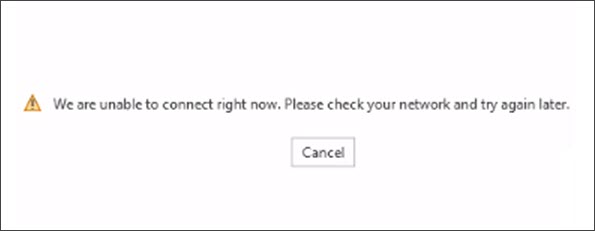
    When trying to activate (or sign in to) Microsoft Office with your Office 365 enterprise credentials, you may receive the following error. You may receive this error despite having internet access and being able to access other Office 365 resources.

    Office Signin - We are unable to connect right now. Please check your network and try again later.
    We are unable to connect right now. Please check your network and try again later.

    Alternatively, you may receive this error.

    Sorry, we are having some temporary server issues.

    These errors are due to the Office suite (M365 Apps) believing it has no connection to the internet. The Office suite uses Windows to determine if it is connected to the internet. If Windows does not believe it is connected to the internet, you may see an exclamation symbol in your system tray over the network connection icon. Selecting the network connection icon may indicate that the connection has ‘Limited Access’ or ‘No Internet.’

    Are the connection URLs blocked?

    Despite this error showing in Office, this is a Windows problem. Several things could make Windows think it has “Limited Internet” or “No Internet.” Some culprits could include a misconfigured VPN, a web proxy intercepting or blocking traffic incorrectly, or restricted location awareness settings.

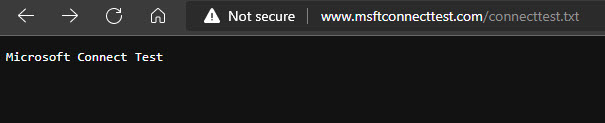
    To determine if this is a VPN or web proxy issue, see if you can navigate to the following URL – http://www.msftconnecttest.com/connecttest.txt. Windows 10 attempts to connect to this URL, retrieve the TXT file, and confirm its content. You can plug this URL into your web browser to see if you can access that file. You should see a response stating “Microsoft Connection Test.”

    Microsoft Connection Test URL accessed by Windows 10 Network Location Awareness service

    If you don’t get this response, or you get an error accessing this page, make sure that any web proxies or firewalls do not block msftconnecttest.com (over port 80) in your environment.

    If this test is successful, Windows 10 then attempts to resolve dns.msftncsi.com via DNS lookup. Note that this URL will not return any response in a browser. But you should confirm a firewall or web proxy does not block this URL.

    For more information on what URLs Windows 10 uses to check network connectivity, plus registry keys to confirm the NCSI probe has not been disabled, check this article: An Internet Explorer or Edge window opens when your computer connects to a corporate network or a public network

    [Read more…] about Office Activations fails ‘We are unable to connect right now.’
    Print Friendly, PDF & Email

    Filed Under: Office 365 Solutions, Outlook Solutions

    Managing mailbox storage with Outlook on the Web (OWA)

    March 18, 2022 By Gareth Gudger 1 Comment

    Share
    Tweet
    Share

    Outlook on the web (OWA) has some great features when it comes to managing your mailbox storage. These features not only include an analysis of how you are consuming your mailbox space, but also tools to clean up that space. In this article, we will take a look into managing a mailbox and a potential method for cleaning it up.

    To access this feature open Outlook on the Web, select the Settings (” “) icon in the top-right and the View all Outlook Settings link, at the bottom of the Settings pop-out window.
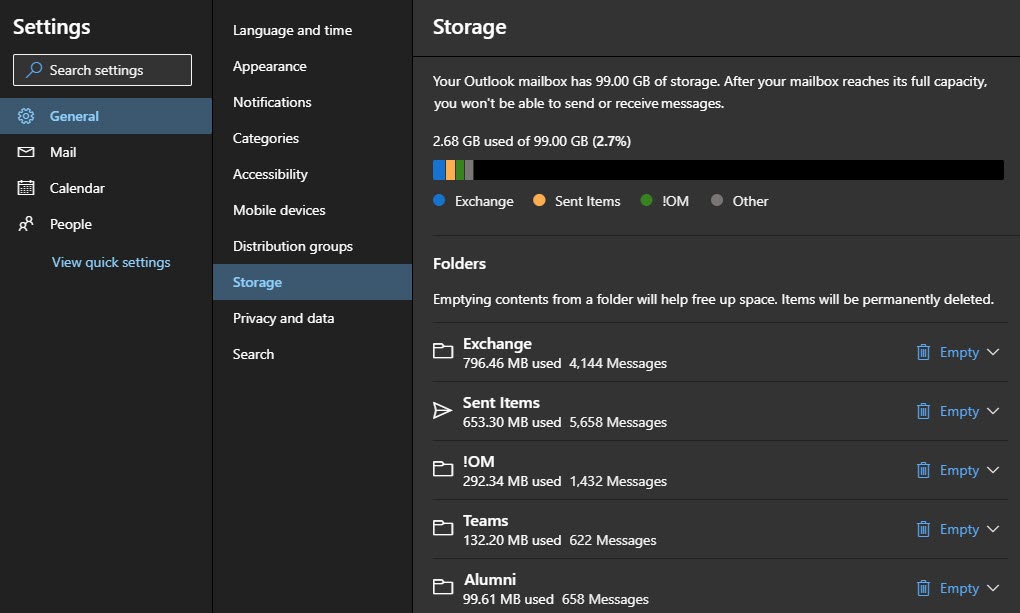
    From the Settings screen, select the General then Storage tabs.

    Managing mailbox storage with Outlook on the Web (OWA)

    The top part of the Storage screen displays a chart that identifies our allowable mailbox size and our consumption of that allowable size. In our example, we are using 2.68 GB of an allowed 99 GB.

    The chart also identifies how much space the top three folders are consuming in blue, yellow, and green. The grey color is the sum of all remaining folders in the mailbox. The legend below the chart identifies the names of the top three folders. From our example, you can see the top three folders in this mailbox are named “Exchange”, “Sent Items” and “!OM”.

    The lower part of the Storage screen lists all folders in the mailbox, the size of each folder in megabytes, and the number of items in each folder. From our example, we can see the “Exchange” folder is 796 MBs in size and contains 4,144 items. Note that this list will not show any empty folders.

    [Read more…] about Managing mailbox storage with Outlook on the Web (OWA)
    Print Friendly, PDF & Email

    Filed Under: Office 365 Tutorials, Outlook Tutorials

    • « Go to Previous Page
    • Page 1
    • Page 2
    • Page 3
    • Page 4
    • Interim pages omitted …
    • Page 51
    • Go to Next Page »

    Primary Sidebar

    Want to stay up to date?

    Sidebar Form

    Join thousands of IT professionals and get the latest Exchange & Office 365 tips and tutorials direct to your inbox

    DigiCert Banner 300x348

    (help support us using our affiliate link)

    Footer

    Site Navigation

    • Subscribe to blog
    • About SuperTekBoy
    • Disclaimer
    • Privacy & Cookies
    • Contact Us

    Want to stay up to date?

    Footer Form

    Join thousands of IT professionals and get the latest Exchange & Office 365 tips and tutorials direct to your inbox

    Join the conversation

    • Twitter
    • LinkedIn
    • Facebook
    • RSS

    Copyright © 2025 · SuperTekBoy LLC