• Skip to primary navigation
  • Skip to main content
  • Skip to primary sidebar
  • Skip to footer

SuperTekBoy

Practical Help for Exchange & Office 365

  • Exchange
    • News
    • Tutorials
    • Solve a Problem
  • Office 365
    • News
    • Tutorials
    • Solve a Problem
  • Outlook
    • Tutorials
    • Solve a Problem
  • Books
  • Podcasts
  • Quick Links…
    • Generate or Renew SSL Certs for Exchange
    • Connect PowerShell to Exchange Online
    • Connect PowerShell to Office 365
    • Extend Schema for Exchange
    • Exchange Schema & Build Numbers
  • More…
    • Kemp Load Balancers
    • Other tech…
    • Videos
    • About SuperTekBoy
    • Contact Us

Office 365 RSS

Easily Connect to Exchange Online with PowerShell

April 30, 2015 By Gareth Gudger 8 Comments

Share
Tweet
Share

In a previous article, I explained how to connect to Office 365 with PowerShell. In this article, we explore how to use PowerShell to connect to Exchange Online.

Note: This article only covers the PowerShell v2 and v3 modules. Exchange Online PowerShell v1 module was removed from this article as it is deprecated as of October 1st, 2022, with the deprecation of basic authentication.

Let’s get started!

Exchange Online PowerShell Module

One of the challenges of a large Exchange Online organization is that PowerShell commands can take a very long time to run. The Exchange Team released the Exchange Online PowerShell V2 module to combat this problem, which ships with all new Exchange cmdlets while still supporting the old cmdlets. Microsoft has determined that these new cmdlets are up to eight times faster in certain instances. I highly recommend using this module over the V1 module. The V2 module has been generally available since June 2020.

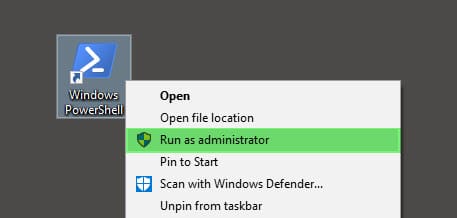
To use the new Exchange Online module, launch PowerShell as an administrator and run the following command.

 C:\> Install-Module ExchangeOnlineManagement

If you did not have NuGet previously installed from another PowerShell library you will be prompted to install it. Press Y and hit Enter.

 NuGet provider is required to continue.
PowerShellGet requires NuGet provider version '2.8.5.201' or newer to 
interact with NuGet-based repositories. The NuGet provider must be 
available in 'C:\Program Files\PackageManagement\ProviderAssemblies' or
'C:\Users\<user>\AppData\Local\PackageManagement\ProviderAssemblies'. 

You can also install the NuGet provider by running 'Install-PackageProvider 
-Name NuGet -MinimumVersion 2.8.5.201 -Force'. 

Do you want PowerShellGet to install and import the NuGet provider now?
[Y] Yes [N] No [S] Suspend [?] Help (default is "Y"): Y
[Read more…] about Easily Connect to Exchange Online with PowerShell
Share
Tweet
Share

Filed Under: Office 365, Office 365 RSS, Office 365 Tutorials

Office 365: Set Passwords To Never Expire

February 26, 2014 By Gareth Gudger 1 Comment

Share
Tweet
Share

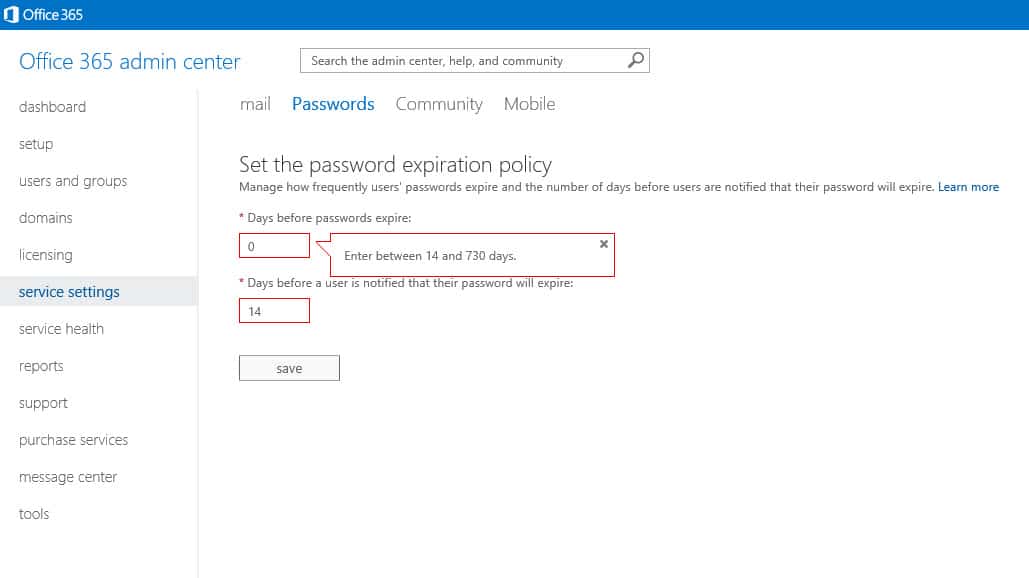
If you have ever tried to tweak the password policy in Office365 then you have likely encountered this warning.

Office365 Admin Center Password Expiration

Unfortunately, this restricts us to a password that can never be used for more than 730 days (2 years). Anything outside that range and you receive an error like the one above.

Does this mean that a password must expire?

Well, no, it does not have to.

Now password expiration is a best practice but, you may have a situation that necessitates having a more permanent password. One such example could be a service account for a network copier. The copier would use this account to perform scan-to-email functions. A user would scan a hardcopy of a document into the scanner and send it to email leveraging Office 365.

Most likely, you are never going to log with the scanner account. This means you will never see the expiration notice. You could set up a calendar reminder for yourself. You could also plaster your monitor with sticky notes. But, more than likely, your scan-to-email will break one day and leave you scratching your head as to why.

So, how do you set a password to never expire? The Admin Center gives you an error. So, what is left?

[Read more…] about Office 365: Set Passwords To Never Expire

Filed Under: Office 365, Office 365 RSS, Office 365 Tutorials

Easily Connect to Office 365 with PowerShell

February 20, 2014 By Gareth Gudger 2 Comments

Share
Tweet
Share

Office 365 is great, but the Admin Center does not bode well for bulk tasks. What might take an insanely massive amount of time in the graphical user interface may only take seconds in PowerShell.

In the first part of this article, we discuss all the prerequisites required to make the connection. The second part discusses how to make the connection.

Prerequisites

First, we need to install the MSOnline module in PowerShell. To do this launch PowerShell as an administrator.

Then type the following:

 C:\> Install-Module -Name MSOnline

You may be prompted to install the NuGet provider if it is missing or out of date. Type Y and press enter to install NuGet.

NuGet provider is required to continue

PowerShellGet requires NuGet provider version '2.8.5.201' or newer to interact with NuGet-based repositories. The NuGet provider must be available in 'C:\Program Files\PackageManagement\ProviderAssemblies' or
'C:\Users\Administrator\AppData\Local\PackageManagement\ProviderAssemblies'. You can also install the NuGet provider by running 'Install-PackageProvider -Name NuGet -MinimumVersion 2.8.5.201 -Force'.

Do you want PowerShellGet to install and import the NuGet provider now?
[Y] Yes [N] No [S] Suspend [?] Help (default is "Y"): Y

You may be prompted to allow installation from an untrusted repository. With this being a known module from the PowerShell Gallery, type Y and press enter. However, it is always wise to scrutinize all modules, regardless of where they are sourced.

Untrusted repository

You are installing the modules from an untrusted repository. If you trust this repository, change its InstallationPolicy value by running the Set-PSRepository cmdlet.

Are you sure you want to install the modules from 'PSGallery'?
[Y] Yes [A] Yes to All [N] No [L] No to All [S] Suspend [?] Help (default is "N"): Y

With the module installed you will need to close any PowerShell windows. 

[Read more…] about Easily Connect to Office 365 with PowerShell

Filed Under: Office 365, Office 365 RSS, Office 365 Tutorials

Getting your multifunction network scanner to work with Office 365

February 13, 2013 By Gareth Gudger 34 Comments

Share
Tweet
Share

I ran into a strange issue recently where I could not get a Konica Minolta Bizhub multifunction network scanner to send scans to email using office 365.

After some useful posts on the Microsoft Office 365 Community Forums and a lot of trial and error, I discovered what I needed to do to make this particular scanner relay mail through Office 365.

[Read more…] about Getting your multifunction network scanner to work with Office 365

Filed Under: Office 365 RSS, Office 365 Solutions

  • « Go to Previous Page
  • Page 1
  • Page 2
  • Page 3

Primary Sidebar

Want to stay up to date?

Sidebar Form

Join thousands of IT professionals and get the latest Exchange & Office 365 tips and tutorials direct to your inbox

DigiCert Banner 300x348

(help support us using our affiliate link)

Footer

Site Navigation

  • Subscribe to blog
  • About SuperTekBoy
  • Disclaimer
  • Privacy & Cookies
  • Contact Us

Want to stay up to date?

Footer Form

Join thousands of IT professionals and get the latest Exchange & Office 365 tips and tutorials direct to your inbox

Join the conversation

  • Twitter
  • LinkedIn
  • Facebook
  • RSS

Copyright © 2026 · SuperTekBoy LLC