• Skip to primary navigation
  • Skip to main content
  • Skip to primary sidebar
  • Skip to footer

SuperTekBoy

Practical Help for Exchange & Office 365

  • Exchange
    • News
    • Tutorials
    • Solve a Problem
  • Office 365
    • News
    • Tutorials
    • Solve a Problem
  • Outlook
    • Tutorials
    • Solve a Problem
  • Books
  • Podcasts
  • Quick Links…
    • Generate or Renew SSL Certs for Exchange
    • Connect PowerShell to Exchange Online
    • Connect PowerShell to Office 365
    • Extend Schema for Exchange
    • Exchange Schema & Build Numbers
  • More…
    • Kemp Load Balancers
    • Other tech…
    • Videos
    • About SuperTekBoy
    • Contact Us

Install Exchange 2016 in your lab (Part 1)

September 8, 2015 By Gareth Gudger 10 Comments

Share
Tweet
Share
Exchange 2013 & 2016 Big Logo

With Exchange 2016 in public preview–and many folks already downloading the bits–it was time to sharpen our pencils and write a 2016 install series.

The goal of this series is to help you introduce Exchange 2016 into your existing 2010/2013 lab.

How to install Exchange 2016 in a lab

In this series, we will:

  • Review lab recommendations
  • Review Exchange 2016 requirements
  • Building the VM / OS
  • Install Exchange 2016 prerequisites
  • Extend the Active Directory schema
  • Install Exchange 2016
  • Configure a simple Exchange 2016 namespace
  • Create and process a certificate request
  • Move the database
  • Move test users

Don’t try this in production

Exchange 2016 will not be released until later this year. You never want to test preview code in a production environment. Always use a lab.

Labs can be inexpensive. If your PC has enough RAM and disk space, Hyper-V might be a perfect fit. Hyper-V comes included with Windows 8 and greater, and it’s very feature-rich. I ran a lab this way for some time.

If you don’t have space, then consider an external USB 3.0 or eSATA drive. I have a number of colleagues that run successfully this way. Some laptops let you swap out their optical drive for a secondary hard drive. Either way, internal or external, a second hard drive is a nice way to keep things organized. For an extra boost, you may want to consider a solid-state drive. I currently own a Samsung 850 EVO 500GB SSD, and I am thoroughly impressed with it.

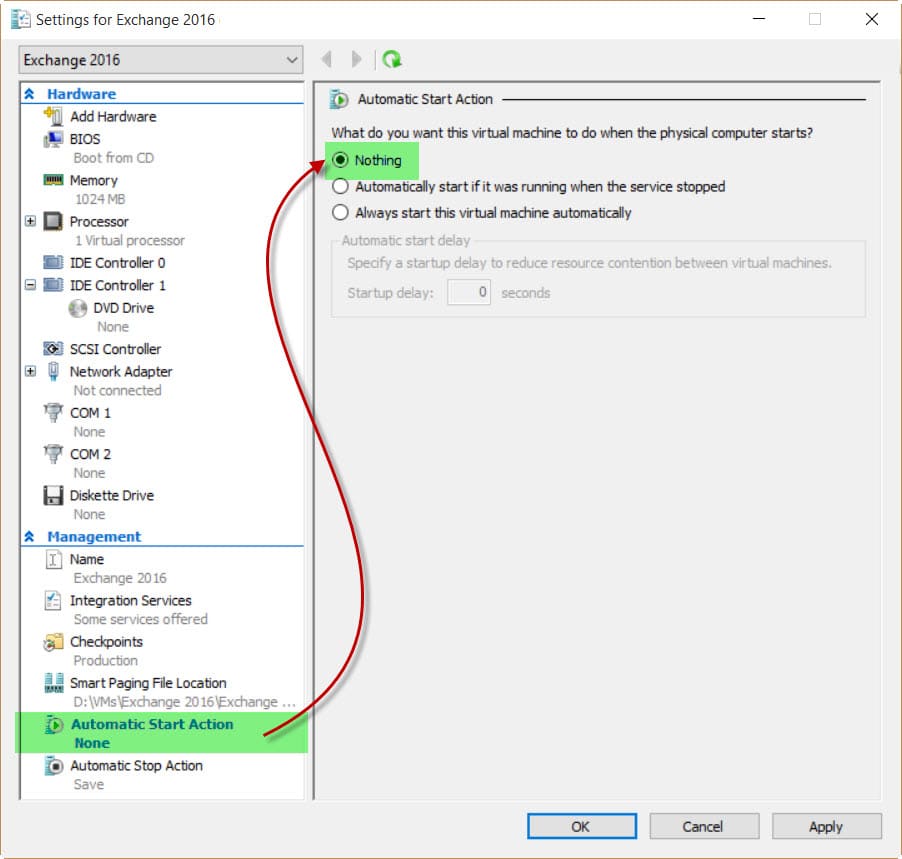
If you are going to run multiple Exchange servers from your primary PC, then I would recommend one minor tweak–startup settings. If you are running a few VMs and have set them to start with the OS, you could be in for an incredibly long boot process (even with a solid-state drive). My recommendation–have those VMs not start with the host OS. You can do this by modifying the properties of each VM. Either turning off auto-start or setting a sizeable delay will do the trick.

If you have money to spend, you may want to consider buying a refurbished server from an auction site. An HP DL 380 G5 with 16GB of RAM and a couple of hard drives goes for around $100 these days.

[Read more…] about Install Exchange 2016 in your lab (Part 1)

Print Friendly, PDF & Email
Share
Tweet
Share

Filed Under: Exchange Tutorials

Fatal error MrsHttpUnauthorizedException

August 6, 2015 By Gareth Gudger 2 Comments

Share
Tweet
Share

Recently I encountered the following error when completing a mailbox move from Exchange to Office 365.

  8/1/2015 12:00:00 AM [CY1PR11MB0001] Fatal error MrsHttpUnauthorizedException has occurred.

The initial sync had worked fine. The mailbox was AutoSuspended at 95%. It was ready to be completed. Yet, it did not want to go. I repeated a Resume-MoveRequest on a similar mailbox–same exact error.

Sadly, the interwebs seemed devoid of any real information. Luckily a good friend and colleague alerted me to the root cause. This error will occur if the password has changed on the account used to create the move request.

In my case, this had indeed happened.

The remedy for MrsHttpUnauthorizedException

To fix the issue we need to update the credentials on the move request. To do this we need to enlist the help of the Set-MoveRequest cmdlet. Let’s get started.

[Read more…] about Fatal error MrsHttpUnauthorizedException
Print Friendly, PDF & Email

Filed Under: Exchange, Exchange Solutions, Office 365, Office 365 RSS, Office 365 Solutions

Slow Document Editing when using SharePoint Sync

August 4, 2015 By Gareth Gudger Leave a Comment

Share
Tweet
Share

Recently I ran into an issue where editing a Word document was painfully slow. Every time I typed a letter it was followed by an unbearable lag. Typing a sentence would sputter in dribs and drabs. This was not going to work.

SharePoint Online Document Library Sync

The document in question was stored in SharePoint Online. I was using the Sync feature for easy access from my local computer.

The fix was actually quite simple.

Fix Slow Document Editing

Check the bottom-right of your Word document. If you see something that says Updates Available click it. If successful the Updates Available notice will disappear and Word will perform at its normal speed.

If you hover over Updates Available before you click it, you will see a description of what is actually going on.

[Read more…] about Slow Document Editing when using SharePoint Sync
Print Friendly, PDF & Email
Share
Tweet
Share

Filed Under: Office 365 RSS, Office 365 Solutions

Exchange 2016 public preview released

July 23, 2015 By Gareth Gudger Leave a Comment

Share
Tweet
Share
Exchange 2016 Big Logo

Today was an exciting day! Microsoft released the public preview for Exchange 2016.

Our first exposure to Exchange 2016 was at Microsoft Ignite back in May. Since then its been fairly tight-lipped. For more information on what we learned regarding Exchange 2016, I recommend my write-up ‘What Ignite taught us about Exchange 2016‘.

If you haven’t seen them I highly recommend checking out all Exchange sessions from Microsoft Ignite. The Exchange Team collated them in a blog post here. If there are any two Exchange sessions you should watch then it is these two; Ross Smith’s Exchange Server Preferred Architecture and Brian Day’s Deploying Exchange 2016.

The official release announcement for Exchange 2016 can be found on the Exchange Team’s blog. To download the bits follow this link.

[Read more…] about Exchange 2016 public preview released
Print Friendly, PDF & Email

Filed Under: Exchange News

RBAC hides the Office 365 Mailbox creation link

July 21, 2015 By Gareth Gudger 23 Comments

Share
Tweet
Share

If you have configured Exchange 2013 in hybrid mode then you have probably noticed the appearance of this link. It’s the Office 365 Mailbox creation link.

New Office 365 Mailbox link

However, if you have implemented RBAC this link may not show when you’d expect it to.

I ran into this recently when upgrading an Exchange 2010 hybrid environment to 2013. Previously the client had implemented RBAC where members of the helpdesk team were added to the Recipient Management group. In 2010 this allowed the helpdesk team to create and manage mail recipients; both on-premise and in the cloud. However, when this group attempted to use the 2013 management tools the Office 365 Mailbox link was absent.

After some digging–plus some trial and error–we quickly found an oddity. The short answer–it’s all based around one missing role entry. To see that link you need access to the Get-RemoteDomain command. Members of Recipient Management do not have this.

[Read more…] about RBAC hides the Office 365 Mailbox creation link
Print Friendly, PDF & Email

Filed Under: Exchange, Exchange Solutions, Office 365, Office 365 RSS, Office 365 Solutions

Exchange Install Hangs on Languages Step

July 7, 2015 By Gareth Gudger 13 Comments

Share
Tweet
Share
Exchangr 2013 Hangs on Languages Step During Setup

One of the common problems we see with antivirus is that it sends Exchange installs to a painful crawl. It becomes particularly apparent during the Languages step. I have personally witnessed this behavior during both Exchange 2010 and 2013 upgrades. The issue is the file-level antivirus. In particular real-time protection. If enabled it can cause Exchange installs to take several hours.

The solution–disable real-time protection before installing or upgrading Exchange.

In fact, make sure you have all the exceptions in place as outlined by this Microsoft TechNet article. At a very minimum I recommend to exclude–from all scans–the entire Exchange install directory, transport files, IIS files and, the entire drive (or mount point) where each database and its associated log files reside. If you have a DAG exclude the witness directory and the cluster database files.

Note: With all the hooks that antivirus has into the OS disabling real-time protection might not be enough. In some cases temporarily uninstalling antivirus might be the answer.

But how do we know its antivirus?

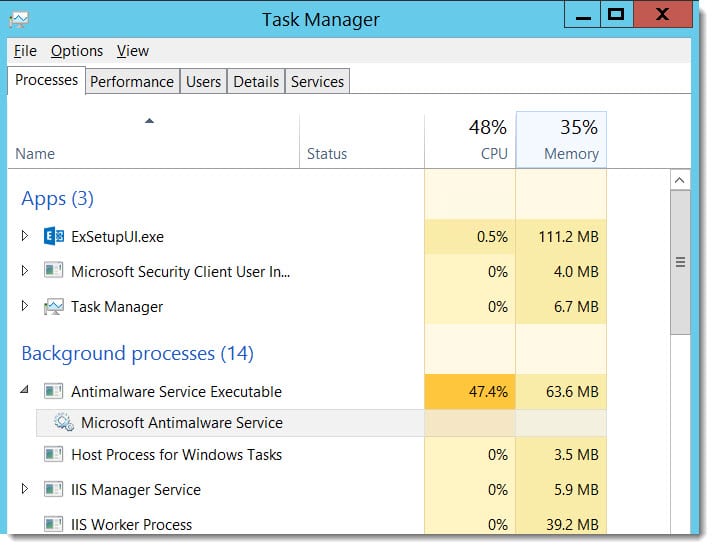
One of the common symptoms is high CPU utilization. Bringing up task manager we can see that antivirus is very active during the Exchange install.

System Center Endpoint Protection High CPU

As soon as we disable real-time protection CPU utilization drops and the Languages step completes in a few minutes.

Below are the instructions on disabling real-time protection for Microsoft SCEP.

Disable real-time protection (System Center Endpoint Protection)

To disable real-time protection in System Center Endpoint Protection (SCEP) perform the following steps:

Double-click the EndPoint Protection (System Center EndPoint Protection Taskbar Icon) icon in the taskbar.

Select the Settings tab. Select Real-time protection.

Uncheck Turn on Real-time Protection (recommended).

System Center Endpoint Protection Real-Time Protection

Click Save Changes.

How about you? Have you experienced upgrade slowdowns from real-time protection? Do you think we need file-level antivirus on Exchange servers at all? Drop a comment below.

Print Friendly, PDF & Email

Filed Under: Exchange Solutions

  • « Go to Previous Page
  • Page 1
  • Interim pages omitted …
  • Page 30
  • Page 31
  • Page 32
  • Page 33
  • Page 34
  • Interim pages omitted …
  • Page 51
  • Go to Next Page »

Primary Sidebar

Want to stay up to date?

Sidebar Form

Join thousands of IT professionals and get the latest Exchange & Office 365 tips and tutorials direct to your inbox

DigiCert Banner 300x348

(help support us using our affiliate link)

Footer

Site Navigation

  • Subscribe to blog
  • About SuperTekBoy
  • Disclaimer
  • Privacy & Cookies
  • Contact Us

Want to stay up to date?

Footer Form

Join thousands of IT professionals and get the latest Exchange & Office 365 tips and tutorials direct to your inbox

Join the conversation

  • Twitter
  • LinkedIn
  • Facebook
  • RSS

Copyright © 2026 · SuperTekBoy LLC