• Skip to primary navigation
  • Skip to main content
  • Skip to primary sidebar
  • Skip to footer

SuperTekBoy

Practical Help for Exchange & Office 365

  • Exchange
    • News
    • Tutorials
    • Solve a Problem
  • Office 365
    • News
    • Tutorials
    • Solve a Problem
  • Outlook
    • Tutorials
    • Solve a Problem
  • Books
  • Podcasts
  • Quick Links…
    • Generate or Renew SSL Certs for Exchange
    • Connect PowerShell to Exchange Online
    • Connect PowerShell to Office 365
    • Extend Schema for Exchange
    • Exchange Schema & Build Numbers
  • More…
    • Kemp Load Balancers
    • Other tech…
    • Videos
    • About SuperTekBoy
    • Contact Us

Exchange

Exchange June 2016 Updates

June 22, 2016 By Gareth Gudger Leave a Comment

Share
Tweet
Share
Exchange 2013 Big Logo

Earlier this month was a big day for Exchange updates. Not only did we get Cumulative Update 13 for Exchange 2013, but we also got our second update for Exchange 2016.

As always, test these updates in a lab first! I recommend checking out this 7-part guide on configuring Exchange in your lab. It doesn’t take much to get one going.

The updates are as follows:

Exchange 2016 Mini

Exchange Server 2016 Cumulative Update 2 | UM Language Pack Download

Exchange 2013 Cumulative Update 9

Exchange Server 2013 Cumulative Update 13 | UM Language Pack Download

Exchange 2010 Mini

Exchange Server 2010 SP3 Update Rollup 14

Exchange 2007 Mini

Exchange Server 2007 SP3 Update Rollup 20

Update: Special thanks to Keith Kroslow who pointed out that Exchange 2010 and 2007 did get an update. Their updates fix a potential elevation issue for Oracle products installed on an Exchange server. Check out KB 3151097 for 2010 and KB 3151086 for 2007.

So what’s new?

This update is a culmination of bug fixes and feature tweaks. Most notably we now see official support for .NET 4.6.1. The lack of support became a particular issue when Windows Updates began recommending this update back in February. Thankfully all stability issues have since been resolved. Microsoft recommends updating to CU2 and CU13 before installing .NET 4.6.1.

In the last update, we saw the end of SHA-1 certificates for S/MIME. This update follows suit by dropping SHA-1 from Exchange’s self-signed certificates. To get this added security you will need to regenerate your existing self-signed certificates. SHA-2 will be deployed by default for newly installed Exchange servers.

Another important update is the resolution of potential data loss when migrating public folders. You can read more about it in KB 3161916.

We also see added support for BitLocker during AutoReseed operations. Up to this point, you had to manually encrypt a hot spare either before or after an AutoReseed operation. With this update, we can now have Disk Reclaimer automatically encrypt the drive during AutoReseed operations. You will need to enable this functionality on your DAG.

 C:\> Set-DatabaseAvailabilityGroup <Name> -AutoDagBitLockerEnabled $true
[Read more…] about Exchange June 2016 Updates
Filed Under: Exchange, Exchange News

Exchange 2016: Public Folder migration (Part 2)

March 11, 2016 By Gareth Gudger 61 Comments

Share
Tweet
Share

PREVIOUS: Exchange 2016: Public Folder migration Part 1

In part one of public folder migration, we prepared our environment. Then we ran all the necessary scripts to size and create the new public folder mailbox hierarchy.

In this second and final part of our series, we will copy the data from the legacy public folder databases into our newly created modern public folders. We will also finalize the migration process.

Step 3: Data Migration

Let’s start moving our data. First, let’s create the migration batch. From the Exchange 2016 server issue the following command.

 C:\> New-MigrationBatch -Name PFMigration -SourcePublicFolderDatabase (Get-PublicFolderDatabase -Server EX10) -CSVData (Get-Content C:\PFScripts\FolderToMailbox.csv -Encoding Byte) -NotificationEmails headgeek@exchangeservergeek.com

In our example:

-Name specifies a display name to help identify the batch.
-SourcePublicFolderDatabase (-Server) specifies the 2010 server hosting the public folder database. In my lab, this is called EX10.
-CSVData specifies the path to our map file we created in part one of our series. We had called this FolderToMailbox.csv and saved it to C:\PFScripts.
-NotificationEmails specifies where to email the batch migration report. This is optional.

 C:\> New-MigrationBatch -Name PFMigration -SourcePublicFolderDatabase (Get-PublicFolderDatabase -Server EX10) -CSVData (Get-Content 
C:\PFScripts\FolderToMailbox.csv -Encoding Byte) -NotificationEmails headgeek@exchangeservergeek.com

Identity         Status       Type              TotalCount
--------         ------       ----              ----------
PFMigration      Created      PublicFolder      1

[PS] C:\>

This only creates the job. To start the actual data copy run the following command. If you named your job anything other than PFMigration you will need to change that here.

 C:\> Start-MigrationBatch PFMigration

We can check the progress of the batch by logging into the Exchange Admin Center. Once logged in, navigate to Recipients >> Migration tab.

[Read more…] about Exchange 2016: Public Folder migration (Part 2)
Share
Tweet
Share

Filed Under: Exchange, Exchange Tutorials

Exchange 2016: Public Folder migration made easy

March 9, 2016 By Gareth Gudger 28 Comments

Share
Tweet
Share

If you are in the planning stages for migration from Exchange 2010 to Exchange 2016, then you have probably seen this TechNet article.

At first, it may seem daunting.

So many scripts. So many PowerShell commands.

If you are not comfortable with PowerShell it may seem a bit overwhelming.

Plus, it is vastly different than any previous migration process.

Why the change?

Architecture

Beginning with Exchange 2013–and continued with 2016–public folders underwent a major architectural change.

This new architecture is referred to as Modern Public Folders. The old architecture is now known as Legacy Public Folders. But its much more than a name change. Gone is the Public Folder database. And hello are the new Public Folder Mailboxes.

The benefit?

No more Public Folder Replication. Boy, did that used to be a pain!

With Public Folders stored as a mailbox, that mailbox can now be part of a Database Availability Group (DAG). And with that, all the benefits of Windows Failover Clustering.

This makes the migration process vastly different.

On a high level, it is the process of moving all data out of a database and into a special mailbox. That is where the scripts come in. I’ll explain along the way.

Let’s get started!

Works with 2013: This process also works with migrations to Exchange 2013 (from 2007 SP3 RU15 or 2010 SP3 RU8). It requires Exchange 2013 be on Cumulative Update 7 or later. If not, you will need to perform the older serial migration method documented here.

[Read more…] about Exchange 2016: Public Folder migration made easy
Share
Tweet
Share

Filed Under: Exchange, Exchange Tutorials

RemoteExchange.ps1 cannot be loaded

March 7, 2016 By Gareth Gudger 1 Comment

Share
Tweet
Share
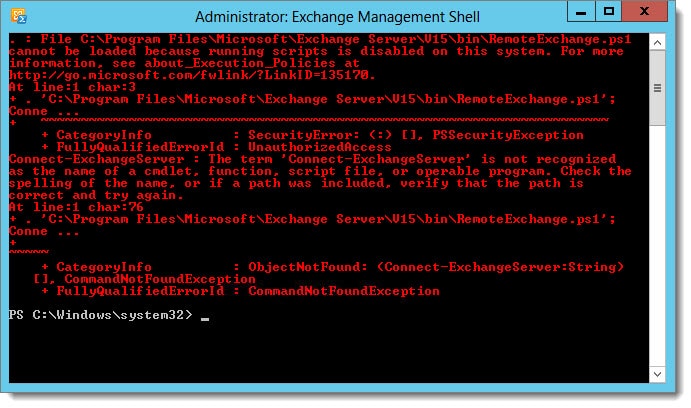
Cannot be loaded because running scripts is disabled on this system
File .\RemoteExchange.ps1 cannot be loaded because running scripts is disabled on this system. For more information, see about_Execution_Policies at http://go.microsoft.com/fwlink/?LinkID=135170.

If you see the above error the fix is actually quite simple. The error is caused when your execution policy in PowerShell is too restrictive. You can determine the level of restriction by typing Get-ExecutionPolicy cmdlet. You may see a response similar to that of the following:

 C:\> Get-ExecutionPolicy
Restricted

By default, Exchange needs its execution policy to be at RemoteSigned. Remote signed implies the following characteristics.

[Read more…] about RemoteExchange.ps1 cannot be loaded
Share
Tweet
Share

Filed Under: Exchange, Exchange Solutions

Import & Export SSL Certificates in Exchange Server 2013 (and older versions of 2016 & 2019)

October 28, 2015 By Gareth Gudger 1 Comment

Share
Tweet
Share

If you have multiple Exchange servers, it is imperative that each server have a valid 3rd-party certificate reflecting the namespace. If you don’t, some client connections will get certificate errors.

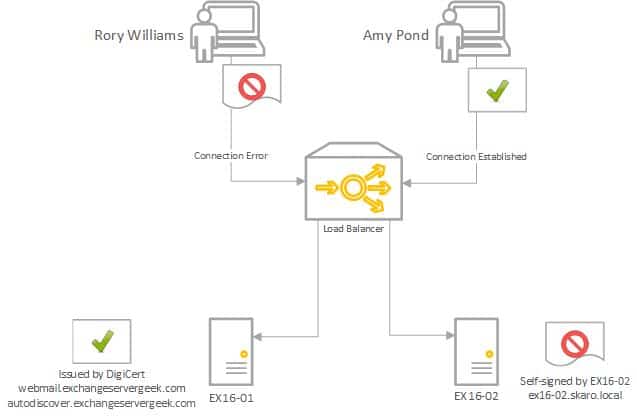
In our example below, we have two Exchange 2016 servers behind a load balancer in a single site; EX16-01 and EX16-02. Our third-party certificate request was generated and completed on EX16-01. We have also assigned services to that certificate. However, that certificate does not yet exist on EX16-02. Only the default out-of-the-box certificates exist on EX16-02.

When user Amy Pond connects, she is load balanced to EX16-01, which has a 3rd party certificate. The certificate matches the namespace. Her connection is established without error. On the other hand, when Rory Williams connects, he is load balanced to EX16-02. EX16-02 returns its self-signed certificate. This certificate does not match the namespace. Rory receives a security error.

Exchange 2016 Certificate Error

In this article, we explore transferring a third-party SSL certificate from one Exchange server to another.

We explore this process through both the Exchange Admin Center and PowerShell.

Let’s get started!

Note: These steps are identical for Exchange 2013, Exchange 2016 CU22 and earlier, and Exchange 2019 CU11 and earlier. If you are using Exchange 2016 CU23 or greater or Exchange 2019 CU12 or greater, you must renew your certificate with all new PowerShell commands covered in the following article.

Export the certificate with Exchange Admin Center

Log in to the Exchange Admin Center. It doesn’t have to be the server you created your request on.

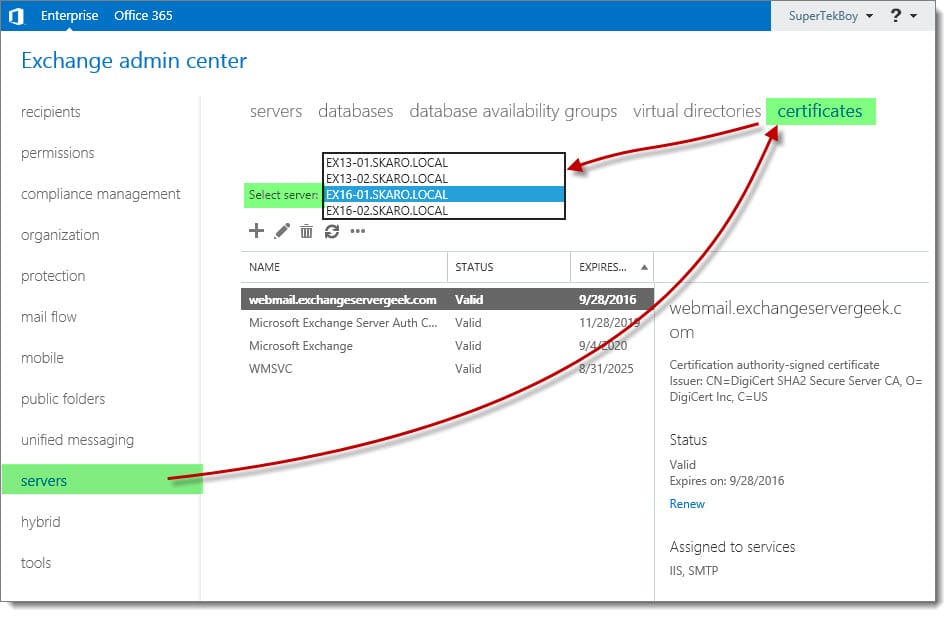
Navigate to the Servers tab and Certificates sub-tab.

In the Select Server drop-down, pick the server you completed the certificate request on. In our example, this was EX16-01.

Export Import SSL Certificate Exchange Server 2016 A
[Read more…] about Import & Export SSL Certificates in Exchange Server 2013 (and older versions of 2016 & 2019)
Share
Tweet
Share

Filed Under: Exchange, Exchange Tutorials

Assign Services to a Certificate in Exchange 2013 (and older versions of 2016 & 2019)

October 27, 2015 By Gareth Gudger 1 Comment

Share
Tweet
Share

In previous articles, we generated and completed a certificate request. Keep in mind that despite the request being completed, it is not yet live. We must still assign services to that certificate.

In this article, we will assign services to a certificate (affiliate) in Exchange 2016. We explore how to accomplish this using the Exchange Admin Center and PowerShell.

Let’s get started!

Note: The Exchange Admin Center steps to assign services to certificates are identical for Exchange 2013, Exchange 2016, and Exchange 2019. If you are using Exchange 2016 CU23 or greater or Exchange 2019 CU12 or greater, and you wish to use PowerShell, check this article for the updated commands.

Assign Services to a Certificate with Exchange Admin Center

Log in to the Exchange Admin Center (EAC). Select the Servers tab and Certificates sub-tab.

Select your certificate and click the Edit (Edit button) button.

Assign Services to a Certificate in Exchange 2016
[Read more…] about Assign Services to a Certificate in Exchange 2013 (and older versions of 2016 & 2019)
Share
Tweet
Share

Filed Under: Exchange, Exchange Tutorials

  • Page 1
  • Page 2
  • Page 3
  • Interim pages omitted …
  • Page 5
  • Go to Next Page »

Primary Sidebar

Want to stay up to date?

Sidebar Form

Join thousands of IT professionals and get the latest Exchange & Office 365 tips and tutorials direct to your inbox

DigiCert Banner 300x348

(help support us using our affiliate link)

Footer

Site Navigation

  • Subscribe to blog
  • About SuperTekBoy
  • Disclaimer
  • Privacy & Cookies
  • Contact Us

Want to stay up to date?

Footer Form

Join thousands of IT professionals and get the latest Exchange & Office 365 tips and tutorials direct to your inbox

Join the conversation

  • Twitter
  • LinkedIn
  • Facebook
  • RSS

Copyright © 2026 · SuperTekBoy LLC