• Skip to primary navigation
  • Skip to main content
  • Skip to primary sidebar
  • Skip to footer

SuperTekBoy

Practical Help for Exchange & Office 365

  • Exchange
    • News
    • Tutorials
    • Solve a Problem
  • Office 365
    • News
    • Tutorials
    • Solve a Problem
  • Outlook
    • Tutorials
    • Solve a Problem
  • Books
  • Podcasts
  • Quick Links…
    • Generate or Renew SSL Certs for Exchange
    • Connect PowerShell to Exchange Online
    • Connect PowerShell to Office 365
    • Extend Schema for Exchange
    • Exchange Schema & Build Numbers
  • More…
    • Kemp Load Balancers
    • Other tech…
    • Videos
    • About SuperTekBoy
    • Contact Us

Exchange Cumulative Updates (June 2020)

June 19, 2020 By Gareth Gudger 3 Comments

Share
Tweet
Share
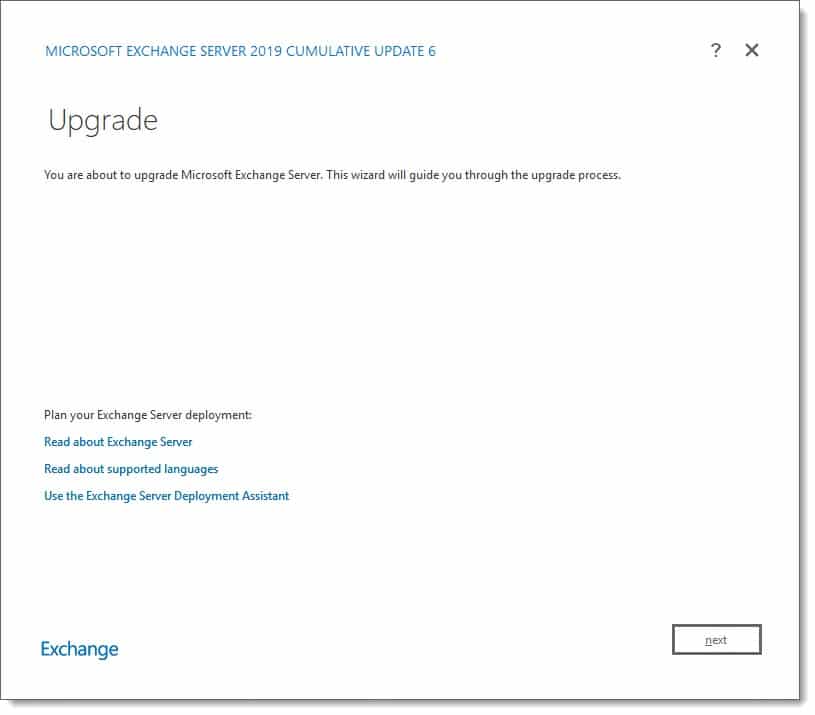
Exchange 2019 CU6

This week was a big week for Exchange. Microsoft released its sixth cumulative update for Exchange 2019 as well as a cumulative update for Exchange 2016. At the time of writing, there is no cumulative update for Exchange 2013.

As always, test these updates in a lab first! I recommend checking out this 7-part guide on configuring Exchange in your lab. It doesn’t take much to get one going.

The updates are as follows:

Exchange Logo Mini

Exchange 2019 Cumulative Update 6 (VLSC)| KB4556415

Exchange 2013 Cumulative Update 9

Exchange 2016 Cumulative Update 17 | KB4556414 | UM Language Pack

So, what’s new in these Cumulative Updates?

In this series of cumulative updates, Microsoft added thirteen new blocked file types for use with the OWA Mailbox Policy. The additions included several scripting extensions, including many python file types such as .py, .pyc, and .pyo. For a full list of the new extensions, check the following article.

These cumulative updates also correct an issue when using the Restore-RecoverableItems command in a pipe. We covered the cloud-exclusive GUI version of this command in an article earlier this week. Be sure to check it out.

Companies leveraging Hybrid Modern Authentication will also want to take note of these updates as they fix unexpected authentication prompts during certificate rollovers.

Customers leveraging Edge Transport will also want to take note as these updates resolve a situation where Edge Transport servers may become unresponsive due to deadlock in the shadow redundancy manager.

For a full list of all fixes, be sure to check out the KBs KB4556415 and KB4556414.

[Read more…] about Exchange Cumulative Updates (June 2020)

Print Friendly, PDF & Email

Filed Under: Exchange News, Office 365 News

Exchange Online Updates (June 2020)

June 19, 2020 By Gareth Gudger Leave a Comment

Share
Tweet
Share

Recover deleted mail using the new Exchange Admin Center in Office 365

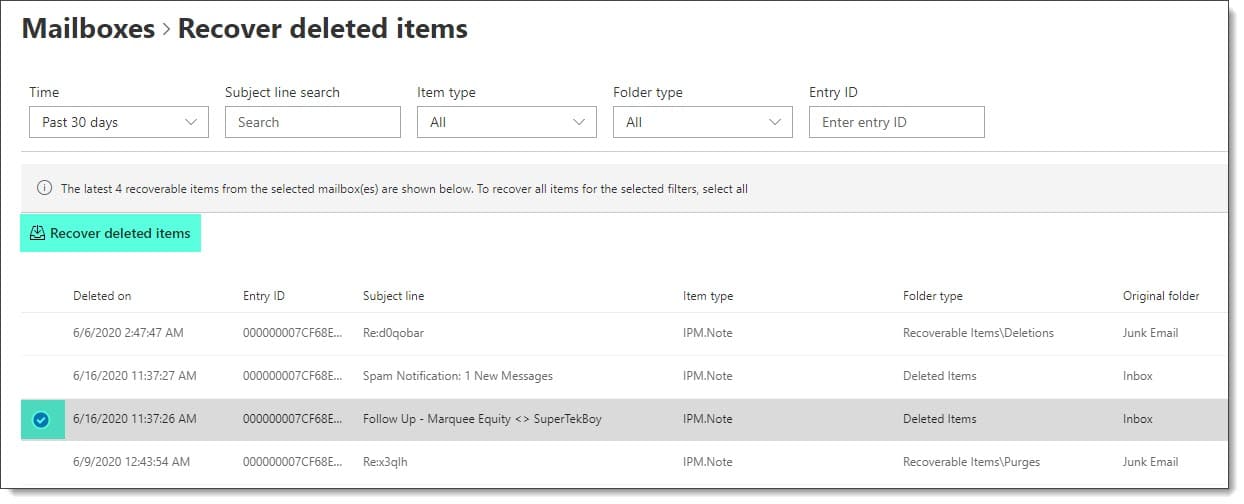
In the last quarterly update, we covered the new Exchange Admin Center in Office 365. Exclusive to the new admin center is the ability to recover deleted items back into a user’s mailbox. This process has been available using PowerShell for some time.

Recover deleted email items for a user in Office 365 B

Keep in mind you can only recover up to the limit of your single item recovery policy. By default, this is 14 days in Office 365, but can be increased to 30 days (although you will need to set this ahead of time).

You can read more about how to recover deleted items in the following article.

Preventing Reply-All Storms in Exchange Online

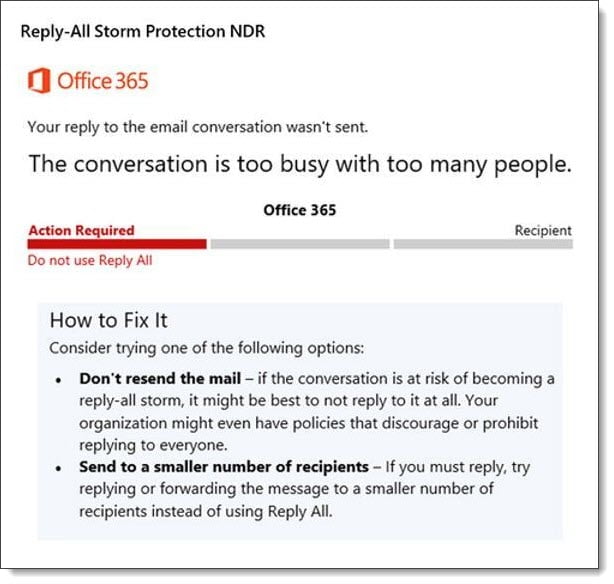
Microsoft has added a new feature to combat reply-all storms. These storms are particularly prevalent when numerous people execute a reply-all to a massive distribution list.

Reply-All Storm Protection in Exchange Online

Microsoft’s initial reply-all protection will block replies to an email thread for 4 hours if it detects more than ten reply-all messages within 60 minutes to a thread with over 5,000 recipients.

The eleventh sender will receive a non-delivery report titled Reply-All Storm Protection with the reason the message was blocked.

[Read more…] about Exchange Online Updates (June 2020)
Print Friendly, PDF & Email

Filed Under: Exchange News, Office 365 News

Recover deleted email using the new Exchange Admin Center

June 16, 2020 By Gareth Gudger 12 Comments

Share
Tweet
Share

The PowerShell command to recover deleted email for a user has been around for some time. However, these PowerShell commands now have a graphical interface in the new Exchange Admin Center.

In this article, we explore how to recover deleted email for a user. But first, there are some permission prerequisites.

Assigning your admin account recovery permissions

Before we can restore mail for a user we need permission to do so. The permission in question is the Mailbox Import / Export permission. By default, no one is assigned this permission in Exchange.

Log onto the Exchange Admin Center and navigate to Permissions > Admin Roles.

At this point, we have two options. We can either assign the Mailbox Import / Export role to an existing role group (such as Organization Management) or, we can create a new role group. Let’s do the latter.

Click the New button (). This launches the new role group dialog.
Creating a new role group for Mailbox Import Export

Type a Name and Description for your role. In our example, we went with Email Recovery Role.

If needed select a custom write scope, or, leave at default. The default scope allows the role holder to apply these permissions to the entire organization. You can define a custom write scope to limit the scope of this permission. For example, the scope could be limited to a specific business unit or group of users. This is particularly useful if you need to delegate this role.

Under Roles click the Add button ().

Double-click Mailbox Import Export and click Ok.

Under Members click the Add button ().

Double-click each administrator you want to assign this role and click Ok.

Click Save.

Note: Once the role group is created it can take up to one hour for the permissions to take effect.

[Read more…] about Recover deleted email using the new Exchange Admin Center
Print Friendly, PDF & Email

Filed Under: Office 365 Tutorials

How to continue a failed Exchange uninstall

June 15, 2020 By Gareth Gudger 8 Comments

Share
Tweet
Share

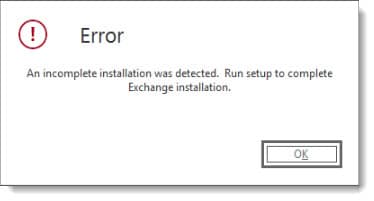
If you receive an error during an uninstall that is never a good thing. But what happens when you clear the error and Exchange is in a partially uninstalled state. Restarting the uninstall from Control Panel > Programs and Features may result in an error like this.

An incomplete installation was detected - Run setup to complete Exchange installation
An incomplete installation was detected. Run setup to complete Exchange installation.

To uninstall you are going to need the Exchange installation ISO. Once you have the ISO mounted open an elevated command prompt and change to the ISO drive letter (e.g. “cd D:”). Then run the following command.

D:\> setup.exe /mode:uninstall

The mode parameter allows you to specify the installation method. In our case, we specify we want to perform an uninstall. You can read about the various parameters in the following article.

The Exchange uninstall will then pick up where it left off. In my case, the Exchange installation failed during the removal of the Transport Services. The Mailbox and Client Access roles had already been successfully removed, so that is where it picked back up.

Microsoft Exchange Server 2013 Cumulative Update 23 Unattended Setup
Mailbox role: Mailbox service
Mailbox role: Unified Messaging service
Mailbox role: Client Access service
Mailbox role: Transport service
Client Access role: Front End Transport service
Client Access role: Client Access Front End service
Languages

Performing Microsoft Exchange Server Prerequisite Check

   Configuring Prerequisites                            COMPLETED
   Prerequisite Analysis                                COMPLETED

Configuration Microsoft Exchange Serve

   Preparing Setup                                      COMPLETED
   Mailbox role: Transport Services                     COMPLETED
   Client Access role: Front End Transport service      COMPLETED
   Client Access role: Client Access Front End service  COMPLETED
   Languages                                            COMPLETED
   Stopping Services                                    COMPLETED
   Removing Exchange Files                              COMPLETED
   Restoring Services                                   COMPLETED
   Finalizing Setup                                     COMPLETED

The Exchange Server setup operation completed successfully.

With the uninstall of Exchange complete you can now continue with the remainder of your decommission process.

Twitter

Have you seen this issue before? What did you do to fix it? Drop a comment below or join the conversation on Twitter @SuperTekBoy

Print Friendly, PDF & Email

Filed Under: Exchange Solutions

Cannot connect to the Remote Procedure Call service – Microsoft Exchange

June 14, 2020 By Gareth Gudger 2 Comments

Share
Tweet
Share

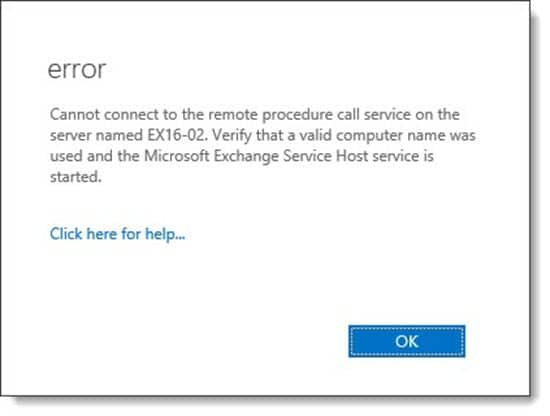
When accessing the certificates from a remote Exchange Server via the Exchange Admin Center you may receive the following error.

Cannot connect to the remote procedure call service on the server B
Cannot connect to the remote procedure call service on the server named <server name>. Verify that a valid computer name was used and the Microsoft Exchange Service Host service is started.

What makes this error difficult to troubleshoot are the other areas of remote management (such as managing the virtual directories of another server) work as expected.

This error also occurs in the Exchange Management Shell when running the Get-ExchangeCertificate command.

 C:\> Get-ExchangeCertificate -Server EX16-02

Cannot connect to the remote procedure call service on the server named EX16-02. Verify that a valid computer name was used and the Microsoft Exchange Service Host service is started.
[Read more…] about Cannot connect to the Remote Procedure Call service – Microsoft Exchange
Print Friendly, PDF & Email

Filed Under: Exchange Solutions

Hybrid Configuration Wizard fails: WinRM client cannot process the request

June 13, 2020 By Gareth Gudger 1 Comment

Share
Tweet
Share

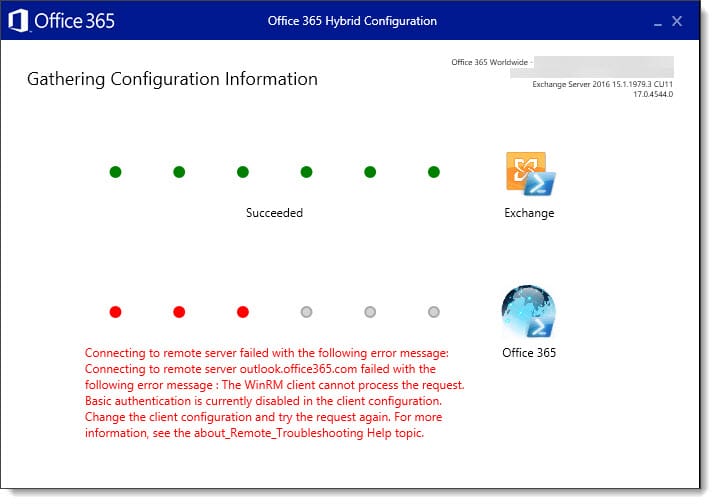
Ran into the following error when running the Hybrid Configuration Wizard. The error occurred during the gathering configuration information screen, immediately after authenticating to Office 365.

The WinRM client cannot process the request - Basic Authentication is currently disabled
Connecting to remote server failed with the following error message: Connecting to remote server outlook.office365.com failed with the following error message:  The WinRM client cannot process the request. Basic authentication is currently disabled in the client configuration . Change the client configuration and try the request again.

From the error message we can see the issue lies with basic authentication being disabled in the WinRM client. Basic authentication is enabled by default, so the fact it is disabled is likely due to security being hardened in the operating system.

[Read more…] about Hybrid Configuration Wizard fails: WinRM client cannot process the request
Print Friendly, PDF & Email

Filed Under: Exchange Solutions, Office 365 Solutions

  • « Go to Previous Page
  • Page 1
  • Interim pages omitted …
  • Page 6
  • Page 7
  • Page 8
  • Page 9
  • Page 10
  • Interim pages omitted …
  • Page 51
  • Go to Next Page »

Primary Sidebar

Want to stay up to date?

Sidebar Form

Join thousands of IT professionals and get the latest Exchange & Office 365 tips and tutorials direct to your inbox

DigiCert Banner 300x348

(help support us using our affiliate link)

Footer

Site Navigation

  • Subscribe to blog
  • About SuperTekBoy
  • Disclaimer
  • Privacy & Cookies
  • Contact Us

Want to stay up to date?

Footer Form

Join thousands of IT professionals and get the latest Exchange & Office 365 tips and tutorials direct to your inbox

Join the conversation

  • Twitter
  • LinkedIn
  • Facebook
  • RSS

Copyright © 2026 · SuperTekBoy LLC