• Skip to primary navigation
  • Skip to main content
  • Skip to primary sidebar
  • Skip to footer

SuperTekBoy

Practical Help for Exchange & Office 365

  • Exchange
    • News
    • Tutorials
    • Solve a Problem
  • Office 365
    • News
    • Tutorials
    • Solve a Problem
  • Outlook
    • Tutorials
    • Solve a Problem
  • Books
  • Podcasts
  • Quick Links…
    • Generate or Renew SSL Certs for Exchange
    • Connect PowerShell to Exchange Online
    • Connect PowerShell to Office 365
    • Extend Schema for Exchange
    • Exchange Schema & Build Numbers
  • More…
    • Kemp Load Balancers
    • Other tech…
    • Videos
    • About SuperTekBoy
    • Contact Us

Exchange Solutions

GMail App fails to connect to Exchange – Certificate not valid

February 17, 2018 By Gareth Gudger 3 Comments

Share
Tweet
Share

Ran into an issue recently where Outlook was working fine, however, Android devices, particularly mobile phones, would throw an error that the certificate was invalid when configuring an Exchange mailbox via the Gmail app. The error was:

Certificate not valid

The Gmail app can't guarantee the security of this email address. Your messages would be at risk.
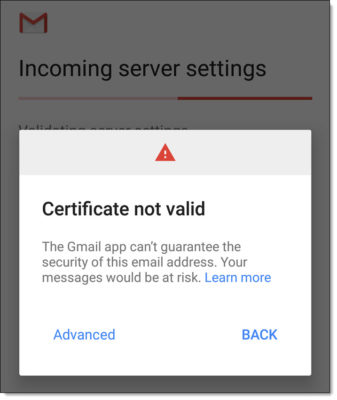
GMail App fails to connect to Exchange - Certificate not valid

When clicking Advanced, we received more clarification that the certificate was not trusted. However, we could quickly see that the correct certificate was being presented to the Android devices, and it clearly wasn’t an issue with the date.

Certificate not trusted

Contact your email provider about this error, or proceed with username (unsafe).
GMail App fails to connect to Exchange - Certificate not trusted

We then tested our certificate with DigiCert’s SSL Certificate Checker. This is a great tool to confirm that the certificate is installed correctly and that the certificate path is valid. You can check any certificate with this tool. It does not have to be a certificate issued by DigiCert. In our case, we were testing our GoDaddy certificate with this tool.

[Read more…] about GMail App fails to connect to Exchange – Certificate not valid
Filed Under: Exchange Solutions

Exchange does not have Audit Security Privilege on the domain controller

January 6, 2018 By Gareth Gudger 11 Comments

Share
Tweet
Share

While reviewing the event logs on your Exchange server you could encounter the following error.

Log Name: Application
Source: MSExchange ADAccess
Event ID: 2112
Task Category: Topology

Description:
 Process Microsoft.Exchange.Directory.TopologyService.exe (PID=2700). 
 The Exchange computer dc03.supertekboy.com does not have Audit Security 
 Privilege on the domain controller dc03.supertekboy.com. This domain 
 controller will not be used by Exchange Active Directory Provider.

We ran into this recently at a customer. This was an odd error because the description specified the name of one of our domain controllers as an “Exchange Computer”. That aside, my customer was receiving this error for two of their three domain controllers (dc02 & dc03). The error was also repeated across all their Exchange servers.

To make matters worse if the customer shut down the only domain controller not reported in these errors (dc01) Exchange would become completely unavailable. As the error stated, dc02 and dc03 were definitely not being used by the Exchange Active Directory Provider.

Further analysis of the event logs also revealed informational alert MSExchange ADAccess 2080. In this alert, we could see our three domain controllers with one striking difference.

Log Name: Application
Source: MSExchange ADAccess
Event ID: 2080
Task Category: Topology

Description:
 Exchange Active Directory Provider has discovered the following servers with
 the following characteristics:

 (Server name | Roles | Enabled | Reachability | Synchronized | GC capable |
 PDC |  SACL right  | Critical Data | Netlogon | OS Version)
 In-site:
 dc01.supertekboy.com CDG 1 7 7 1 0  1  1 7 1
 dc02.supertekboy.com CDG 1 7 7 1 0  0  1 7 1
 dc03.supertekboy.com CDG 1 7 7 1 0  0  1 7 1

In the eighth column (highlighted), dc01 was reporting a 1 whereas dc02 and dc03 were reporting a 0. All other column data was identical between the three servers. The words in parenthesis are actually the column headers. They don’t line up very well in event viewer but if we count to the eighth word we see the column is titled “SACL right”. What this means is that the Exchange servers are missing the SACL right on the domain controllers marked with a zero.  Or more specifically, Exchange is missing the right to manage the security and audit logs of those two domain controllers.

[Read more…] about Exchange does not have Audit Security Privilege on the domain controller

Filed Under: Exchange Solutions

Error ‘Cannot stop tmlisten service’ when installing Exchange updates

December 31, 2017 By Gareth Gudger 3 Comments

Share
Tweet
Share

When installing an Exchange update you may run into the following error.

Error:
The following error was generated when "$error.Clear(); 
 & $RoleBinPath\ServiceControl.ps1 -Operation:DisableServices -Roles:($RoleRoles.Replace('Role','').Split(',')) -SetupScriptsDirectory:$RoleBinPath;
 & $RoleBinPath\ServiceControl.ps1 Stop $RoleRoles.Replace('Role','').Split(',')
 " was run: "Microsoft.Exchange.Configuration.Tasks.ServiceStopFailureException: 
 Service 'tmlisten' failed to stop due to error:'Cannot stop tmlisten service on computer 
---> System.InvalidOperationException:  Cannot stop tmlisten service on computer 
---> System.ComponentModel.Win32Exception: The requested control is not valid for this service

The tmlisten service is associated with the Trend Micro antivirus product and specifically the Trend Micro Listener service. This service requires a password to stop and can not be disabled via either the services snap-in or command line.

Tip: It’s best practice to temporarily shut down antivirus products during the Exchange install as they have been known to increase install times by several hours. Or, in this case, completely block updates.

The tmlisten workaround

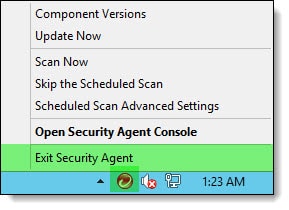
To disable Trend Micro right-click on its icon in the system tray and select Exit Security Agent.

Temporarily disabling Trend Micro - tmlisten.exe

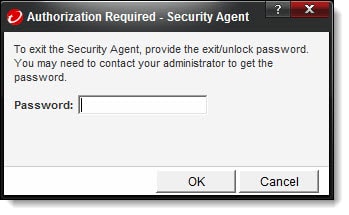
You will be prompted to enter a password to shut down the Trend Micro services. Enter this password and click Ok.

Trend Micro Disable With Password - tmlisten.exe

You may need to wait about 60 seconds for the Trend Micro services to stop. Once stopped you can continue your Exchange update past this error.

Twitter

Have you ever run into this problem? What did you do to fix it? Drop a comment below or come join the conversation on Twitter @SuperTekBoy.

Filed Under: Exchange Solutions

No account settings were returned from the Autodiscover response

December 30, 2017 By Gareth Gudger 22 Comments

Share
Tweet
Share

While attempting to configure an Outlook client with an Exchange mailbox I ran into an issue where the account creation would not complete. Instead, Outlook would stop on “Search for server settings” and prompt me for a username and password. The credentials of my Exchange account did not work and kicked back the login prompt.

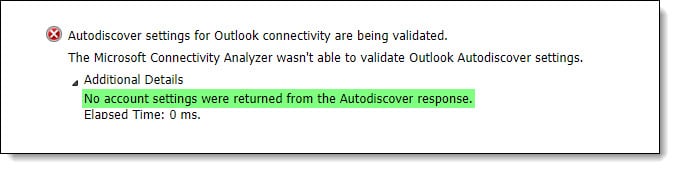
When I attempted to test Autodiscover using testconnectivity.microsoft.com I ran into an even stranger error. Autodiscover appeared to work. But I received the error “No account settings were returned from the Autodiscover response”.

No account settings were returned from the Autodiscover response

Examining the Autodiscover response I noticed that the test successfully completed against the root of supertekboy.com. This was odd as supertekboy.com is redirected to the website www.supertekboy.com where no Autodiscover responses should be happening.

No account settings were returned from the Autodiscover response using root domain record

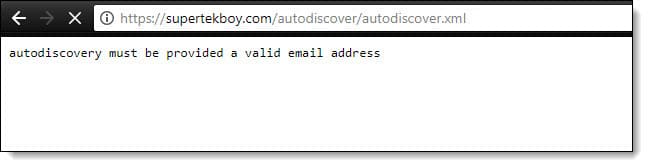
However, when attempting to plug the Autodiscover URL into a web browser I found that something was responding to Autodiscover requests. It was responding with an error of “Autodiscovery must be provided a valid email address”.

Autodiscovery must be provided a valid email address b

This isn’t an Exchange or Office 365 autodiscover response. Instead, this was my web hosting provider responding to my Autodiscover request. Specifically, cPanel. cPanel has its own implementation of autodiscover, which allows Outlook and other email clients to automatically configure themselves for a cPanel mailbox. Unfortunately, this conflicts with autodiscover locating an Exchange or Office 365 mailbox.

[Read more…] about No account settings were returned from the Autodiscover response

Filed Under: Exchange Solutions, Office 365 Solutions

Disabling TLS 1.0 may cause Outlook to crash

November 11, 2017 By Gareth Gudger 1 Comment

Share
Tweet
Share

Disabling TLS 1.0 may cause Outlook to crash for some of your clients.

I encountered this recently while upgrading a customer from Exchange 2010 to Exchange 2016. The customer had an existing Kemp Load Balancer they had been using for Exchange 2010. We upgraded the Kemp to the latest firmware and created a new Exchange 2016 VIP using the latest templates from Kemp. When we cut over our DNS to the new VIP, some of our Outlook clients started to receive the errors below. Other Outlook clients continued to operate without incident.

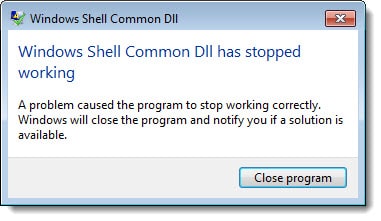
For some Outlook clients, we would receive errors when creating a brand new profile in Outlook. Errors such as,“Windows Shell Common DLL has stopped working”

Outlook 2016 - Windows Shell Common DLL has stopped working

Clicking “Close Program” would then be followed by an error reporting that “System resources are critically low”.

Outlook 2016 - System resources are critically low
[Read more…] about Disabling TLS 1.0 may cause Outlook to crash

Filed Under: Exchange Solutions, Kemp Load Balancers, Other Tech

Error installing Exchange update – The certificate is expired

October 29, 2017 By Gareth Gudger 3 Comments

Share
Tweet
Share

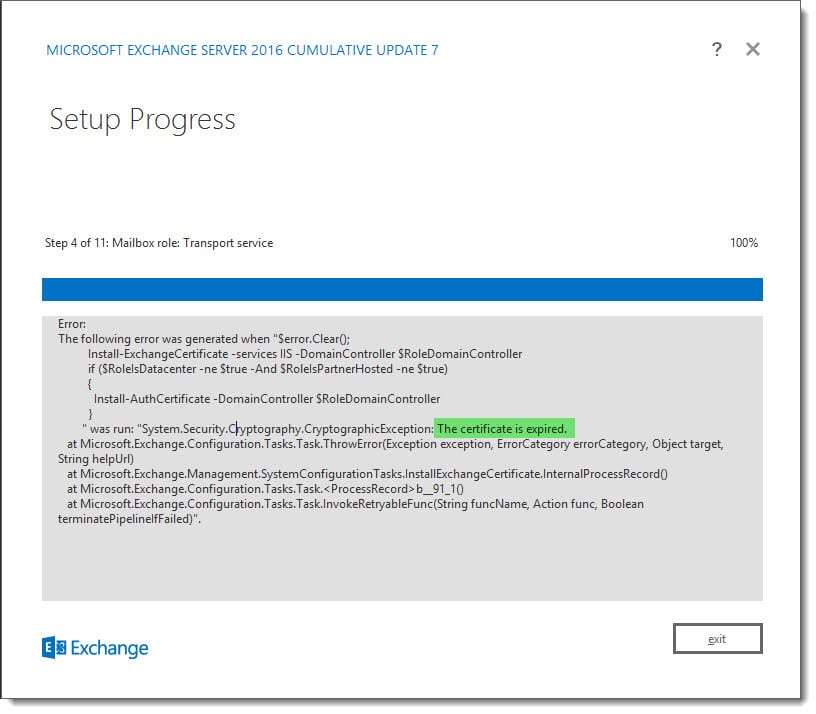
While upgrading one of my Exchange lab servers I was presented with the error, “The certificate is expired.”

Upgrading Exchange 2016 - The certificate is expired

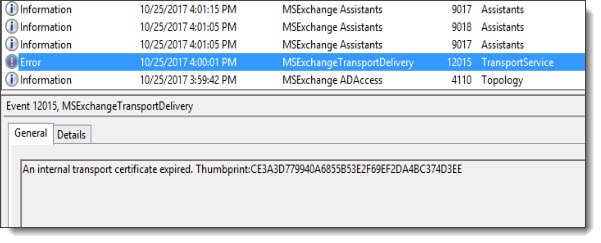
This error occurred while setup was installing the transport service and it was blocking the install from completing. Further investigation of the event logs indicated that the transport certificate had expired (Event ID 12015). This made sense why the setup was failing during that step.

MSExchangeTransportDelivery 12015 TransportService An internal transport certificate expired

The challenge here was the Exchange Admin Center would no longer load. Luckily, the Exchange Management Shell was still operational. The following are the steps to renew a certificate using the Exchange Management Shell. I have included instructions for renewing both a self-signed and third-party certificate. Once renewed setup will complete. If you have multiple Exchange servers in your lab it is also possible to do this task remotely against the problem server.

[Read more…] about Error installing Exchange update – The certificate is expired

Filed Under: Exchange Solutions

  • « Go to Previous Page
  • Page 1
  • Interim pages omitted …
  • Page 3
  • Page 4
  • Page 5
  • Page 6
  • Page 7
  • Interim pages omitted …
  • Page 11
  • Go to Next Page »

Primary Sidebar

Want to stay up to date?

Sidebar Form

Join thousands of IT professionals and get the latest Exchange & Office 365 tips and tutorials direct to your inbox

DigiCert Banner 300x348

(help support us using our affiliate link)

Footer

Site Navigation

  • Subscribe to blog
  • About SuperTekBoy
  • Disclaimer
  • Privacy & Cookies
  • Contact Us

Want to stay up to date?

Footer Form

Join thousands of IT professionals and get the latest Exchange & Office 365 tips and tutorials direct to your inbox

Join the conversation

  • Twitter
  • LinkedIn
  • Facebook
  • RSS

Copyright © 2026 · SuperTekBoy LLC