• Skip to primary navigation
  • Skip to main content
  • Skip to primary sidebar
  • Skip to footer

SuperTekBoy

Practical Help for Exchange & Office 365

  • Exchange
    • News
    • Tutorials
    • Solve a Problem
  • Office 365
    • News
    • Tutorials
    • Solve a Problem
  • Outlook
    • Tutorials
    • Solve a Problem
  • Books
  • Podcasts
  • Quick Links…
    • Generate or Renew SSL Certs for Exchange
    • Connect PowerShell to Exchange Online
    • Connect PowerShell to Office 365
    • Extend Schema for Exchange
    • Exchange Schema & Build Numbers
  • More…
    • Kemp Load Balancers
    • Other tech…
    • Videos
    • About SuperTekBoy
    • Contact Us

Exchange Solutions

Error running /PrepareAD – User does not have permissions but is a member of Enterprise Admins

September 20, 2017 By Gareth Gudger 4 Comments

Share
Tweet
Share

While preparing Active Directory for Exchange you may run into the following error.

 F:\> Setup /PrepareAD /IAcceptExchangeServerLicenseTerms

Microsoft Exchange Server 2016 Cumulative Update 6 Unattended Setup
Copying files...
File copy complete. Setup will now collect additional information needed for installation.

Preforming Microsoft Exchange Server Prerequisite Check

   Prerequisite Analysis

Setup will prepare the organization for Exchange Server 2016 by using 'Setup /PrepareAD'.

Active Directory must be prepared with 'Setup /PrepareAD'. However, the current user account doesn't have the permissions required even though it's a member of the 'Enterprise Admins' group. Check whether this is a valid user account.

We ran into this recently at a client. This was an odd error because it indicated we had all the necessary group memberships to perform this task. We had also just used this account to successfully extend the schema moments before.

Fixing ‘User does not have permissions’

We quickly discovered that the Default Domain Controllers Policy (which is a group policy assigned to the domain controllers OU) had been removed. It was uncertain when this may have happened but the absence of this policy was not the issue itself. Moreover, it was a setting that comes predefined by that policy. The error we were receiving was due to the absence of the User Rights Assignment, Manage auditing and security logs. This right is granted to the Exchange Servers and Administrators built-in groups.

[Read more…] about Error running /PrepareAD – User does not have permissions but is a member of Enterprise Admins
Filed Under: Exchange Solutions

Topology discovery failed: Required number of suitable directory servers

August 6, 2017 By Gareth Gudger Leave a Comment

Share
Tweet
Share

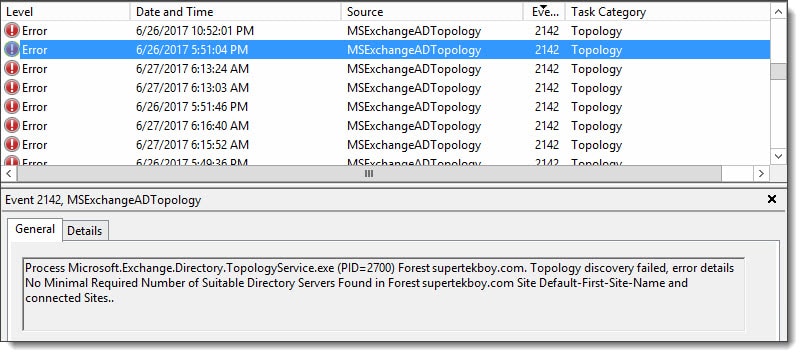
Recently, while troubleshooting an Exchange environment, I ran across event ID 2142 from the MSExchangeADTopology source. This error can be found in the application logs and indicates that the topology service could not find the minimum required domain controllers needed for Exchange. For the environment, I was troubleshooting this was particularly odd as this site containing Exchange had three functional domain controllers. The environment was also a single AD site. The error in full:

Process Microsoft.Exchange.Directory.TopologyService.exe (PID=2700) Forest domain.com. Topology discovery failed, error details: No Minimal Required Number of Suitable Directory Servers Found in Forest domain.com Site Default-First-Site-Name and connected Sites.
MSExchangeADTopology Event ID 2142
[Read more…] about Topology discovery failed: Required number of suitable directory servers

Filed Under: Exchange Solutions

Access is Denied when enabling Group Writeback

June 20, 2017 By Gareth Gudger 6 Comments

Share
Tweet
Share

Group Writeback is a feature in Azure AD Connect that allows for Office 365 Groups to be written back to your on-premises Active Directory as a universal distribution group. This allows your on-premises users in a hybrid environment to send email to the Office 365 Group.

When configuring group writeback you specify which organizational unit (OU) you want these objects to be written. Each of these Office 365 groups is then represented by a separate universal distribution group that starts with the name of “Group_” followed by a unique identifier.

In the screenshot below I have two Office 365 groups that are being written back to my local AD.

Group Writeback Azure AD Connect

The problem – Access is Denied

When I first tried to get these groups written back to this organizational unit was where I ran into problems. I was following this Microsoft document verbatim. The document specifies to open Active Directory Users and Computers and locate the account that started with “AAD_”. Which I found.

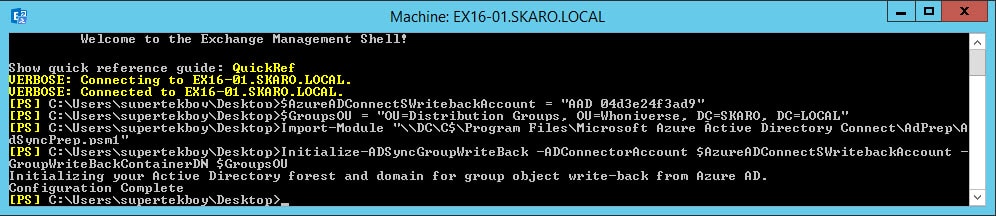
The document later uses this account to run a script. When running the script everything completed as expected. No errors.

Group Writeback Script Azure AD Connect

When I checked the permissions on the organizational unit I could see that the script had added the AAD_ account with a bunch of permissions. Everything looked good.

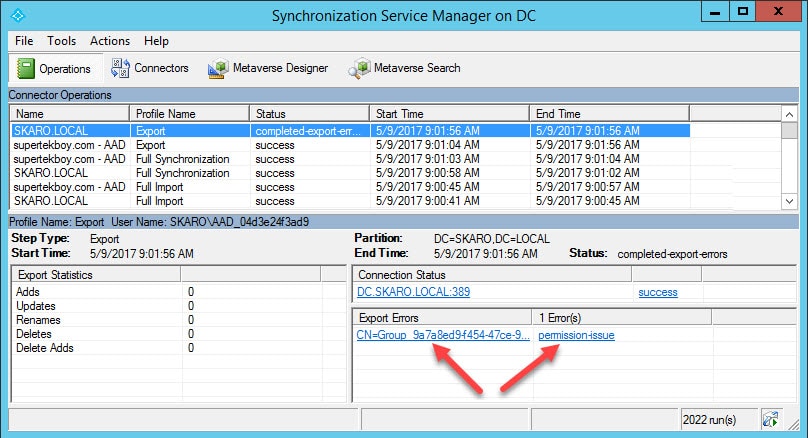
However, I quickly started generating errors in Azure AD Connect. When I opened the Synchronization Manager I received the following error on the export of my Office 365 group. “Permission Issue – Access is denied”

Group Writeback Access is Denied Synchronization Manager
[Read more…] about Access is Denied when enabling Group Writeback

Filed Under: Exchange Solutions, Office 365 Solutions

Hybrid mail flow: TLS negotiation failed with error NoCredentials

February 28, 2017 By Gareth Gudger 29 Comments

Share
Tweet
Share

Ran into a strange problem recently where an Exchange 2016 server could not send mail to Office 365 via hybrid mail flow. What made this situation particularly strange is that other Exchange servers in the environment had no problem sending messages over the hybrid connection. On the problem server, messages would get stuck in the queue and eventually time out.

The queues were filled with retries such as these.

451 4.4.0 Primary target IP address responded with: "421 4.2.1 Unable to connect." Attempted failover to alternate host, but that did not succeed. Either there are no alternate hosts, or deliver failed to all alternate hosts.

This message tells us that the server was unable to connect to Office 365. Unfortunately, it does not give us much detail beyond that. For that level of detail, we need to enable logging on the SMTP send connector used to send mail to Office 365.

Turn up logging on the SMTP Send Connector

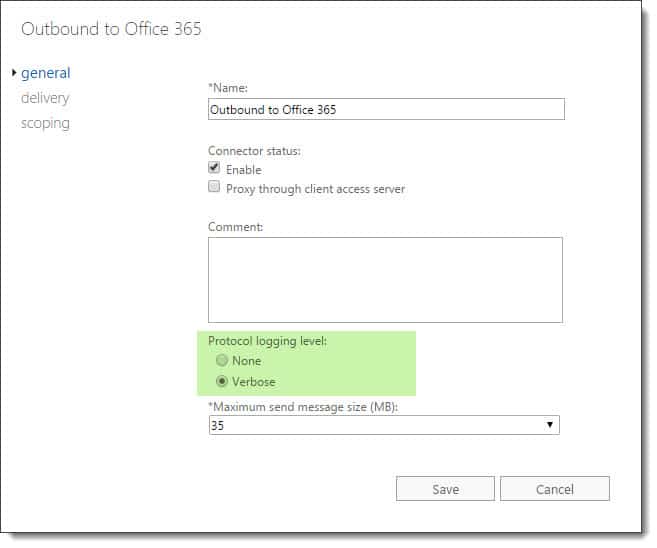
To enable logging on a send connector, log into the Exchange Admin Center (EAC) and select the Mail Flow tab and Send Connectors sub-tab. Double click the send connector named Outbound to Office 365 and select Verbose under the General tab. Click Save.

Configure verbose logging on Exchange 2016 send connector

To perform this same action through the Exchange Management Shell (EMS) type the following command.

 C:\> Set-SendConnector -Identity "Outbound to Office 365" -ProtocolLoggingLevel Verbose

Note: Protocol logging can take some time before it starts creating log files. You can jump-start this process by restarting the Microsoft Exchange Transport service. Keep in mind this will disrupt mail flow on that server while the service restarts. The default location for SMTP send logs in Exchange 2016 is  %ExchangeInstallPath%TransportRoles\Logs\Hub\ProtocolLog\SmtpSend.

While we waited for logging to generate some entries we also confirmed that we could successfully make a connection from the problem server to Office 365. For this task, we confirmed that we could telnet over port 25 to Office 365 and send an email message. This confirmed two things. First that this server was not being blocked on outbound port 25. Second that this server could resolve and reach Office 365 servers.

[Read more…] about Hybrid mail flow: TLS negotiation failed with error NoCredentials

Filed Under: Exchange Solutions, Office 365 RSS, Office 365 Solutions

An error occurred while testing the Mail Store (Mailbox logon returned ecLoginFailure -2147221231)

February 27, 2017 By Gareth Gudger 2 Comments

Share
Tweet
Share

Ran into a strange issue recently when a client upgraded from Exchange 2010 to Exchange 2016. The client had already decommissioned Exchange 2010 so coexistence was not a factor. Their configuration was a single-server running Exchange 2016. All mailboxes were located on a single database.

Outlook clients would work fine internally. Externally Outlook would never connect. The status bar would simply report ‘Trying to connect’. Outlook on the Web and all ActiveSync clients were working fine. In addition, the Autodiscover test on the Microsoft Remote Connectivity website was passing.

In contrast, the Outlook Connectivity test from the same site was failing. The following error was reported.

Testing the MAPI Mail Store endpoint on the Exchange server.
  An error occurred while testing the Mail Store.

Additional Details

Elapsed Time: 919 ms.

Test Steps

Attempting to log on to the Mailbox.
  An error occurred while logging on to the Mailbox.

Additional Details

Mailbox logon returned ecLoginFailure -2147221231. Possible causes are:

1. The user doesn't have any access to a private mailbox or public folder messaging data.

2. There are no private mailboxes or public folders on the server.

3. The server is exiting or is about to exit.

StatusCode: -2147221231

The possible causes identified by the error were equally vague. We confirmed these user credentials were working fine with Outlook on the Web and internally for the user. In addition, this was the only server hosting all the mailboxes and we could access them just fine with Outlook internally. As part of our troubleshooting, we disabled MAPI over HTTP in favor of the older RPC over HTTP connection method. Unfortunately, this provided the exact same result.

Fixing logon returned ecLoginFailure -2147221231

The remedy for us was to move all users to a new database. We tested this first by creating a new database and moving a single user over. When that user passed the Outlook connectivity test (and Outlook also connected externally) we moved all other users and system mailboxes to this database.

It is uncertain what was wrong with the original database. It was barely a week old and was the default database installed by Exchange. In any case, the fix was quite simple and it was easier to move the users than to continue troubleshooting for a root cause.

Twitter

Have you run into this error? What was your solution? Drop a comment below or join the conversation on Twitter @SuperTekBoy.

Filed Under: Exchange Solutions

Unexpected result from Windows Live. 1007 Access Denied – Federation Trust

February 11, 2017 By Gareth Gudger Leave a Comment

Share
Tweet
Share

Recently while trying to remove a domain from the federation trust I received the following error.

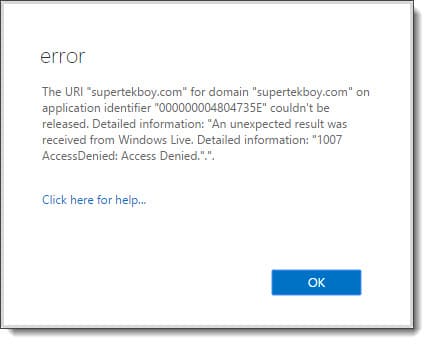
The URI couldn't be released. An unexpected results was received from Windows Live 1007 Access Denied
The URI "supertekboy.com" for domain "supertekboy.com" on application identifier "000000004804735E" couldn't be released. Detailed information: "An unexpected result was received from Windows Live. Detailed information: "1007 AccessDenied: Access Denied.".".

Despite the almost cryptic error, this one is actually quite simple to fix. In this particular case, the time in my domain was 5 minutes behind the rest of the world. Or more importantly, 5 minutes offset from the Microsoft Federation Gateway. As soon as I brought my time forward I was able to immediately release the shared domain from the federation trust.

Error 1007 can occur while making other configuration changes to the federation trust. It is not just linked to releasing a domain. So if you see this error while performing any task with the federation trust, check the time on your Exchange boxes.

Twitter

Have you run into this error? What was your solution? Drop a comment below or join the conversation on Twitter @SuperTekBoy.

Filed Under: Exchange Solutions, Office 365 RSS, Office 365 Solutions

  • « Go to Previous Page
  • Page 1
  • Interim pages omitted …
  • Page 4
  • Page 5
  • Page 6
  • Page 7
  • Page 8
  • Interim pages omitted …
  • Page 11
  • Go to Next Page »

Primary Sidebar

Want to stay up to date?

Sidebar Form

Join thousands of IT professionals and get the latest Exchange & Office 365 tips and tutorials direct to your inbox

DigiCert Banner 300x348

(help support us using our affiliate link)

Footer

Site Navigation

  • Subscribe to blog
  • About SuperTekBoy
  • Disclaimer
  • Privacy & Cookies
  • Contact Us

Want to stay up to date?

Footer Form

Join thousands of IT professionals and get the latest Exchange & Office 365 tips and tutorials direct to your inbox

Join the conversation

  • Twitter
  • LinkedIn
  • Facebook
  • RSS

Copyright © 2026 · SuperTekBoy LLC