• Skip to primary navigation
  • Skip to main content
  • Skip to primary sidebar
  • Skip to footer

SuperTekBoy

Practical Help for Exchange & Office 365

  • Exchange
    • News
    • Tutorials
    • Solve a Problem
  • Office 365
    • News
    • Tutorials
    • Solve a Problem
  • Outlook
    • Tutorials
    • Solve a Problem
  • Books
  • Podcasts
  • Quick Links…
    • Generate or Renew SSL Certs for Exchange
    • Connect PowerShell to Exchange Online
    • Connect PowerShell to Office 365
    • Extend Schema for Exchange
    • Exchange Schema & Build Numbers
  • More…
    • Kemp Load Balancers
    • Other tech…
    • Videos
    • About SuperTekBoy
    • Contact Us

Exchange

RunAs Radio #684 – Exchange in 2020 with Gareth Gudger

April 15, 2020 By Gareth Gudger Leave a Comment

Share
Tweet
Share

On February 29th I had the great pleasure of being a guest on the RunAs Radio podcast. I joined host Richard Campbell to discuss all the new security requirements coming to Exchange Online, specifically around the new modern authentication requirement and the deprecation of TLS 1.0 and 1.1.

Gareth on Runas Radio #684 - Exchange in 2020 with Gareth Gudger
[Read more…] about RunAs Radio #684 – Exchange in 2020 with Gareth Gudger

Filed Under: Exchange News, Office 365 News, Podcasts

Blocking OneDrive may save attachments to the default SharePoint document library

March 31, 2020 By Gareth Gudger Leave a Comment

Share
Tweet
Share

I have had a few instances where customers have blocked OneDrive in their Office 365 tenant. This is often the result of a looming Exchange 2010 support deadline and a lack of time to establish governance, security, compliance, and training around both Exchange and every other service in Office 365. Unfortunately, the methods used to block some of these services may have unexpected consequences.

In each of these instances, OneDrive was blocked by removing the user’s ability to create OneDrive storage in the tenant. SharePoint Online was also in its default out-of-the-box state with default permissions. In each case we ran into the following symptoms:

  • Despite the OneDrive block, an Outlook Web App user could successfully select the option Save to OneDrive for their attachments
  • The attachment would not save to OneDrive, but instead, the default SharePoint document library inside a folder named Attachments

In the next sections, we show how the OneDrive block was put in place and how SharePoint was configured to cause this perfect storm of incorrect attachment saving. We will then identify a workaround for the issue.

How OneDrive was blocked

The method described in this section is commonly found on the internet to block OneDrive access for users. In all cases, OneDrive was configured using this method.

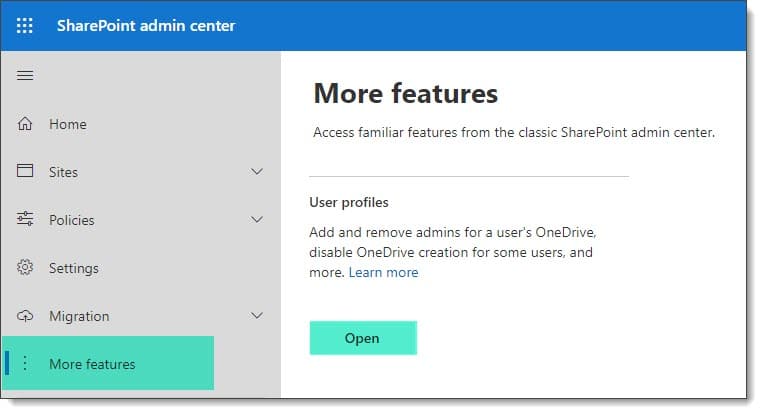
The block is configured by navigating to the SharePoint Admin Center and selecting More Features. From the More Features window, click the Open button under the User Profiles section.

Blocking users from accessing OneDrive

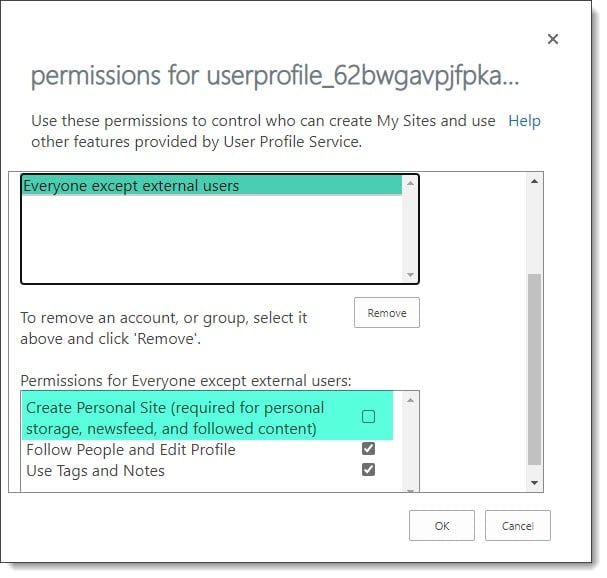
From the User Profiles screen, select Manage User Permissions. On the Permissions for User Profile dialog, select Everyone except external users. In the Permissions box, Create Personal Site was unchecked. When unchecked this removes the user’s ability to create a personal OneDrive site.

Blocking users from accessing OneDrive B

Note: This method does not affect users with existing OneDrive storage. To revoke access to existing storage, the site collection admin for each OneDrive personal store would need to be replaced.

[Read more…] about Blocking OneDrive may save attachments to the default SharePoint document library

Filed Under: Exchange Solutions, Office 365 Solutions

Use Log Parser Studio in your Exchange & Office 365 migration planning

March 23, 2020 By Gareth Gudger 1 Comment

Share
Tweet
Share

One of the great unsung heroes is Log Parser Studio. This utility allows you to easily parse through gigabytes upon gigabytes of IIS logs to find the information you need. Without this tool, this task is tedious in a single Exchange server environment and is significantly worse in Exchange environments with many servers.

Log Parser Studio is great for migration planning and discovery and is a tool I have always had in my tool belt. It does not matter if you are migrating to a newer version of Exchange or Office 365; Log Parser Studio can aid in planning both scenarios. For discovery, I use it in the following two ways:

  • First is to identify third-party integrations, such as those from a voicemail system, fax solution, or conference room system
  • Second is to identify all client software connecting to Exchange

Once you have identified the third-party integrations and clients, you can add them to your migration plan and determine the next steps. This could include upgrading legacy Office clients or testing the integration of a third-party app against the target system.

Discovery with Log Parser Studio becomes especially useful in environments where Exchange predates the current IT team or where knowledge and documentation have been lost over time.

In this article, we will explore how to use Log Parser Studio to identify the multitude of client software and third-party integrations.

Let’s get started!

Installing Log Parser Studio

Log Parser Studio comes in two downloads. The first is the original command-line utility known as Log Parser. The second is Log Parser Studio, which was later developed to provide a GUI for that command line. We will need to download both components for this process.

  • Log Parser 2.2
  • Log Parser Studio

Tip: I recommend installing Log Parser on a workstation and not directly on an Exchange server. That way we avoid adding unnecessary CPU cycles to the Exchange server.

First, we need to install Log Parser 2.2. Double-click on the LogParser.msi. On the installation screen, click Next. Accept the license agreement and click Next. On the Choose Setup Type screen, click Complete. Click Install. After the installation completes, click Finish.

Next, we need to install Log Parser Studio. Unzip the file LPSV2.D2.zip (I recommend unzipping this to your desktop). Open the newly created LPSV2.D2 folder and launch LPS.EXE.

Launching Log Parser Studio

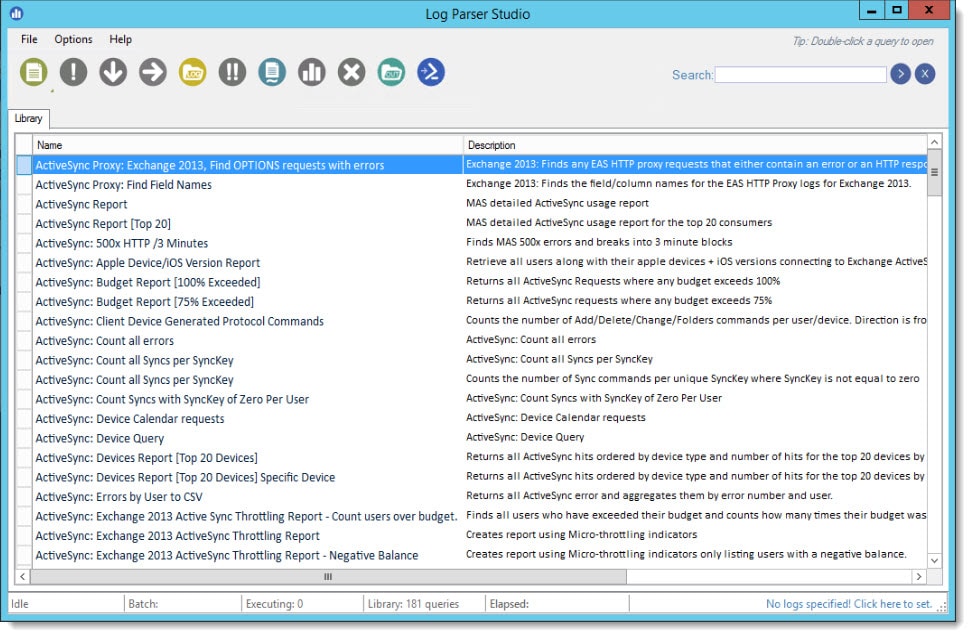
This will launch Log Parser Studio.

Log Parser Studio
[Read more…] about Use Log Parser Studio in your Exchange & Office 365 migration planning

Filed Under: Exchange Tutorials, Office 365 Tutorials

Improperly configured DNS causes internal mail to hairpin via firewall

March 22, 2020 By Gareth Gudger 2 Comments

Share
Tweet
Share

Ran into a strange issue recently during an Exchange 2010 to 2016 migration. Internal mail sent from Exchange 2016 to Exchange 2010 was stuck in the mail queue. The queue viewer on Exchange 2016 reported the following error.

{LED=451 4.4.397 Error communicating with target host. -> 421 4.2.1 Unable to connect -> SocketTimedout: Socket error code 10060};{MSG=};{FQDN=<external.companyname.com>};{IP=<external IP>};

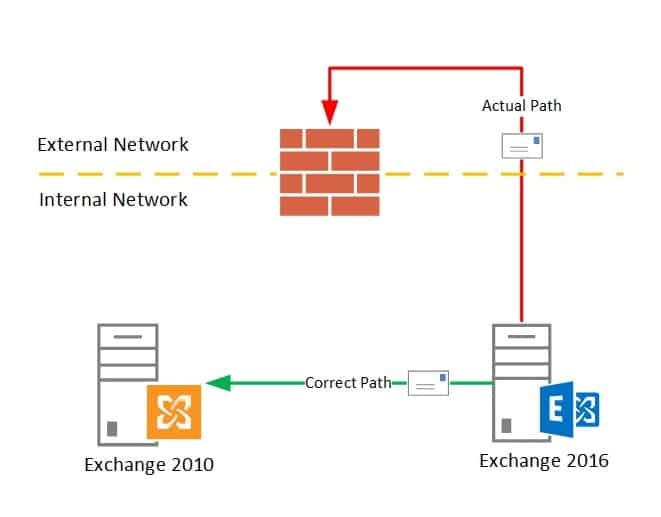
This is a fairly generic error and I have changed the FQDN and IP address in the example above. But the key here is that the Exchange 2016 server was trying to send all internal mail to the public IP of the Exchange 2010 server versus the internal IP.

For example, if a test user on Exchange 2016 tried to send an email to a test user on Exchange 2010, 2016 was routing the mail externally out of the firewall, only to try and hairpin back to one of the public-facing IPs.

Improperly configured DNS causes internal mail routing to hairpin

This kind of hairpin attempted by Exchange was immediately blocked by the firewall which determined that internally sourced connections should not be trying to enter the public side of the firewall.

[Read more…] about Improperly configured DNS causes internal mail to hairpin via firewall

Filed Under: Exchange Solutions

Exchange March 2020 Updates

March 18, 2020 By Gareth Gudger 3 Comments

Share
Tweet
Share
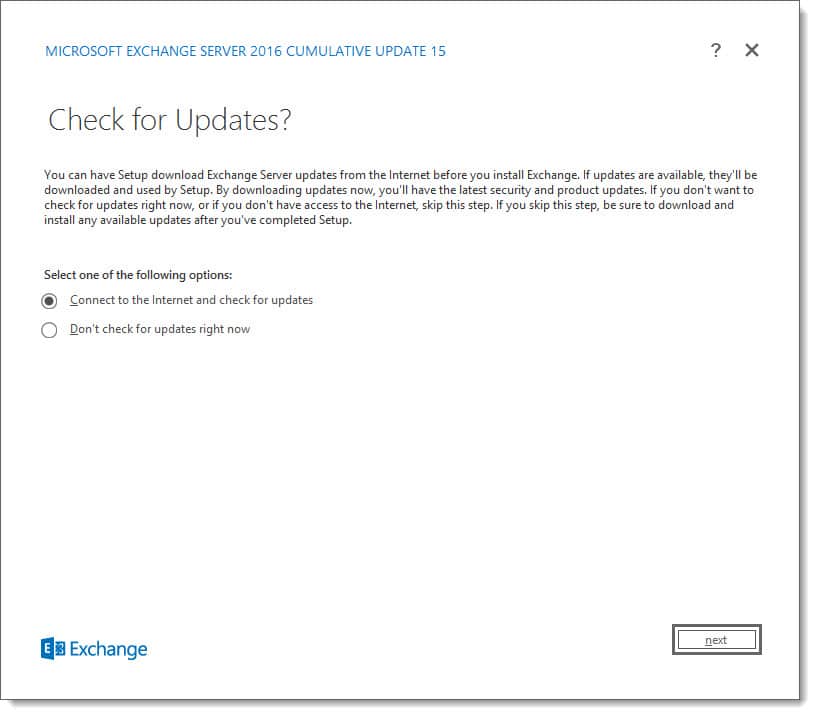
Exchange 2016 Cumulative Update 15

This week was a big week for Exchange. Microsoft released its fifth cumulative update for Exchange 2019 as well as a cumulative update for Exchange 2016. At the time of writing, there is no cumulative update for Exchange 2013.

As always, test these updates in a lab first! I recommend checking out this 7-part guide on configuring Exchange in your lab. It doesn’t take much to get one going.

The updates are as follows:

Exchange Logo Mini

Exchange 2019 Cumulative Update 5 (VLSC)| KB4537677

Exchange 2013 Cumulative Update 9

Exchange 2016 Cumulative Update 16 | KB4537678 | UM Language Pack

So, what’s new in these Cumulative Updates?

In this series of cumulative updates, Microsoft has resolved a number of security and non-security issues. You can read more about those in KBs 4537677 and 4537678.

This series of cumulative updates shipped with a new version of the calculator for Exchange 2019. This new calculator corrects an issue where developing a design around mailbox size or IOPs was not producing the correct number of mailboxes per database.

Cumulative Update 5 also corrects an issue in the Manage-MetaCacheDatabase.ps1 script that ships with Exchange 2019. The script has been corrected to only return solid-state disks that are initialized. It does this by filtering out all disks with no disk number. This issue was first identified in this article.

These Cumulative Updates also fix an issue with how cookies are handled in Google Chome 80 and later. The SameSite cookie issue was first identified in this post.

[Read more…] about Exchange March 2020 Updates

Filed Under: Exchange News, Office 365 News

RPC/HTTP & Block Legacy Auth may prevent Outlook reconfiguration after migrating to Exchange Online

March 4, 2020 By Gareth Gudger 4 Comments

Share
Tweet
Share

I have had a few projects now where one of the security requirements for Office 365 was to implement a conditional access policy that blocked legacy authentication (also known as basic auth). What this block does is enforce modern authentication for all clients. Any clients not using modern authentication will be denied access to all Office 365 resources.

In each of these projects, these security policies were enforced prior to moving any mailboxes to Exchange Online. In each case we ran into the same two symptoms:

  • The Outlook client (which supported modern authentication) failed to reconfigure after a mailbox migration to Exchange Online
  • Any on-premises users with permissions to a migrated mailbox were now getting a continuous basic authentication prompt

How the conditional access policy was configured

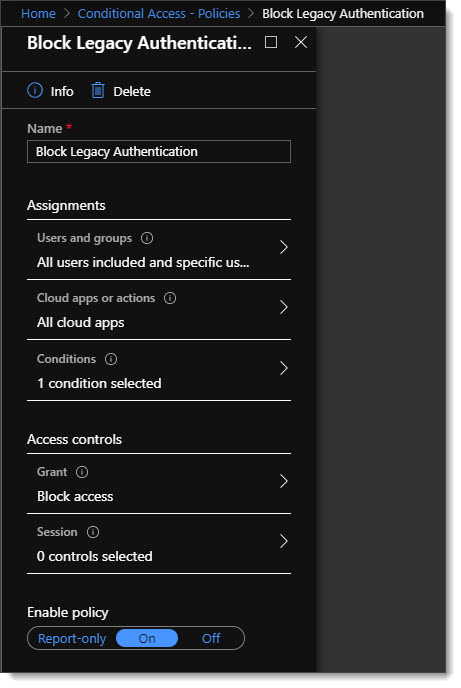
In all cases, the conditional access policy was scoped to all users and all cloud apps.

Conditional Access Policy - Block Legacy Authentication (Basic)

Conditions scoped under Client Apps were set to include Mobile apps and desktop clients with a subitem of Other clients. No other conditions were set. The access control was to Block access.

Conditional Access Policy - Block Legacy Authentication (Basic) 2

Note: “Other clients” includes clients that use basic/legacy authentication, and do not support modern authentication. Reference: Conditional Access: Conditions

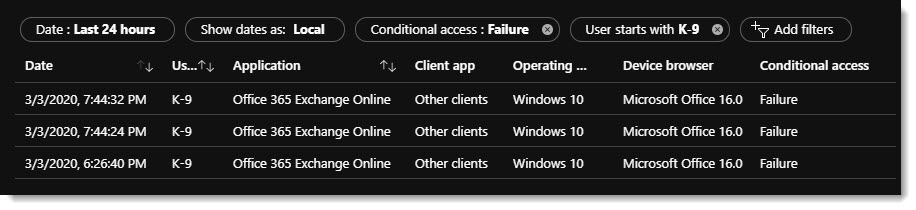
After we migrated a mailbox and Outlook failed to reconfigure (continuous legacy auth prompts) we could see the failure under Azure AD Sign-Ins. Oddly our Outlook client (Office ProPlus) which supported modern authentication was being blocked due to legacy authentication.

Azure AD Sign-Ins Conditional Access Failure RPC over HTTP
[Read more…] about RPC/HTTP & Block Legacy Auth may prevent Outlook reconfiguration after migrating to Exchange Online

Filed Under: Exchange Solutions, Office 365 Solutions, Outlook Solutions

  • « Go to Previous Page
  • Page 1
  • Interim pages omitted …
  • Page 5
  • Page 6
  • Page 7
  • Page 8
  • Page 9
  • Interim pages omitted …
  • Page 31
  • Go to Next Page »

Primary Sidebar

Want to stay up to date?

Sidebar Form

Join thousands of IT professionals and get the latest Exchange & Office 365 tips and tutorials direct to your inbox

DigiCert Banner 300x348

(help support us using our affiliate link)

Footer

Site Navigation

  • Subscribe to blog
  • About SuperTekBoy
  • Disclaimer
  • Privacy & Cookies
  • Contact Us

Want to stay up to date?

Footer Form

Join thousands of IT professionals and get the latest Exchange & Office 365 tips and tutorials direct to your inbox

Join the conversation

  • Twitter
  • LinkedIn
  • Facebook
  • RSS

Copyright © 2026 · SuperTekBoy LLC