• Skip to primary navigation
  • Skip to main content
  • Skip to primary sidebar
  • Skip to footer

SuperTekBoy

Practical Help for Exchange & Office 365

  • Exchange
    • News
    • Tutorials
    • Solve a Problem
  • Office 365
    • News
    • Tutorials
    • Solve a Problem
  • Outlook
    • Tutorials
    • Solve a Problem
  • Books
  • Podcasts
  • Quick Links…
    • Generate or Renew SSL Certs for Exchange
    • Connect PowerShell to Exchange Online
    • Connect PowerShell to Office 365
    • Extend Schema for Exchange
    • Exchange Schema & Build Numbers
  • More…
    • Kemp Load Balancers
    • Other tech…
    • Videos
    • About SuperTekBoy
    • Contact Us

Exchange

Exchange Online Updates (September 2020)

September 21, 2020 By Gareth Gudger 1 Comment

Share
Tweet
Share

Block Outlook for Android on wearables and smartwatches

Microsoft has added a policy to Intune that grants an administrator the ability to block Outlook for Android on wearable devices (for example, a Samsung Galaxy Watch). This block prevents any Outlook data from being shared with the wearable device. This includes emails, calendar items, and more.

To configure this block, log into Endpoint Manager and select the Apps > App Configuration Policy tabs. From here, click Add and choose Managed Apps (you can also modify an existing Outlook app policy).

Give the policy a name and click Select public apps. Search for, and add Microsoft Outlook. Click Next.

Block Outlook to wearable devices and smartwatches

On the Settings tab, expand Outlook configuration settings, and next to the field Org Data on Wearables select No. From here select any other settings to go into your App Configuration Policy and click Next. On the next screen pick which users or groups of users will get this settings. Click Next and Create.

Block Outlook to wearable devices and smartwatches B

For those who do not have an Intune subscription, a new feature is being added to mobile device policies in Exchange Online (which anyone with an Exchange license can leverage) to disable Bluetooth on the device. You can do this via PowerShell. In the example below, we are disabling Bluetooth for the policy named, Company Mobile Policy.

 C:\> Set-MobileDeviceMailboxPolicy -Identity "Company Mobile Policy" -AllowBluetooth Disable

Global recipient limits

Earlier in the year, Microsoft announced a change to recipient limits in Office 365. Recipient limits dictate how many recipients someone can add to a single email message (this includes all recipients added to the To, Cc, and Bcc lines). This limit was previously hardcoded to 500 recipients. With the February announcement, administrators were allowed to configure this limit per mailbox, with a value of 1 to 1,000 recipients per message.

Starting in August Microsoft extended this functionality by allowing a global recipient limit to be set via PowerShell using the Set-TransportConfig command.

To see the current configuration, connect to Exchange Online PowerShell and run the following command.

 C:\> Get-TransportConfig | Format-List MaxRecipientEnvelopeLimit

MaxRecipientEnvelopeLimit : Unlimited

A value of Unlimited denotes the Office 365 published limits, which at the time of writing is 1,000 recipients per message.

You can modify this value with the following command. In the example below we are setting the max recipients per message to 500.

 C:\> Set-TransportConfig -MaxRecipientEnvelopeLimit 500

In most cases, when this setting is configured on both the mailbox and globally, the mailbox will win. The exception to this is when the mailbox is set to Unlimited, then the global parameter wins. Another way to think of Unlimited at the mailbox and global level is null or not set.

[Read more…] about Exchange Online Updates (September 2020)
Filed Under: Exchange News

Exchange Cumulative Update (September 2020)

September 21, 2020 By Gareth Gudger Leave a Comment

Share
Tweet
Share
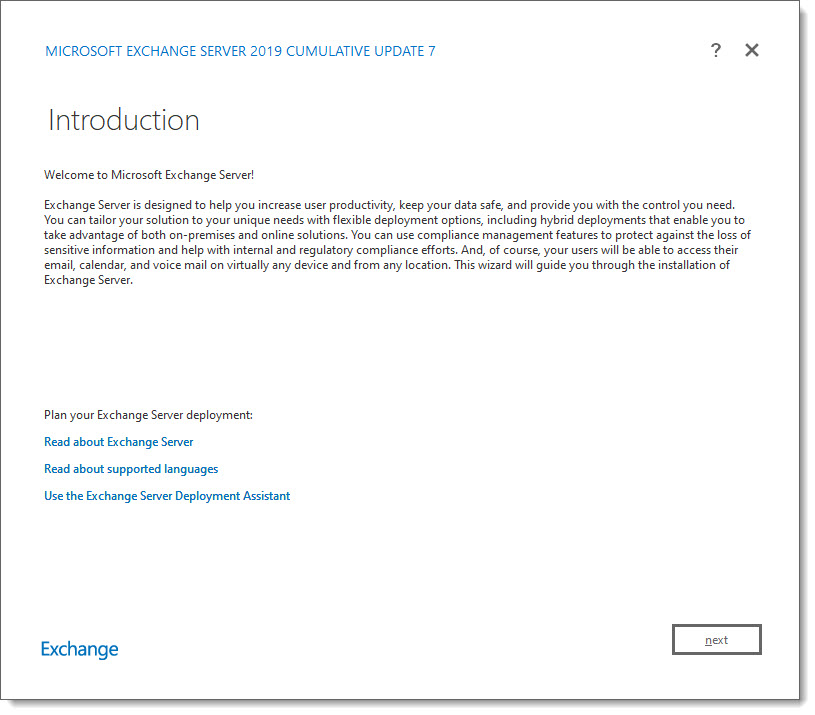
Exchange 2019 Cumulative Update 7

This week was a big week for Exchange. Microsoft released its seventh cumulative update for Exchange 2019 as well as a cumulative update for Exchange 2016. At the time of writing, there is no cumulative update for Exchange 2013.

As always, test these updates in a lab first! I recommend checking out this 7-part guide on configuring Exchange in your lab. It doesn’t take much to get one going.

The updates are as follows:

Exchange Logo Mini

Exchange 2019 Cumulative Update 7 (VLSC)| KB4571787

Exchange 2013 Cumulative Update 9

Exchange 2016 Cumulative Update 18 | KB4571788 | UM Language Pack

So, what’s new in this Cumulative Update?

Microsoft has resolved a number of issues with the Exchange 2019 Sizing Calculator. I actually ran into one of these myself where the transport database size estimate (under the Role Requirements tab) always reported a 0 GB size per server. This issue has now been fixed in version 10.5 of the calculator (included with the Exchange 2019 CU7 ISO in the Support folder). Be sure to ditch v10.4.

Exchange Server Sizing Caculator 9.1 error in Transport Calc

These series of cumulative updates also resolves an issue where Surface Hub would connect to meetings with the wrong communications client (Skype or Teams) if both clients were installed on the device.

A couple of other items of note is that this cumulative update will fix an issue where the MAPI App Pool could become locked and drive CPU to 100% for over an hour and resolves the security issue CVE-2020-16875, which addresses a remote code execution vulnerability.

[Read more…] about Exchange Cumulative Update (September 2020)

Filed Under: Exchange News

Cannot find an overload for “CompareTo” and the argument count: “1”

August 24, 2020 By Gareth Gudger Leave a Comment

Share
Tweet
Share

While deploying an Exchange server, you may run into the following error during setup, which will block the installation from continuing.

[07/01/2020] ErrorRecord: Cannot find an overload for "CompareTo" and the argument count: "1".
[07/01/2020] ErrorRecord: System.Management.Automation.MethodException: Cannot find an overload for "CompareTo" and the argument count: "1".

This error is definitely cryptic. Thankfully the Exchange Setup Logs (located at “C:\ExchangeSetupLogs\ExchangeSetup.txt”) is excellent at providing more clues when troubleshooting.

In our case, the logs identified that setup was trying to process the Offline Address Book (“OAB”) at the time of the error. The error occurred during a function that contained OAB-related PowerShell commands, including Get-OfflineAddressBook, Get-OabVirtualDirectory, and Set-OfflineAddressBook. So, this was the logical place to continue troubleshooting.

From another Exchange Server, we ran the PowerShell command Get-OfflineAddressBook, and strangely, three address books were returned.

 C:\> Get-OfflineAddressBook | Format-List Name

Name: Default Offline Address List
Name: Default Offline Address List (Ex2013)
      CNF:3e4b413a-e5d6-4371-8541-defecb812f98

The returned results were strange.

  • Default Offline Address List is an OAB from a legacy Exchange installation (Exchange 2010 and earlier) and is common to see in an Exchange environment.
  • Default Offline Address List (Ex2013) is present whenever an Exchange 2013 or 2016 server is installed into a legacy Exchange environment. This address list is standard, and it is common to see both this OAB and the first OAB coexisting in mixed Exchange environments.
  • Default Offline Address List (Ex2013)CNF:<GUID>, is an address list I had never seen before.

Default Offline Address List (Ex2013)CNF:<GUID> being an unknown quickly became the focus of our investigation.

[Read more…] about Cannot find an overload for “CompareTo” and the argument count: “1”

Filed Under: Exchange Solutions

“Database is mandatory on UserMailbox” when installing Exchange Server

August 22, 2020 By Gareth Gudger 5 Comments

Share
Tweet
Share

When introducing a new Exchange Server into your existing Exchange environment, the installer may throw the error “Database is mandatory on UserMailbox” and prevent you from continuing.

If you examine the Exchange Setup Logs (which can be found at “C:\ExchangeSetupLogs\ExchangeSetup.txt”) you may find a few more clues as to which mailboxes are missing their databases parameter.

Towards the end of our Exchange setup log, we found the following two error lines.

[07/01/2020] [1] [ERROR] Database is mandatory on UserMailbox.
[07/01/2020] [1] [ERROR-REFERENCE] Id=SystemAttendantDependent___04cc4eded45c32a6bf14ee3fe543df60 Component=EXCHANGE14:\Current\Release\PIM Storage\Discovery

The key here is “SystemAttendant.” The System Attendant is an arbitration mailbox. Let’s check on the health of all our arbitration mailboxes. We can do this by entering the following command into the Exchange Management Shell.

 C:\> Get-Mailbox -Arbitration | Select Name | Format-Table

Name
----
SystemMailbox{bb558c35-97f1-4cb9-8ff7-d53741dc928c}
FederatedEmail.4c1f4d8b-8179-4148-93bf-00a95fa1e042
SystemMailbox{1f05a927-7f83-496b-a118-a96cdde1cd3c}
WARNING: The object SKARO.LOCAL/Users/SystemMailbox{1f05a927-7f83-496b-a118-a96cdde1cd3c}
has been corrupted, and it's in an inconsistent state. The following validation errors happened:
WARNING: Database is mandatory on UserMailbox.
SystemMailbox{e0dc1c29-89c3-4034-b678-e6c29d823ed9}
SystemMailbox{D0E409A0-AF9B-4720-92FE-AAC869B0D201}
Migration.8f3e7716-2011-43e4-96b1-aba62d229136
SystemMailbox{2CE34405-31BE-455D-89D7-A7C7DA7A0DAA}

The output from this command identifies that we have a single broken system mailbox.

[Read more…] about “Database is mandatory on UserMailbox” when installing Exchange Server

Filed Under: Exchange Solutions

Sysadmin Today #78: Talking Tech with Gareth Gudger

July 19, 2020 By Gareth Gudger Leave a Comment

Share
Tweet
Share

On July 19th, I had the great pleasure of being a guest on SysAdmin Today. I joined host Paul Joyner to discuss several hot topics for Exchange and Office 365; including:

  • Introductions
  • Overview of Microsoft MVP Program
  • Getting out of the patching and server management business
  • Updated Hybrid Configuration Wizard (v17)
  • Keeping an Exchange server on-prem for secure mail relay
  • GUI for restoring deleted mail for users
  • Reply-all storm protection
  • Support for DANE / DNSSEC
  • New defaults for SMTP Auth
  • Deprecation and deadline extension for basic auth
  • Getting all users to multi-factor authentication
Sysadmin Today #78 - Talking Tech with Gareth Gudger
[Read more…] about Sysadmin Today #78: Talking Tech with Gareth Gudger

Filed Under: Exchange News, Office 365 News, Podcasts

URL Impersonation – Homoglyph attacks

July 15, 2020 By Gareth Gudger Leave a Comment

Share
Tweet
Share

A homoglyph is when a glyph (or character) from one character set looks identical to that of another character set. For example, the lower-case letter “а” from the Cyrillic alphabet appears to be identical to the lower-case letter “a” from the Latin alphabet.

While seemingly identical to the human eye, they are very different for a computer. Pasting a string that contains each of these characters into a web browser will take you to very different places.

Homoglyphs are frequently used in URL impersonation attacks because their substitution is indistinguishable to the human eye.

Homoglyphs are also more effective than other forms of impersonation, such as replacing lowercase “m” with “rn,” which can look almost identical in some fonts—for example, arnazon.com versus amazon.com. Or impersonation that preys on common misspellings—for instance, micosoft.com

So just how identical can a homoglyph attack be? In the next section, we will explore an example.

Note: To keep everyone safe, we have used screenshots for all impersonated domains.

Creating a homoglyph

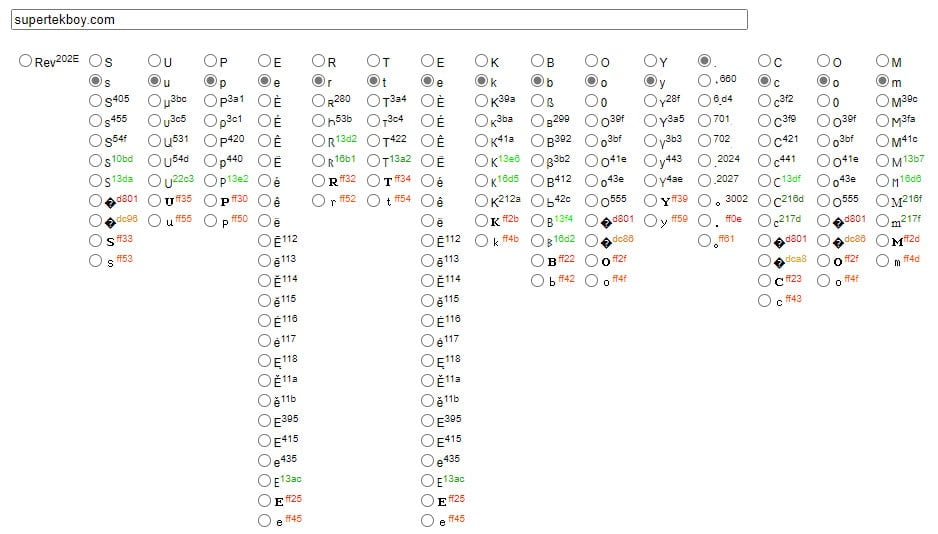
To create an impersonated domain, we are going to use the Homoglyph Attack Generator at irongeek.com. From this page, we first need to type in the domain we want to impersonate. I am going to use supertekboy.com.

The generator then allows us to swap out each letter with a letter from another character set. The first two rows are the Latin character set in upper and lower case. However, several other character sets, including Cyrillic, are included.

Homoglyph attack generator

Using the generator, we can switch one or more letters with those from a different character set. Let’s change the Latin letter “e” for the Cyrillic letter “e” (Unicode 435). This gives us the output below. Can you tell the difference?

Impersonation attack of SuperTekBoy using Homoglyphs

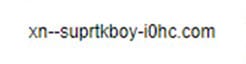
If you were to click that link or cut and paste the URL into a browser, you would be redirected to the following URL.

Impersonation attack of SuperTekBoy using Homoglyphs Translated

Were a bad actor to register this redirected domain, they could use it as a launchpad for any number of attacks, such as delivering a malicious payload, social engineering, or password capture. (I believe some domain registrars are blocking these types of domains).

[Read more…] about URL Impersonation – Homoglyph attacks

Filed Under: Exchange Solutions

  • « Go to Previous Page
  • Page 1
  • Interim pages omitted …
  • Page 3
  • Page 4
  • Page 5
  • Page 6
  • Page 7
  • Interim pages omitted …
  • Page 31
  • Go to Next Page »

Primary Sidebar

Want to stay up to date?

Sidebar Form

Join thousands of IT professionals and get the latest Exchange & Office 365 tips and tutorials direct to your inbox

DigiCert Banner 300x348

(help support us using our affiliate link)

Footer

Site Navigation

  • Subscribe to blog
  • About SuperTekBoy
  • Disclaimer
  • Privacy & Cookies
  • Contact Us

Want to stay up to date?

Footer Form

Join thousands of IT professionals and get the latest Exchange & Office 365 tips and tutorials direct to your inbox

Join the conversation

  • Twitter
  • LinkedIn
  • Facebook
  • RSS

Copyright © 2026 · SuperTekBoy LLC