• Skip to primary navigation
  • Skip to main content
  • Skip to primary sidebar
  • Skip to footer

SuperTekBoy

Practical Help for Exchange & Office 365

  • Exchange
    • News
    • Tutorials
    • Solve a Problem
  • Office 365
    • News
    • Tutorials
    • Solve a Problem
  • Outlook
    • Tutorials
    • Solve a Problem
  • Books
  • Podcasts
  • Quick Links…
    • Generate or Renew SSL Certs for Exchange
    • Connect PowerShell to Exchange Online
    • Connect PowerShell to Office 365
    • Extend Schema for Exchange
    • Exchange Schema & Build Numbers
  • More…
    • Kemp Load Balancers
    • Other tech…
    • Videos
    • About SuperTekBoy
    • Contact Us

Former Calendar Delegate still receives meeting notifications

July 21, 2021 By Gareth Gudger 9 Comments

Share
Tweet
Share

Calendar delegation allows a user to manage someone else’s calendar on their behalf. For example, an assistant could be granted delegator rights to their manager’s calendar. Through delegation, the assistant has the right to add, edit, or delete items from their manager’s calendar. A delegate can also be granted the ability to view items marked as private. Aside from calendar permissions, the delegate can receive meeting invites on behalf of the delegator and respond to those invites (accept, decline, tentative, propose new time).

When an assistant no longer needs to access their manager’s calendar, they can be removed as a delegate. Either the manager can do this via the Outlook client or an Exchange administrator by using PowerShell. When their delegation rights have been removed, all access to the calendar is revoked. In addition, meeting invites are no longer sent to the delegate to accept or decline.

It is possible that even when the delegate permissions have been revoked, the assistant could still unexpectantly receive items sent to their manager. In this article, we look at a couple of possible areas that could be forwarding these items to the former delegate.

Let’s get started!

Verify the user is no longer a delegate

The first item to confirm is whether the delegate rights have been properly removed. To do this, connect to Exchange PowerShell and run the following command.

 C:\> Get-MailboxFolderPermission -Identity river.song@xyz.com:\Calendar

FolderName            User                  AccessRights
----------            ----                  ------------
Calendar              Default               {AvailabilityOnly}
Calendar              Rory Williams         {Editor}

In the example above, we are checking the calendar permissions for the user River Song. We use the Get-MailboxFolderPermission command for this purpose. The Identity parameter is a combination of the delegator’s email address and the folder in question. In this case, the calendar folder. You can also use this command against any other folder in the mailbox. In our example, we want to see if River Song’s former assistant, Amy Pond, still has any rights to River’s calendar.

The example output returns two entries. The first is for a user named Rory Williams. We see Rory Williams has editor rights to River’s calendar. We also see a user named Default. Default is the default permission users receive if they have not been granted explicit permissions. In the example above, Rory Williams would receive editor rights to River’s calendar, whereas all other users will only see River’s free/busy information (availability only). Amy Pond is not identified in this output, so she should only receive free/busy information. In this example, Amy is not a delegate.

If the output had returned Amy Pond as a user, we could remove those rights using the Remove-MailboxFolderPermission. For example, to remove all of Amy’s permissions from River’s calendar folder, we would issue the following command.

 C:\> Remove-MailboxFolderPermission -Identity river.song@xyz.com:\Calendar 
-User amy.pond@xyz.com
[Read more…] about Former Calendar Delegate still receives meeting notifications

Print Friendly, PDF & Email

Filed Under: Exchange Solutions, Outlook Solutions

How to enroll in the Windows Insiders Program (and get Windows 11)

July 20, 2021 By Gareth Gudger Leave a Comment

Share
Tweet
Share

One of the benefits of being in the Windows Insider Program is getting to see and test new Windows features before they are generally available. For example, one rather prominent feature includes getting the latest Windows 11 operating system.

When you enroll in the Windows Insider Program, you can join one of three update channels. The channel you choose dictates what updates you receive and the amount of risk you are willing to take when it comes to bugs, incompatible software, unsupported hardware, or incomplete features. The three update channels are described in the table below.

ChannelDescription
Release Preview ChannelThis channel gives you features before they are generally available to the masses. This is the only channel that Microsoft supports should you experience problems and is the least likely of all channels to encounter bugs. This is an excellent channel for early adopters to enroll their devices.
Beta ChannelThis channel receives updates before the Release Preview Channel. Devices enrolled in this insider channel are not supported by Microsoft and are more susceptible to bugs and issues. This is an excellent channel for early adopters, but best to only enroll test or secondary devices into this channel.
Dev ChannelThis channel receives updates before the Beta and Release Preview Channels. As a result, this channel has the potential for the most bugs, incompatible software, unsupported hardware, and incomplete features. This channel is intended for developers, and it is recommended only to enroll test devices on this channel.

Note: At the time of writing, Windows 11 is only available if enrolled in the Dev Channel. As an example of bugs and incomplete features in the Dev Channel, the taskbar currently does not stretch to multiple monitors. Windows 11 will eventually be available to all insider channels.

How to enroll in the Windows Insider Program

To enroll a device in the Windows Insider Program, select the Start Menu and pick Settings (gear icon). From the Windows Settings dialog, choose Update & Security and pick the Windows Insider Program tab.

Before you enroll in the Windows Insider Program, you need to make sure your device has optional diagnostic data enabled. Enabling this feature sends additional diagnostic data back to Microsoft for review. If it is currently disabled, you will receive the following warning.

Windows Insider Program Optional Diagnostic Data
To manage the Windows Insider Program settings for your device and allow it to stay in the Windows Insider program, you'll need to turn on optional diagnostic data.

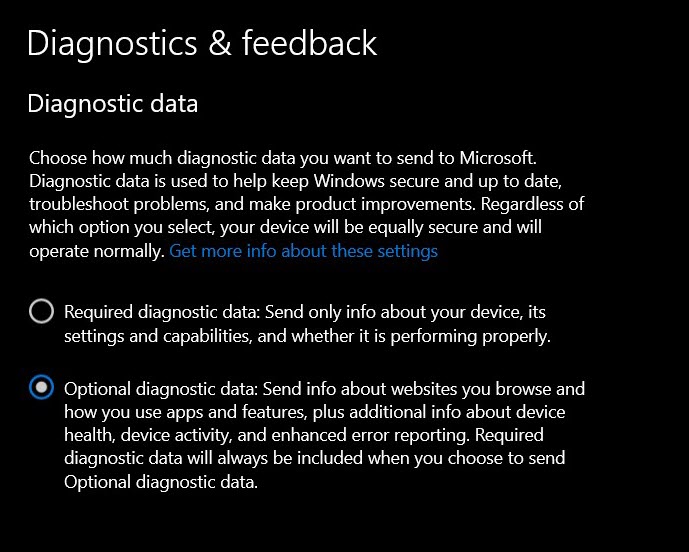
To fix, click the link titled Go to Diagnostics & Feedback settings to turn on optional diagnostic data. Then, from the Diagnostics & feedback dialog, select the radio button Optional diagnostic data.

Diagnostics and feedback optional diagnostic data
[Read more…] about How to enroll in the Windows Insiders Program (and get Windows 11)
Print Friendly, PDF & Email

Filed Under: Other Tech, Windows

Exchange Server Cumulative Updates (March 2021)

March 20, 2021 By Gareth Gudger Leave a Comment

Share
Tweet
Share
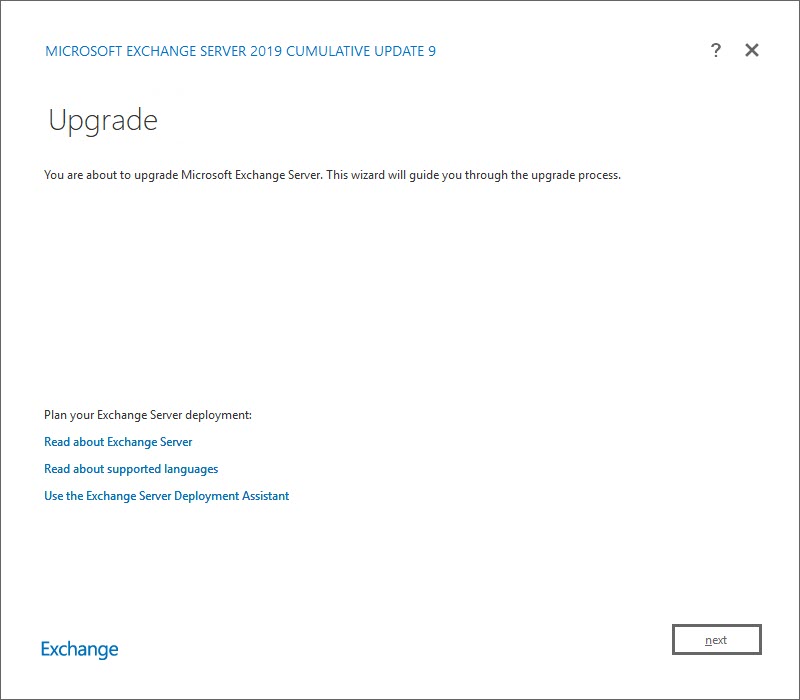
Exchange 2019 Cumulative Update 9

This week saw some critical cumulative updates for Exchange 2016 and Exchange 2019. These new updates contain the security patches previously released on March 2nd. Organizations that apply these cumulative updates don’t need to install the previous security patch.

The exception to this is those organizations on Exchange 2010 or Exchange 2013, where no update has superseded the March 2nd security patch. Those on Exchange 2010 and 2013 must ensure that they have the March 2nd patch applied as soon as possible.

The updates are as follows:

Exchange Logo Mini

Exchange 2019 Cumulative Update 9 | KB4602570

Exchange 2013 Cumulative Update 9

Exchange 2016 Cumulative Update 20 | KB4602569 | UM Language Pack

Exchange 2013 Cumulative Update 9

Exchange 2013 Security Update | KB5000871 (March 2nd Security Patch)

Exchange 2010 Mini

Exchange 2010 SP3 Rollup 32 | KB5000978 (March 2nd Security Patch)

Tackling the March 2nd security exploits

It is imperative to protect yourself from the exploits published on March 2nd. HAFNIUM, a cyberespionage group with ties to the Chinese government, has leveraged these Exchange Server exploits to infiltrate victims’ networks to deliver malware and other malicious payloads with varying motives, primarily to exfiltrate confidential data.

First, patching is imperative.

  • Those on Exchange 2016 or 2019 should apply the latest cumulative update.
  • Those on Exchange 2013 will need to install Cumulative Update 23 (released June 2019), followed by the March 2nd, 2021 security patch.
  • Those on Exchange 2010 need to install rollup 32.

Note: On March 8th Microsoft updated the security patch allowing it to be installed on older cumulative updates. This aided organizations that could not yet upgrade to the latest cumulative update. Note that applying the security patch and then upgrading to an older CU (rather than the latest) will expose your organization to the exploits again.

Once you are fully patched, I recommend running the Microsoft Safety Scanner (also known as the Microsoft Emergency Response Tool), which detects and remediates all known malware. This is a self-executing program that can be downloaded here.

I recommend running a full system scan. Note that it takes a few hours to run a scan, and it may spike your CPU, so it’s best to do this during a maintenance window. If you have a database availability group, consider putting the server into maintenance mode so that you can run the scanner with zero user impact.

[Read more…] about Exchange Server Cumulative Updates (March 2021)
Print Friendly, PDF & Email

Filed Under: Exchange News

MSP Unplugged Podcast – Office 365 Tips

February 1, 2021 By Gareth Gudger 2 Comments

Share
Tweet
Share
MSP Unplugged

On January 29th, I had the great pleasure of being a guest on MSP Unplugged. I joined host Jeff Halash to discuss several topics; including:

  • Introductions
  • TechCon Unplugged 2021
  • A brief history of Gareth Gudger
  • Staying on-prem versus going to the cloud
  • Modern security threats leveraging email
  • Benefits of Exchange hybrid for mailbox migrations
  • Question from the audience: OneNote file storage options
  • OneNote: Windows 10 OneNote vs. Office 365 OneNote
  • OneDrive: Syncing and folder redirection
  • Syncing vs. Backups
  • Windows AutoPilot Overview
  • Exchange Server vNext
  • Exchange Server vNext subscription licensing
  • Loss leaders and cash cows
  • MSP Unplugged Patreon and Facebook Group
  • Word: True dark mode in Office beta channel
  • Edge Chromium supports ClickOnce
  • Future of in-person conferences vs. Microsoft’s carbon negative goal
[Read more…] about MSP Unplugged Podcast – Office 365 Tips
Print Friendly, PDF & Email

Filed Under: Exchange News, Office 365 News, Podcasts

How to start meetings late (or end early) in Outlook

January 8, 2021 By Gareth Gudger 2 Comments

Share
Tweet
Share

One of the great new features in Outlook is scheduling meetings or appointments to start late (or end early). The end early feature has been included in Outlook for some time. However, the start late feature was introduced into the Office beta channel in version 2012 (build 13530.20000).

Note: This feature is now available in the Current (Preview) channel as of version 2012 (Build 13530.20218)

The shorten meeting feature allows attendees time between meetings. This is useful for many aspects, such as allowing users time to travel between meeting rooms, grab a coffee, reconcile notes, or decompress.

How to shorten meetings to start late or end early

To access this feature, open Outlook, navigate to the File menu, then select Options. From the Outlook Options dialog, select the Calendar tab.

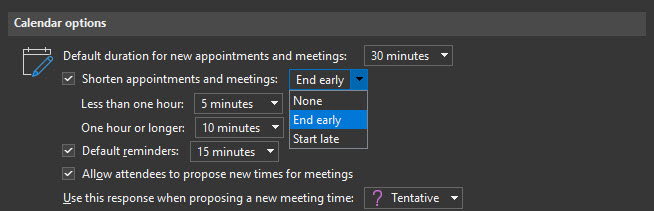
Under the Calendar Options section, select the Shorten appointments and meetings checkbox. From the drop-down, choose whether to have meetings End early or Start late.

Note: If you select None, the prior checkbox will become deselected.

Start Meetings Late in Microsoft Outlook

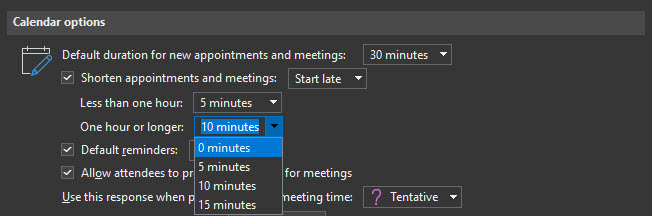
These options also allow you to specify how much time to shorten appointments and meetings. By default, any meeting under 1 hour will be shortened by 5 minutes. Any meeting for 1 hour or longer will be shortened by 10 minutes.

If you wish to change these defaults, pick another time from each drop-down. For example, for meetings one hour or greater, you have choices of 0, 5, 10, and 15 minutes. Once you have made your selection click Ok to save and close the Outlook Options dialog.

Shorten appointments and meetings in Microsoft Outlook
[Read more…] about How to start meetings late (or end early) in Outlook
Print Friendly, PDF & Email

Filed Under: Office 365 Tutorials, Outlook Tutorials

How to switch to the Office (M365 Apps) Beta Channel

January 5, 2021 By Gareth Gudger 15 Comments

Share
Tweet
Share

One of the benefits of being in the Office Beta Channel (formerly known as Insider Fast) is getting to see and test new Office features before they are generally available.

When you install Office, all new installations will default to the Current channel (formerly known as the Monthly channel). However, it is possible to change your update channel. The table below lists all the available update channels and their former names as these were recently changed.

ChannelOld Name
BetaInsider Fast
Current (Preview)Monthly (Targeted)
CurrentMonthly
Monthly EnterpriseMonthly Enterprise
Semi-Annual Enterprise (Preview)Semi-Annual (Targeted)
Semi-Annual EnterpriseSemi-Annual

The Beta Channel typically receives new features 1 month in advance of the Current Channel. For more information on the specifics of each channel, check out this article from Microsoft.

How to determine your Office update channel

To determine your Office update channel, open any Office app. In our example, we will open Microsoft Word.

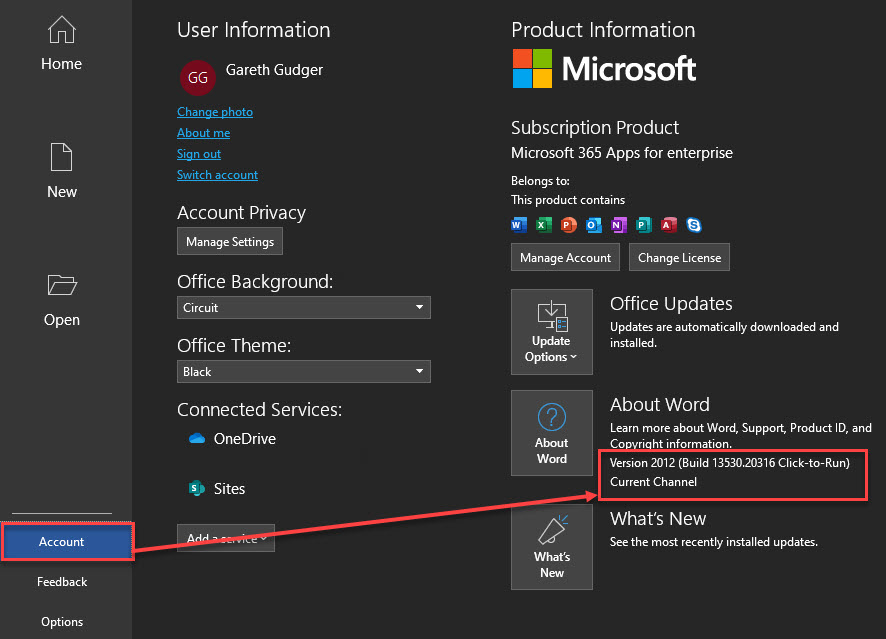
Once launched, click Account. In the About Word section, you will see both the build number and the current update channel. In the screenshot below, you can see our build is Version 2012, and our update cycle is the Current Channel.

Determine Office update channel

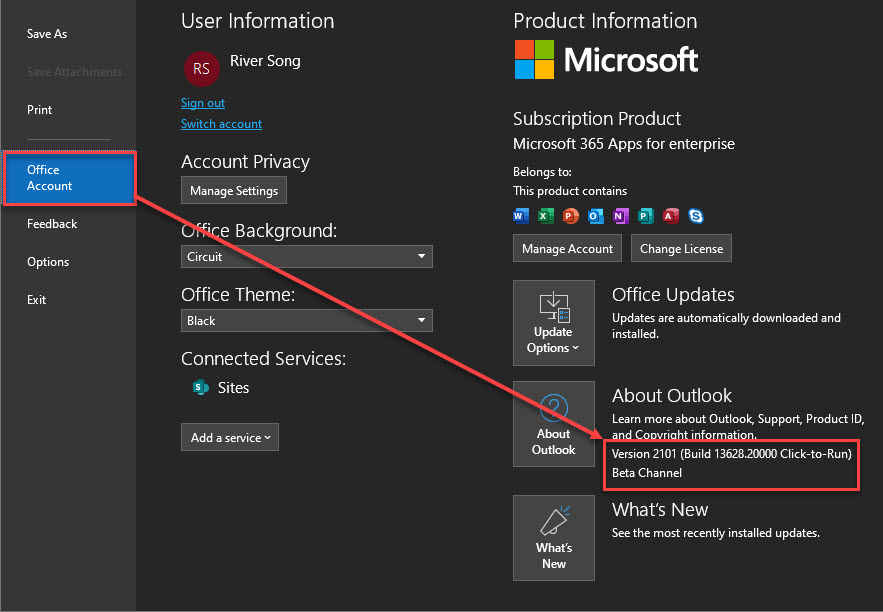
Microsoft Outlook is a little different. To check your Office update channel using Outlook, navigate to the File menu and select Office Account. Like other Office apps, the build and update channel will be listed in the About Outlook section.

Determine Office update channel - Outlook

Tip: The build numbers are formulated from a two-digit year and a two-digit month. For example, the first two digits, “20”, designate the year 2020. The second two digits, “12”, designate December. Microsoft documents all build numbers and release notes here.

[Read more…] about How to switch to the Office (M365 Apps) Beta Channel
Print Friendly, PDF & Email

Filed Under: Office 365 Tutorials, Outlook Tutorials

  • « Go to Previous Page
  • Page 1
  • Interim pages omitted …
  • Page 3
  • Page 4
  • Page 5
  • Page 6
  • Page 7
  • Interim pages omitted …
  • Page 51
  • Go to Next Page »

Primary Sidebar

Want to stay up to date?

Sidebar Form

Join thousands of IT professionals and get the latest Exchange & Office 365 tips and tutorials direct to your inbox

DigiCert Banner 300x348

(help support us using our affiliate link)

Footer

Site Navigation

  • Subscribe to blog
  • About SuperTekBoy
  • Disclaimer
  • Privacy & Cookies
  • Contact Us

Want to stay up to date?

Footer Form

Join thousands of IT professionals and get the latest Exchange & Office 365 tips and tutorials direct to your inbox

Join the conversation

  • Twitter
  • LinkedIn
  • Facebook
  • RSS

Copyright © 2026 · SuperTekBoy LLC