• Skip to primary navigation
  • Skip to main content
  • Skip to primary sidebar
  • Skip to footer

SuperTekBoy

Practical Help for Exchange & Office 365

  • Exchange
    • News
    • Tutorials
    • Solve a Problem
  • Office 365
    • News
    • Tutorials
    • Solve a Problem
  • Outlook
    • Tutorials
    • Solve a Problem
  • Books
  • Podcasts
  • Quick Links…
    • Generate or Renew SSL Certs for Exchange
    • Connect PowerShell to Exchange Online
    • Connect PowerShell to Office 365
    • Extend Schema for Exchange
    • Exchange Schema & Build Numbers
  • More…
    • Kemp Load Balancers
    • Other tech…
    • Videos
    • About SuperTekBoy
    • Contact Us

Exchange

Exchange September 2017 Updates

September 19, 2017 By Gareth Gudger Leave a Comment

Share
Tweet
Share
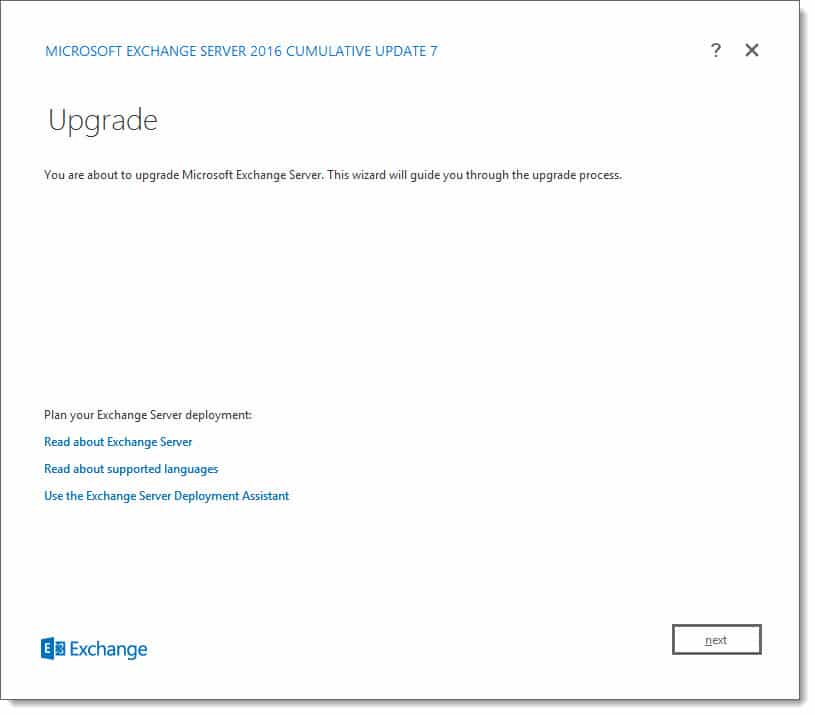
Exchange 2016 CU7

Today was a big day for Exchange updates. Not only did we get Cumulative Update 7 for Exchange 2016, but we also got Cumulative Update 18 for Exchange 2013.

As always, test these updates in a lab first! I recommend checking out this 7-part guide on configuring Exchange in your lab. It doesn’t take much to get one going.

The updates are as follows:

Exchange 2016 Mini

Exchange 2016 Cumulative Update 7 | KB4018115 | UM Language Pack

Exchange 2013 Cumulative Update 9

Exchange 2013 Cumulative Update 18 | KB4022631 | UM Language Pack

Exchange 2010 Mini

No roll-up for Exchange 2010 this quarter

A quick word on Exchange 2007

It’s time to update. Exchange 2007 went end of life as of April 11th, 2017. You will receive no further patches and will be unable to acquire telephone support. Published back in March 2017, Rollup 23 is the final update for Exchange 2007.

Exchange 2007 Mini

Exchange 2007 SP3 Rollup 23 | KB4011325 (final update for 2007)

If the lack of security updates from Microsoft isn’t convincing enough, check this article for a list of cool things Exchange 2013 can do. (P.S. Like the fact Exchange 2013 uses fewer IOPS per mailbox than 2007…say what)

[Read more…] about Exchange September 2017 Updates
Filed Under: Exchange News

Required Exchange exclusions for Windows Defender Antivirus

September 8, 2017 By Gareth Gudger 5 Comments

Share
Tweet
Share

UPDATED 7/12/23: Exclusions updated per Microsoft announcement.

In prior releases of Windows Server, Microsoft shipped basic malware protection through its Windows Defender software. For full protection, either System Center Endpoint Protection, or, a third-party antivirus solution was required. With Windows Server 2016, Windows Defender matured into a fully-fledged antivirus solution. It has now been re-branded as Windows Defender Antivirus.

Regardless of whether you choose Windows Defender Antivirus, or, a third-party antivirus solution, you need to be sure these products are not scanning critical Exchange components. Microsoft publishes an extensive list of files, folders, and process exclusions to include in your antivirus configuration.

There are eighty-four exclusions in total.

Adding these exclusions is critical to the health and performance of Exchange. Without these exclusions, antivirus software could lock or quarantine files and processes critical to the operation of Exchange.

In this article, we explore how to add the required 84 exclusions to Windows Defender Antivirus. We also have a basic script to automate adding these exclusions for you.

Let’s get started!

Adding Exchange exclusions with PowerShell

Adding 84 exceptions manually through the graphical user interface would be time-consuming, tedious, and prone to human error. This only magnifies the number of Exchange servers we need to deploy. Windows Defender can be managed through multiple methods (such as System Center or Group Policy). However, for this article, we will explore adding the required exclusions using PowerShell.

To add an exclusion via PowerShell, we can use the Add-MpPreference cmdlet. For a folder exclusion, we combine this with the -ExclusionPath parameter. For example, a folder exclusion may look like this.

 C:\> Add-MpPreference -ExclusionPath %SystemRoot%\Cluster

A folder exclusion not only excludes the folder and its files but also all sub-folders.

[Read more…] about Required Exchange exclusions for Windows Defender Antivirus

Filed Under: Exchange Tutorials

How to create an Office 365 mailbox (in hybrid)

September 2, 2017 By Gareth Gudger 28 Comments

Share
Tweet
Share

When a company has implemented Exchange hybrid and has moved some or all their users to Office 365, the question “How do I create a mailbox in Office 365?” frequently comes up.

In this article, we explore how to create a mailbox in Exchange Online when directory synchronization is in place. For this article, we will explore this process using Exchange 2016. We will look at how to complete this task with the GUI and PowerShell. Note that these steps are identical for Exchange 2013.

Using the Exchange Admin Center

This is the simplest and quickest way to create a mailbox in Office 365. The drawback of this solution is that it only allows you to create an entirely new Active Directory user. A preexisting user without a mailbox cannot be enabled for an Office 365 mailbox using the GUI. To grant an existing user an Office 365 mailbox you will need to use PowerShell. Alternatively, that user could be given an on-prem mailbox and then move that mailbox to Office 365.

If your current process is to create a new account in Active Directory first and then enable the mailbox in Exchange second, I would recommend reversing these steps. Using the method below allows you to create a basic user in Active Directory with a mailbox in Office 365. Then you can go back into Active Directory to make any additional changes to the new account, such as group memberships.

For our example, we are going to create a new user called Wilfred Mott who will have a mailbox in Office 365. Wilfred does not currently have a user account in Active Directory so we can use this method. Wilfred’s email will be wilfred.mott@exchangeservergeek.com.

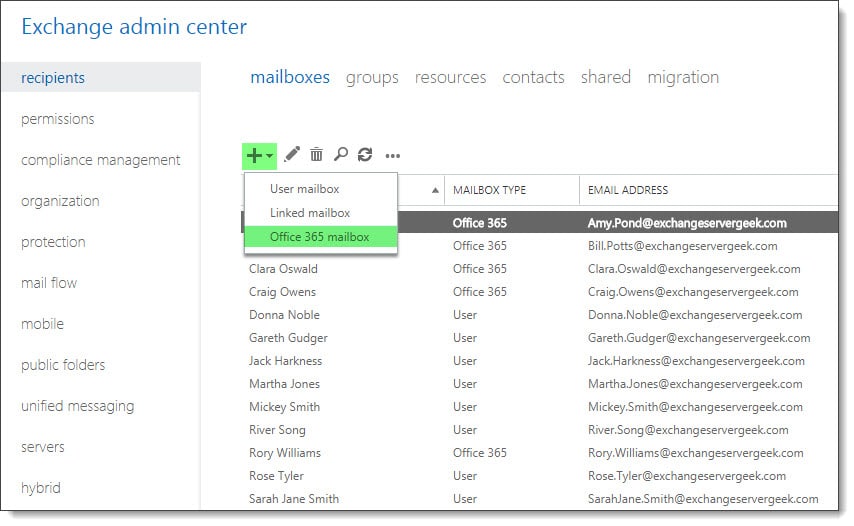
From your on-premises Exchange 2016 server, log into the Exchange Admin Center. Select the Recipients tab and Mailboxes sub-tab. Click the New (plus sign) and select Office 365 mailbox.

Note: If you do not see this option you may be missing the required RBAC permissions, or, there is an issue with your hybrid configuration.

Create a new Office 365 mailbox

Selecting this option walks you through the process of creating a remote mailbox in Office 365. The benefit here is that you do not need to migrate the mailbox after it is created as it already exists as an object in the cloud. Keep in mind that you will not see this mailbox in the Office 365 tenant until directory synchronization has run.

[Read more…] about How to create an Office 365 mailbox (in hybrid)

Filed Under: Exchange Tutorials, Office 365 Tutorials

Topology discovery failed: Required number of suitable directory servers

August 6, 2017 By Gareth Gudger Leave a Comment

Share
Tweet
Share

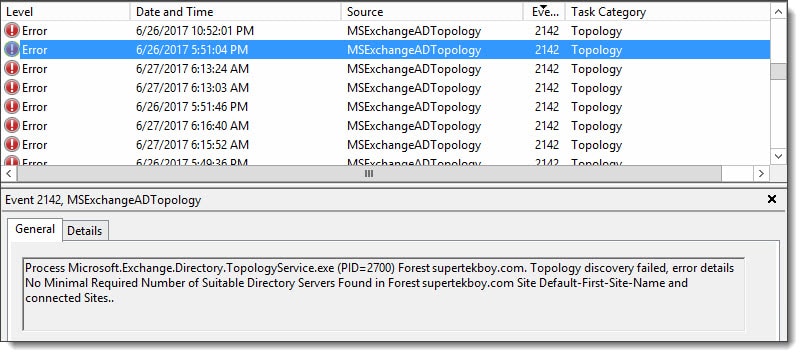
Recently, while troubleshooting an Exchange environment, I ran across event ID 2142 from the MSExchangeADTopology source. This error can be found in the application logs and indicates that the topology service could not find the minimum required domain controllers needed for Exchange. For the environment, I was troubleshooting this was particularly odd as this site containing Exchange had three functional domain controllers. The environment was also a single AD site. The error in full:

Process Microsoft.Exchange.Directory.TopologyService.exe (PID=2700) Forest domain.com. Topology discovery failed, error details: No Minimal Required Number of Suitable Directory Servers Found in Forest domain.com Site Default-First-Site-Name and connected Sites.
MSExchangeADTopology Event ID 2142
[Read more…] about Topology discovery failed: Required number of suitable directory servers

Filed Under: Exchange Solutions

Exchange June 2017 Updates

July 4, 2017 By Gareth Gudger 6 Comments

Share
Tweet
Share
Exchange 2016 Cumulative Update 6

Last week was a big week for Exchange updates. Not only did we get Cumulative Update 6 for Exchange 2016, but we also got Cumulative Update 17 for Exchange 2013.

As always, test these updates in a lab first! I recommend checking out this 7-part guide on configuring Exchange in your lab. It doesn’t take much to get one going.

The updates are as follows:

Exchange 2016 Mini

Exchange 2016 Cumulative Update 6 | KB4012108 | UM Language Pack

Exchange 2013 Cumulative Update 9

Exchange 2013 Cumulative Update 17 | KB4012114 | UM Language Pack

Exchange 2010 Mini

Exchange 2010 SP3 Rollup 18 | KB4018588

A quick word on Exchange 2007

It’s time to update. Exchange 2007 went end of life as of April 11th, 2017. You will receive no further patches and will be unable to acquire telephone support. Published back in March 2017, Rollup 23 is the final update for Exchange 2007.

Exchange 2007 Mini

Exchange 2007 SP3 Rollup 23 | KB4011325 (final update for 2007)

If the lack of security updates from Microsoft isn’t convincing enough, check this article for a list of cool things Exchange 2013 can do. (P.S. Like the fact Exchange 2013 uses fewer IOPS per mailbox than 2007…say what)

[Read more…] about Exchange June 2017 Updates

Filed Under: Exchange News

Recover Exchange Server after total loss

June 26, 2017 By Gareth Gudger 16 Comments

Share
Tweet
Share

Being able to recover an Exchange Server is key to business continuity. This is magnified in environments where there is only a single Exchange server. Rebuilding an Exchange environment from scratch would be an arduous and monumental task. Luckily Exchange saves much of its configuration settings in Active Directory. As long as Active Directory is healthy you can recover an Exchange Server to its former configuration. This process saves a massive amount of time.

That said there are some items that are not stored in Active Directory. This includes the databases where the user and public folder data is stored, third-party certificates and, customizations made outside of the Exchange management tools.

Certificates are easy. If you don’t have a backup you can have your certificate re-keyed by your provider. This may take some time so it is much better to export your Exchange server certificate and save it to a safe location. Then it can be quickly imported in the event of a failure. This will reduce downtime.

Databases are a little more difficult. Depending on the nature of the failure they may need to be restored from backup. The time required for restore largely depends on the size of the database. With the Exchange standard license you get five databases. So, rather than one large database, go with five smaller ones. These greatly aides your recovery time objective (RTO). Exchange enterprise allows up to a hundred databases giving you even greater capacity.

I always recommend that you architect a database availability group (DAG) where possible. Even if your budget can only cover two Exchange servers–creating a two-member DAG with two copies of each database–will put you miles ahead when it comes to disaster recovery. The instructions to recover a DAG member differ and we will cover that in a later article.

Configuration outside of the Exchange tools is going to be a little tougher. You will either need documentation so the changes can be repeated, or, a backup of the changes. Customizations outside of Exchange can include the registry, IIS, or, text-based configuration files.

[Read more…] about Recover Exchange Server after total loss

Filed Under: Exchange Tutorials

  • « Go to Previous Page
  • Page 1
  • Interim pages omitted …
  • Page 12
  • Page 13
  • Page 14
  • Page 15
  • Page 16
  • Interim pages omitted …
  • Page 31
  • Go to Next Page »

Primary Sidebar

Want to stay up to date?

Sidebar Form

Join thousands of IT professionals and get the latest Exchange & Office 365 tips and tutorials direct to your inbox

DigiCert Banner 300x348

(help support us using our affiliate link)

Footer

Site Navigation

  • Subscribe to blog
  • About SuperTekBoy
  • Disclaimer
  • Privacy & Cookies
  • Contact Us

Want to stay up to date?

Footer Form

Join thousands of IT professionals and get the latest Exchange & Office 365 tips and tutorials direct to your inbox

Join the conversation

  • Twitter
  • LinkedIn
  • Facebook
  • RSS

Copyright © 2026 · SuperTekBoy LLC