• Skip to primary navigation
  • Skip to main content
  • Skip to primary sidebar
  • Skip to footer

SuperTekBoy

Practical Help for Exchange & Office 365

  • Exchange
    • News
    • Tutorials
    • Solve a Problem
  • Office 365
    • News
    • Tutorials
    • Solve a Problem
  • Outlook
    • Tutorials
    • Solve a Problem
  • Books
  • Podcasts
  • Quick Links…
    • Generate or Renew SSL Certs for Exchange
    • Connect PowerShell to Exchange Online
    • Connect PowerShell to Office 365
    • Extend Schema for Exchange
    • Exchange Schema & Build Numbers
  • More…
    • Kemp Load Balancers
    • Other tech…
    • Videos
    • About SuperTekBoy
    • Contact Us

Exchange

Access is Denied when enabling Group Writeback

June 20, 2017 By Gareth Gudger 6 Comments

Share
Tweet
Share

Group Writeback is a feature in Azure AD Connect that allows for Office 365 Groups to be written back to your on-premises Active Directory as a universal distribution group. This allows your on-premises users in a hybrid environment to send email to the Office 365 Group.

When configuring group writeback you specify which organizational unit (OU) you want these objects to be written. Each of these Office 365 groups is then represented by a separate universal distribution group that starts with the name of “Group_” followed by a unique identifier.

In the screenshot below I have two Office 365 groups that are being written back to my local AD.

Group Writeback Azure AD Connect

The problem – Access is Denied

When I first tried to get these groups written back to this organizational unit was where I ran into problems. I was following this Microsoft document verbatim. The document specifies to open Active Directory Users and Computers and locate the account that started with “AAD_”. Which I found.

The document later uses this account to run a script. When running the script everything completed as expected. No errors.
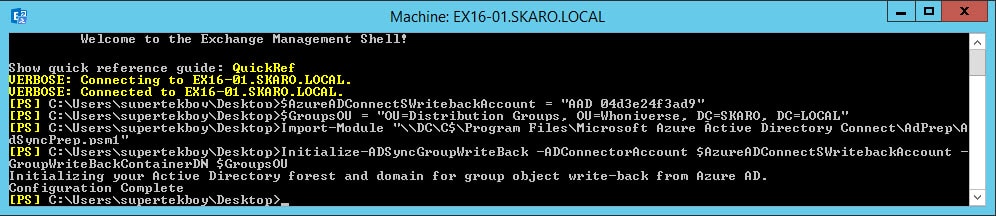
Group Writeback Script Azure AD Connect

When I checked the permissions on the organizational unit I could see that the script had added the AAD_ account with a bunch of permissions. Everything looked good.

However, I quickly started generating errors in Azure AD Connect. When I opened the Synchronization Manager I received the following error on the export of my Office 365 group. “Permission Issue – Access is denied”
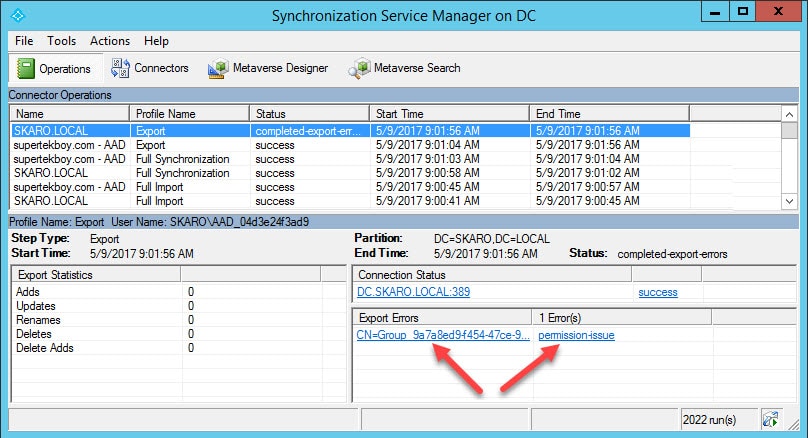
Group Writeback Access is Denied Synchronization Manager
[Read more…] about Access is Denied when enabling Group Writeback

Filed Under: Exchange Solutions, Office 365 Solutions

Quickly copy an Anonymous Receive Connector “Relay” between servers

June 18, 2017 By Gareth Gudger 1 Comment

Share
Tweet
Share

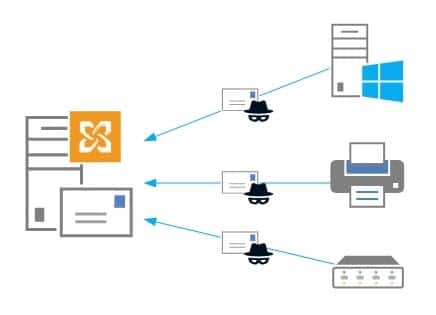
In this article, we are going to take a look at just how easy it can be to copy an anonymous receive connector from one server to another using PowerShell.

Anonymous Receive Connector Relay

This is especially important in scenarios where a receive connector may have dozens–if not hundreds–of IPs. Adding each IP using the graphical user interface would be insanely time-consuming. It would also be prone to human error. This challenge only multiplies if you have many servers to repeat this process on. With PowerShell, we can cut this task down to mere seconds.

The first part of this article is a primer on how to configure an anonymous receive connector. If you are just interested in how to copy all IPs from one connector to another jump to the section titled Copying an Anonymous “Relay” Connector between servers.

Note: While this article focuses on moving an anonymous receive connector it can be adapted for any custom receive connector you have created.

A quick primer on anonymous receive connectors

Before we explore how to move a receive connector let’s take a refresher on how we create a receive connector with PowerShell. For this task, we use the New-ReceiveConnector cmdlet. For example, to create an anonymous receive connector our command might look like this.

 C:\> New-ReceiveConnector -Name "Anonymous Relay" -Server EX16-01 -Usage Custom -TransportRole FrontEndTransport -PermissionGroups AnonymousUsers -Bindings 0.0.0.0:25 -RemoteIPRanges 10.0.0.25, 10.0.0.26, 10.0.0.50-10.0.0.59

In this command, we create a receive connector named “Anonymous Relay”. We use the -Server parameter to identify which server we want the connector to be created on. We identify that the -Usage of the connector will be Custom. Custom is one of five connector types and is used for anonymous relays.

[Read more…] about Quickly copy an Anonymous Receive Connector “Relay” between servers

Filed Under: Exchange Tutorials

Don’t install .NET Framework 4.7 on Exchange Servers

June 17, 2017 By Gareth Gudger Leave a Comment

Share
Tweet
Share
.NET Framework 4.7

The Exchange Team posted a quick note Tuesday addressing the release of .NET Framework 4.7 and Exchange. As of right now (June 2017) .NET 4.7 is not supported. While the Exchange team has not documented any known compatibility issues (like we saw when previous releases first shipped) they report the update has not been fully tested with Exchange and recommend all customers block the update until further notice.

As with any series of patching it is always critical to review all updates against the Exchange Supportability Matrix. If you want support from Microsoft you must be within the boundaries of that matrix. At the time of writing .NET 4.6.2 is the latest version supported by Exchange 2013 and Exchange 2016, provided you are on the latest cumulative updates. Older cumulative updates only support older versions of .NET. The Exchange Supportability matrix states that any version of .NET not listed on that site should be considered unsupported.

If you have already applied .NET 4.7 to your Exchange servers the product group recommends rolling back. They have identified this process in their latest blog post.

For an environment that uses patch management software such as WSUS or System Center, it is always a good idea to put Exchange servers in their own update group. This allows you to isolate Exchange into its own update cycle. If you don’t have a patch management system you can temporarily block .NET through the registry. Although this registry change will need to be performed against each Exchange server.

With future cumulative updates .NET Framework 4.7 will eventually be supported. We will update this space when this occurs.

Twitter

Do you think Exchange should have day-one support for the .NET Framework? Join the conversation on Twitter @SuperTekBoy.

Filed Under: Exchange News

Exchange March 2017 Updates

March 22, 2017 By Gareth Gudger 1 Comment

Share
Tweet
Share
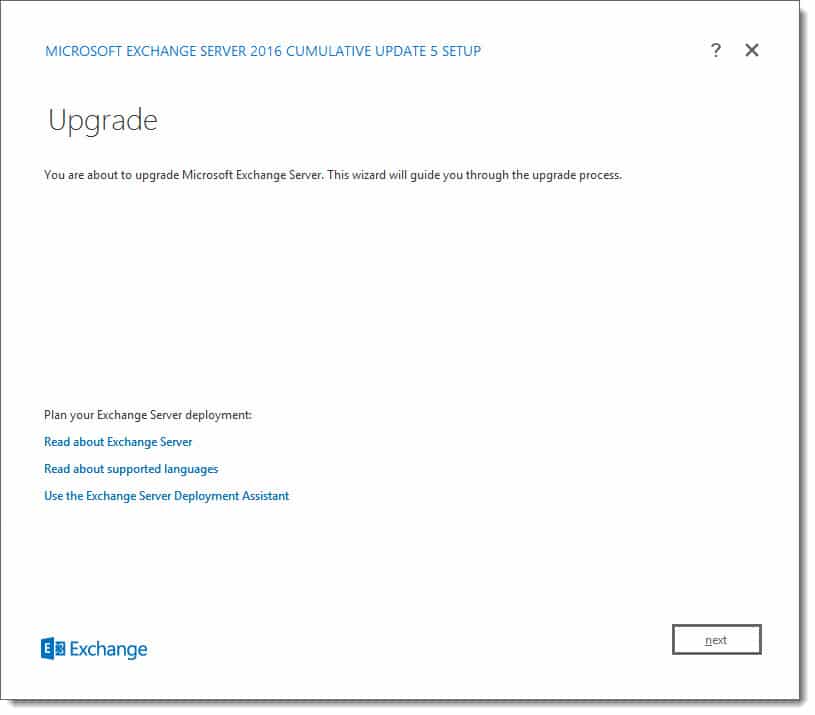
Exchange 2016 CU5

It was a big month for Exchange updates. Not only did we get Cumulative Update 16 for Exchange 2013, but we also got Cumulative Update 5 for Exchange 2016.

As always, test these updates in a lab first! I recommend checking out this 7-part guide on configuring Exchange in your lab. It doesn’t take much to get one going.

The updates are as follows:

Exchange 2016 Mini

Exchange Server 2016 Cumulative Update 5 | KB4012106 | UM Language Pack

Exchange 2013 Cumulative Update 9

Exchange Server 2013 Cumulative Update 16 | KB4012112 | UM Language Pack

Exchange 2010 Mini

Exchange Server 2010 SP3 Update Rollup 17 | KB4011326

Exchange 2007 Mini

Exchange Server 2007 SP3 Update Rollup 23 | KB4011325 (final update for 2007)

A quick word on Exchange 2007

It’s time to update. Exchange 2007 will go end of life on April 11th, 2017. At the time of writing that is 20 days. On April 12th you will receive no more patches and no more telephone support. In fact, Update Rollup 23 will be the final patch for Exchange 2007. No more daylight savings updates will be provided from here on out.

If the lack of security updates from Microsoft isn’t convincing enough, check this article for a list of cool things Exchange 2013 can do. (P.S. Like the fact Exchange 2013 uses fewer IOPS per mailbox than 2007…say what?)

[Read more…] about Exchange March 2017 Updates

Filed Under: Exchange News

Three65 podcast with MVP Mark Vale – What’s new in Exchange

March 6, 2017 By Gareth Gudger 5 Comments

Share
Tweet
Share

On March 4th I had the great pleasure of being a guest on the Three65 podcast. I joined host Mark Vale to discuss the latest from Exchange and Exchange Online.

Three65 Podcast with MVP Mark Vale & Gareth Gudger

(Originally posted at https://channel9.msdn.com/Blogs/MVP-Office-Servers-and-Services/Three65-Exchange-Exchange-Updates-with-Gareth-Gudger)

[Read more…] about Three65 podcast with MVP Mark Vale – What’s new in Exchange

Filed Under: Exchange News, Office 365 News, Podcasts

Hybrid mail flow: TLS negotiation failed with error NoCredentials

February 28, 2017 By Gareth Gudger 29 Comments

Share
Tweet
Share

Ran into a strange problem recently where an Exchange 2016 server could not send mail to Office 365 via hybrid mail flow. What made this situation particularly strange is that other Exchange servers in the environment had no problem sending messages over the hybrid connection. On the problem server, messages would get stuck in the queue and eventually time out.

The queues were filled with retries such as these.

451 4.4.0 Primary target IP address responded with: "421 4.2.1 Unable to connect." Attempted failover to alternate host, but that did not succeed. Either there are no alternate hosts, or deliver failed to all alternate hosts.

This message tells us that the server was unable to connect to Office 365. Unfortunately, it does not give us much detail beyond that. For that level of detail, we need to enable logging on the SMTP send connector used to send mail to Office 365.

Turn up logging on the SMTP Send Connector

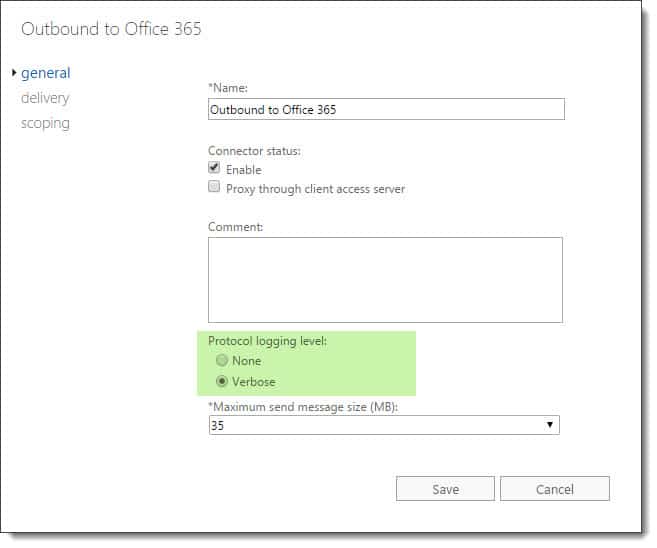
To enable logging on a send connector, log into the Exchange Admin Center (EAC) and select the Mail Flow tab and Send Connectors sub-tab. Double click the send connector named Outbound to Office 365 and select Verbose under the General tab. Click Save.

Configure verbose logging on Exchange 2016 send connector

To perform this same action through the Exchange Management Shell (EMS) type the following command.

 C:\> Set-SendConnector -Identity "Outbound to Office 365" -ProtocolLoggingLevel Verbose

Note: Protocol logging can take some time before it starts creating log files. You can jump-start this process by restarting the Microsoft Exchange Transport service. Keep in mind this will disrupt mail flow on that server while the service restarts. The default location for SMTP send logs in Exchange 2016 is  %ExchangeInstallPath%TransportRoles\Logs\Hub\ProtocolLog\SmtpSend.

While we waited for logging to generate some entries we also confirmed that we could successfully make a connection from the problem server to Office 365. For this task, we confirmed that we could telnet over port 25 to Office 365 and send an email message. This confirmed two things. First that this server was not being blocked on outbound port 25. Second that this server could resolve and reach Office 365 servers.

[Read more…] about Hybrid mail flow: TLS negotiation failed with error NoCredentials

Filed Under: Exchange Solutions, Office 365 RSS, Office 365 Solutions

  • « Go to Previous Page
  • Page 1
  • Interim pages omitted …
  • Page 13
  • Page 14
  • Page 15
  • Page 16
  • Page 17
  • Interim pages omitted …
  • Page 31
  • Go to Next Page »

Primary Sidebar

Want to stay up to date?

Sidebar Form

Join thousands of IT professionals and get the latest Exchange & Office 365 tips and tutorials direct to your inbox

DigiCert Banner 300x348

(help support us using our affiliate link)

Footer

Site Navigation

  • Subscribe to blog
  • About SuperTekBoy
  • Disclaimer
  • Privacy & Cookies
  • Contact Us

Want to stay up to date?

Footer Form

Join thousands of IT professionals and get the latest Exchange & Office 365 tips and tutorials direct to your inbox

Join the conversation

  • Twitter
  • LinkedIn
  • Facebook
  • RSS

Copyright © 2026 · SuperTekBoy LLC