• Skip to primary navigation
  • Skip to main content
  • Skip to primary sidebar
  • Skip to footer

SuperTekBoy

Practical Help for Exchange & Office 365

  • Exchange
    • News
    • Tutorials
    • Solve a Problem
  • Office 365
    • News
    • Tutorials
    • Solve a Problem
  • Outlook
    • Tutorials
    • Solve a Problem
  • Books
  • Podcasts
  • Quick Links…
    • Generate or Renew SSL Certs for Exchange
    • Connect PowerShell to Exchange Online
    • Connect PowerShell to Office 365
    • Extend Schema for Exchange
    • Exchange Schema & Build Numbers
  • More…
    • Kemp Load Balancers
    • Other tech…
    • Videos
    • About SuperTekBoy
    • Contact Us

Exchange

15 Microsoft Ignite sessions every Exchange admin should see (2016)

October 4, 2016 By Gareth Gudger Leave a Comment

Share
Tweet
Share

Microsoft hosted its annual Ignite conference in Atlanta this September. Ignite was massive at 1412 sessions. That is a lot of sessions! Many are posted at the Ignite channel on YouTube. Here are the top 15 sessions I think every Exchange admin should watch.
Understand the Microsoft Exchange Server 2016 Architecture Thumbnail

Understand the Microsoft Exchange Server 2016 Architecture
Ross Smith discusses the Exchange 2016 preferred architecture. Mike Cooper of GM discusses his implementation of Exchange 2016. Ross and Mike take questions from the audience.

  • Ross demonstrates a new feature where you can recover deleted or purged items to their original folder.

Deploy Microsoft Exchange Server 2016 Thumbnail

Deploy Microsoft Exchange Server 2016
Brian Day and Jeff Guillet discuss what’s changed in Exchange system requirements. Discussions included:

  • Exchange 2016 CU3 supports Windows Server 2016
  • Server 2008 R2 FFL/DFL will become the new minimum requirement in future Exchange 2016 releases.
  • .NET 4.6.2 currently only supported on Exchange 2016 CU3 on Server 2016. Will be made available in CU15/CU4 for older operating systems.
  • .NET 4.6.2 will be mandatory with CU16/CU5. The setup will block you if you don’t have 4.6.2 installed.
  • WMFS 5 is only supported on Windows Server 2016. It is not supported when you install it on older operating systems (use the version that comes with your OS).
Design your Exchange infrastructure right (or consider moving to Office 365) thumbnail

Design your Exchange infrastructure right (or consider moving to Office 365)
Robert Gillies, Boris Lokhvitsky, Adrian Moore discuss the business benefits of deploying the Exchange preferred architecture.

  • The importance of eradicating failure domains
  • SAN versus DAS
    • Since Exchange 2003 each version has dropped IOPS requirements.
    • Exchange 2016 uses 93% fewer IOPs than 2003
    • Exchange 2016 uses 30% fewer IOPs than 2013
    • Exchange databases average 10 IOPs
    • 7200 RPM SATA/NL-SAS average 70 IOPs
  • Thick versus Thin Provisioning
  • The importance of controller write cache
  • Bound versus Unbound Namespaces
  • Stretched DAGs
  • Virtual vs. Physical
[Read more…] about 15 Microsoft Ignite sessions every Exchange admin should see (2016)

Filed Under: Exchange News, Office 365 News

Exchange September 2016 Updates

September 20, 2016 By Gareth Gudger 2 Comments

Share
Tweet
Share
Exchange 2013 Big Logo

Today was a big day for Exchange updates. Not only did we get Cumulative Update 14 for Exchange 2013, but we also got our third update for Exchange 2016.

As always, test these updates in a lab first! I recommend checking out this 7-part guide on configuring Exchange in your lab. It doesn’t take much to get one going.

The updates are as follows:

Exchange 2016 Mini

Exchange Server 2016 Cumulative Update 3 | KB3152589 | UM Language Pack

Exchange 2013 Cumulative Update 9

Exchange Server 2013 Cumulative Update 14 | KB3177670 | UM Language Pack

Exchange 2010 Mini

Exchange Server 2010 SP3 Update Rollup 15 | KB3184728

Exchange 2007 Mini

Exchange Server 2007 SP3 Update Rollup 21 | KB3184711

So what’s new in these Cumulative Updates?

Quite a lot actually. Namely Exchange 2016 can now be deployed on Windows Server 2016. Keep in mind that you must deploy Cumulative Update 3 to Windows Server 2016. Older Cumulative Updates will not work. Exchange 2013 is not supported on Windows Server 2016. It is unlikely support will ever be added.

Exchange will also work with Server 2016 domain controllers. However, this will require raising the domain and forest functional levels to a minimum of Server 2008 R2.

Another amazing addition to Cumulative Update 3 is the ability for search indexes to read from their local database copies. In prior versions, search indexes would reach across the network to read from the active database copy. With search indexes using their local copies network utilization can drop by a staggering 40%.

This is great news for a company that stretches its DAG (database availability group) across geographic sites as this will drop WAN utilization. This change also reduces database failover times by up to 33%. For more information check out this great video by Greg Taylor.

Windows Server 2016 ships with .NET Framework 4.6.2. That said Exchange Server 2016 CU3 on Windows Server 2016 will be the only supported scenario for .NET Framework 4.6.2. The Exchange Team plans to support .NET 4.6.2 for older releases in the December update. Until then keep .NET 4.6.2 blocked from your 2012 servers.

The Exchange Team has also changed how servers are placed into a server-wide offline mode during upgrades. In previous versions, when applying a cumulative update, Exchange 2013 and 2016 would be placed into an offline mode during pre-requisite analysis. If a server were to fail analysis it could remain offline despite no changes being made. Starting with the September releases server-wide offline is not set until after analysis completes and the installation is ready to make changes.

[Read more…] about Exchange September 2016 Updates

Filed Under: Exchange News

McAfee VirusScan Enterprise blocks outbound SMTP on Exchange

August 29, 2016 By Gareth Gudger 2 Comments

Share
Tweet
Share

If you install McAfee VirusScan Enterprise on an Exchange Server you will find that your outbound mail is being blocked. By default McAfee only allows certain processes to send out on port 25. Exchange isn’t one of them.

The block is caused by the Access Protection component. Disabling this component entirely would allow your mail to flow again. However, disabling an entire protection component may not be ideal. Instead, we list a couple of options below to allow Exchange through without sacrificing security.

Tip: Microsoft documents all the mandatory Exchange exclusions here. In addition, McAfee also details Exchange exclusions in this article.

Option 1

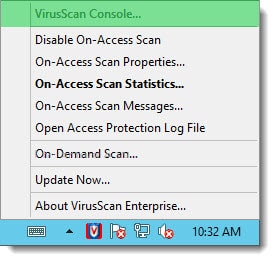
Right-click on the McAfee taskbar icon and select VirusScan console from the context menu.

McAfee VirusScan Enterprise Exchange 2013 2016
[Read more…] about McAfee VirusScan Enterprise blocks outbound SMTP on Exchange

Filed Under: Exchange Solutions

The UC Architects – Episode 59

August 17, 2016 By Gareth Gudger Leave a Comment

Share
Tweet
Share

On August 7th I had the great pleasure of being a guest on The UC Architects podcast. I joined hosts Steve Goodman and Dave Stork to discuss the latest in Unified Communications.

Gareth Gudger Recording The UC Architects Podcast Episode 59
[Read more…] about The UC Architects – Episode 59

Filed Under: Exchange News, Office 365 News, Office 365 RSS, Podcasts

Internal 500 server error after fresh Exchange 2016 install

August 15, 2016 By Gareth Gudger 17 Comments

Share
Tweet
Share

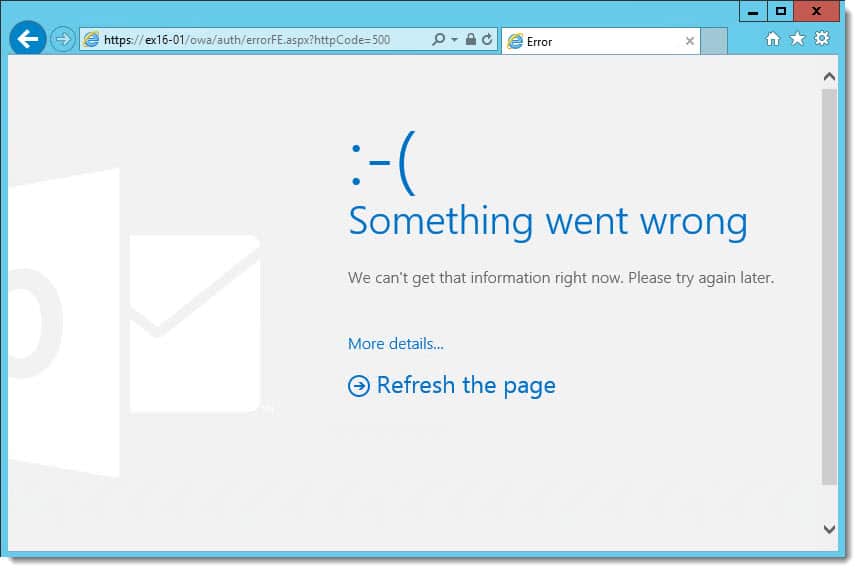
Ran into a strange problem recently. I installed Exchange 2016 CU2 onto a brand new machine. This was the first Exchange 2016 server in the environment. Exchange 2010 SP3 RU14 was in coexistence. I could access the Exchange Control Panel fine. But when I accessed Outlook on the Web (formerly Outlook Web App) I received an Internal 500 server error. Not good. Especially on a brand new install.

Outlook Web App Internal 500 server error

Checking the application log revealed a ton of ASP.NET warnings. The warning had a source ASP.NET with Event ID 1310. Inside each warning was internal code 3008 with event message, A configuration error has occurred. The specifics are below.

ASP.NET Event ID 1310 Event Code 3008
Event code: 3008
Event message: A configuration error has occurred.
Event time: 9/1/2016 7:00:00 PM
Event time (UTC): 9/1/2016 11:00:00 PM
Event ID: 33cf7da9abe544e8b562fe0ab5437b57
Event sequence: 1
Event occurrence: 1
Event detail code: 0

We quickly found our answer in the exception message. In many instances the Microsoft.Exchange.Security assembly was missing. Other missing assemblies were referenced in separate warnings as well. I’ve highlighted the section below.

[Read more…] about Internal 500 server error after fresh Exchange 2016 install

Filed Under: Exchange Solutions

Renew a Certificate in Exchange 2013 (and older versions of 2016 & 2019)

August 2, 2016 By Gareth Gudger 6 Comments

Share
Tweet
Share

How to renew a certificate in Exchange

In this article, we explore the process of renewing a certificate in Exchange. We demonstrate how to accomplish this using the Exchange Admin Center and PowerShell. The high-level steps include:

  • Create a new certificate signing request
  • Upload the certificate signing request to your certificate provider
  • Download the processed certificate from your certificate provider
  • Install the certificate on Exchange
  • Export the new certificate to a PFX file
  • Import the certificate to all other Exchange servers
  • Assign Exchange services to the new certificate on each server
  • Delete the old certificate

Let’s get started!

Note: These steps are identical for Exchange 2013, Exchange 2016 CU22 and earlier, and Exchange 2019 CU11 and earlier. If you are using Exchange 2016 CU23 or greater or Exchange 2019 CU12 or greater, you must renew your certificate with all new PowerShell commands covered in the following article.

Renew a Certificate with Exchange Admin Center

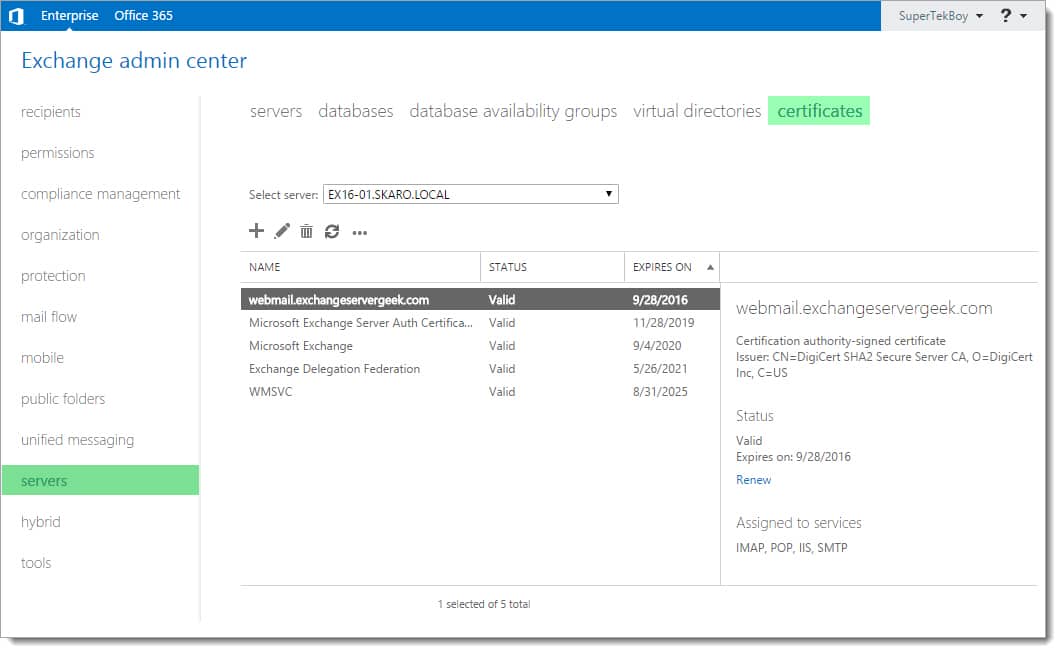
Log in to the Exchange Admin Center (EAC). Select the Servers tab and Certificates sub-tab.

This page displays all currently installed Exchange certificates. In our example, we see four self-signed certificates. We also see the certificate that we acquired from a trusted certificate authority (affiliate). This certificate is named webmail.exchangeservergeek.com. This is the certificate we will be renewing.

Renewing an Exchange certificate

Select the certificate to be renewed (in our case webmail.exchangeservergeek.com) and click the Renew link in the task pane to the right.

Renewing an Exchange certificate 2

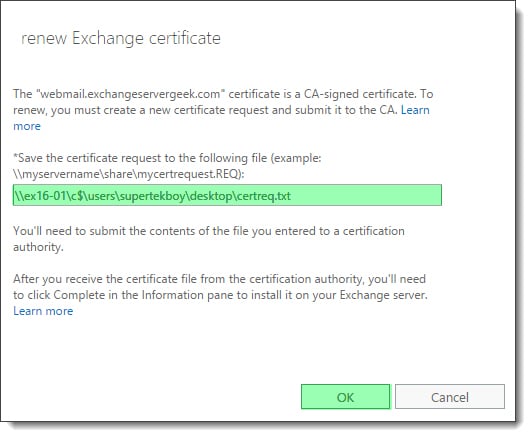
The renewal process will create a new certificate request to submit to our certificate authority. Specify a location to save this certificate request. This location must be in the form of a UNC path. In our example, we specify a file called certreq.txt at the path \\ex16-01\c$\users\supertekboy\desktop\. This will create a text file on our server’s desktop. Click Ok.

Renewing an Exchange certificate 3
[Read more…] about Renew a Certificate in Exchange 2013 (and older versions of 2016 & 2019)

Filed Under: Exchange Tutorials

  • « Go to Previous Page
  • Page 1
  • Interim pages omitted …
  • Page 15
  • Page 16
  • Page 17
  • Page 18
  • Page 19
  • Interim pages omitted …
  • Page 31
  • Go to Next Page »

Primary Sidebar

Want to stay up to date?

Sidebar Form

Join thousands of IT professionals and get the latest Exchange & Office 365 tips and tutorials direct to your inbox

DigiCert Banner 300x348

(help support us using our affiliate link)

Footer

Site Navigation

  • Subscribe to blog
  • About SuperTekBoy
  • Disclaimer
  • Privacy & Cookies
  • Contact Us

Want to stay up to date?

Footer Form

Join thousands of IT professionals and get the latest Exchange & Office 365 tips and tutorials direct to your inbox

Join the conversation

  • Twitter
  • LinkedIn
  • Facebook
  • RSS

Copyright © 2026 · SuperTekBoy LLC