• Skip to primary navigation
  • Skip to main content
  • Skip to primary sidebar
  • Skip to footer

SuperTekBoy

Practical Help for Exchange & Office 365

  • Exchange
    • News
    • Tutorials
    • Solve a Problem
  • Office 365
    • News
    • Tutorials
    • Solve a Problem
  • Outlook
    • Tutorials
    • Solve a Problem
  • Books
  • Podcasts
  • Quick Links…
    • Generate or Renew SSL Certs for Exchange
    • Connect PowerShell to Exchange Online
    • Connect PowerShell to Office 365
    • Extend Schema for Exchange
    • Exchange Schema & Build Numbers
  • More…
    • Kemp Load Balancers
    • Other tech…
    • Videos
    • About SuperTekBoy
    • Contact Us

Outlook Tutorials

Managing mailbox storage with Outlook on the Web (OWA)

March 18, 2022 By Gareth Gudger 1 Comment

Share
Tweet
Share

Outlook on the web (OWA) has some great features when it comes to managing your mailbox storage. These features not only include an analysis of how you are consuming your mailbox space, but also tools to clean up that space. In this article, we will take a look into managing a mailbox and a potential method for cleaning it up.

To access this feature open Outlook on the Web, select the Settings (” “) icon in the top-right and the View all Outlook Settings link, at the bottom of the Settings pop-out window.

From the Settings screen, select the General then Storage tabs.
Managing mailbox storage with Outlook on the Web (OWA)

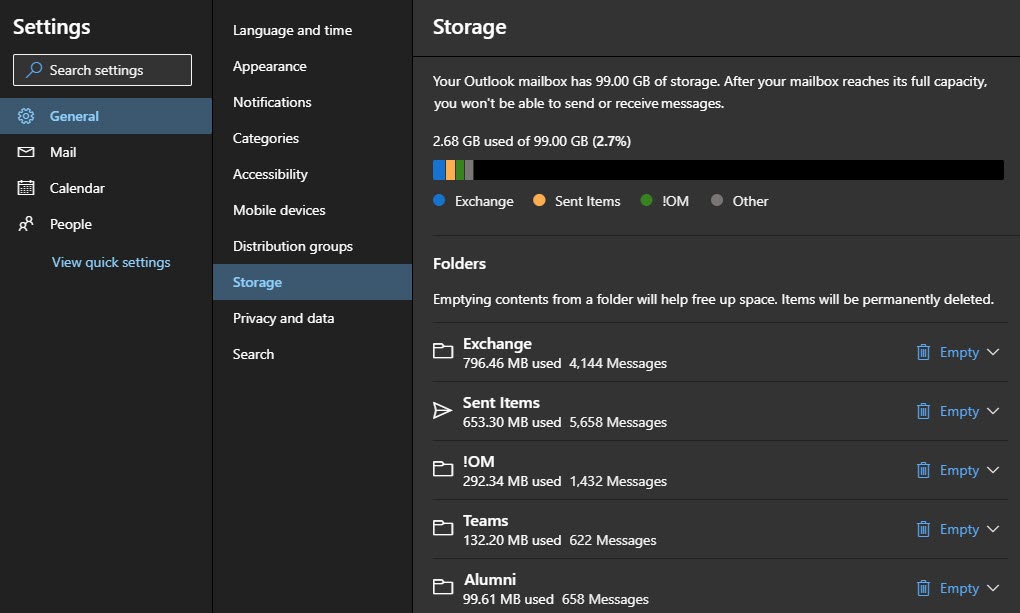
The top part of the Storage screen displays a chart that identifies our allowable mailbox size and our consumption of that allowable size. In our example, we are using 2.68 GB of an allowed 99 GB.

The chart also identifies how much space the top three folders are consuming in blue, yellow, and green. The grey color is the sum of all remaining folders in the mailbox. The legend below the chart identifies the names of the top three folders. From our example, you can see the top three folders in this mailbox are named “Exchange”, “Sent Items” and “!OM”.

The lower part of the Storage screen lists all folders in the mailbox, the size of each folder in megabytes, and the number of items in each folder. From our example, we can see the “Exchange” folder is 796 MBs in size and contains 4,144 items. Note that this list will not show any empty folders.

[Read more…] about Managing mailbox storage with Outlook on the Web (OWA)
Filed Under: Office 365 Tutorials, Outlook Tutorials

How to start meetings late (or end early) in Outlook

January 8, 2021 By Gareth Gudger 2 Comments

Share
Tweet
Share

One of the great new features in Outlook is scheduling meetings or appointments to start late (or end early). The end early feature has been included in Outlook for some time. However, the start late feature was introduced into the Office beta channel in version 2012 (build 13530.20000).

Note: This feature is now available in the Current (Preview) channel as of version 2012 (Build 13530.20218)

The shorten meeting feature allows attendees time between meetings. This is useful for many aspects, such as allowing users time to travel between meeting rooms, grab a coffee, reconcile notes, or decompress.

How to shorten meetings to start late or end early

To access this feature, open Outlook, navigate to the File menu, then select Options. From the Outlook Options dialog, select the Calendar tab.

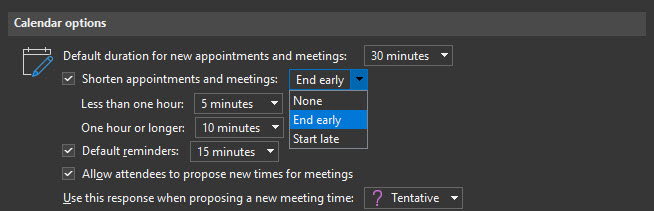
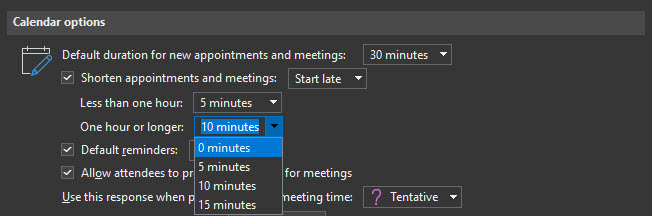
Under the Calendar Options section, select the Shorten appointments and meetings checkbox. From the drop-down, choose whether to have meetings End early or Start late.

Note: If you select None, the prior checkbox will become deselected.

Start Meetings Late in Microsoft Outlook

These options also allow you to specify how much time to shorten appointments and meetings. By default, any meeting under 1 hour will be shortened by 5 minutes. Any meeting for 1 hour or longer will be shortened by 10 minutes.

If you wish to change these defaults, pick another time from each drop-down. For example, for meetings one hour or greater, you have choices of 0, 5, 10, and 15 minutes. Once you have made your selection click Ok to save and close the Outlook Options dialog.

Shorten appointments and meetings in Microsoft Outlook
[Read more…] about How to start meetings late (or end early) in Outlook

Filed Under: Office 365 Tutorials, Outlook Tutorials

How to switch to the Office (M365 Apps) Beta Channel

January 5, 2021 By Gareth Gudger 15 Comments

Share
Tweet
Share

One of the benefits of being in the Office Beta Channel (formerly known as Insider Fast) is getting to see and test new Office features before they are generally available.

When you install Office, all new installations will default to the Current channel (formerly known as the Monthly channel). However, it is possible to change your update channel. The table below lists all the available update channels and their former names as these were recently changed.

ChannelOld Name
BetaInsider Fast
Current (Preview)Monthly (Targeted)
CurrentMonthly
Monthly EnterpriseMonthly Enterprise
Semi-Annual Enterprise (Preview)Semi-Annual (Targeted)
Semi-Annual EnterpriseSemi-Annual

The Beta Channel typically receives new features 1 month in advance of the Current Channel. For more information on the specifics of each channel, check out this article from Microsoft.

How to determine your Office update channel

To determine your Office update channel, open any Office app. In our example, we will open Microsoft Word.

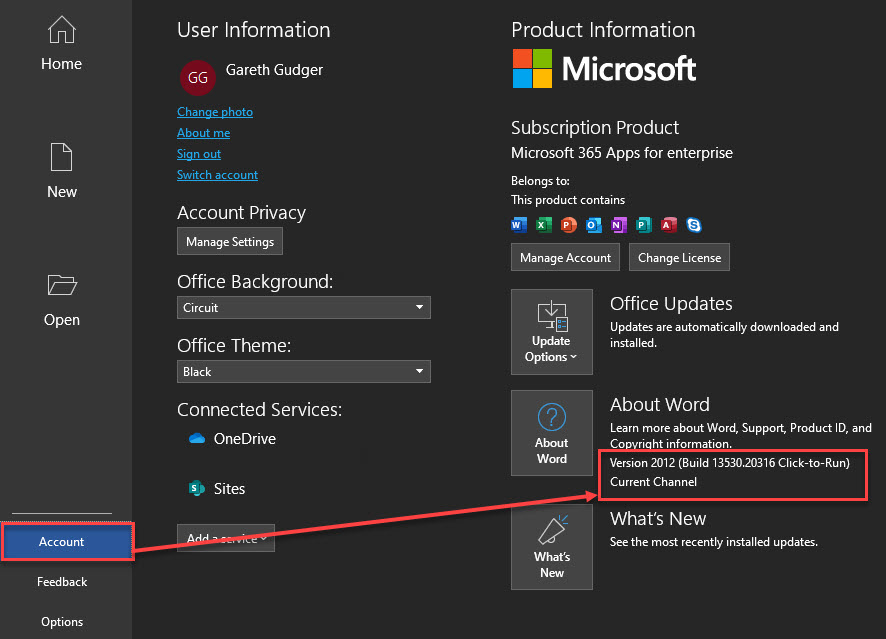
Once launched, click Account. In the About Word section, you will see both the build number and the current update channel. In the screenshot below, you can see our build is Version 2012, and our update cycle is the Current Channel.

Determine Office update channel

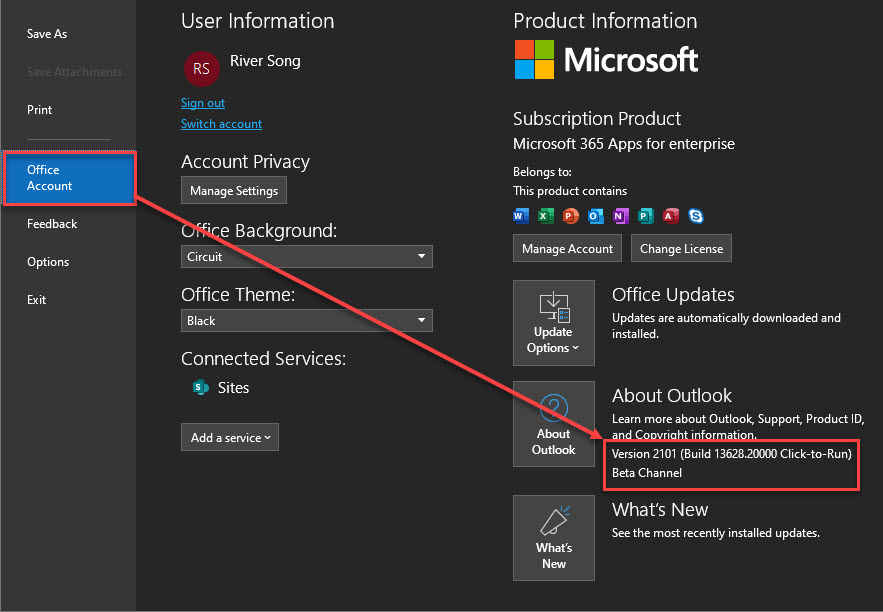
Microsoft Outlook is a little different. To check your Office update channel using Outlook, navigate to the File menu and select Office Account. Like other Office apps, the build and update channel will be listed in the About Outlook section.

Determine Office update channel - Outlook

Tip: The build numbers are formulated from a two-digit year and a two-digit month. For example, the first two digits, “20”, designate the year 2020. The second two digits, “12”, designate December. Microsoft documents all build numbers and release notes here.

[Read more…] about How to switch to the Office (M365 Apps) Beta Channel

Filed Under: Office 365 Tutorials, Outlook Tutorials

Microsoft Word editor goes full dark mode

November 30, 2020 By Gareth Gudger 8 Comments

Share
Tweet
Share

If you are part of the Office Beta Channel (formerly known as the Office Insiders Program), then a new full dark mode has made its way to Microsoft Word.

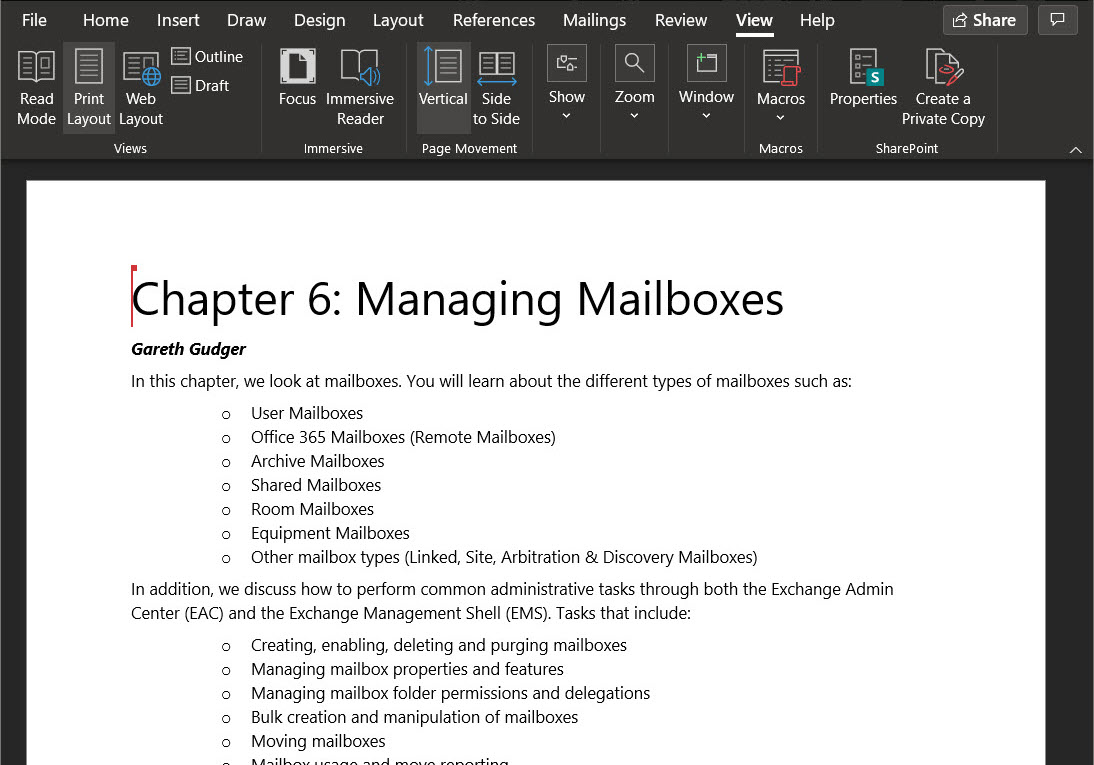
Previously selecting Black under File > Account > Office Theme would change the ribbon, background, and status bars to black while leaving the editor itself a bright white.

Original Dark Mode in Microsoft Word

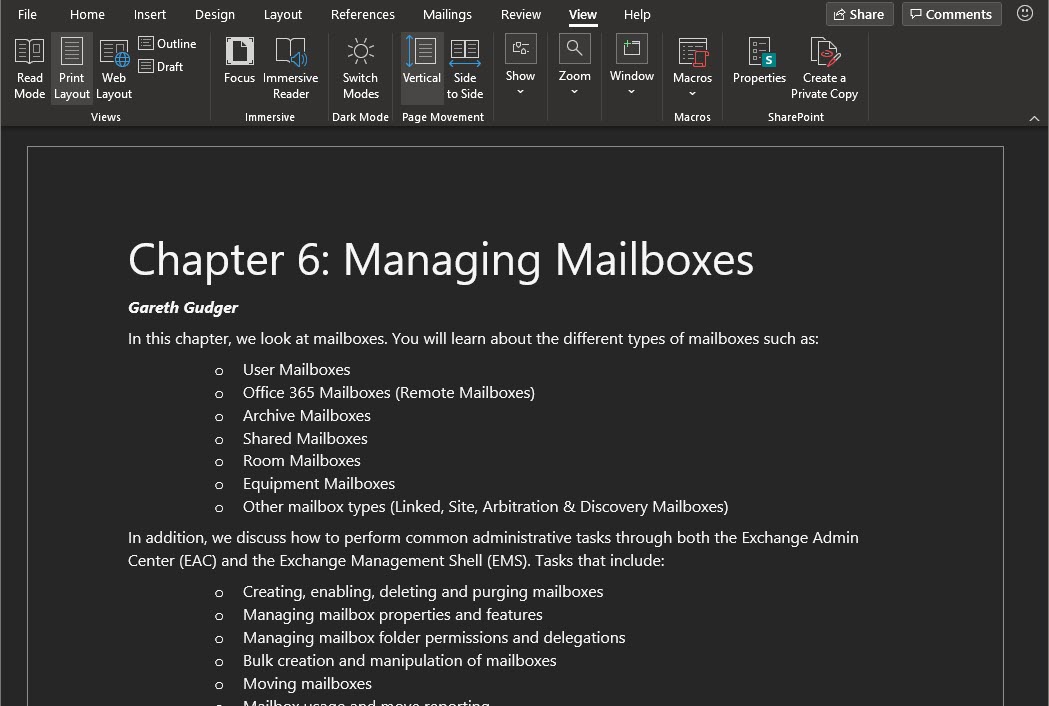
The new Black theme now switches the editor to a true dark mode. From the screenshot below, you can see the background and text have been inverted.

Dark Mode in Microsoft Word Build 2012
[Read more…] about Microsoft Word editor goes full dark mode

Filed Under: Office 365 Tutorials, Outlook Tutorials

Dark Mode Compilation

September 15, 2019 By Gareth Gudger Leave a Comment

Share
Tweet
Share

I have always been a big fan of dark mode for any application as I spend more hours than I care to admit at my computer, so eye strain is always a concern.

Dark mode lets us protect our eyeballs from the harsh glare of a white screen, and it may just conserve a little more battery life on our mobile devices.

The articles below are a compilation of tutorials with easy to follow steps on setting a dark theme in your favorite app.

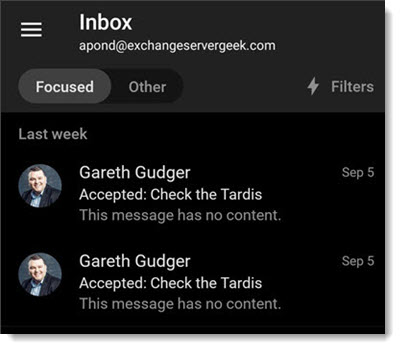
Outlook Mobile Inbox in Dark Mode Thumbnail 2

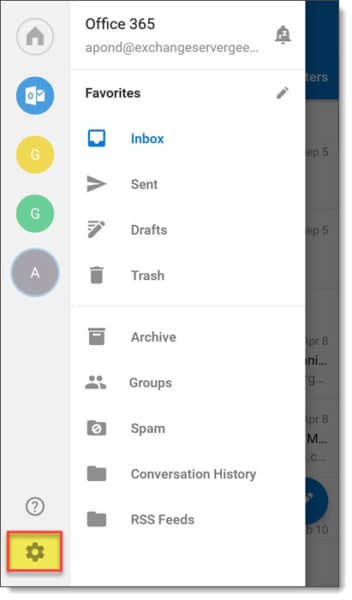
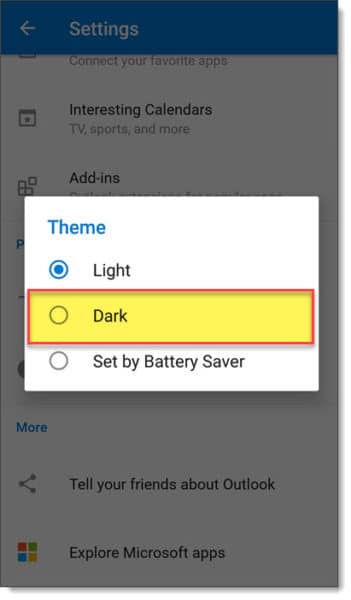
Outlook Mobile

In this article, we explore how to enable dark mode in Outlook Mobile. Read more…

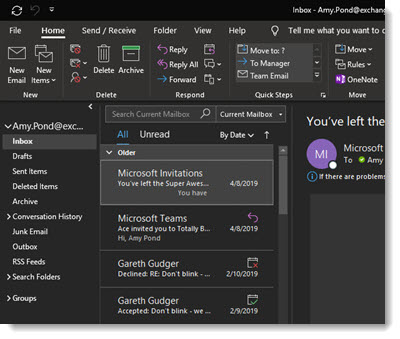
Outlook on Windows Black Theme Thumbnail

Outlook Desktop

In this article, we explore the dark theme in Outlook Desktop. We also explore how to turn the lights on and off temporarily and permanently in the reading and composition panes. Read more…

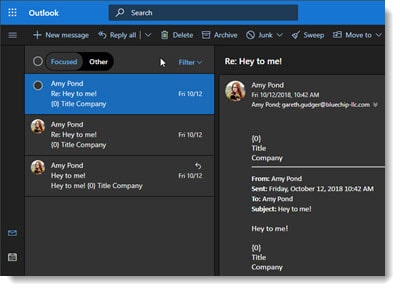
Outlook on the Web Dark Theme Thumbnail

Outlook on the Web

In this article, we explore dark mode in Outlook on the Web (OWA). We also explore how to turn the lights on and off in the reading and composition panes. Read more…

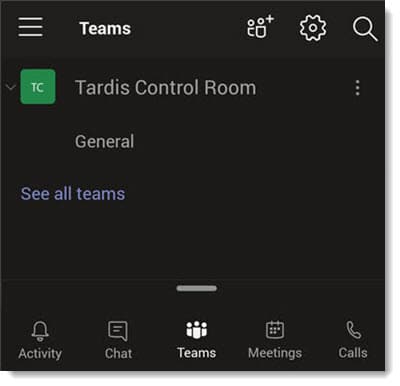
Teams Dark Mode Thumbnail

Teams Mobile

In this article, we explore how to enable dark mode in Microsoft Teams mobile. Read more…

Microsoft Teams Dark Theme Thumbnail

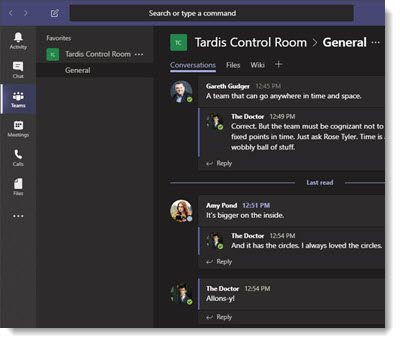
Teams Desktop

In this article, we explore setting Microsoft Teams to a dark theme. Read more…

Windows 10 1809 Dark Mode Thumbnail

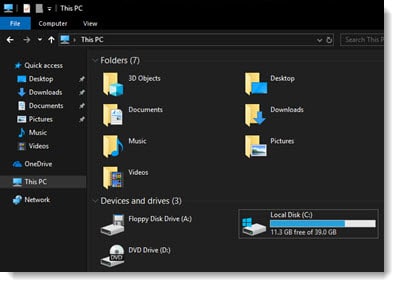
Windows 10

In this article, we explore how to set Windows 10 to a dark theme. This includes changing Windows Explorer to dark mode. Read more…

Twitter

Which app do you prefer in dark mode? Is there an app I should add to the list? Drop a comment below or join the conversation on Twitter @SuperTekBoy.

Filed Under: Office 365 Tutorials, Outlook Tutorials

Enabling Dark Mode in Outlook Mobile

September 12, 2019 By Gareth Gudger 1 Comment

Share
Tweet
Share

If you are like me and like to work on a mobile device at night, or, just work with the lights off, then dark mode is for you. I find a dark theme helps with eye strain. In addition, many sources also report that a dark color scheme helps conserve battery power on mobile devices.

The mobile client of Outlook has such a mode.

Let’s get started!

Enabling Dark Theme in Outlook Mobile

To enable dark theme in Outlook Mobile, click the Menu button in the top-left and then Settings (represented by a gear icon).

Outlook Mobile Menu
Outlook Mobile Settings

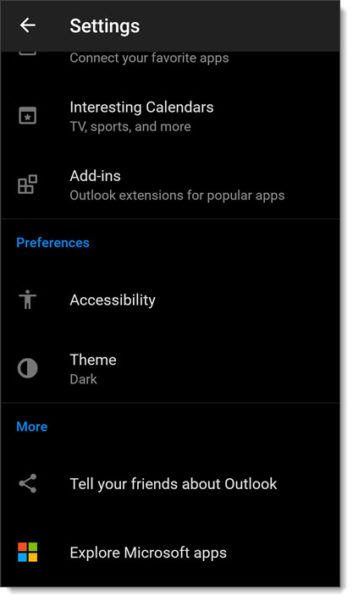
From the Settings page scroll down to the Preferences section. Click Theme. From the Theme pop-up select Dark.

Note: The Set by Battery Saver mode adjusts between the light and dark themes based on your device’s battery conservation settings. Microsoft states switching to dark mode consumes less device power.

Outlook Mobile Setting Dark Theme

The Preferences section now identifies your theme as Dark. To change to another theme, click Theme again and make a new selection. To revert to the default theme click Light.

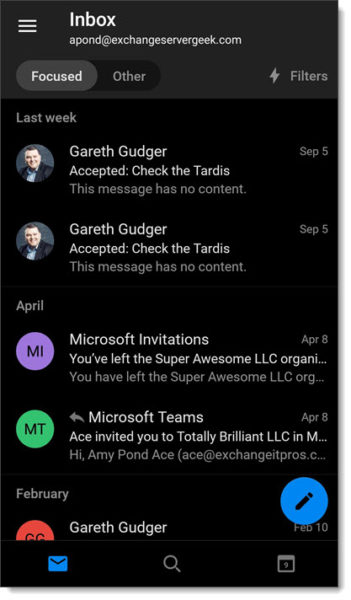
Once satisfied, click the back arrow in the top left of the screen. Your inbox will now reflect your current theme. In our screenshot below, our inbox has updated to the dark theme.

Outlook Mobile Settings in Dark Mode
Outlook Mobile Inbox in Dark Mode
[Read more…] about Enabling Dark Mode in Outlook Mobile

Filed Under: Office 365 Tutorials, Outlook Tutorials

  • Page 1
  • Page 2
  • Page 3
  • Go to Next Page »

Primary Sidebar

Want to stay up to date?

Sidebar Form

Join thousands of IT professionals and get the latest Exchange & Office 365 tips and tutorials direct to your inbox

DigiCert Banner 300x348

(help support us using our affiliate link)

Footer

Site Navigation

  • Subscribe to blog
  • About SuperTekBoy
  • Disclaimer
  • Privacy & Cookies
  • Contact Us

Want to stay up to date?

Footer Form

Join thousands of IT professionals and get the latest Exchange & Office 365 tips and tutorials direct to your inbox

Join the conversation

  • Twitter
  • LinkedIn
  • Facebook
  • RSS

Copyright © 2026 · SuperTekBoy LLC