• Skip to primary navigation
  • Skip to main content
  • Skip to primary sidebar
  • Skip to footer

SuperTekBoy

Practical Help for Exchange & Office 365

  • Exchange
    • News
    • Tutorials
    • Solve a Problem
  • Office 365
    • News
    • Tutorials
    • Solve a Problem
  • Outlook
    • Tutorials
    • Solve a Problem
  • Books
  • Podcasts
  • Quick Links…
    • Generate or Renew SSL Certs for Exchange
    • Connect PowerShell to Exchange Online
    • Connect PowerShell to Office 365
    • Extend Schema for Exchange
    • Exchange Schema & Build Numbers
  • More…
    • Kemp Load Balancers
    • Other tech…
    • Videos
    • About SuperTekBoy
    • Contact Us

Exchange February 2019 Updates

February 23, 2019 By Gareth Gudger 5 Comments

Share
Tweet
Share
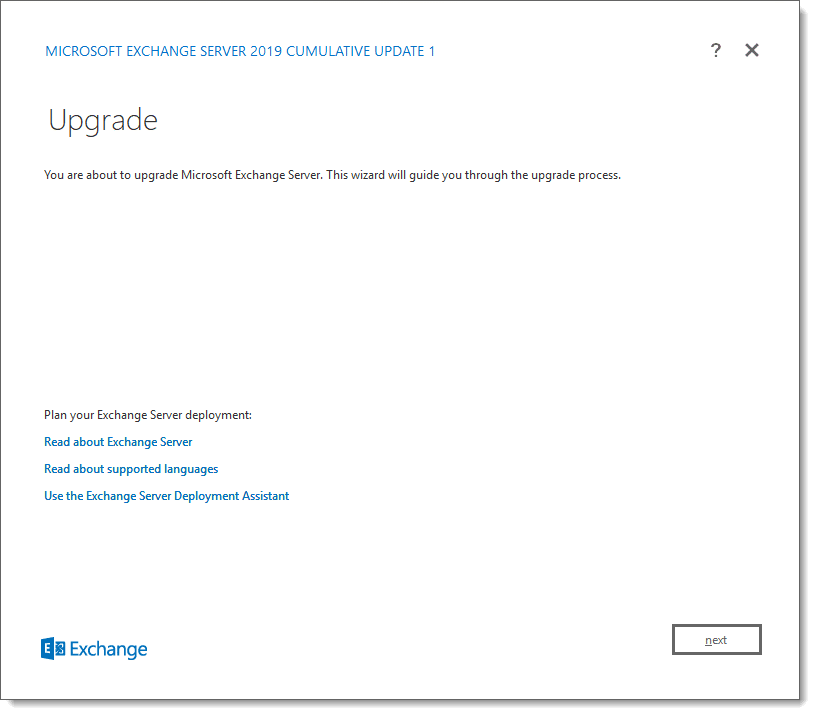
Exchange 2019 CU1

Last week was a big week for Exchange. Microsoft released its first cumulative update for Exchange 2019 as well as cumulative updates for Exchange 2016 and 2013.

As always, test these updates in a lab first! I recommend checking out this 7-part guide on configuring Exchange in your lab. It doesn’t take much to get one going.

The updates are as follows:

Exchange 2013 Cumulative Update 9

Exchange 2019 Cumulative Update 1 (VLSC)| KB4471391

Exchange 2016 Mini

Exchange 2016 Cumulative Update 12 | KB4471392 | UM Language Pack

Exchange 2013 Cumulative Update 9

Exchange 2013 Cumulative Update 22 | KB4345836 | UM Language Pack

Exchange 2010 Mini

Exchange 2010 SP3 Rollup 26 | KB4487052 (released February)

Exchange 2010 Mini

Exchange 2010 SP3 Rollup 25 | KB4468742 (released January)

Only 325 days left for Exchange 2010

Here is a quick reminder that extended support for Exchange 2010 is coming to an end. After January 14th, 2020, no further technical support or updates will be available. This includes security, bug, and time zone updates.

Unfortunately, there is no direct path to Exchange 2019 from 2010. If you do plan to stay on-prem you will need to migrate to either 2013 or 2016 (I’d recommend 2016 as 2013 is now in extended support). From there you can migrate to 2019. Alternatively, you can migrate to Office 365.

For more information about the Exchange 2010 life-cycle check out the Exchange Team blog.

So, what’s new in these Cumulative Updates?

Push notifications are one type of notification a developer can leverage in their application to add value. An example of a push notification might be the notification of new mail on a mobile device.

In this series of cumulative updates, the Exchange Team has changed the way it initiates push notifications through Exchange Web Services. This is in direct response to a security flaw where an attacker could intercept push notifications to gain access to credentials streamed via NTLM. These cumulative updates mitigate this attack by removing these credentials from the stream. Microsoft documents this resolution in KB4490060.

After applying this cumulative update, Microsoft recommends forcing the computer account to change its password by using either the Reset-ComputerMachinePassword cmdlet or, NETDOM. In addition, Microsoft recommends every organization review its user password expiration policies.

In further response to the security flaw, Microsoft is reducing the number of rights Exchange has in Active Directory when operating in a shared permission model.

In a shared permission model, Exchange administrators have the ability to create security principals in Active Directory and mail-enable those security principals. This includes the ability to create a new user as you are creating a mailbox, or, the ability to remove a user when you remove a mailbox. This also extends to tasks such as being able to create a distribution group, or, modify distribution group members.

In a split permission model, the Exchange administrator is restricted from these tasks and can only mail-enable, or, mail-disable existing objects (e.g. users, groups, or contacts) that were created by an administrator with Active Directory rights.

Going forward the shared permission model will have fewer Active Directory rights, but that does not mean reduced functionality for Exchange administrators.

[Read more…] about Exchange February 2019 Updates

Print Friendly, PDF & Email

Filed Under: Exchange News, Office 365 News

Presence missing in Outlook after Teams Only switch

February 17, 2019 By Gareth Gudger 50 Comments

Share
Tweet
Share

If you have recently made the switch from Skype to Teams Only mode in Office 365, you may have lost your presence data in Outlook.

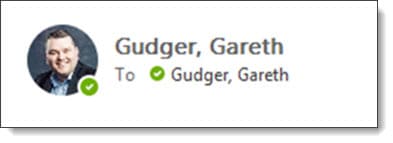
Skype and Teams share their presence data with Outlook. When viewing or composing an email in Outlook you can also see the presence of anyone internal in your organization and any external users you have federated presence data with. That presence date will look like the screenshot below.

Presence data from Teams and Skype in Microsoft Outlook

In the example above, I have a green checkmark which identifies my presence as available. This could also be yellow to show away, red to show busy and, other presences such as do-not-disturb, out of office, or, unknown. This presence data can show up in other Office applications as well, such as Microsoft Word when co-authoring a document in real-time.

If you have recently switched to Teams-Only mode and there is no presence circle at all, then you may need to reconfigure your Teams client to share presence data. Below is an example of what that will look like.

Note: Presence data will also be missing if your Microsoft Teams client is not running.

Missing Presence Data in Microsoft Outlook
[Read more…] about Presence missing in Outlook after Teams Only switch
Print Friendly, PDF & Email

Filed Under: Office 365 Solutions, Outlook Solutions

Save Time with FindTime

February 9, 2019 By Gareth Gudger 4 Comments

Share
Tweet
Share

UPDATED 5/24/23

One of the great plugins for Outlook is FindTime. FindTime makes scheduling meetings easy by allowing organizers to poll attendees for their preferred date and time to meet. But FindTime is more than just a simple polling app, it integrates fully into your calendar. FindTime recommends meeting times, can place tentative placeholders on your calendar for each proposed time, and can automatically schedule the meeting if a consensus is met. Gone are the days of emails flying back and forth to find a time that works for everyone.

Note: If you have the April 2023 build of M365 Apps FindTime is now integrated as the “Scheduling Poll” feature. Older versions of Office can still leverage FindTime as an independent app.

Installing FindTime

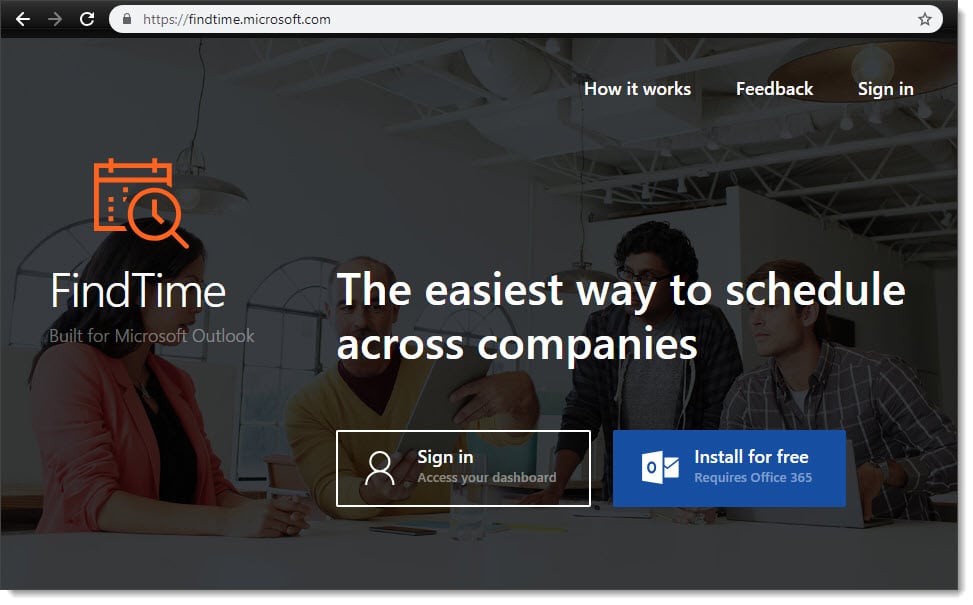
To install FindTime, navigate to findtime.microsoft.com (alternatively, you can install FindTime from the Office 365 App Store – to do this, log into Office 365 and select Add-Ins). 

From the website, click Install For Free (Requires Office 365).

Installing FindTime for Outlook

Select whether to receive FindTime announcements, updates, and information. Click I’m Ready.

Installing FindTime for Outlook
[Read more…] about Save Time with FindTime
Print Friendly, PDF & Email

Filed Under: Office 365 Tutorials, Outlook Tutorials

The following servers in Windows Failover Cluster are not in Active Directory

January 29, 2019 By Gareth Gudger Leave a Comment

Share
Tweet
Share
The Following Servers in the Windows Failover Cluster are not in Active Directory
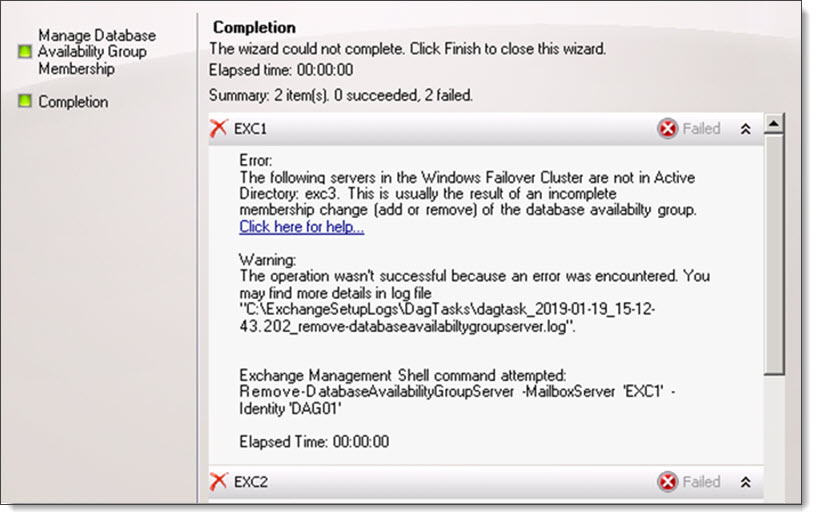
The following servers in the Windows Failover Cluster are not in Active Directory: <server name>. This is usually the result of an incomplete membership change (add or remove) of the database availability group.

I ran into this error recently while trying to remove two Exchange 2010 members from a database availability group (DAG).

The error stated that a member of the DAG, a server named EXC3, did not exist in Active Directory. This was odd because queries to the Exchange 2010 management tools only returned two Exchange servers–EXC1 and EXC2.

We further confirmed that there was no computer account for EXC3 in Active Directory Users and Computers. We did, however, see remanents of EXC3 in ADSI Edit.

Talking with our customer we discovered that there had been a third Exchange server, named EXC3, that had crashed and was never recovered.

Fix–The following servers in the Windows Failover Cluster are not in Active Directory

To verify the status of all nodes in your database availability group, open PowerShell and import the Windows Failover Clustering cmdlets with Import-Module.

 C:\> Import-Module FailoverClusters

Next, run the Get-ClusterNode cmdlet. This will retrieve the status of all our nodes.

 C:\> Get-ClusterNode

Name State
---- -----
EXC1 Up
EXC2 Up
EXC3 Down

In the example above, we can see EXC1 and EXC2 are operational, whereas EXC3 is offline.

Because EXC3 no longer exists (and the fact we plan to collapse the entire DAG anyway) we can forcibly evict the failed node. To do this issue the following command.

 C:\> Get-ClusterNode -Name "EXC3" | Remove-ClusterNode

Remove-ClusterNode
Are you sure you want to evict node EXC3
[Y] Yes [N] No [S] Suspend [?] Help (default is "Y"): Y

You will be prompted to confirm. Press enter to accept the default action of “Yes”.

If we repeat the first Get-ClusterNode command we will only have the two operation cluster nodes remaining.

 C:\> Get-ClusterNode

Name State
---- -----
EXC1 Up
EXC2 Up

With no more failed nodes we can remove the two operational nodes using either the Exchange 2010 management console or PowerShell.

Twitter

Have you run into this error while add or remove members to a DAG? What did you do to fix it? Drop a comment below or join the conversation on Twitter

Print Friendly, PDF & Email

Filed Under: Exchange Solutions

RunAs Radio #618 – Exchange 2019 with Gareth Gudger

January 9, 2019 By Gareth Gudger Leave a Comment

Share
Tweet
Share

On November 30th I had the great pleasure of being a guest on the RunAs Radio podcast. I joined host Richard Campbell to discuss all the new features in Exchange 2019. We discuss the MetaCache Database [MCDB], the benefits of the new search architecture, and several client-side features.

[Read more…] about RunAs Radio #618 – Exchange 2019 with Gareth Gudger
Print Friendly, PDF & Email

Filed Under: Exchange News, Podcasts

The F12 easter-egg in Hybrid Configuration Wizard

December 2, 2018 By Gareth Gudger 1 Comment

Share
Tweet
Share

One of the best-kept secrets in the hybrid configuration wizard (“HCW”)
 is the F12 easter-egg. Jeff Kizner demonstrated this feature during his Ignite session back in September.

Tip: For a break down of Jeff’s session, with notes and timers, I highly recommend checking out 15 Ignite sessions every Exchange admin should see.

If you press F12 this enables a new section called Diagnostic Tools. This section provides shortcuts to the following tools or folders.

Hybrid Configuration Wizard F12 Diagnostic Tools HCW
  • Open Exchange Management Shell opens a remote PowerShell session to your on-premises Exchange servers.
  • Open Exchange Online PowerShell opens a PowerShell connection to Exchange Online. This supports MFA-enabled admin accounts.
  • Open Log File opens the active HCW log file in Notepad. The logs are stored in the profile of the user running the HCW. For example, C:\Users\<user>\AppData\Roaming\Microsoft\Exchange Hybrid Configuration
  • Create Support Package will combine your HCW log files into a single ZIP file which can easily be sent to Microsoft support. This link actually opens a second screen where you can specify to ZIP logs from the last 24 hours, or, between a certain date range. You then have the option to copy the file to the clipboard so it can be easily attached to an email.
  • Open Logging Folder opens the folder location of the HCW logs. 
    The HCW logs are stored in the profile of the user running the HCW. For example, C:\Users\<user>\AppData\Roaming\Microsoft\Exchange Hybrid Configuration
  • Open Process Folder opens a Command Prompt to the HCW process directory.

Pressing F12 a second time will hide these tools.

Twitter

What do you think about this easter-egg? Have you run into any cool easter-eggs in other Microsoft products? Drop a comment below or join the conversation on Twitter

Print Friendly, PDF & Email

Filed Under: Exchange Tutorials, Office 365 Tutorials

  • « Go to Previous Page
  • Page 1
  • Interim pages omitted …
  • Page 11
  • Page 12
  • Page 13
  • Page 14
  • Page 15
  • Interim pages omitted …
  • Page 51
  • Go to Next Page »

Primary Sidebar

Want to stay up to date?

Sidebar Form

Join thousands of IT professionals and get the latest Exchange & Office 365 tips and tutorials direct to your inbox

DigiCert Banner 300x348

(help support us using our affiliate link)

Footer

Site Navigation

  • Subscribe to blog
  • About SuperTekBoy
  • Disclaimer
  • Privacy & Cookies
  • Contact Us

Want to stay up to date?

Footer Form

Join thousands of IT professionals and get the latest Exchange & Office 365 tips and tutorials direct to your inbox

Join the conversation

  • Twitter
  • LinkedIn
  • Facebook
  • RSS

Copyright © 2026 · SuperTekBoy LLC