• Skip to primary navigation
  • Skip to main content
  • Skip to primary sidebar
  • Skip to footer

SuperTekBoy

Practical Help for Exchange & Office 365

  • Exchange
    • News
    • Tutorials
    • Solve a Problem
  • Office 365
    • News
    • Tutorials
    • Solve a Problem
  • Outlook
    • Tutorials
    • Solve a Problem
  • Books
  • Podcasts
  • Quick Links…
    • Generate or Renew SSL Certs for Exchange
    • Connect PowerShell to Exchange Online
    • Connect PowerShell to Office 365
    • Extend Schema for Exchange
    • Exchange Schema & Build Numbers
  • More…
    • Kemp Load Balancers
    • Other tech…
    • Videos
    • About SuperTekBoy
    • Contact Us

Exchange Tutorials

Install Exchange 2016 in your lab (Part 5)

September 22, 2015 By Gareth Gudger 11 Comments

Share
Tweet
Share
Exchange 2013 & 2016 Big Logo

In the fourth part of our Exchange lab series we:

  • Discussed the importance of a correctly configured namespace
  • Configured URLs via Exchange Admin Center (EAC)
  • Configured URLs via PowerShell
  • Configured split DNS

In the fifth part of our Exchange lab series we:

  • Generate a certificate request
  • Process a certificate request
  • Complete a certificate request
  • Assign services to a certificate
  • Check our work

Let’s get started.

Generate a Certificate Request

In the last part of our series, we got our namespace configured. Now we need to make sure we have a certificate for that namespace.

Note: Adding a certificate to your lab is optional. Whether you choose to go with a certificate really depends on how close to a production experience you want to be. You can always purchase a certificate for your lab and import it into production later on. If a certificate is not critical for your lab experience you may still wish to review this section in preparation for production.

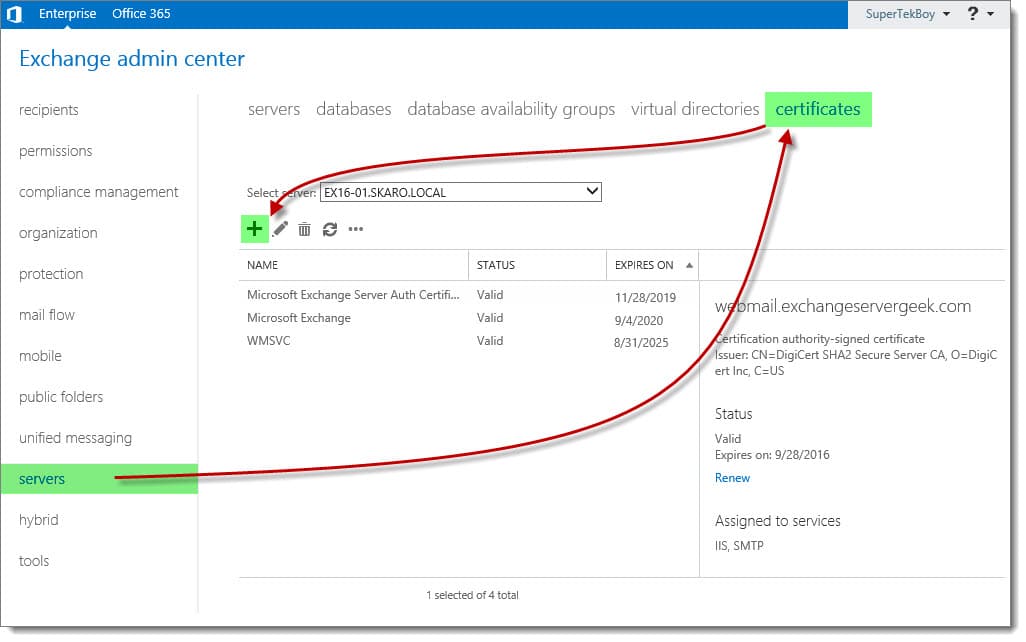
Log in to the Exchange Admin Center (EAC). Select the Servers tab and Certificates sub-tab.

This page displays all currently installed Exchange certificates. These three self-signed certificates are installed with Exchange out of the box. The self-signed certificate titled “Microsoft Exchange” is the one that Exchange is currently using for all of its web services. That’s the one that we will replace with a trusted 3rd party certificate.

Like its predecessor, Exchange 2016 maintains the Certificate Request Wizard. This wizard takes all the guesswork out of generating a certificate request.

To launch the wizard click the New (Add button) button.

Generate a Certificate Request in Exchange 2016 A2

In the New Exchange Certificate wizard select Create a request for a certificate from a certification authority. Click Next.

[Read more…] about Install Exchange 2016 in your lab (Part 5)
Filed Under: Exchange, Exchange Tutorials

Install Exchange 2016 in your lab (Part 4)

September 17, 2015 By Gareth Gudger 16 Comments

Share
Tweet
Share
Exchange 2013 & 2016 Big Logo

In the third part of our Exchange lab series we:

  • Installed Exchange 2016 with the graphical setup
  • Installed Exchange 2016 with the command line

In the fourth part of our Exchange lab series we:

  • Discuss the importance of a correctly configured namespace
  • Configure URLs via Exchange Admin Center (EAC)
  • Configure URLs via PowerShell
  • Configure Split-DNS

Let’s get started!

Note: For instructions on previous versions of Exchange check the following articles:
Designing a simple namespace for Exchange 2013
Designing a simple namespace for Exchange 2010

What’s in a namespace?

A namespace is critically important.

Not only does namespace govern the availability of services like Outlook Web App, or, ActiveSync, but it also governs items such as the distribution of the Offline Address Book, or, Autodiscover. In addition–beginning with Exchange 2013 and continued with 2016–all client requests are made over HTTPS versus straight TCP/IP. This means Outlook Anywhere now manages Outlook connectivity internally as well as externally.

It is imperative we correctly configure our URLs and apply a certificate containing those URLs. Otherwise, our clients won’t be able to establish the necessary SSL connections. Which will lead to all sorts of problems.

Out of the box, Exchange configures its internal URLs to match its internal hostname. It leaves its external URLs blank. Due to recent restrictions, third-party certificate providers no longer allow internal hostnames on certificates. An example of an internal hostname would be anything that ends .LOCAL or .PRIV. In short, it is any top-level domain that is not routable on the internet.

The challenge? If our internal hostnames cannot be found on our certificate it will give our test users a variety of security warnings. This makes it difficult to use internal hostnames with Exchange.

The simplest solution? Don’t use internal hostnames. Instead, use only external hostnames. We will use the same external hostname for both our internal and external URLs. Our URLs for each service will be as follows:

ServiceInternal and External URL
AutoDiscoverhttps://autodiscover.exchangeservergeek.com/Autodiscover/Autodiscover.xml
Exchange Control Panelhttps://webmail.exchangeservergeek.com/ecp
Exchange Web Serviceshttps://webmail.exchangeservergeek.com/EWS/Exchange.asmx
Exchange ActiveSynchttps://webmail.exchangeservergeek.com/Microsoft-Server-ActiveSync
Offline Address Bookhttps://webmail.exchangeservergeek.com/OAB
Outlook Web Apphttps://webmail.exchangeservergeek.com/owa
MAPI over HTTPhttps://webmail.exchangeservergeek.com/mapi
Outlook Anywherewebmail.exchangeservergeek.com

That solves our certificate problem. But how does that work with DNS?

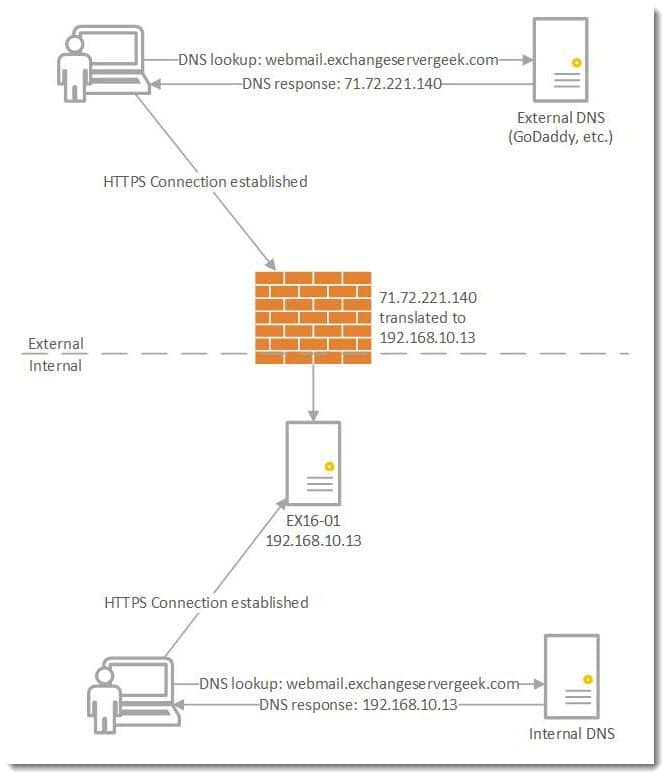
We do this by way of split-DNS. Split-DNS allows us to use the same URLs internally as we do externally. Split-DNS is a non-authoritative copy of our external DNS hosted internally. This non-authoritative copy uses the internal IPs of our servers (versus the public IPs the authoritative copy is using).

For example, our external DNS provider will resolve webmail.exchangeservergeek.com to 7172.

Exchange Split DNS

The need for split-DNS is to keep our local traffic on the local LAN. Without split-DNS, all local traffic would go out the firewall for name resolution only to try and come back in later with the public IP of Exchange. Not only is this an unnecessary detour for your internal clients–plus the unnecessary consumption of internet bandwidth–but most firewalls will block this kind of behavior deeming it suspicious.

[Read more…] about Install Exchange 2016 in your lab (Part 4)
Share
Tweet
Share

Filed Under: Exchange, Exchange Tutorials

Install Exchange 2016 in your lab (Part 3)

September 10, 2015 By Gareth Gudger Leave a Comment

Share
Tweet
Share
Exchange 2013 & 2016 Big Logo

In part two of our Exchange 2016 lab series we:

  • Installed the Exchange 2016 prerequisites
  • Extended the Active Directory schema

In the third part of our Exchange lab series we will:

  • Install Exchange 2016 with the graphical setup
  • Install Exchange 2016 with the command line

Let’s get started!

Install Exchange 2016

Let’s switch gears and install Exchange with the graphical setup. First, launch the SETUP.EXE from your Exchange 2016 install directory.

The first screen will ask you whether you want to check online for updates. I recommend leaving the default setting at Connect to the Internet and check for updates. Click Next.

Installing Exchange 2016 A

In our case, no updates were found. Click Next.

Installing Exchange 2016 B

On the Introduction page click Next.

[Read more…] about Install Exchange 2016 in your lab (Part 3)

Filed Under: Exchange Tutorials

Install Exchange 2016 in your lab (Part 2)

September 9, 2015 By Gareth Gudger 1 Comment

Share
Tweet
Share
Exchange 2013 & 2016 Big Logo

In part one of our Exchange 2016 lab series we:

  • Explored the options for building an Exchange lab
  • Reviewed the requirements for Exchange 2016
  • Built the Exchange 2016 virtual machine
  • Installed the base operating system with all updates

In the second part of our Exchange lab series we will:

  • Install Exchange 2016 mailbox server prerequisites
  • Extend the Active Directory schema for Exchange 2016

Let’s get started!

Exchange 2016 Mailbox Server Prerequisites

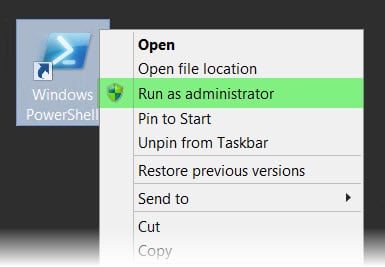
First, let’s get the operating system core components installed. To do this open a PowerShell console as the administrator.

PowerShell Run As Administrator

Then issue the following command.

Update: If using Windows Server 2016, drop the AS-HTTP-Activation component from the command.

 C:\> Install-WindowsFeature AS-HTTP-Activation, Server-Media-Foundation, NET-Framework-45-Features, RPC-over-HTTP-proxy, RSAT-Clustering, RSAT-Clustering-CmdInterface, RSAT-Clustering-Mgmt, RSAT-Clustering-PowerShell, Web-Mgmt-Console, WAS-Process-Model, Web-Asp-Net45, Web-Basic-Auth, Web-Client-Auth, Web-Digest-Auth, Web-Dir-Browsing, Web-Dyn-Compression, Web-Http-Errors, Web-Http-Logging, Web-Http-Redirect, Web-Http-Tracing, Web-ISAPI-Ext, Web-ISAPI-Filter, Web-Lgcy-Mgmt-Console, Web-Metabase, Web-Mgmt-Console, Web-Mgmt-Service, Web-Net-Ext45, Web-Request-Monitor, Web-Server, Web-Stat-Compression, Web-Static-Content, Web-Windows-Auth, Web-WMI, Windows-Identity-Foundation

This command may seem like a lot but in essence, it can be grouped into 4 sets of components being installed.

  • .NET 4.5 support
  • Internet Information Service (IIS)
  • Windows Failover Clustering
[Read more…] about Install Exchange 2016 in your lab (Part 2)

Filed Under: Exchange, Exchange Tutorials

Install Exchange 2016 in your lab (Part 1)

September 8, 2015 By Gareth Gudger 10 Comments

Share
Tweet
Share
Exchange 2013 & 2016 Big Logo

With Exchange 2016 in public preview–and many folks already downloading the bits–it was time to sharpen our pencils and write a 2016 install series.

The goal of this series is to help you introduce Exchange 2016 into your existing 2010/2013 lab.

How to install Exchange 2016 in a lab

In this series, we will:

  • Review lab recommendations
  • Review Exchange 2016 requirements
  • Building the VM / OS
  • Install Exchange 2016 prerequisites
  • Extend the Active Directory schema
  • Install Exchange 2016
  • Configure a simple Exchange 2016 namespace
  • Create and process a certificate request
  • Move the database
  • Move test users

Don’t try this in production

Exchange 2016 will not be released until later this year. You never want to test preview code in a production environment. Always use a lab.

Labs can be inexpensive. If your PC has enough RAM and disk space, Hyper-V might be a perfect fit. Hyper-V comes included with Windows 8 and greater, and it’s very feature-rich. I ran a lab this way for some time.

If you don’t have space, then consider an external USB 3.0 or eSATA drive. I have a number of colleagues that run successfully this way. Some laptops let you swap out their optical drive for a secondary hard drive. Either way, internal or external, a second hard drive is a nice way to keep things organized. For an extra boost, you may want to consider a solid-state drive. I currently own a Samsung 850 EVO 500GB SSD, and I am thoroughly impressed with it.

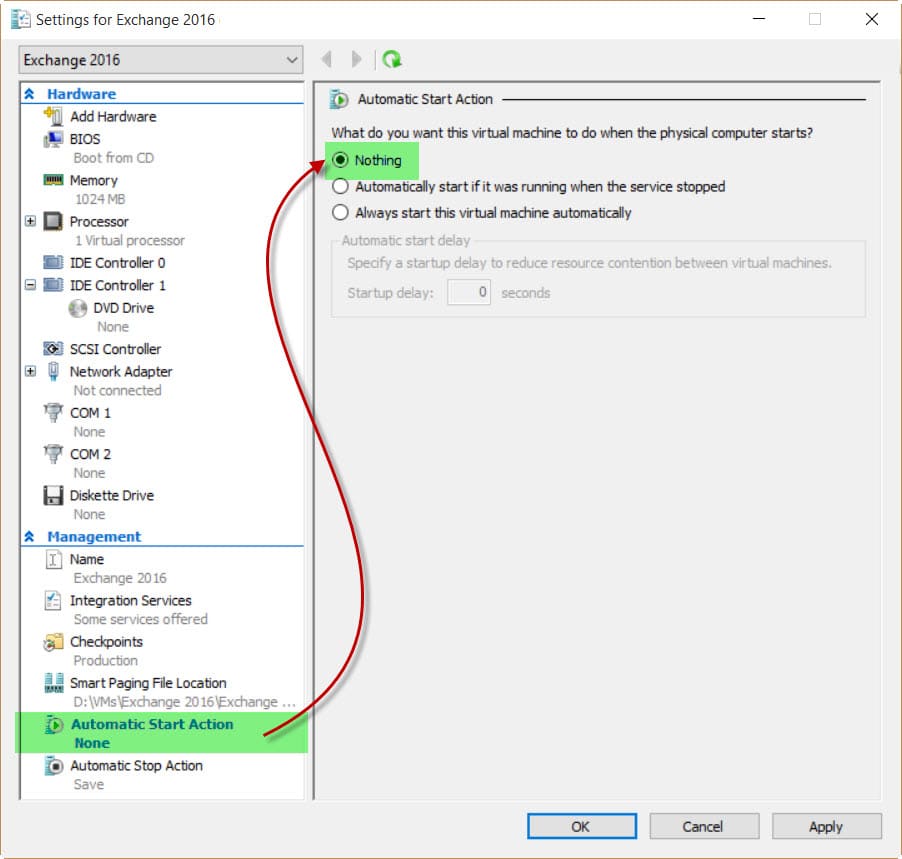
If you are going to run multiple Exchange servers from your primary PC, then I would recommend one minor tweak–startup settings. If you are running a few VMs and have set them to start with the OS, you could be in for an incredibly long boot process (even with a solid-state drive). My recommendation–have those VMs not start with the host OS. You can do this by modifying the properties of each VM. Either turning off auto-start or setting a sizeable delay will do the trick.

If you have money to spend, you may want to consider buying a refurbished server from an auction site. An HP DL 380 G5 with 16GB of RAM and a couple of hard drives goes for around $100 these days.

[Read more…] about Install Exchange 2016 in your lab (Part 1)
Share
Tweet
Share

Filed Under: Exchange Tutorials

Create an IP-less DAG (No Administrative Access Point)

June 30, 2015 By Gareth Gudger 28 Comments

Share
Tweet
Share

Beginning with Exchange 2013 SP1 Microsoft introduced the IP-less DAG as an option. In this article, we explore how to create an IP-less DAG, as well as the pros and cons of deploying one.

Note: With Exchange 2016 IP-less DAGs will become the default configuration.

Why would I want to do this?

Quite simply, its easier to set up.

With an IP-less DAG, you don’t need to pre-stage a Cluster Name Object (CNO) in Active Directory. This is especially useful for organizations that have implemented the split-permission model. You also don’t need to burn an IP address for the cluster.

Any downsides?

Couple gotchas.

Before you implement a DAG without an Administrative Access Point (AAP) you need to check compatibility with 3rd party programs. Backup software is typically the sticking point for migrating to the new DAGs. You need to make sure your 3rd party software doesn’t require an AAP.

The lack of an AAP means the cluster cannot be managed with Failover Cluster Manager either. But the Exchange Team doesn’t want you messing around in there anyway–and for good reason–they want Exchange to manage the cluster. Let Exchange do the heavy lifting for you.

Finally, there is no conversion process to take an IP-based DAG to an IP-less DAG. You will need to create a new DAG.

Choosing an OS (maybe)

While Windows Server 2008 R2 and above support Exchange 2013 DAGs, only 2012 R2 can support an IP-less DAG. If you wish to go with 2008 R2 or 2012 RTM, you will need to create an IP-based DAG instead. For that purpose, I recommend Paul Cunningham’s blog post here.

Are IP-less DAGs the only benefit of going with 2012 R2?

Actually, no. If I haven’t convinced you yet then consider these two additional benefits.

The first is that 2012 includes clustering in its Standard Edition. This can result in some serious cost savings compared to 2008 R2 Enterprise. Especially if you plan on building a 16 member DAG.

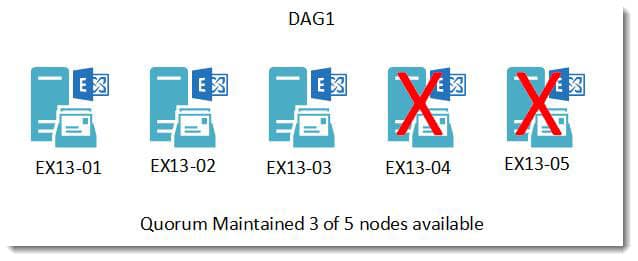
The second is 2012 introduced the concept of dynamic quorum. Dynamic quorum automatically adjusts the votes needed to maintain quorum as servers go offline. Take, for example, a traditional five node DAG. To maintain a quorum three servers must remain online.

DAG Static Quorum 3 of 5 nodes

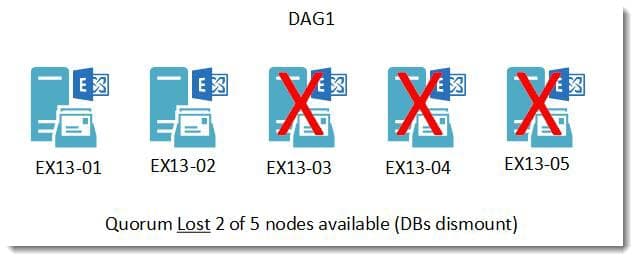
If three of the five servers were to go offline quorum would be lost and the databases would dismount.

DAG Static Quorum 2 of 5 nodes

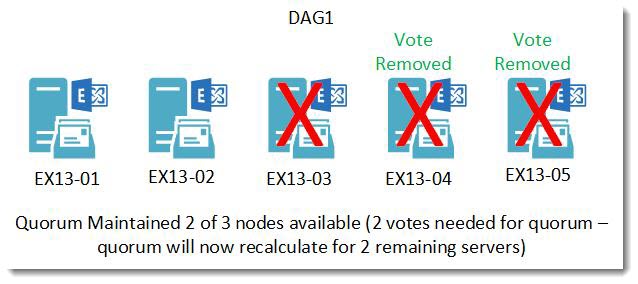
With a dynamic quorum, if two of the servers went offline their votes would be removed. At this point, the quorum is recalculated for the three remaining servers. To maintain quorum only two of the three remaining servers would need to be online. Should a third server go offline, that server’s vote would be removed and, the quorum would be recalculated for the two remaining servers. In many situations, a dynamic quorum can successfully navigate a ‘last man standing’ scenario where only a single server remains operational.

DAG Static Dynamic Quorum

As servers come back online votes are assigned back and the quorum is recalculated.

[Read more…] about Create an IP-less DAG (No Administrative Access Point)

Filed Under: Exchange Tutorials

  • « Go to Previous Page
  • Page 1
  • Interim pages omitted …
  • Page 4
  • Page 5
  • Page 6
  • Page 7
  • Page 8
  • Interim pages omitted …
  • Page 10
  • Go to Next Page »

Primary Sidebar

Want to stay up to date?

Sidebar Form

Join thousands of IT professionals and get the latest Exchange & Office 365 tips and tutorials direct to your inbox

DigiCert Banner 300x348

(help support us using our affiliate link)

Footer

Site Navigation

  • Subscribe to blog
  • About SuperTekBoy
  • Disclaimer
  • Privacy & Cookies
  • Contact Us

Want to stay up to date?

Footer Form

Join thousands of IT professionals and get the latest Exchange & Office 365 tips and tutorials direct to your inbox

Join the conversation

  • Twitter
  • LinkedIn
  • Facebook
  • RSS

Copyright © 2026 · SuperTekBoy LLC