• Skip to primary navigation
  • Skip to main content
  • Skip to primary sidebar
  • Skip to footer

SuperTekBoy

Practical Help for Exchange & Office 365

  • Exchange
    • News
    • Tutorials
    • Solve a Problem
  • Office 365
    • News
    • Tutorials
    • Solve a Problem
  • Outlook
    • Tutorials
    • Solve a Problem
  • Books
  • Podcasts
  • Quick Links…
    • Generate or Renew SSL Certs for Exchange
    • Connect PowerShell to Exchange Online
    • Connect PowerShell to Office 365
    • Extend Schema for Exchange
    • Exchange Schema & Build Numbers
  • More…
    • Kemp Load Balancers
    • Other tech…
    • Videos
    • About SuperTekBoy
    • Contact Us

Other Tech

Disabling TLS 1.0 may cause Outlook to crash

November 11, 2017 By Gareth Gudger 1 Comment

Share
Tweet
Share

Disabling TLS 1.0 may cause Outlook to crash for some of your clients.

I encountered this recently while upgrading a customer from Exchange 2010 to Exchange 2016. The customer had an existing Kemp Load Balancer they had been using for Exchange 2010. We upgraded the Kemp to the latest firmware and created a new Exchange 2016 VIP using the latest templates from Kemp. When we cut over our DNS to the new VIP, some of our Outlook clients started to receive the errors below. Other Outlook clients continued to operate without incident.

For some Outlook clients, we would receive errors when creating a brand new profile in Outlook. Errors such as,“Windows Shell Common DLL has stopped working”
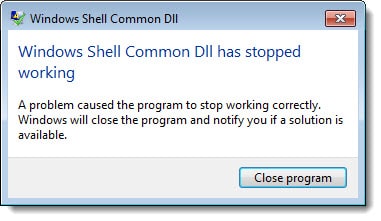
Outlook 2016 - Windows Shell Common DLL has stopped working

Clicking “Close Program” would then be followed by an error reporting that “System resources are critically low”.

Outlook 2016 - System resources are critically low
[Read more…] about Disabling TLS 1.0 may cause Outlook to crash

Filed Under: Exchange Solutions, Kemp Load Balancers, Other Tech

Error 0x8007000B when installing FitBit on Windows Phone

August 5, 2017 By Gareth Gudger 1 Comment

Share
Tweet
Share
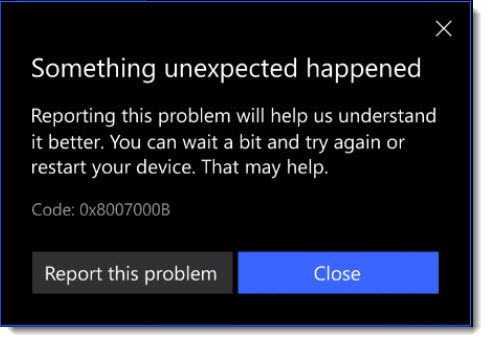
FitBit app will not install on Windows Phone 10 Error Code 0x8007000B

When installing the Fitbit app on Windows Phone 10 you may receive an error. When you click the See Details link, it details that something unexpected happened and provides error code 0x8007000B. The error also instructs that waiting a bit or restarting your device might help. Unfortunately, neither of these recommendations will solve your problem.

The error code is a result of how you have configured your Windows phone to store applications. If your phone has an SD Card and you have configured this as your default location for application installs then this is your problem. The Fitbit app will only install to your phone’s internal storage.

In this article, we explore how to install your FitBit to internal storage. Let’s get started.

[Read more…] about Error 0x8007000B when installing FitBit on Windows Phone

Filed Under: Other Tech, Windows

Separate email message counts on Windows Phone 10 lock screen

December 14, 2016 By Gareth Gudger Leave a Comment

Share
Tweet
Share

The notification area of the Windows Phone 10 lock screen is priceless. From an email workflow, the benefit of the lock screen is to quickly see if any new messages have come in. This is especially useful as it saves you time from keying in your passcode and checking your account for new messages.

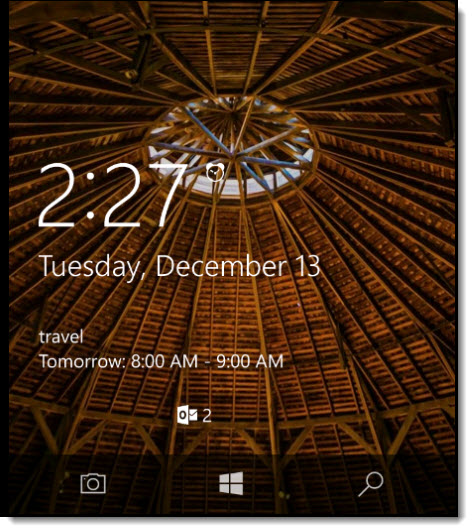
Windows Phone 10 Lock Screen Notifications A

If you are like me you may have multiple email accounts on your Windows phone. Like me, you may also prefer to track how many new messages each email account has received on your lock screen. By default Windows Phone isn’t configured this way. Rather it tells you the aggregate number of all email messages across all accounts in a single notification. In the picture above the number two is actually two email accounts that have received one message each. This may be good for some but when I have both work and personal email accounts on my phone I want to know which account has the new message to determine if it needs immediate attention.

In this guide, we show how to create a separate message count on your lock screen for two email accounts. In our example, one account will be a work account on Exchange and the other will be a personal account on Outlook.com.

Let’s get started!

[Read more…] about Separate email message counts on Windows Phone 10 lock screen

Filed Under: Outlook Tutorials, Windows

Make inbound SMTP highly available with Kemp LoadMaster

June 17, 2016 By Gareth Gudger 5 Comments

Share
Tweet
Share
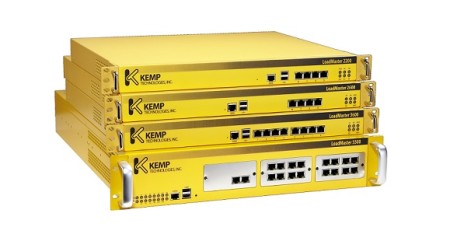
Load Balancer Produkte Familie Kemp Technologies

In a previous article, Configure Kemp Load Balancer for Exchange 2016, we explored how to make client access services highly available for Exchange 2016. In this article, we continue that trend by making the Simple Mail Transfer Protocol (otherwise known as SMTP) highly available.

If you don’t have a load balancer, you can download one for free from Kemp. Kemp’s free appliance is what we will use in this guide.

Don’t worry. Despite the focus being on Kemp, you can translate these principles to any vendor.

Let’s get started!

Disclaimer: I need to point out that I am not sponsored by Kemp in any way. However, this document does contain some affiliate links.

The environment

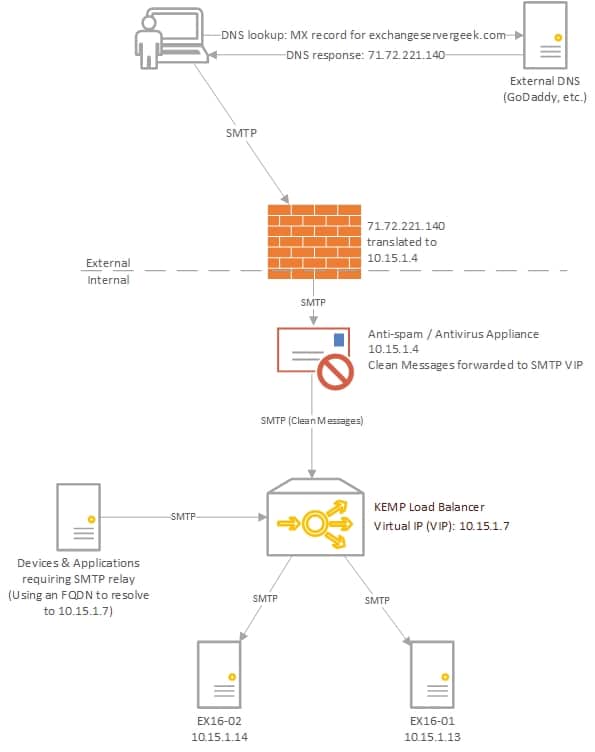
In our example below, we plan to have two Exchange 2016 servers behind a load balancer in a single site; EX16-01 and EX16-02.

Make inbound SMTP highly available with Kemp LoadMasters
[Read more…] about Make inbound SMTP highly available with Kemp LoadMaster

Filed Under: Exchange Tutorials, Kemp Load Balancers, Other Tech

Incompatible Office products are installed on your machine

February 16, 2016 By Gareth Gudger 3 Comments

Share
Tweet
Share
OneDrive for Business Incompatible Office Products are installed on your machine
Sorry, we can't perform this action. Incompatible Office products are installed on your machine.

This error is caused when you have a mix of differently licensed Office products on your computer. For example, you may have Office 365 ProPlus which is the click-to-run version that operates off a subscription. On the same computer, you may also have a volume licensed Office product, such as Visio or Project, that may have been delivered by ISO or MSI. If this is the case you will constantly receive this nag message from OneDrive for Business. This will likely also cause transfer issues if you are using sync libraries.

Unfortunately, the only way to remedy this is to uninstall either one of the competing products (or remove OneDrive for Business). In probably all cases I would expect the Office 365 suite to be the victor. That said you will need to license the offending software–Visio or Project–through an Office 365 subscription.

Not good news I’m afraid. I doubt Microsoft will remedy this as I suspect all products will eventually become a subscription. But this is the fix.

Twitter

Join the conversation on Twitter @SuperTekBoy.

Share
Tweet
Share

Filed Under: Office 365 RSS, Office 365 Solutions, Other Tech

Display file extensions in Windows 10

December 20, 2015 By Gareth Gudger Leave a Comment

Share
Tweet
Share

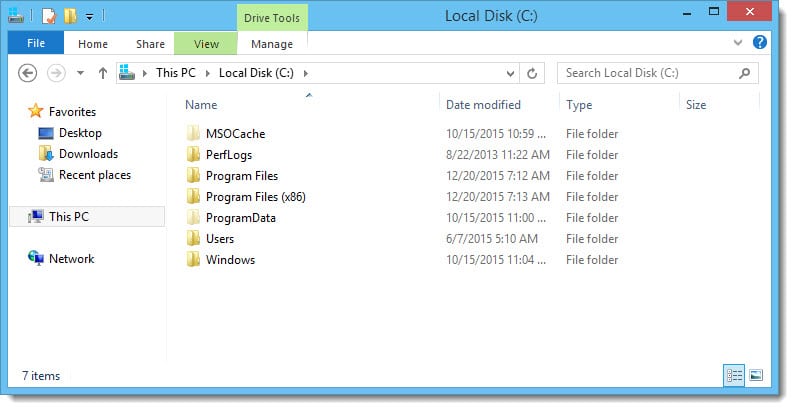
A file extension is the string of characters that follows the period in a file name. For example, Finances.xlsx would indicate that the file is formatted in Excel 2007 or later. By default newer versions of Windows hide the extension of known file types. This isn’t a big deal for Excel Workbooks as the file icon is universally known. However, what happens when a file has a fairly generic or lesser-known icon? What happens when two file types possess very similar icons but provide different functions. For example, an OST versus a PST. Hard to guess which one is which by sight alone.

OST vs PST

We wouldn’t want to accidentally manipulate the wrong file type. Deleting an OST cache file is no big deal. Accidentally deleting a PST can result in data loss. One possibility is right-clicking and checking the properties of the file. But if you are working with dozens of files it might be easier to display the file extensions in Windows Explorer.

To show file extensions in Windows 10 is a relatively straightforward task. The process is the same with Windows 8.

From Windows Explorer click View.

Folder Options View

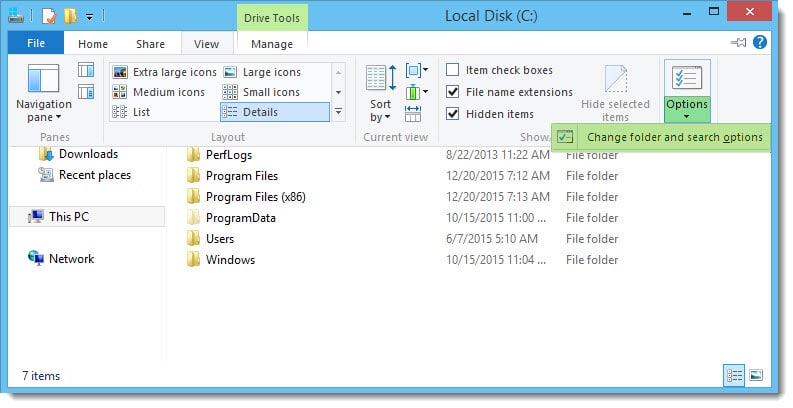
Select Options >> Change folder and search options.

Folder Options View B

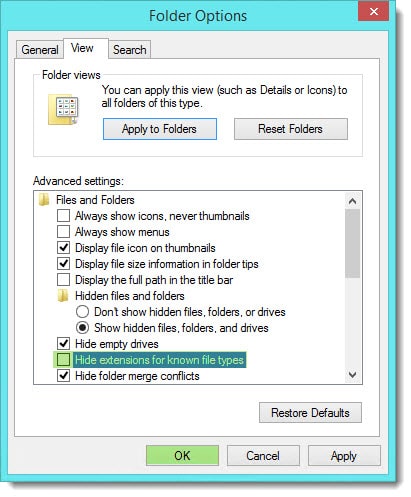
Click View tab. Deselect Hide extensions for known file types. Click Ok.

Folder Options View D

You are all set!

Share
Tweet
Share

Filed Under: Other Tech, Windows

  • « Go to Previous Page
  • Page 1
  • Page 2
  • Page 3
  • Page 4
  • Interim pages omitted …
  • Page 12
  • Go to Next Page »

Primary Sidebar

Want to stay up to date?

Sidebar Form

Join thousands of IT professionals and get the latest Exchange & Office 365 tips and tutorials direct to your inbox

DigiCert Banner 300x348

(help support us using our affiliate link)

Footer

Site Navigation

  • Subscribe to blog
  • About SuperTekBoy
  • Disclaimer
  • Privacy & Cookies
  • Contact Us

Want to stay up to date?

Footer Form

Join thousands of IT professionals and get the latest Exchange & Office 365 tips and tutorials direct to your inbox

Join the conversation

  • Twitter
  • LinkedIn
  • Facebook
  • RSS

Copyright © 2026 · SuperTekBoy LLC