• Skip to primary navigation
  • Skip to main content
  • Skip to primary sidebar
  • Skip to footer

SuperTekBoy

Practical Help for Exchange & Office 365

  • Exchange
    • News
    • Tutorials
    • Solve a Problem
  • Office 365
    • News
    • Tutorials
    • Solve a Problem
  • Outlook
    • Tutorials
    • Solve a Problem
  • Books
  • Podcasts
  • Quick Links…
    • Generate or Renew SSL Certs for Exchange
    • Connect PowerShell to Exchange Online
    • Connect PowerShell to Office 365
    • Extend Schema for Exchange
    • Exchange Schema & Build Numbers
  • More…
    • Kemp Load Balancers
    • Other tech…
    • Videos
    • About SuperTekBoy
    • Contact Us

Office 365

Fixing frequent blank screens in Outlook for iOS & Android

February 19, 2018 By Gareth Gudger 12 Comments

Share
Tweet
Share

When I first started using Outlook for Android it was running great. I use it to check three different email accounts–two accounts in Office 365 and one Outlook.com.

However, as the months went by the app seemed to get slower and slower, with more frequent blank screens. These blank screens would appear most often when I would try to pull up my folder list (pictured below)
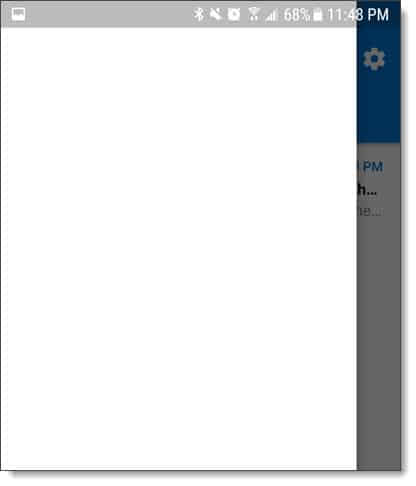
Outlook for Android & iOS Slow Folder Opening

Although it would happen at other times as well. Such as trying to open an email (pictured below).
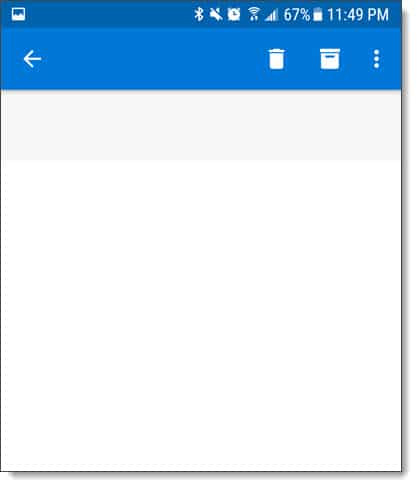
Outlook for Android & iOS Slow Email Opening

This delay would generally last a few seconds. But sometimes it could take as long as 10 seconds for the folder list or email to appear. Certainly enough to hinder productivity in the app.

[Read more…] about Fixing frequent blank screens in Outlook for iOS & Android
Filed Under: Office 365 Solutions, Outlook Solutions

Change which organizational units (OUs) are synced to Office 365

December 31, 2017 By Gareth Gudger 19 Comments

Share
Tweet
Share

In this article, we are going to take a look at changing which objects get synced to Office 365 through organizational unit (OU) filtering. By default, Azure AD Connect is configured to sync all objects in all OUs. Filtering allows us to exclude OUs, and the objects they contain, so they are not synchronized to Office 365. An example of this may be to exclude an OU that contains service accounts for on-premises applications.

In our example, we are going to narrow our sync scope to just a few select organizational units in the domain skaro.local. We will be working with the latest version of Azure AD Connect and a single forest environment.

Let’s get started!

UPDATE 08/04/18: While these steps do still work, Microsoft recommends changing your OUs by rerunning the Azure AD Connect wizard. This can be done by double-clicking the Azure AD Connect icon. If the wizard does not work, you can use these steps as a fallback method.

Selecting which OUs to synchronize

First, log onto the server where you have Azure AD Connect installed and open the Synchronization Service program.

Synchronization Service Azure AD Connect

This opens the Synchronization Service Manager. From here select the Connectors tab. Under the Connectors section double-click the name of your local Active Directory. In my example, this is SKARO.LOCAL. This will bring up the Properties screen for that connector.

Azure AD Connect - Connectors tab - Local AD Properties
[Read more…] about Change which organizational units (OUs) are synced to Office 365

Filed Under: Office 365 Tutorials

No account settings were returned from the Autodiscover response

December 30, 2017 By Gareth Gudger 22 Comments

Share
Tweet
Share

While attempting to configure an Outlook client with an Exchange mailbox I ran into an issue where the account creation would not complete. Instead, Outlook would stop on “Search for server settings” and prompt me for a username and password. The credentials of my Exchange account did not work and kicked back the login prompt.

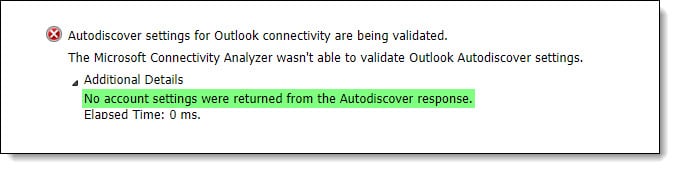
When I attempted to test Autodiscover using testconnectivity.microsoft.com I ran into an even stranger error. Autodiscover appeared to work. But I received the error “No account settings were returned from the Autodiscover response”.

No account settings were returned from the Autodiscover response

Examining the Autodiscover response I noticed that the test successfully completed against the root of supertekboy.com. This was odd as supertekboy.com is redirected to the website www.supertekboy.com where no Autodiscover responses should be happening.

No account settings were returned from the Autodiscover response using root domain record

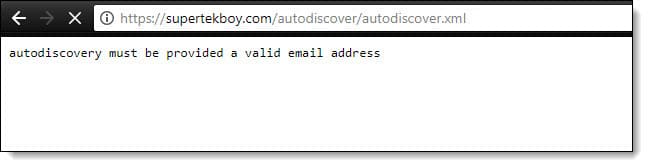
However, when attempting to plug the Autodiscover URL into a web browser I found that something was responding to Autodiscover requests. It was responding with an error of “Autodiscovery must be provided a valid email address”.

Autodiscovery must be provided a valid email address b

This isn’t an Exchange or Office 365 autodiscover response. Instead, this was my web hosting provider responding to my Autodiscover request. Specifically, cPanel. cPanel has its own implementation of autodiscover, which allows Outlook and other email clients to automatically configure themselves for a cPanel mailbox. Unfortunately, this conflicts with autodiscover locating an Exchange or Office 365 mailbox.

[Read more…] about No account settings were returned from the Autodiscover response

Filed Under: Exchange Solutions, Office 365 Solutions

15 Microsoft Ignite sessions every Exchange admin should see (2017)

October 7, 2017 By Gareth Gudger 1 Comment

Share
Tweet
Share

Microsoft hosted its annual Ignite conference in Orlando this September. Ignite was massive at 1695 sessions. Almost 300 sessions more than last year. That is a lot of sessions! Many are posted at the Ignite channel on YouTube or through the Microsoft Ignite On-Demand portal. Here are the top 15 sessions I think every Exchange admin should watch.

Tip: I have included notes for each session and the time each topic starts. You can expand the session notes under each video by clicking “Show more session notes”

Thrive as an enterprise organization in Microsoft Exchange Online Ignite 2017 (watch video)

Thrive as an enterprise organization in Microsoft Exchange Online
If you could only watch one session then it should be this one. In this session, Jeff Kizner reveals a slew of announcements for Exchange Online. Announcements include; highly requested coexistence features for Exchange hybrid and, new advances in a tenant to tenant migrations. Jeff demonstrates a mailbox move between two Office 365 tenants using MRS and PowerShell.

  • Mailbox Plans (4:06 mins)
    • Set-MailboxPlan can now assign a retention policy to a mailbox when the mailbox is provisioned.
    • Set-CASMailboxPlan (new cmdlet) can now configure whether ActiveSync, IMAP, and POP are enabled on a mailbox when it is provisioned in Office 365.
  • Client Access Rules (6:52 mins)
    • Additional rule conditions for matching source IP, protocol, recipient filters, or, username
    • Great for only allowing certain protocols from certain locations (e.g. ActiveSync from satellite offices)
    • You can have up to 20 client access rules
    • Best practice to have an “Allow PowerShell” rule in priority 1 (don’t lock yourself out!)
  • Creating a custom app for message classification (16:00 mins)
    • Jeff demonstrates a custom app that uses the Outlook On Send feature to take action when a user clicks the send button in Outlook
    • On Send must be enabled in the OwaMailboxPolicy assigned to the user
    • Available since Exchange 2016 CU5
  • Hybrid delegation (26:40 mins)
    • Jeff discusses and demos advancements in hybrid delegation (full access, auto-map, send as, send on behalf)
  • On-premises policies will come over to Office 365 (46:06 mins)
    • Hybrid wizard will ask you which on-prem policies you want to copy into Office 365 (e.g. OWA, ActiveSync and Retention policies)
    • User’s mailbox, when moved to Office 365, will retain their existing policy assignments
  • Hybrid publishing (50:52 mins)
  • Hybrid recipient management (54:16 mins)
    • Jeff’s team is working towards allowing admins to make changes to attributes in Office 365 and have those attributes sync back to on-prem. This will remove the need to keep Exchange on-prem for recipient management.
    • Jeff’s team is also looking at changing the source of authority on synchronized objects to Azure Active Directory.
  • Migrating data between tenants – mergers and acquisitions (59:33 mins)
    • Jeff demonstrates a mailbox move between two Office 365 tenants using MRS and PowerShell.
Show more session notes
Show less session notes
Scott Schnoll’s Exchange tips and tricks Ignite 2017 (watch video)

Scott Schnoll’s Exchange tips and tricks
Scott provides us with his top tips for Exchange. Topics include:

  • Server roles in Exchange 2016 (1:41 mins)
  • How Exchange is developed (2:41 mins)
  • Exchange 2016 Lifecycle (3:56 mins)
  • Changes in Exchange 2016 CU7 (4:51 mins)
    • Forest functional level is now 2008 R2 or higher
  • Announcing Exchange 2019 (8:48 mins)
    • Preview shipping mid-2018
    • General release second half of 2018
  • Bug in Windows Server 2016 that caused IIS to crash – KB3206632 (10:20 mins)
  • iOS11 issue with HTTP/2 (11:22 mins)
    • Microsoft turned off HTTP/2 across all Exchange Online servers
    • Microsoft recommends administrators disable HTTP/2 across all on-premises Exchange servers until Apple resolves this issue
    • Microsoft is working with Apple to help them resolve the issue
  • New calendar improvements across all Outlook clients (15:16 mins)
  • Administrator configured out of office replies (18:00 mins)
  • Message Latency in logs (19:47 mins)
  • Running antivirus on the operating system (21:00 mins)
    • Windows Server 2016 comes with a built-in fully-fledged antivirus
    • Make sure to configure antivirus with all path, process and file type exclusions
  • Health mailboxes (23:22 mins)
    • Do not alter their AD account in any way
    • Do not alter their password or account lockout settings
    • Do not move or alter their mailboxes in any way
  • Stalled mailbox migrations to Office 365 (26:40 mins)
  • Protocol Agnostic Workflow (PAW) (30:24 mins)
    • New mailbox migration code in Office 365 that improves stability and throughput
    • Individual users can be removed from a batch
    • Batch completions can be scheduled
    • Better reporting
    • Microsoft will automatically enable this for your tenant but only if your tenant has no active or completed batches
  • OAuth (35:26 mins)
  • Hybrid license key and hybrid diagnostics wizard (39:20 mins)
  • When to decommission Exchange on-premises (42:00 mins)
  • PST elimination tools (44:27 mins)
  • Deprecation of RPC over HTTPS – Outlook Anywhere (46:32 mins)
  • Mailbox encryption coming soon to Office 365. You can encrypt with either:  (53:00 mins)
    • Microsoft managed key
    • Customer provided key
  • Using Azure VM for DAG witness (55:04 mins)
  • Changes to lagged copy behavior (56:15 mins)
  • Recovering an Exchange Server with newer CU (59:58 mins)
    • This is possible and supported
    • Admin version will still show old CU build until you go to a newer CU later on
  • New anti-phishing behavior in Office 365 (1:01:09 mins)
  • Connecting to Security & Compliance Center via PowerShell (1:07:29 mins)
  • Azure Information Protection – AIP (1:08:17 mins)
  • Advanced Find in Outlook deprecation and reinstatement (1:12:38 mins)
  • New TAP program for migrating public folders to Office 365 Groups (1:13:14 mins)
Show more session notes
Show less session notes
Modern authentication for Exchange Server on-premises (watch video)

Modern authentication for Exchange Server on-premises
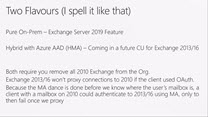
Greg Taylor discusses two new modern authentication scenarios coming to Exchange on-premises. One scenario which will be available to Exchange 2013 and 2016. And a future scenario that will be available in Exchange 2019. No bunnies were harmed in the delivery of this session.

  • Importance of Modern Authentication (2:39 mins)
    • Allows Outlook to authenticate with a token
    • An easier route to enable Outlook for Multi-Factor Authentication (MFA)
    • Relies on strong network connectivity
  • Two implementations of modern authentication will ship (7:10 mins)
    • Exchange 2013 / 2016 implementation expected by December 2017
    • Exchange 2019 implementation will ship when new release ships second half 2018
  • Overview of how modern authentication works (10:00 mins)
    • Modern auth will only work with MAPI over HTTP.
    • No RPC over HTTP support.
    • Exchange will use modern auth for all client connections, regardless of whether they originate from inside or outside the network.
  • Example of modern auth during autodiscover (15:35 mins)
    • Authorization type of “Bearer” is Outlook instructing Exchange that it can do modern authentication
    • Exchange responds to the client with STS authorization URL (for example AD FS)
  • Explanation of token exchange (17:46 mins)
    • The access token has a lifetime of 1 hour (default TTL)
    • When the Access token expires the client uses their Refresh token to request a new Access Token (re-authenticate)
    • The refresh token is valid for 14 days (default TTL)
    • Password change:
      • Immediately invalidates the Refresh Token.
      • Access token remains valid for the remainder of its duration (up to 1 hour)
  • Deep dive into two versions of on-prem modern auth (23:30 mins)
    • Exchange 2019 will ship with an on-prem implementation of Modern Auth
      • AD FS 2016 required
      • Outlook 2016 / 2019 required
        • Outlook 2013 and older will not work
      • Exchange 2013 / 2016 can be in the organization (no Exchange 2010)
      • Device registration is required
    • Exchange 2013/2016 will ship with a hybrid implementation of Modern Auth
      • Will require hybrid connectivity with Office 365
      • AD FS not required (can just use Password Sync with Azure AD Connect)
      • Exchange HCW must be run to enable OAuth
      • On-prem SPNs registered with Azure AD (configuring this is shown at 39:05 mins)
      • Exchange 2010 is completely unsupported and must be removed from the environment – no coexistence
  • OAuth tokens rely on TLS for encryption (32:13 mins)
Show more session notes
Show less session notes
[Read more…] about 15 Microsoft Ignite sessions every Exchange admin should see (2017)

Filed Under: Exchange News, Office 365 News

How to create an Office 365 mailbox (in hybrid)

September 2, 2017 By Gareth Gudger 28 Comments

Share
Tweet
Share

When a company has implemented Exchange hybrid and has moved some or all their users to Office 365, the question “How do I create a mailbox in Office 365?” frequently comes up.

In this article, we explore how to create a mailbox in Exchange Online when directory synchronization is in place. For this article, we will explore this process using Exchange 2016. We will look at how to complete this task with the GUI and PowerShell. Note that these steps are identical for Exchange 2013.

Using the Exchange Admin Center

This is the simplest and quickest way to create a mailbox in Office 365. The drawback of this solution is that it only allows you to create an entirely new Active Directory user. A preexisting user without a mailbox cannot be enabled for an Office 365 mailbox using the GUI. To grant an existing user an Office 365 mailbox you will need to use PowerShell. Alternatively, that user could be given an on-prem mailbox and then move that mailbox to Office 365.

If your current process is to create a new account in Active Directory first and then enable the mailbox in Exchange second, I would recommend reversing these steps. Using the method below allows you to create a basic user in Active Directory with a mailbox in Office 365. Then you can go back into Active Directory to make any additional changes to the new account, such as group memberships.

For our example, we are going to create a new user called Wilfred Mott who will have a mailbox in Office 365. Wilfred does not currently have a user account in Active Directory so we can use this method. Wilfred’s email will be wilfred.mott@exchangeservergeek.com.

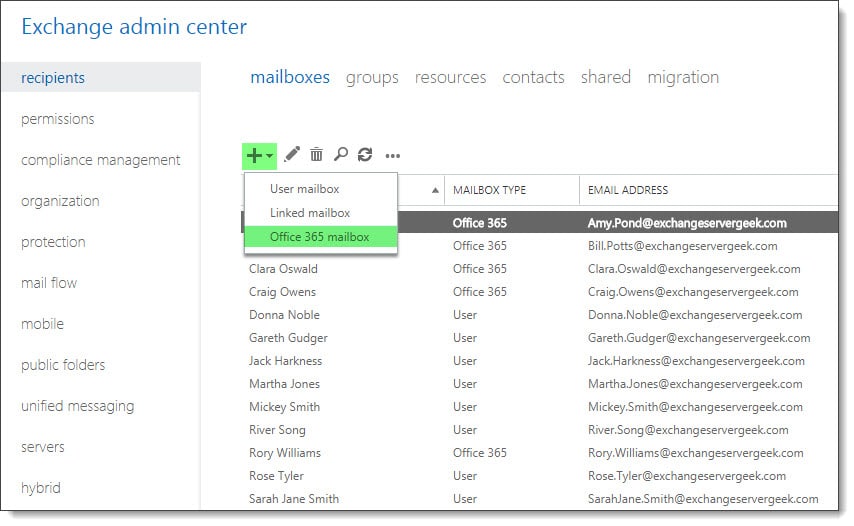
From your on-premises Exchange 2016 server, log into the Exchange Admin Center. Select the Recipients tab and Mailboxes sub-tab. Click the New (plus sign) and select Office 365 mailbox.

Note: If you do not see this option you may be missing the required RBAC permissions, or, there is an issue with your hybrid configuration.

Create a new Office 365 mailbox

Selecting this option walks you through the process of creating a remote mailbox in Office 365. The benefit here is that you do not need to migrate the mailbox after it is created as it already exists as an object in the cloud. Keep in mind that you will not see this mailbox in the Office 365 tenant until directory synchronization has run.

[Read more…] about How to create an Office 365 mailbox (in hybrid)

Filed Under: Exchange Tutorials, Office 365 Tutorials

Access is Denied when enabling Group Writeback

June 20, 2017 By Gareth Gudger 6 Comments

Share
Tweet
Share

Group Writeback is a feature in Azure AD Connect that allows for Office 365 Groups to be written back to your on-premises Active Directory as a universal distribution group. This allows your on-premises users in a hybrid environment to send email to the Office 365 Group.

When configuring group writeback you specify which organizational unit (OU) you want these objects to be written. Each of these Office 365 groups is then represented by a separate universal distribution group that starts with the name of “Group_” followed by a unique identifier.

In the screenshot below I have two Office 365 groups that are being written back to my local AD.

Group Writeback Azure AD Connect

The problem – Access is Denied

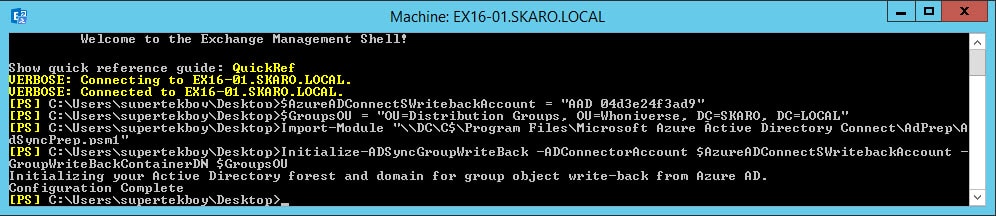
When I first tried to get these groups written back to this organizational unit was where I ran into problems. I was following this Microsoft document verbatim. The document specifies to open Active Directory Users and Computers and locate the account that started with “AAD_”. Which I found.

The document later uses this account to run a script. When running the script everything completed as expected. No errors.

Group Writeback Script Azure AD Connect

When I checked the permissions on the organizational unit I could see that the script had added the AAD_ account with a bunch of permissions. Everything looked good.

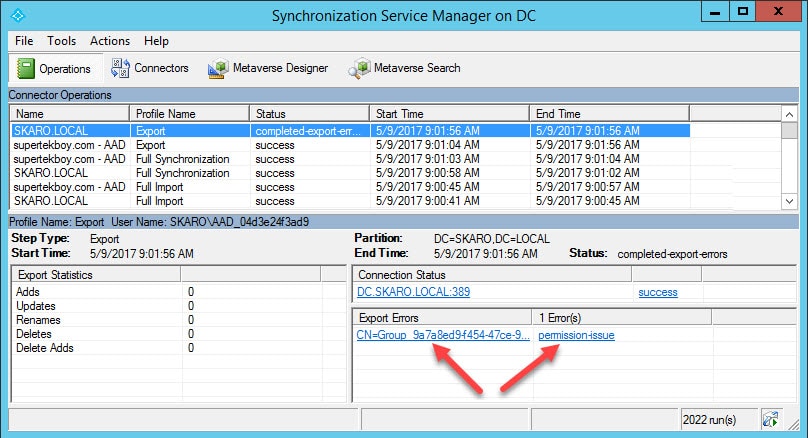
However, I quickly started generating errors in Azure AD Connect. When I opened the Synchronization Manager I received the following error on the export of my Office 365 group. “Permission Issue – Access is denied”

Group Writeback Access is Denied Synchronization Manager
[Read more…] about Access is Denied when enabling Group Writeback

Filed Under: Exchange Solutions, Office 365 Solutions

  • « Go to Previous Page
  • Page 1
  • Interim pages omitted …
  • Page 9
  • Page 10
  • Page 11
  • Page 12
  • Page 13
  • Interim pages omitted …
  • Page 16
  • Go to Next Page »

Primary Sidebar

Want to stay up to date?

Sidebar Form

Join thousands of IT professionals and get the latest Exchange & Office 365 tips and tutorials direct to your inbox

DigiCert Banner 300x348

(help support us using our affiliate link)

Footer

Site Navigation

  • Subscribe to blog
  • About SuperTekBoy
  • Disclaimer
  • Privacy & Cookies
  • Contact Us

Want to stay up to date?

Footer Form

Join thousands of IT professionals and get the latest Exchange & Office 365 tips and tutorials direct to your inbox

Join the conversation

  • Twitter
  • LinkedIn
  • Facebook
  • RSS

Copyright © 2026 · SuperTekBoy LLC