• Skip to primary navigation
  • Skip to main content
  • Skip to primary sidebar
  • Skip to footer

SuperTekBoy

Practical Help for Exchange & Office 365

  • Exchange
    • News
    • Tutorials
    • Solve a Problem
  • Office 365
    • News
    • Tutorials
    • Solve a Problem
  • Outlook
    • Tutorials
    • Solve a Problem
  • Books
  • Podcasts
  • Quick Links…
    • Generate or Renew SSL Certs for Exchange
    • Connect PowerShell to Exchange Online
    • Connect PowerShell to Office 365
    • Extend Schema for Exchange
    • Exchange Schema & Build Numbers
  • More…
    • Kemp Load Balancers
    • Other tech…
    • Videos
    • About SuperTekBoy
    • Contact Us

Office 365

The F12 easter-egg in Hybrid Configuration Wizard

December 2, 2018 By Gareth Gudger 1 Comment

Share
Tweet
Share

One of the best-kept secrets in the hybrid configuration wizard (“HCW”)
 is the F12 easter-egg. Jeff Kizner demonstrated this feature during his Ignite session back in September.

Tip: For a break down of Jeff’s session, with notes and timers, I highly recommend checking out 15 Ignite sessions every Exchange admin should see.

If you press F12 this enables a new section called Diagnostic Tools. This section provides shortcuts to the following tools or folders.

Hybrid Configuration Wizard F12 Diagnostic Tools HCW
  • Open Exchange Management Shell opens a remote PowerShell session to your on-premises Exchange servers.
  • Open Exchange Online PowerShell opens a PowerShell connection to Exchange Online. This supports MFA-enabled admin accounts.
  • Open Log File opens the active HCW log file in Notepad. The logs are stored in the profile of the user running the HCW. For example, C:\Users\<user>\AppData\Roaming\Microsoft\Exchange Hybrid Configuration
  • Create Support Package will combine your HCW log files into a single ZIP file which can easily be sent to Microsoft support. This link actually opens a second screen where you can specify to ZIP logs from the last 24 hours, or, between a certain date range. You then have the option to copy the file to the clipboard so it can be easily attached to an email.
  • Open Logging Folder opens the folder location of the HCW logs. 
    The HCW logs are stored in the profile of the user running the HCW. For example, C:\Users\<user>\AppData\Roaming\Microsoft\Exchange Hybrid Configuration
  • Open Process Folder opens a Command Prompt to the HCW process directory.

Pressing F12 a second time will hide these tools.

Twitter

What do you think about this easter-egg? Have you run into any cool easter-eggs in other Microsoft products? Drop a comment below or join the conversation on Twitter
Filed Under: Exchange Tutorials, Office 365 Tutorials

Connect-MsolService may fail when MFA is enabled

November 7, 2018 By Gareth Gudger 10 Comments

Share
Tweet
Share

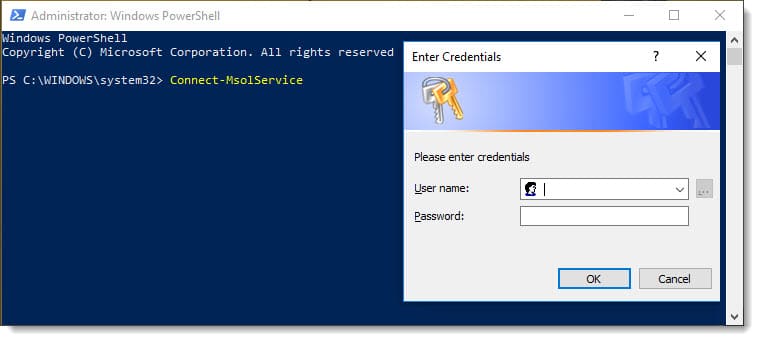
When attempting to use Connect-MsolService with an MFA-enabled admin account you may receive a legacy auth prompt as opposed to a modern auth prompt. This incorrect prompt is due to the MSOnline PowerShell module being out of date. 

Unable to use Connect-MsolOnline with MFA - Exception of type Microsoft.Online.Administration.Automation.MicrosoftOnlineException

If you were to enter credentials in the legacy prompt you would be unable to connect and would receive the following cryptic error.

 C:\> Connect-MsolService

Connect-MsolService : Exception of type 'Microsoft.Online.Administration.Automation.MicrosoftOnlineException' was thrown.
At line:1 char:1

Connect-MsolService
~~~~~~~~~~~~~~~~~~~
CategoryInfo : OperationStopped: (:) [Connect-MsolService], MicrosoftOnlineException
FullyQualifiedErrorId : 0x800434D4,Microsoft.Online.Administration.Automation.ConnectMsolService

So, all we need to do is update, right?

Well, depending on how you originally installed the MSOnline module the update process may not be intuitive as you might think.

[Read more…] about Connect-MsolService may fail when MFA is enabled

Filed Under: Office 365 Solutions

What Ignite taught us about Exchange 2019

November 5, 2018 By Gareth Gudger 3 Comments

Share
Tweet
Share
Microsoft Ignite

It’s amazing to believe that Microsoft Ignite was over a month ago. With 1,610 sessions Microsoft gave us a massive amount of announcements and demonstrations of new product features. This included Exchange 2019.

If not already, I highly recommend checking out 15 Ignite sessions every Exchange admin should see.  Each session in this article includes extensive notes on what each session contained. In addition, those notes contain timers so you can jump to the section that interests you the most. Hopefully, it will also serve as a reference if you need to search for a certain announcement or feature weeks (or even months) down the road.

Here is what Ignite taught us about Exchange 2019.

Changes to Exchange development

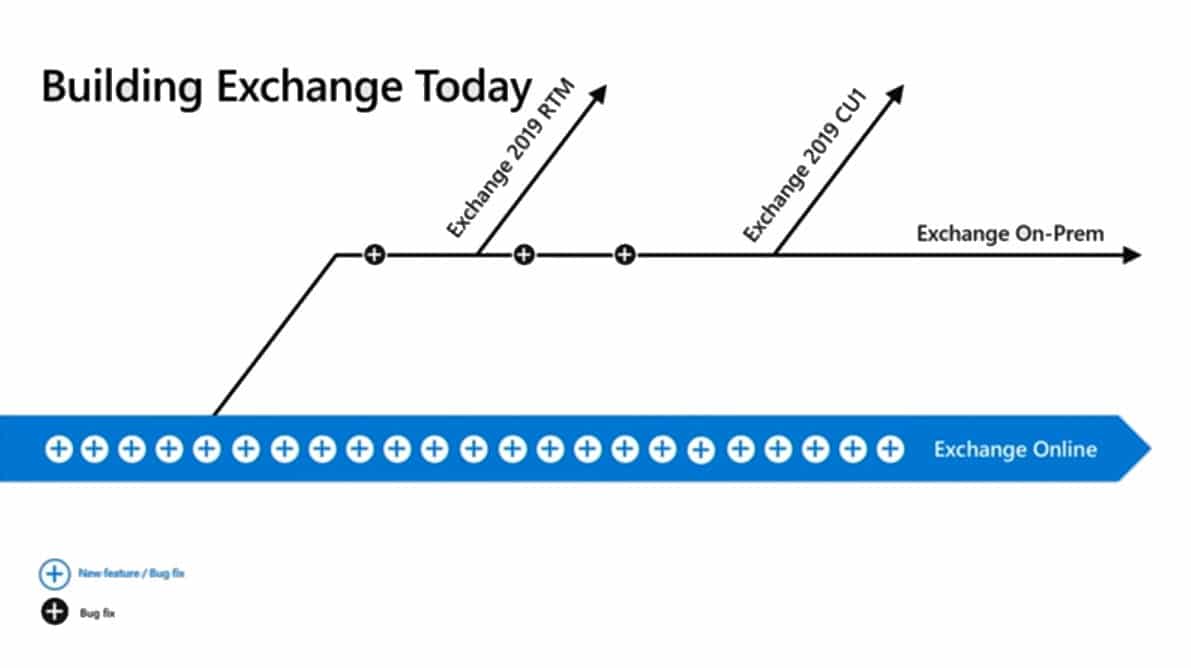
The tagline for Exchange 2016 was that it was “forged in the cloud”. This was a result of Exchange Online and Exchange on-prem sharing a common code base. The greatest benefit of this common code was that it ran in the cloud for a number of months before shipping on-prem as a cumulative update. By the time the code was released on-prem, it had been more than validated as stable and able to run at scale.

Going forward Microsoft has separated Exchange on-prem into its own code branch. This means that Exchange online is no longer driving cumulative updates for on-prem. What will drive updates are security patches and feature requests from customers. So, be sure to make your voice heard on UserVoice, at conferences, and in the various TAP programs.

Exchange 2019 Forked Code Base From Exchange Online

While Microsoft currently plans to keep cumulative updates quarterly, they have opened up the conversation on whether updates should occur less frequently. Common feedback is that the current release cadence of quarterly cumulative updates is too aggressive for some customers. The product group also believes this could result in more stable releases.

[Read more…] about What Ignite taught us about Exchange 2019

Filed Under: Exchange News, Office 365 News

Exchange October 2018 Updates

October 22, 2018 By Gareth Gudger Leave a Comment

Share
Tweet
Share
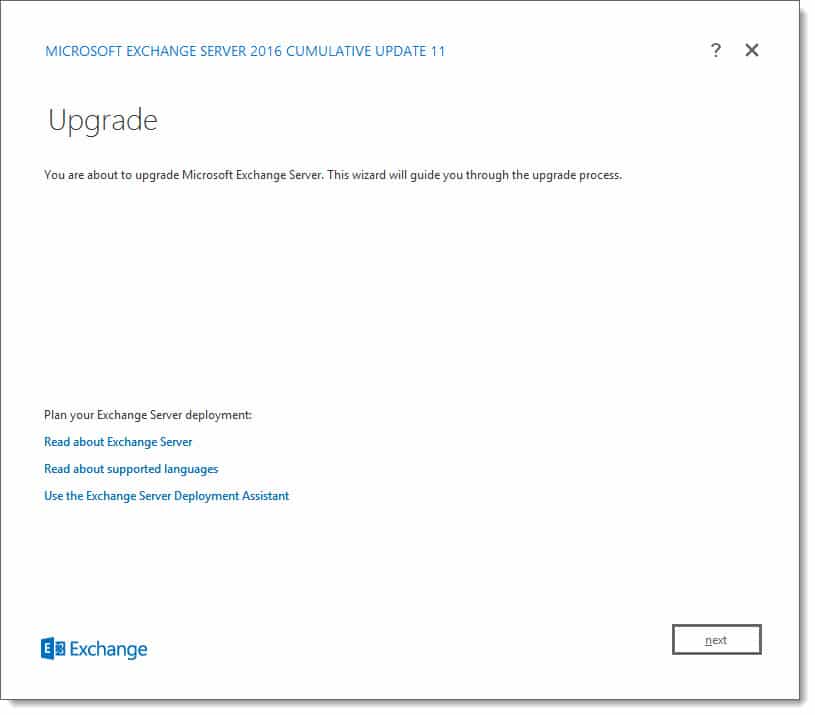
Exchange Server 2016 CU11

Last week was a big week for Exchange 2016. Microsoft released Cumulative Update 11. At this time no updates were released for Exchange 2013 or Exchange 2010. Exchange 2013 entered extended support back on April 10th, and Microsoft announced in June that cumulative update 21 was the last planned update for Exchange 2013.

As always, test these updates in a lab first! I recommend checking out this 7-part guide on configuring Exchange in your lab. It doesn’t take much to get one going.

The updates are as follows:

Exchange 2016 Mini

Exchange 2016 Cumulative Update 11 | KB4134118 | UM Language Pack

Exchange 2010 Mini

Exchange 2010 SP3 Rollup 24 | KB4458321 (released September)

Exchange 2010 Mini

Exchange 2010 SP3 Rollup 23 | KB4340733 (released August)

So, what’s new in these Cumulative Updates?

Cumulative Update 11 now officially supports .NET Framework 4.7.2. Framework 4.7.2 is only optional at this point and will not become mandatory until the June 2019 updates. Due to no quarterly update scheduled for December, it is expected that CU13 will be the first version to enforce 4.7.2 as a requirement.

Support for 4.7.2 has been officially added to Exchange 2013 CU21, which was released back in June. 4.7.2 will also be a requirement for Exchange 2019. However, 4.7.2 is preinstalled with Windows Server 2019, so it will not require a separate download. For a great resource on navigating which .NET update goes with which CU I recommend reading Upgrade Paths for CU’s & .NET by Michel de Rooij.

In the June updates, it was stated that all Exchange roles would require Visual C++ 2013. Microsoft has since clarified this statement to the following:

  • Mailbox role will require both Visual C++ 2012 & Visual C++ 2013
  • Edge & Management tools only require Visual C++ 2012

Cumulative Update 11 will now perform prerequisite checks to confirm the necessary versions of Visual C++ are installed.

These updates contain 22 security and bug fixes. Check KB 4134118 for a list of issues CU11 resolves.

[Read more…] about Exchange October 2018 Updates

Filed Under: Exchange News, Office 365 News

Enabling Dark Mode in Microsoft Teams

October 20, 2018 By Gareth Gudger 5 Comments

Share
Tweet
Share

I have always been a big fan of dark mode for any application as I spend more hours than I care to admit at my computer, so eye strain is always a concern.

Dark mode lets us protect our eyeballs from the harsh glare of a white screen, and it may just conserve a little more battery life on our mobile devices.

Microsoft Teams has such a mode.

Enabling dark mode

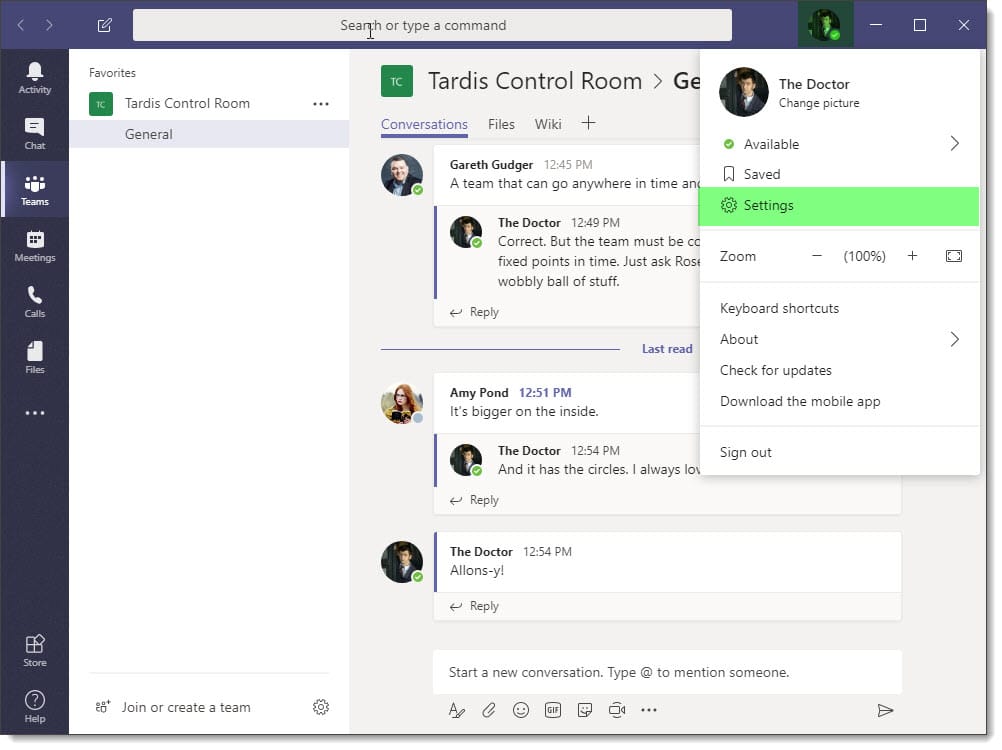
To enable dark mode, log onto Microsoft Teams and select your profile picture in the top right of the window. From the context menu click Settings.

Enabling Dark Mode in Microsoft Teams 1
[Read more…] about Enabling Dark Mode in Microsoft Teams

Filed Under: Office 365 Tutorials

Enabling Dark Mode in Outlook on the Web

October 20, 2018 By Gareth Gudger 4 Comments

Share
Tweet
Share

One of the newest features announced at Ignite was the ability to enable dark mode in Outlook on the Web. It is worth noting that this feature is only available in Office 365. There are no plans to bring it to Exchange 2019 at this time.

I have always been a big fan of dark mode for any application as I spend more hours than I care to admit at my computer, so eye strain is always a concern.

Dark mode lets us protect our eyeballs from the harsh glare of a white screen, and it may just conserve a little more battery life on our mobile devices.

Note: These instructions will also work with Outlook.com

Enabling dark mode

To enable the dark theme, log onto Outlook on the Web and click the toggle next to Try the new Outlook so it moves to the right (on).

Enabling Dark Mode in Outlook on the Web 1
[Read more…] about Enabling Dark Mode in Outlook on the Web

Filed Under: Office 365 Tutorials, Outlook Tutorials

  • « Go to Previous Page
  • Page 1
  • Interim pages omitted …
  • Page 7
  • Page 8
  • Page 9
  • Page 10
  • Page 11
  • Interim pages omitted …
  • Page 16
  • Go to Next Page »

Primary Sidebar

Want to stay up to date?

Sidebar Form

Join thousands of IT professionals and get the latest Exchange & Office 365 tips and tutorials direct to your inbox

DigiCert Banner 300x348

(help support us using our affiliate link)

Footer

Site Navigation

  • Subscribe to blog
  • About SuperTekBoy
  • Disclaimer
  • Privacy & Cookies
  • Contact Us

Want to stay up to date?

Footer Form

Join thousands of IT professionals and get the latest Exchange & Office 365 tips and tutorials direct to your inbox

Join the conversation

  • Twitter
  • LinkedIn
  • Facebook
  • RSS

Copyright © 2026 · SuperTekBoy LLC