• Skip to primary navigation
  • Skip to main content
  • Skip to primary sidebar
  • Skip to footer

SuperTekBoy

Practical Help for Exchange & Office 365

  • Exchange
    • News
    • Tutorials
    • Solve a Problem
  • Office 365
    • News
    • Tutorials
    • Solve a Problem
  • Outlook
    • Tutorials
    • Solve a Problem
  • Books
  • Podcasts
  • Quick Links…
    • Generate or Renew SSL Certs for Exchange
    • Connect PowerShell to Exchange Online
    • Connect PowerShell to Office 365
    • Extend Schema for Exchange
    • Exchange Schema & Build Numbers
  • More…
    • Kemp Load Balancers
    • Other tech…
    • Videos
    • About SuperTekBoy
    • Contact Us

Office 365

Enable explicit DKIM signing in Office 365

June 27, 2016 By Gareth Gudger 19 Comments

Share
Tweet
Share

In this article, we will take a look at how to enable explicit DKIM signing in Office 365.

What exactly is DKIM?

DomainKeys Identified Mail (DKIM) is an email authentication mechanism designed to prevent email spoofing. DKIM utilizes a cryptographic key pair and DNS records to provide sender validation and message integrity. It does this in the following way.
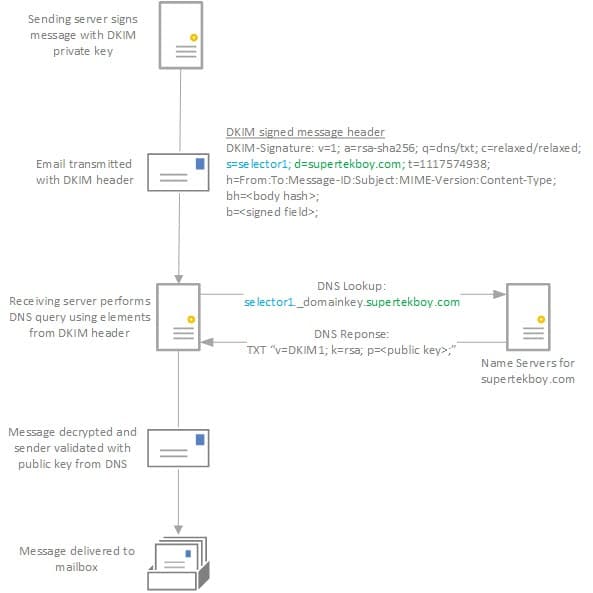
DKIM

The sender encrypts selected parts of the message header with its private key. This is defined by the “h” field in the diagram above. In our example, we are encrypting the From, To, and Subject fields to name a few. Portions or all of the message body may also be hashed. The DKIM header itself is not encrypted. In the DKIM header, the “d” value identifies the sender domain. The “s” value identifies a unique selector defined by the sender.

The recipient combines the selector and domain values to form a DNS query. Using our diagram above the domain field is marked as supertekboy.com and the selector field is marked as selector1. Using these values the recipient forms the following DNS query.

selector1._domainkey.supertekboy.com

The _domainkey portion of the query is a fixed part of the protocol.

The name servers for the sender respond with a TXT record containing the public key. The recipient can then use this public key to decrypt the header (and any parts of the body).

Successful decryption validates the sender. A DKIM=Pass is attached to the message header which increases the confidence level of the message.

One of the drawbacks of DKIM is that it doesn’t prevent close misspellings of a domain. For example, I could register supertecboy.com and configure DKIM signing. DKIM will pass because the messages are coming from supertecboy.com. But to an untrained eye, supertekboy.com and supertecboy.com might be considered the same entity. When in fact the latter is a spoofer.

[Read more…] about Enable explicit DKIM signing in Office 365
Filed Under: Office 365 RSS, Office 365 Tutorials

Exchange March 2016 Updates

March 24, 2016 By Gareth Gudger Leave a Comment

Share
Tweet
Share
Exchange 2013 Big Logo

Earlier this month was a big day for Exchange updates. Not only did we get Cumulative Update 12 for Exchange 2013, but we also got our first update for Exchange 2016. Yay!

As always, test these updates in a lab first! I recommend checking out this 7-part guide on configuring Exchange in your lab. It doesn’t take much to get one going.

The updates are as follows:

Exchange 2013 Mini

Exchange Server 2016 Cumulative Update 1 | UM Language Pack Download

Exchange 2013 Cumulative Update 9

Exchange Server 2013 Cumulative Update 12 | UM Language Pack Download

Exchange 2010 Mini

Exchange Server 2010 SP3 Update Rollup 13

Exchange 2007 Mini

Exchange Server 2007 SP3 Update Rollup 19

So what’s new?

This update is a culmination of bug fixes and feature tweaks. Most notably the OWA S/MIME control ditches its SHA-1 signing certificate in favor of the more secure and robust SHA-2. This signing change makes it to all supported versions of Exchange. For 2007, which is in extended support, this is the only thing Rollup 19 addresses. Exchange 2010, also in extended support, similarly sees this update and just one other minor tweak–which is the introduction of a link to the new Hybrid Configuration Wizard.

Despite the inclusion of this link in EMC, the new Hybrid Configuration Wizard was able to run against prior roll-ups of Exchange 2010. This update simply adds a link for ease of access. Be sure to check out this blog post from the Exchange Team for more info on the new HCW for Exchange 2010.

Another cool update, that flew under the radar, is that the web.config file for Outlook on the Web will now be preserved during a cumulative update. This is neat because it will preserve any customization admins may have made to that file. Sadly this change only applies to Exchange 2016 deployments but let us keep our fingers crossed this will be ported back to Exchange 2013.

One surprising plot twist was the retraction of Mailbox Anchoring in the Exchange Management Shell. This had been implemented in the previous 2013 update and was set to ship with 2016 CU1. Exchange CU12 sees this change reverted and 2016 never sees it at all.

Mailbox Anchoring was the concept of making sure that an admin was always getting the same experience when connecting to the Exchange Management Shell. This was especially important in an environment where Exchange 2013 and 2016 are load balanced in the same pool.

In essence, when you opened Exchange Management Shell mailbox anchoring would always proxy you to the server that hosted your admin mailbox. If your admin account didn’t have a mailbox, or, it was unavailable, then it would proxy you to a server hosting the arbitration mailbox. If neither were available then the Exchange Management Shell would fail to connect. At this point, your only option was to connect through local PowerShell and add the Exchange snap-in.

Microsoft has reverted this change in response to community feedback.

As mentioned in a previous post .NET 4.6.1 continues to remain unsupported. The Exchange Team has indicated that support will be added in a future cumulative update. For now, keep that update away from your Exchange servers. As of writing 4.5.2 remains the highest supported version for Exchange 2013 & 2016.

Other items of note include:

  • Exchange 2016 receives 17 new languages in Outlook on the Web.
  • Exchange 2016 ditches self-extracting packages in favor of ISOs for delivery.
  • Workaround for .Net update KB3097966 causing significant slowdowns in Exchange installations is documented here.
  • Lag Replay Manager is enabled by default in 2016 CU1 (but can be disabled).
[Read more…] about Exchange March 2016 Updates
Share
Tweet
Share

Filed Under: Exchange News, Office 365 News

Webcast: Exchange 2016 and the Preferred Architecture

February 22, 2016 By Gareth Gudger Leave a Comment

Share
Tweet
Share

Thursday night I had the great pleasure of being a guest on The Current Status. We had an awesome discussion on Exchange 2016 and the preferred architecture. Check out the video below.

Tip: For everything new to Exchange 2016 check this article.

[Read more…] about Webcast: Exchange 2016 and the Preferred Architecture
Share
Tweet
Share

Filed Under: Exchange News, Office 365 News, Podcasts

Incompatible Office products are installed on your machine

February 16, 2016 By Gareth Gudger 3 Comments

Share
Tweet
Share
OneDrive for Business Incompatible Office Products are installed on your machine
Sorry, we can't perform this action. Incompatible Office products are installed on your machine.

This error is caused when you have a mix of differently licensed Office products on your computer. For example, you may have Office 365 ProPlus which is the click-to-run version that operates off a subscription. On the same computer, you may also have a volume licensed Office product, such as Visio or Project, that may have been delivered by ISO or MSI. If this is the case you will constantly receive this nag message from OneDrive for Business. This will likely also cause transfer issues if you are using sync libraries.

Unfortunately, the only way to remedy this is to uninstall either one of the competing products (or remove OneDrive for Business). In probably all cases I would expect the Office 365 suite to be the victor. That said you will need to license the offending software–Visio or Project–through an Office 365 subscription.

Not good news I’m afraid. I doubt Microsoft will remedy this as I suspect all products will eventually become a subscription. But this is the fix.

Twitter

Join the conversation on Twitter @SuperTekBoy.

Share
Tweet
Share

Filed Under: Office 365 RSS, Office 365 Solutions, Other Tech

Add a legal disclaimer to all outbound email (Exchange/O365)

January 7, 2016 By Gareth Gudger 7 Comments

Share
Tweet
Share

Adding a legal disclaimer to all outbound email is an important task. Thankfully, this is a simple process in Exchange on-premises and Office 365. In fact, the instructions are identical for Exchange 2013, Exchange 2016 and Office 365.

For this article, our example company, Time Travel Research, wishes that all email leaving the organization have a legal disclaimer. Time Travel Research is not concerned about applying a disclaimer if the message remains inside the organization. For example, a disclaimer between two employees is not necessary. However, they would like all external messages, whether it be to a customer or a vendor, to have this disclaimer.

Let’s get started!

Add a legal disclaimer to all outbound email

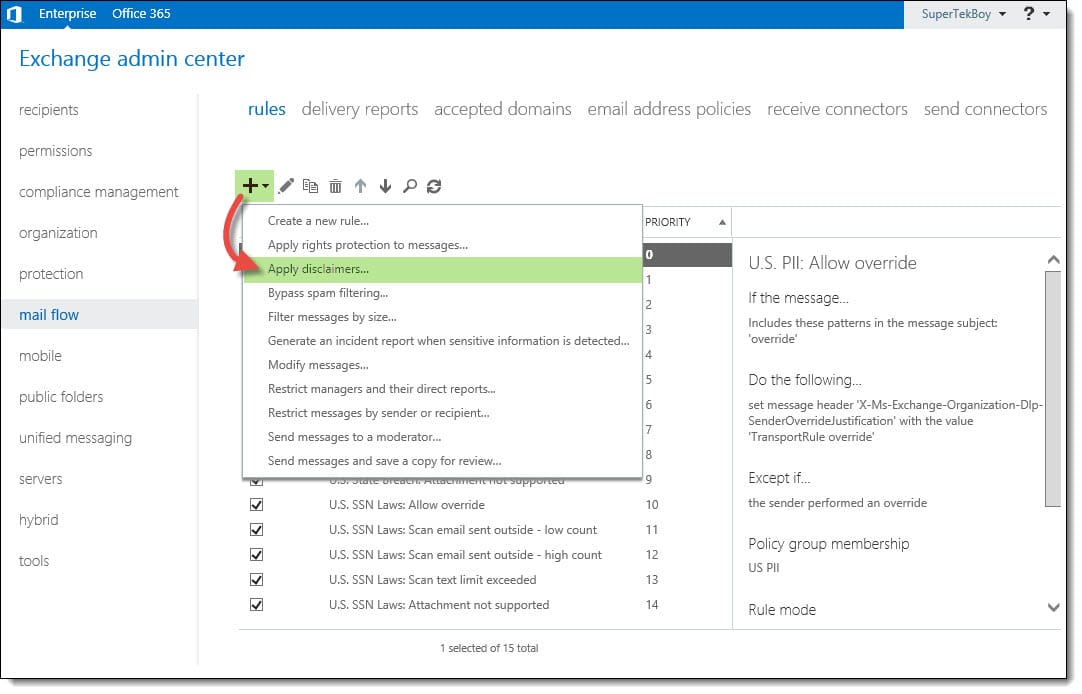
Log in to the Exchange Admin Center. Once logged in, navigate to Mail Flow >> Rules. Click the New (Excchange 2016 New) button.

From the drop-down menu, you will notice several choices. These choices are rule templates. We could just select Create a new rule. That would start us with a blank rule with no conditions. However, to give us a head start lets pick the Apply disclaimers template. This will configure a couple of items for us.

Add a legal disclaimer to all outbound email Exchange Office 365
[Read more…] about Add a legal disclaimer to all outbound email (Exchange/O365)
Share
Tweet
Share

Filed Under: Exchange Tutorials, Office 365 RSS, Office 365 Tutorials

Don’t feed the Phish

October 27, 2015 By Gareth Gudger Leave a Comment

Share
Tweet
Share

This morning I woke up to a very interesting phishing email. I never blog about phishing attacks but I found this one particularly interesting as it was spoofing Microsoft account services.

Identify the Phish

Phishing emails are always getting more creative. Sometimes it is hard to spot a fake from a legitimate email. But there are always a couple of tells on a fake email. The one I received this morning had a few.

Outlook.com Microsoft Team Phishing Attack

The first was the email address. Despite it displaying outlook.com the part to the left of the at symbol read “outlooo.teeam”. This was the first red flag.

The second red flag is the sketchy use of the English language throughout the body of the message itself. It just doesn’t read well.

Then comes the Verify Your Account button. This was the ultimate red flag. Without clicking I hovered my mouse pointer over the button. It revealed where it was going to take me. Even if the email address had been formatted better and the body of the message was grammatically correct the link was the surefire tell. In the screenshot above I superimposed the link so you can see where it was taking me. Clearly not a Microsoft site. But some site in India.

The final red flag was the trademark symbol at the end of the message. I have no idea why the word “team” (or perhaps the entire phrase) is a trademark.

Now that we have identified a phishing email what’s next? I recommend reporting it to your anti-spam provider. Below are the steps for reporting it to Microsoft. If you have a 3rd party vendor for spam, check with your system admin on how to submit messages to them for analysis.

[Read more…] about Don’t feed the Phish

Filed Under: Office 365 Tutorials, Outlook Tutorials

  • « Go to Previous Page
  • Page 1
  • Interim pages omitted …
  • Page 12
  • Page 13
  • Page 14
  • Page 15
  • Page 16
  • Go to Next Page »

Primary Sidebar

Want to stay up to date?

Sidebar Form

Join thousands of IT professionals and get the latest Exchange & Office 365 tips and tutorials direct to your inbox

DigiCert Banner 300x348

(help support us using our affiliate link)

Footer

Site Navigation

  • Subscribe to blog
  • About SuperTekBoy
  • Disclaimer
  • Privacy & Cookies
  • Contact Us

Want to stay up to date?

Footer Form

Join thousands of IT professionals and get the latest Exchange & Office 365 tips and tutorials direct to your inbox

Join the conversation

  • Twitter
  • LinkedIn
  • Facebook
  • RSS

Copyright © 2026 · SuperTekBoy LLC