• Skip to primary navigation
  • Skip to main content
  • Skip to primary sidebar
  • Skip to footer

SuperTekBoy

Practical Help for Exchange & Office 365

  • Exchange
    • News
    • Tutorials
    • Solve a Problem
  • Office 365
    • News
    • Tutorials
    • Solve a Problem
  • Outlook
    • Tutorials
    • Solve a Problem
  • Books
  • Podcasts
  • Quick Links…
    • Generate or Renew SSL Certs for Exchange
    • Connect PowerShell to Exchange Online
    • Connect PowerShell to Office 365
    • Extend Schema for Exchange
    • Exchange Schema & Build Numbers
  • More…
    • Kemp Load Balancers
    • Other tech…
    • Videos
    • About SuperTekBoy
    • Contact Us

Office 365

Office Activation fails ‘This feature has been disabled by your administrator.’

March 17, 2022 By Gareth Gudger Leave a Comment

Share
Tweet
Share

When trying to activate (or sign in to) Microsoft Office with your Office 365 enterprise credentials, you may receive the following error.
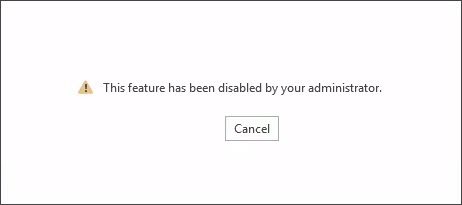
Office Activation - This feature has been disabled by your administrator
This feature has been disabled by your administrator.

This error is likely a result of a group policy.

To check this, open Group Policy Management Console (GPMC). From the GPMC, expand your domain name (e.g., skaro.local) and Group Policy Objects.

Select your policy that is managing the Office suite and click the Settings tab. Expand User Configuration (Enabled) > Policies > Administrative Templates > Microsoft Office 2016 > Miscellaneous. If you see a setting named Block signing into Office that is Enabled, this is the culprit.

Group Policy - Block signing into Office Group Policy Management Console

Note: If you do not see this setting, I recommend checking all group policies currently applied to the impacted user. You can get this by running GPRESULT from a command prompt on your impacted user’s computer.

[Read more…] about Office Activation fails ‘This feature has been disabled by your administrator.’

Filed Under: Office 365 Solutions, Outlook Solutions

RPC/HTTP & Security Defaults may prevent Outlook reconfiguration after migrating to Exchange Online

March 14, 2022 By Gareth Gudger 2 Comments

Share
Tweet
Share

In a previous article, we discussed how a conditional access policy blocking basic authentication prevents Outlook clients (leveraging RPC over HTTP) from reconfiguring after a mailbox migration to Exchange Online. This is due to RPC over HTTP not supporting modern authentication. On the other hand, Outlook clients leveraging MAPI over HTTP would reconfigure without incident. This is due to MAPI over HTTP supporting modern (and basic) authentication.

This article explores how security defaults, which Microsoft has been enabling on all new tenants to block basic auth, could also prevent Outlook clients (leveraging RPC over HTTP) from reconfiguring after migration to Exchange Online.

How to check if Security Defaults are enabled (modern authentication is enforced)

To determine if security defaults are enabled in your tenant.

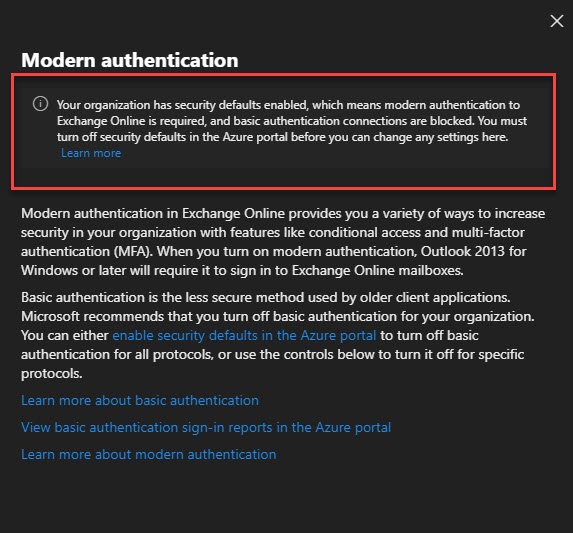
Log into the Microsoft 365 Admin Center. From the left pane expand Settings and select Org Settings. From the Services tab, select Modern Authentication. The Modern Authentication pop-out will identify if security defaults have been enabled.

The screenshot below shows the message that security defaults are enabled, indicating that modern authentication is required and basic auth connections are blocked.

M365 Security Defaults Enabled

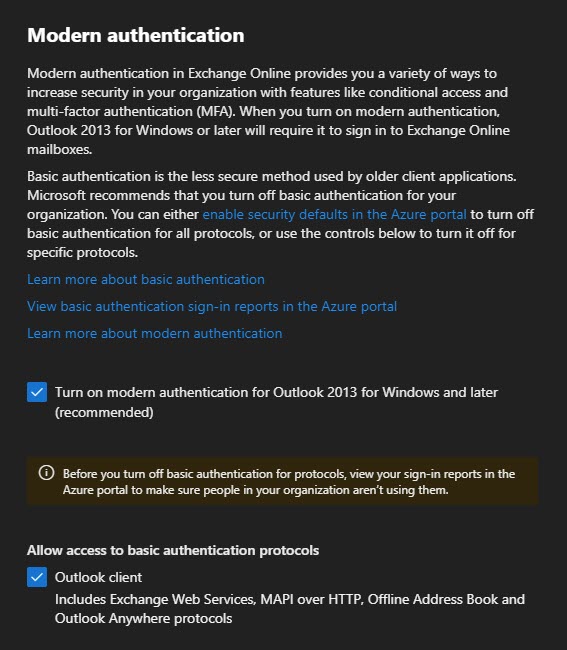
If security defaults have not been enabled in your tenant, the modern authentication pop-out will have configurable options. The screenshot below shows that modern authentication has been enabled (but it is not enforced). We can also see which protocols permit clients to use basic auth. Based on the selections in the screenshots, Outlook clients are still permitted to use basic auth (via either RPC over HTTP or MAPI over HTTP).

M365 Security Defaults Disabled

Tip: While not the focus of this article, I highly recommend working towards disabling basic auth on as many protocols as you can before the October 1st, 2022 deadline. This not only improves your security posture prior to October but also gets you prepared for the retiring of basic auth.

[Read more…] about RPC/HTTP & Security Defaults may prevent Outlook reconfiguration after migrating to Exchange Online

Filed Under: Exchange Solutions, Office 365 Solutions

RunAs Radio #818 – Email Transport Security

March 9, 2022 By Gareth Gudger Leave a Comment

Share
Tweet
Share

On February 15th, I had the great pleasure of being a guest on RunAs Radio. I joined host Richard Campbell to discuss email transport security; including:

  • Introductions
  • Coauthoring Office 365 for IT Pros 8th Edition
  • Clarifying the acronym soup
  • Collecting all 11 RunAs Radio mugs
  • Where is Exchange vNext?
  • What happens to mail relay if we eliminate our last on-prem Exchange Server?
  • How to make email transport more secure
    • Forced TLS vs. Opportunistic TLS
    • DANE for SMTP (DNS Authentication of Named Entities)
    • MTA-STS (Message Transport Agent – Strict Transport Security)
    • DANE versus MTA-STS versus Forced TLS
  • How to make individual messages more secure
    • Should we use S/MIME?
    • Need for Office 365 Message Encryption in addition to transport layer security (TLS)
    • Office 365 Message Encryption versus Advanced Message Encryption
  • Challenges of Multi-Factor Authentication (“MFA”)
  • M365 Maps by Aaron Dinnage
  • Domains that do not send email should have Sender Policy Framework (SPF) records
  • Homoglyph attacks
  • Closing thoughts
Gareth on Runas Radio #818 - Email Transport Security with Gareth Gudger

Opinion change: Since recording, I think that even if the MTA-STS TXT record was victim to a man-in-the-middle attack it probably would not be much of an issue. If the bad actor changed the ID in the TXT it would simply tell the sender to pull a new policy from a website the recipient owns and controls. As mentioned in the podcast, I believe DANE is the more secure solution. Be sure to consult with your security team about which solution best suits the needs of your organization.

[Read more…] about RunAs Radio #818 – Email Transport Security

Filed Under: Exchange News, Office 365 News, Podcasts

Configure global mail flow settings from the new Exchange Admin Center

March 7, 2022 By Gareth Gudger Leave a Comment

Share
Tweet
Share

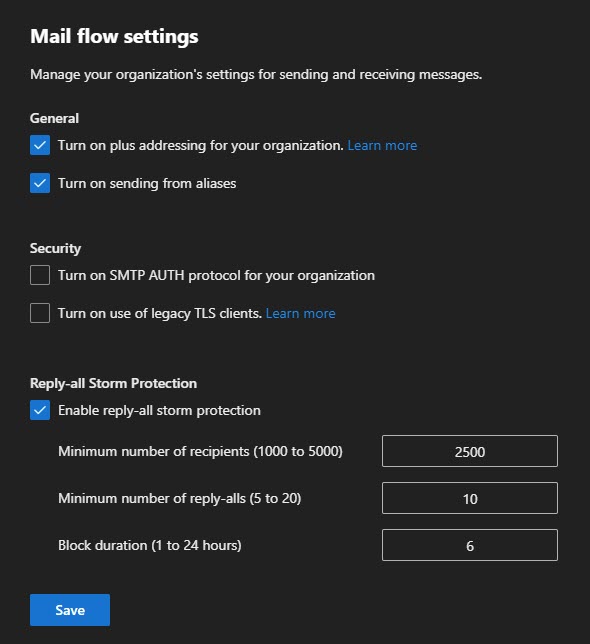
One of the new Exchange Admin Center benefits is that many of the global mail flow settings that were previously only available via PowerShell are now available in this new GUI. For example, the Mail Flow settings page allows you to define several global transport configurations. This article will look at these settings and what they do. These settings are:

  • Plus addressing
  • Sending from aliases
  • Enabling SMTP AUTH protocol
  • Legacy SMTP AUTH endpoint for TLS 1.0 / TLS 1.1 clients
  • Reply-All storm protection

To find these settings, log into the new Exchange Admin Center and navigate to the Settings tab on the left navigation pane. Then select Mail Flow.

Exchange Online Mail Flow Settings B

This will pop out a dialog with the following options.

Exchange Online Mail Flow Settings

Plus Addressing

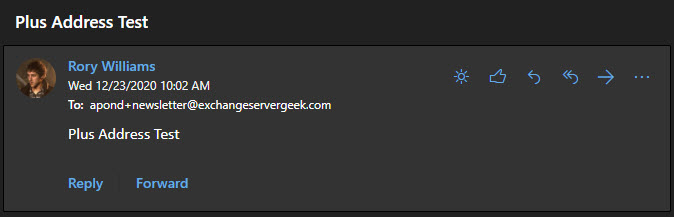
Plus addressing allows users to create their own unique email addresses by leveraging a plus sign in their email address—for example, apond+newsletter@exchangeservergeek.com. Anything after the plus sign is completely at the discretion of the user.

This becomes particularly useful when you want to target newsletters to a unique email address, especially when configuring inbox rules. It is also helpful to determine who might have sold or leaked your email address.

To enable this feature from the new Exchange Admin Center, navigate to Settings > Mail Flow. From the pop-up window, select Turn on plus addressing from your organization and click the Save button.

If you prefer to enable this from PowerShell, log onto Exchange Online PowerShell and run the following command.

 C:\> Set-OrganizationConfig -AllowPlusAddressInRecipients $true

To confirm the setting has taken effect, run Get-OrganizationConfig.

 C:\> Get-OrganizationConfig | FL AllowPlusAddressInRecipients

AllowPlusAddressInRecipients : True

Users can then start leveraging plus addresses. Emails addressed to a plus address will appear in the user’s inbox without any further user intervention. From there, the user can build inbox rules for the plus addresses if they desire.

Plus Addressing in Exchange Online

Reference: Plus Addressing Now Available in Exchange Online

[Read more…] about Configure global mail flow settings from the new Exchange Admin Center

Filed Under: Exchange Tutorials, Office 365 Tutorials

Outlook 2013: Your account is in a bad state

November 19, 2021 By Gareth Gudger Leave a Comment

Share
Tweet
Share

Starting November 1st, 2021, only Outlook 2013 SP1 (build 15.0.4971.1 and greater) will be able to connect to Microsoft 365 services. This means older Outlook 2013 builds, and Outlook 2010 and earlier will not connect to Microsoft 365. This new requirement goes hand in hand with the deprecation of basic auth, requiring Outlook 2013 SP1 (build 15.0.4753.1 and greater). Microsoft is deprecating basic auth on October 1st, 2022.

That said, if you are already blocking legacy auth for Outlook clients (or you are reading this post after October 1st, 2022), you may receive the following error when trying to sign in to your Office 365 account with Outlook 2013 or any other Office suite product. In addition, your Outlook 2013 client might not be able to connect to your Office 365 mailbox either.

When signing in to your Office 365 account via File > Office Account > Sign In from any Office suite product, you receive the following error.

Your account is in a bad state. Please sign-in to this account online to address the issue.
Your account is in a bad state. Please sign-in to this account online to address the issue

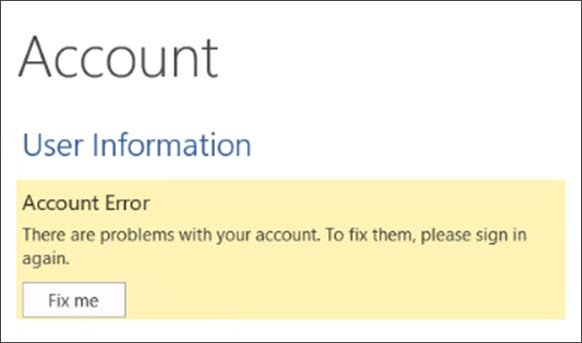
Alternatively, you may first see the error below which can then lead to the error above when you click the Fix me button.

Account Error: There are problems with your account. To fix them, please sign in again.
There are problems with your account. To fix them, please sign in again.
[Read more…] about Outlook 2013: Your account is in a bad state

Filed Under: Office 365 Solutions, Outlook Solutions

Exchange Online PowerShell fails to connect with error AADSTS50011

November 16, 2021 By Gareth Gudger Leave a Comment

Share
Tweet
Share

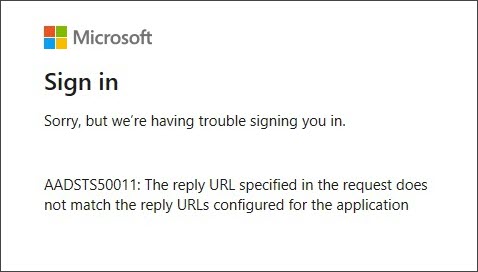
If you receive the following error when trying to connect to Exchange Online via PowerShell, then you will need to upgrade the Connect-ExchangeOnline PowerShell module.

AADSTS50011: The reply URL specified in the request does not match the reply URLs configured for the application
Exchange Online PowerShell fails to connect error AADSTS50011

Resolving AADSTS50011 for Connect-ExchangeOnline

To resolve, launch PowerShell and run the following command. If you do not trust the PowerShell gallery you may also be prompted to confirm the installation from an untrusted gallery. Press “Y” to confirm.

 C:\> Update-Module ExchangeOnlineManagement

You are installing the module from an untrusted repository. If you trust 
this repository, change its InstallationPolicy value by running the 
Set-PSRepository cmdlet. Are you sure you want to install the module 
from 'PSGallery'?
[Y] Yes  [A] Yes to All  [N] No to All  [S] Suspend  [?] Help: Y

At this point, it is best to close and reopen any PowerShell windows you had open and reissue the command Connect-ExchangeOnline. The issue should now be resolved.

[Read more…] about Exchange Online PowerShell fails to connect with error AADSTS50011

Filed Under: Exchange Solutions, Office 365 Solutions

  • « Go to Previous Page
  • Page 1
  • Page 2
  • Page 3
  • Page 4
  • Interim pages omitted …
  • Page 16
  • Go to Next Page »

Primary Sidebar

Want to stay up to date?

Sidebar Form

Join thousands of IT professionals and get the latest Exchange & Office 365 tips and tutorials direct to your inbox

DigiCert Banner 300x348

(help support us using our affiliate link)

Footer

Site Navigation

  • Subscribe to blog
  • About SuperTekBoy
  • Disclaimer
  • Privacy & Cookies
  • Contact Us

Want to stay up to date?

Footer Form

Join thousands of IT professionals and get the latest Exchange & Office 365 tips and tutorials direct to your inbox

Join the conversation

  • Twitter
  • LinkedIn
  • Facebook
  • RSS

Copyright © 2026 · SuperTekBoy LLC