One of the benefits of being in the Office Beta Channel (formerly known as Insider Fast) is getting to see and test new Office features before they are generally available.
When you install Office, all new installations will default to the Current channel (formerly known as the Monthly channel). However, it is possible to change your update channel. The table below lists all the available update channels and their former names as these were recently changed.
| Channel | Old Name |
|---|---|
| Beta | Insider Fast |
| Current (Preview) | Monthly (Targeted) |
| Current | Monthly |
| Monthly Enterprise | Monthly Enterprise |
| Semi-Annual Enterprise (Preview) | Semi-Annual (Targeted) |
| Semi-Annual Enterprise | Semi-Annual |
The Beta Channel typically receives new features 1 month in advance of the Current Channel. For more information on the specifics of each channel, check out this article from Microsoft.
How to determine your Office update channel
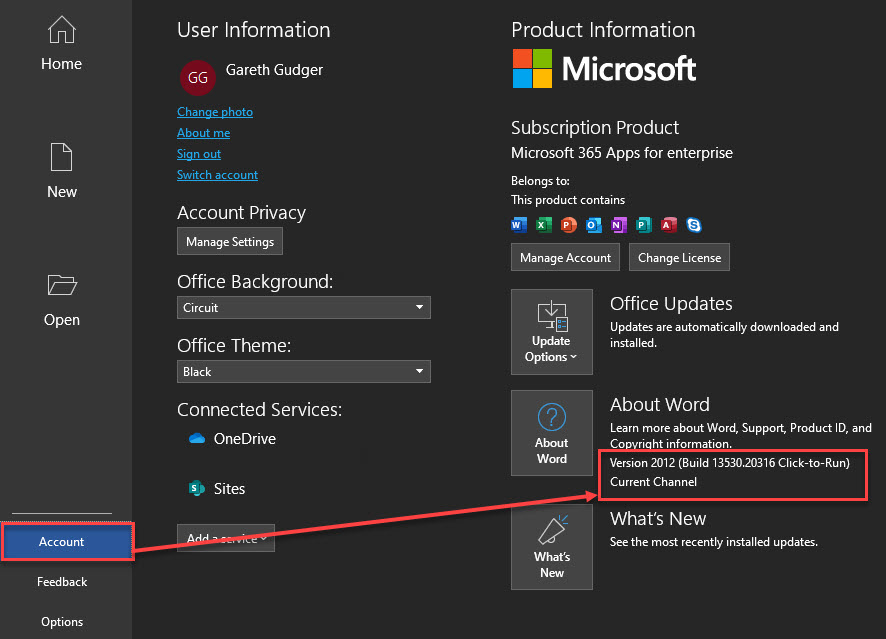
To determine your Office update channel, open any Office app. In our example, we will open Microsoft Word.
Once launched, click Account. In the About Word section, you will see both the build number and the current update channel. In the screenshot below, you can see our build is Version 2012, and our update cycle is the Current Channel.
Microsoft Outlook is a little different. To check your Office update channel using Outlook, navigate to the File menu and select Office Account. Like other Office apps, the build and update channel will be listed in the About Outlook section.
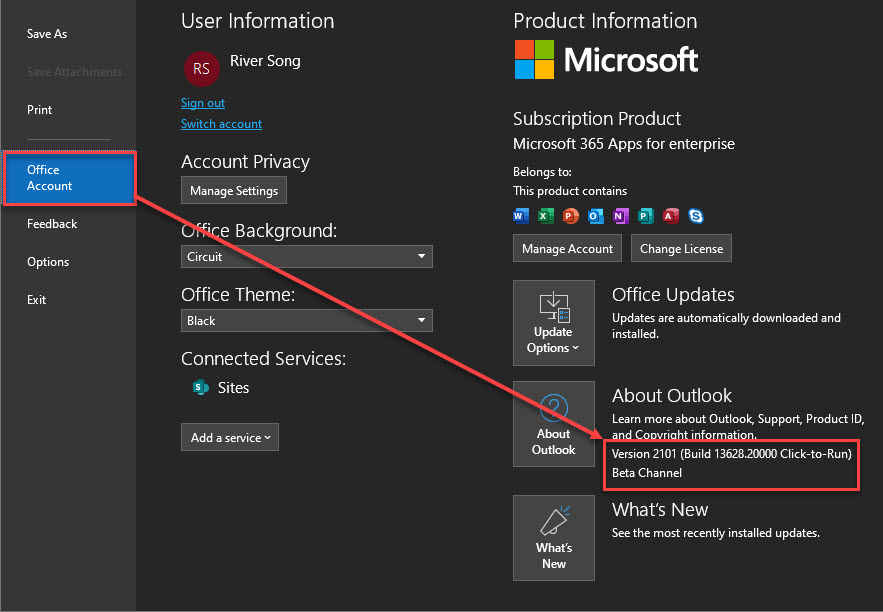
Tip: The build numbers are formulated from a two-digit year and a two-digit month. For example, the first two digits, “20”, designate the year 2020. The second two digits, “12”, designate December. Microsoft documents all build numbers and release notes here.
[Read more…] about How to switch to the Office (M365 Apps) Beta Channel