• Skip to primary navigation
  • Skip to main content
  • Skip to primary sidebar
  • Skip to footer

SuperTekBoy

Practical Help for Exchange & Office 365

  • Exchange
    • News
    • Tutorials
    • Solve a Problem
  • Office 365
    • News
    • Tutorials
    • Solve a Problem
  • Outlook
    • Tutorials
    • Solve a Problem
  • Books
  • Podcasts
  • Quick Links…
    • Generate or Renew SSL Certs for Exchange
    • Connect PowerShell to Exchange Online
    • Connect PowerShell to Office 365
    • Extend Schema for Exchange
    • Exchange Schema & Build Numbers
  • More…
    • Kemp Load Balancers
    • Other tech…
    • Videos
    • About SuperTekBoy
    • Contact Us

Office 365

Exchange Online Updates (October 2021)

October 17, 2021 By Gareth Gudger Leave a Comment

Share
Tweet
Share

Deprecation of the classic Exchange Admin Center

The new Exchange Admin Center has been available for quite some time and was designated reaching general availability back in April. With feature parity met, and in many cases exceeded, it is no doubt that the Exchange team is now planning the deprecation of the classic Exchange Admin Center.

Starting this month features will be redirected away from the classic admin center with the planned removal of the classic EAC by September 2022. Check out Microsoft’s timeline in the image below.

Deprecation of the classic Exchange Admin Center

To use the new Exchange Admin Center point your browser to https://admin.exchange.microsoft.com or from the classic Exchange Admin Center select the toggle to Try the new Exchange Admin Center in the top-right of the screen.
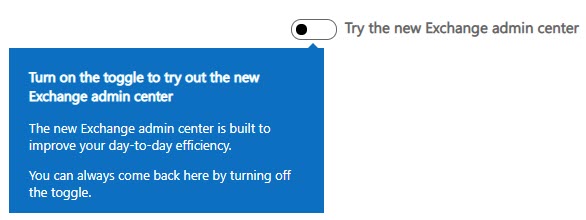
New Exchange Admin Center

New end date for Basic Authentication

Since 2018 Microsoft has announced the blocking of basic authentication. However, due to the pandemic, that date has shifted a few times. Back in February, it was announced that the deprecation of basic auth had been put on hold until further notice. In September Microsoft announced new deadlines for the deprecation of basic authentication for all Exchange protocols. This date is October 1st, 2022. After this date, any application connecting to Exchange Online will be required to leverage modern authentication (OAuth 2.0). The only exception to this is SMTP Auth which can continue to use basic authentication.

Note: Prior to October 1st, 2022, Microsoft will continue to disable basic auth on protocols in tenants where basic auth is not detected.

For devices and applications that integrate with Exchange Web Services, such as voicemail, ticketing systems, or line of business applications, these will be required to support modern authentication. One option is to leverage certificate-based authentication leveraging an Azure app. However, it is better to switch the EWS integration over to Microsoft Graph as Microsoft plans to deprecate EWS integration starting September 30th, 2022. Microsoft is positioning Microsoft Graph to be the sole entry point for all app integrations rather than having separate entry points for each Office 365 workload. This reduces the attack footprint of the Office 365 service. I would also recommend looking into Application Access Policies. These policies limit what mailboxes an app can access. Be sure to check your vendor’s documentation for guidance on connecting these apps to Office 365 with modern authentication.

For PowerShell, I recommend using the Microsoft Exchange Online PowerShell Module. This module supports both modern auth and is a requirement if your admin account has multi-factor authentication enabled (which I hope it does!). I recommend checking out this article for more information on how to use this module. Also, you may want to look into the Azure Cloud Shell. Check out the tutorial; Using Exchange Cmdlets in Azure Cloud Shell.

For POP and IMAP, Microsoft added OAuth support. However, this still requires your POP or IMAP application to support OAuth. For integrated apps that use POP or IMAP, like helpdesk ticketing systems, I would recommend looking for other methods of integration rather than using POP or IMAP. Using our helpdesk ticketing system example, look to see if the app can integrate with EWS or the Graph instead. For clients, see if you can switch those users over to a new client that supports a direct Exchange connection. My recommendation is to get rid of POP and IMAP entirely and globally shut down those legacy protocols.

The most significant impact of this announcement will be on ActiveSync. Countless native mail apps use ActiveSync to access their Office 365 mail. I highly recommend migrating your user base to Outlook mobile (for iOS and Android). Outlook Mobile supports both modern authentication and multi-factor authentication. It is worth noting that some native mail apps, such as those included in iOS 11+, have modern authentication support. However, pushing users to Outlook Mobile versus upgrading their phones is the path of least resistance. Not to mention your helpdesk or IT department will only need to support one mail client and have greater control protecting corporate data via mobile application management policies from Intune.

To track which devices and applications are signing in with legacy authentication, you can use the Azure AD Sign-ins dashboard. Microsoft covers this process in this article.

[Read more…] about Exchange Online Updates (October 2021)
Filed Under: Office 365 News

On the Line with Cohesity #44: Updates on M365 and more!

September 19, 2021 By Gareth Gudger Leave a Comment

Share
Tweet
Share

On September 14th, I had the great pleasure of being a guest on On the Line with Cohesity podcast. I joined host Theresa Miller to discuss several M365 topics; including:

  • Introductions
  • Microsoft Viva and the new employee experience during the pandemic
  • The evolution of email security
  • Safety Tips to keep your users informed on questionable email
  • Microsoft Teams active users in the pandemic
  • Teams integrations with other products: Dynamics 365, Service Now.
  • Windows 365 Cloud PC
  • Windows 11 experience and GUI changes
  • How to join the Windows Insider Program to get Windows 11 now
  • The benefits of the Office Insiders program and who should enroll in an organization
[Read more…] about On the Line with Cohesity #44: Updates on M365 and more!

Filed Under: Exchange News, Office 365 News, Podcasts

How to enroll in the Microsoft Teams public preview program

July 23, 2021 By Gareth Gudger Leave a Comment

Share
Tweet
Share

Microsoft Teams is a constant influx of new features and development. For example, in June alone, Microsoft released a few dozen new features, including chat bubbles, new spotlighting options, a meeting attendance dashboard, Dynamics integration, and more (not to mention all the new Teams devices).

One of the benefits of being in the Microsoft Teams Public Preview is seeing and testing new features before they are generally available. As a result, this is an excellent option for early adopters in a company who want to experience the new features and changes before the general population. Additionally, early access is beneficial for those in roles of corporate training and communication.

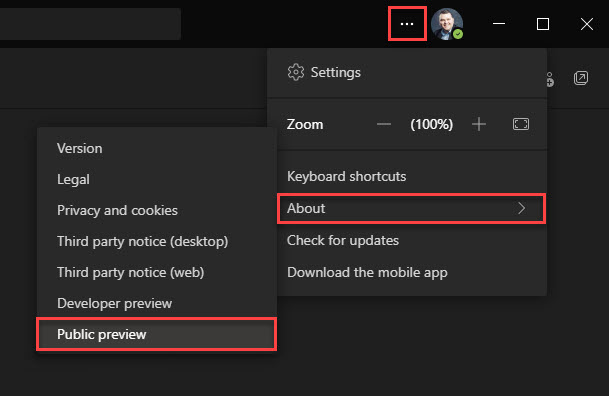
To opt into the Teams Public Preview is straightforward. First, click the three dots (…) next to your profile picture in the Teams client. Then, from the menu, select About > Public Preview.

Microsoft Teams Public Preview Program

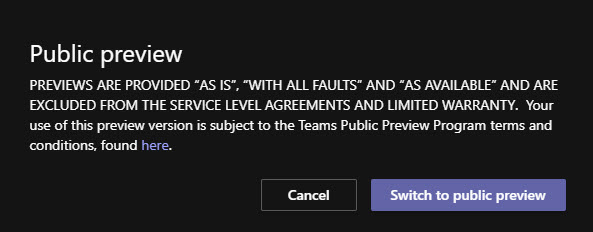
You will then receive a disclaimer stating that your experience in the public preview is provided “as is,” “with all faults,” and excluded from any warranty or service level agreements (SLAs). Essentially, there is no guarantee you will be free from issues, and Microsoft cannot be held to any warranty or SLA to resolve those issues.

To accept these terms, click Switch to public preview. If you do not wish to accept, click Cancel. If you cancel, you will not be allowed to join the public preview.

Note: This action will restart the Microsoft Teams client. Switching to the public preview will end any calls or meetings.

Microsoft Teams Public Preview Program SLA and Warranty
[Read more…] about How to enroll in the Microsoft Teams public preview program

Filed Under: Office 365 Tutorials

Workaround: Replying to a message with an invalid S/MIME digital signature fails

July 22, 2021 By Gareth Gudger 6 Comments

Share
Tweet
Share

If you received a message with an invalid or untrusted S/MIME digital signature, you might have problems replying to that message with Outlook on the Web (OWA).

The inability to reply is not necessarily a bad thing as it might indicate an impersonation attempt. Impersonation is where a bad actor pretends to be someone you know, often for financial gain. A common example of impersonation is a bad actor pretending to be a CEO asking their company accountant to wire money to the bad actor’s bank account.

So, if you see a failed digital signature, it is a good time to pause and determine if the sender really is who they say they are through other verified mechanisms (e.g., call them on a trusted phone number). Then validate if they are aware of the digital signature issue to see if they are already working to resolve it.

If using a product like Office 365, you can also check if the message has failed any impersonation checks. For example, are safety tips in OWA warning that you don’t typically receive mail from this sender with that email address.

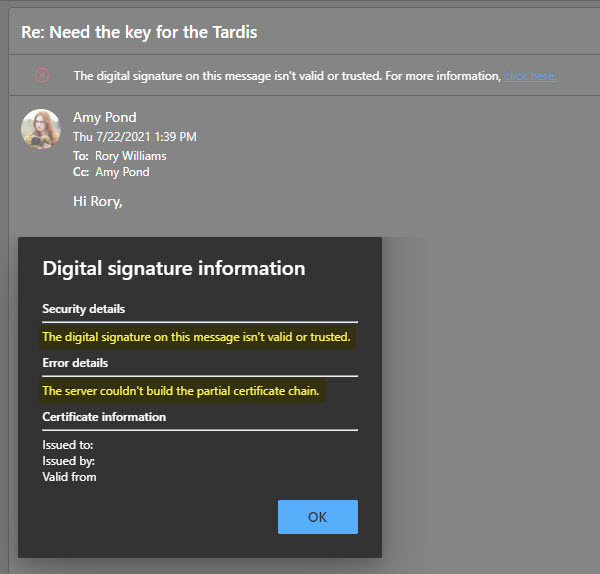
The screenshot below provides an example of a message received in OWA where the S/MIME digital signature is not considered valid or trusted. Clicking the click here link gives us some additional insight into the error. We can see OWA does not trust this certificate because it has a broken certificate chain, more than likely caused by a missing or expired intermediary cert.

The digital signature on this message isn't valid or trusted OWA

When attempting to reply to this message in OWA, you may receive the following error.

This message can't be sent right now. Please try again later.
[Read more…] about Workaround: Replying to a message with an invalid S/MIME digital signature fails

Filed Under: Exchange Solutions, Office 365 Solutions, Outlook Solutions

MSP Unplugged Podcast – Office 365 Tips

February 1, 2021 By Gareth Gudger 2 Comments

Share
Tweet
Share
MSP Unplugged

On January 29th, I had the great pleasure of being a guest on MSP Unplugged. I joined host Jeff Halash to discuss several topics; including:

  • Introductions
  • TechCon Unplugged 2021
  • A brief history of Gareth Gudger
  • Staying on-prem versus going to the cloud
  • Modern security threats leveraging email
  • Benefits of Exchange hybrid for mailbox migrations
  • Question from the audience: OneNote file storage options
  • OneNote: Windows 10 OneNote vs. Office 365 OneNote
  • OneDrive: Syncing and folder redirection
  • Syncing vs. Backups
  • Windows AutoPilot Overview
  • Exchange Server vNext
  • Exchange Server vNext subscription licensing
  • Loss leaders and cash cows
  • MSP Unplugged Patreon and Facebook Group
  • Word: True dark mode in Office beta channel
  • Edge Chromium supports ClickOnce
  • Future of in-person conferences vs. Microsoft’s carbon negative goal
[Read more…] about MSP Unplugged Podcast – Office 365 Tips

Filed Under: Exchange News, Office 365 News, Podcasts

How to start meetings late (or end early) in Outlook

January 8, 2021 By Gareth Gudger 2 Comments

Share
Tweet
Share

One of the great new features in Outlook is scheduling meetings or appointments to start late (or end early). The end early feature has been included in Outlook for some time. However, the start late feature was introduced into the Office beta channel in version 2012 (build 13530.20000).

Note: This feature is now available in the Current (Preview) channel as of version 2012 (Build 13530.20218)

The shorten meeting feature allows attendees time between meetings. This is useful for many aspects, such as allowing users time to travel between meeting rooms, grab a coffee, reconcile notes, or decompress.

How to shorten meetings to start late or end early

To access this feature, open Outlook, navigate to the File menu, then select Options. From the Outlook Options dialog, select the Calendar tab.

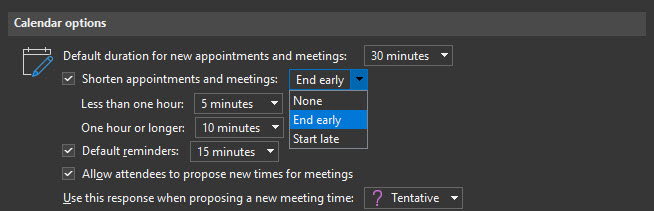
Under the Calendar Options section, select the Shorten appointments and meetings checkbox. From the drop-down, choose whether to have meetings End early or Start late.

Note: If you select None, the prior checkbox will become deselected.

Start Meetings Late in Microsoft Outlook

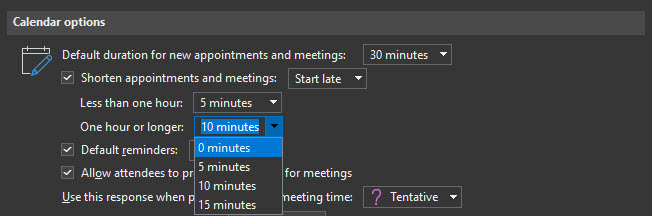
These options also allow you to specify how much time to shorten appointments and meetings. By default, any meeting under 1 hour will be shortened by 5 minutes. Any meeting for 1 hour or longer will be shortened by 10 minutes.

If you wish to change these defaults, pick another time from each drop-down. For example, for meetings one hour or greater, you have choices of 0, 5, 10, and 15 minutes. Once you have made your selection click Ok to save and close the Outlook Options dialog.

Shorten appointments and meetings in Microsoft Outlook
[Read more…] about How to start meetings late (or end early) in Outlook

Filed Under: Office 365 Tutorials, Outlook Tutorials

  • « Go to Previous Page
  • Page 1
  • Page 2
  • Page 3
  • Page 4
  • Page 5
  • Interim pages omitted …
  • Page 16
  • Go to Next Page »

Primary Sidebar

Want to stay up to date?

Sidebar Form

Join thousands of IT professionals and get the latest Exchange & Office 365 tips and tutorials direct to your inbox

DigiCert Banner 300x348

(help support us using our affiliate link)

Footer

Site Navigation

  • Subscribe to blog
  • About SuperTekBoy
  • Disclaimer
  • Privacy & Cookies
  • Contact Us

Want to stay up to date?

Footer Form

Join thousands of IT professionals and get the latest Exchange & Office 365 tips and tutorials direct to your inbox

Join the conversation

  • Twitter
  • LinkedIn
  • Facebook
  • RSS

Copyright © 2026 · SuperTekBoy LLC