• Skip to primary navigation
  • Skip to main content
  • Skip to primary sidebar
  • Skip to footer

SuperTekBoy

Practical Help for Exchange & Office 365

  • Exchange
    • News
    • Tutorials
    • Solve a Problem
  • Office 365
    • News
    • Tutorials
    • Solve a Problem
  • Outlook
    • Tutorials
    • Solve a Problem
  • Books
  • Podcasts
  • Quick Links…
    • Generate or Renew SSL Certs for Exchange
    • Connect PowerShell to Exchange Online
    • Connect PowerShell to Office 365
    • Extend Schema for Exchange
    • Exchange Schema & Build Numbers
  • More…
    • Kemp Load Balancers
    • Other tech…
    • Videos
    • About SuperTekBoy
    • Contact Us

Error installing Exchange update – The certificate is expired

October 29, 2017 By Gareth Gudger 3 Comments

Share
Tweet
Share

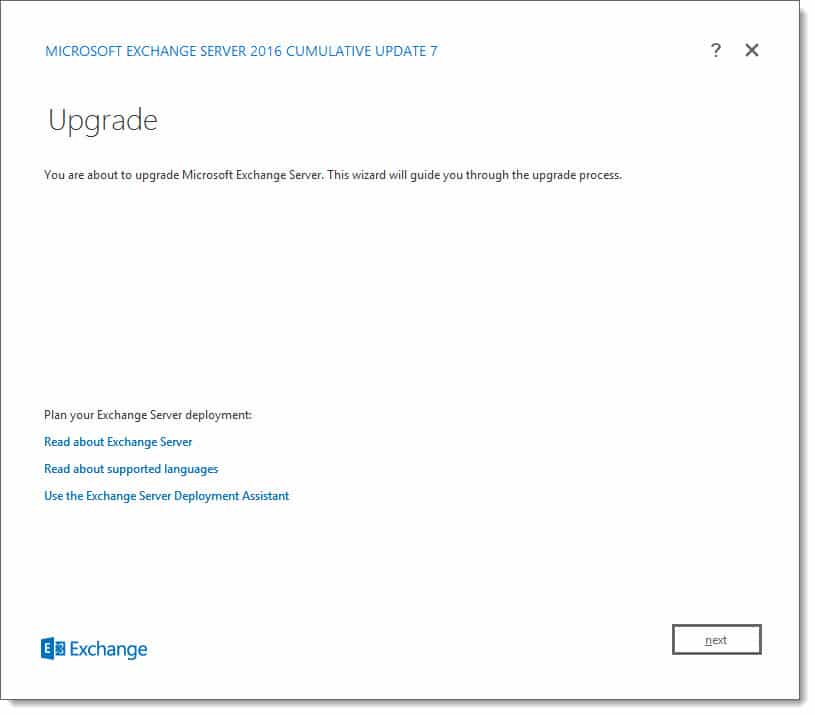
While upgrading one of my Exchange lab servers I was presented with the error, “The certificate is expired.”
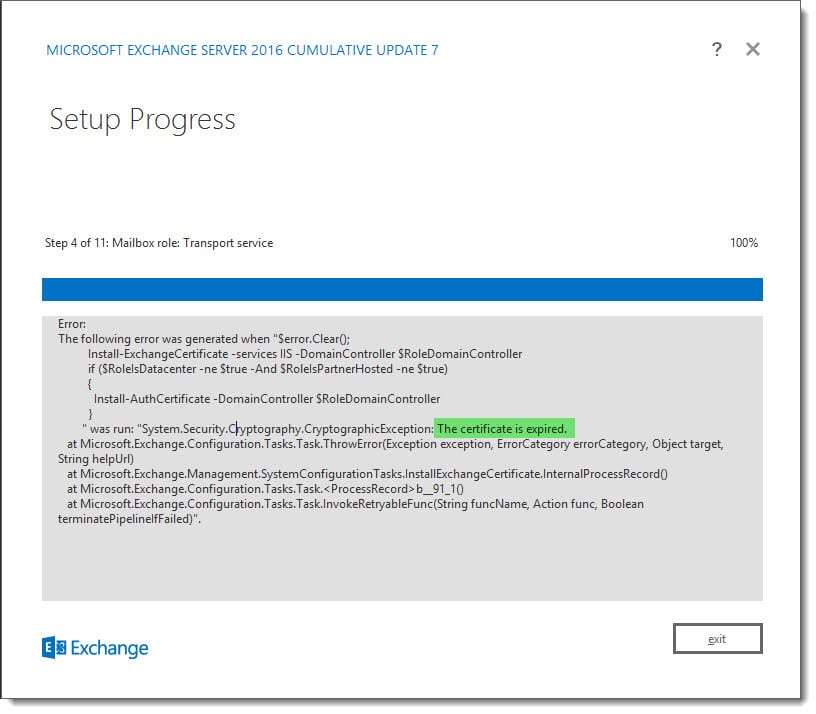
Upgrading Exchange 2016 - The certificate is expired

This error occurred while setup was installing the transport service and it was blocking the install from completing. Further investigation of the event logs indicated that the transport certificate had expired (Event ID 12015). This made sense why the setup was failing during that step.
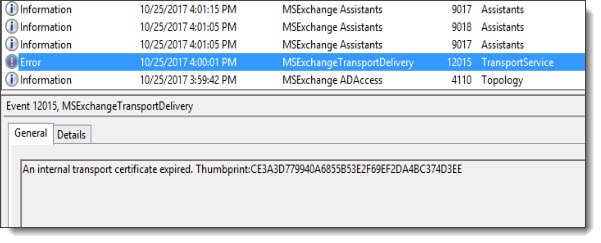
MSExchangeTransportDelivery 12015 TransportService An internal transport certificate expired

The challenge here was the Exchange Admin Center would no longer load. Luckily, the Exchange Management Shell was still operational. The following are the steps to renew a certificate using the Exchange Management Shell. I have included instructions for renewing both a self-signed and third-party certificate. Once renewed setup will complete. If you have multiple Exchange servers in your lab it is also possible to do this task remotely against the problem server.

[Read more…] about Error installing Exchange update – The certificate is expired

Print Friendly, PDF & Email

Filed Under: Exchange Solutions

15 Microsoft Ignite sessions every Exchange admin should see (2017)

October 7, 2017 By Gareth Gudger 1 Comment

Share
Tweet
Share

Microsoft hosted its annual Ignite conference in Orlando this September. Ignite was massive at 1695 sessions. Almost 300 sessions more than last year. That is a lot of sessions! Many are posted at the Ignite channel on YouTube or through the Microsoft Ignite On-Demand portal. Here are the top 15 sessions I think every Exchange admin should watch.

Tip: I have included notes for each session and the time each topic starts. You can expand the session notes under each video by clicking “Show more session notes”

Thrive as an enterprise organization in Microsoft Exchange Online Ignite 2017 (watch video)

Thrive as an enterprise organization in Microsoft Exchange Online
If you could only watch one session then it should be this one. In this session, Jeff Kizner reveals a slew of announcements for Exchange Online. Announcements include; highly requested coexistence features for Exchange hybrid and, new advances in a tenant to tenant migrations. Jeff demonstrates a mailbox move between two Office 365 tenants using MRS and PowerShell.

  • Mailbox Plans (4:06 mins)
    • Set-MailboxPlan can now assign a retention policy to a mailbox when the mailbox is provisioned.
    • Set-CASMailboxPlan (new cmdlet) can now configure whether ActiveSync, IMAP, and POP are enabled on a mailbox when it is provisioned in Office 365.
  • Client Access Rules (6:52 mins)
    • Additional rule conditions for matching source IP, protocol, recipient filters, or, username
    • Great for only allowing certain protocols from certain locations (e.g. ActiveSync from satellite offices)
    • You can have up to 20 client access rules
    • Best practice to have an “Allow PowerShell” rule in priority 1 (don’t lock yourself out!)
  • Creating a custom app for message classification (16:00 mins)
    • Jeff demonstrates a custom app that uses the Outlook On Send feature to take action when a user clicks the send button in Outlook
    • On Send must be enabled in the OwaMailboxPolicy assigned to the user
    • Available since Exchange 2016 CU5
  • Hybrid delegation (26:40 mins)
    • Jeff discusses and demos advancements in hybrid delegation (full access, auto-map, send as, send on behalf)
  • On-premises policies will come over to Office 365 (46:06 mins)
    • Hybrid wizard will ask you which on-prem policies you want to copy into Office 365 (e.g. OWA, ActiveSync and Retention policies)
    • User’s mailbox, when moved to Office 365, will retain their existing policy assignments
  • Hybrid publishing (50:52 mins)
  • Hybrid recipient management (54:16 mins)
    • Jeff’s team is working towards allowing admins to make changes to attributes in Office 365 and have those attributes sync back to on-prem. This will remove the need to keep Exchange on-prem for recipient management.
    • Jeff’s team is also looking at changing the source of authority on synchronized objects to Azure Active Directory.
  • Migrating data between tenants – mergers and acquisitions (59:33 mins)
    • Jeff demonstrates a mailbox move between two Office 365 tenants using MRS and PowerShell.
Show more session notes
Show less session notes
Scott Schnoll’s Exchange tips and tricks Ignite 2017 (watch video)

Scott Schnoll’s Exchange tips and tricks
Scott provides us with his top tips for Exchange. Topics include:

  • Server roles in Exchange 2016 (1:41 mins)
  • How Exchange is developed (2:41 mins)
  • Exchange 2016 Lifecycle (3:56 mins)
  • Changes in Exchange 2016 CU7 (4:51 mins)
    • Forest functional level is now 2008 R2 or higher
  • Announcing Exchange 2019 (8:48 mins)
    • Preview shipping mid-2018
    • General release second half of 2018
  • Bug in Windows Server 2016 that caused IIS to crash – KB3206632 (10:20 mins)
  • iOS11 issue with HTTP/2 (11:22 mins)
    • Microsoft turned off HTTP/2 across all Exchange Online servers
    • Microsoft recommends administrators disable HTTP/2 across all on-premises Exchange servers until Apple resolves this issue
    • Microsoft is working with Apple to help them resolve the issue
  • New calendar improvements across all Outlook clients (15:16 mins)
  • Administrator configured out of office replies (18:00 mins)
  • Message Latency in logs (19:47 mins)
  • Running antivirus on the operating system (21:00 mins)
    • Windows Server 2016 comes with a built-in fully-fledged antivirus
    • Make sure to configure antivirus with all path, process and file type exclusions
  • Health mailboxes (23:22 mins)
    • Do not alter their AD account in any way
    • Do not alter their password or account lockout settings
    • Do not move or alter their mailboxes in any way
  • Stalled mailbox migrations to Office 365 (26:40 mins)
  • Protocol Agnostic Workflow (PAW) (30:24 mins)
    • New mailbox migration code in Office 365 that improves stability and throughput
    • Individual users can be removed from a batch
    • Batch completions can be scheduled
    • Better reporting
    • Microsoft will automatically enable this for your tenant but only if your tenant has no active or completed batches
  • OAuth (35:26 mins)
  • Hybrid license key and hybrid diagnostics wizard (39:20 mins)
  • When to decommission Exchange on-premises (42:00 mins)
  • PST elimination tools (44:27 mins)
  • Deprecation of RPC over HTTPS – Outlook Anywhere (46:32 mins)
  • Mailbox encryption coming soon to Office 365. You can encrypt with either:  (53:00 mins)
    • Microsoft managed key
    • Customer provided key
  • Using Azure VM for DAG witness (55:04 mins)
  • Changes to lagged copy behavior (56:15 mins)
  • Recovering an Exchange Server with newer CU (59:58 mins)
    • This is possible and supported
    • Admin version will still show old CU build until you go to a newer CU later on
  • New anti-phishing behavior in Office 365 (1:01:09 mins)
  • Connecting to Security & Compliance Center via PowerShell (1:07:29 mins)
  • Azure Information Protection – AIP (1:08:17 mins)
  • Advanced Find in Outlook deprecation and reinstatement (1:12:38 mins)
  • New TAP program for migrating public folders to Office 365 Groups (1:13:14 mins)
Show more session notes
Show less session notes
Modern authentication for Exchange Server on-premises (watch video)

Modern authentication for Exchange Server on-premises
Greg Taylor discusses two new modern authentication scenarios coming to Exchange on-premises. One scenario which will be available to Exchange 2013 and 2016. And a future scenario that will be available in Exchange 2019. No bunnies were harmed in the delivery of this session.

  • Importance of Modern Authentication (2:39 mins)
    • Allows Outlook to authenticate with a token
    • An easier route to enable Outlook for Multi-Factor Authentication (MFA)
    • Relies on strong network connectivity
  • Two implementations of modern authentication will ship (7:10 mins)
    • Exchange 2013 / 2016 implementation expected by December 2017
    • Exchange 2019 implementation will ship when new release ships second half 2018
  • Overview of how modern authentication works (10:00 mins)
    • Modern auth will only work with MAPI over HTTP.
    • No RPC over HTTP support.
    • Exchange will use modern auth for all client connections, regardless of whether they originate from inside or outside the network.
  • Example of modern auth during autodiscover (15:35 mins)
    • Authorization type of “Bearer” is Outlook instructing Exchange that it can do modern authentication
    • Exchange responds to the client with STS authorization URL (for example AD FS)
  • Explanation of token exchange (17:46 mins)
    • The access token has a lifetime of 1 hour (default TTL)
    • When the Access token expires the client uses their Refresh token to request a new Access Token (re-authenticate)
    • The refresh token is valid for 14 days (default TTL)
    • Password change:
      • Immediately invalidates the Refresh Token.
      • Access token remains valid for the remainder of its duration (up to 1 hour)
  • Deep dive into two versions of on-prem modern auth (23:30 mins)
    • Exchange 2019 will ship with an on-prem implementation of Modern Auth
      • AD FS 2016 required
      • Outlook 2016 / 2019 required
        • Outlook 2013 and older will not work
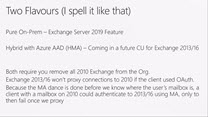
      • Exchange 2013 / 2016 can be in the organization (no Exchange 2010)
      • Device registration is required
    • Exchange 2013/2016 will ship with a hybrid implementation of Modern Auth
      • Will require hybrid connectivity with Office 365
      • AD FS not required (can just use Password Sync with Azure AD Connect)
      • Exchange HCW must be run to enable OAuth
      • On-prem SPNs registered with Azure AD (configuring this is shown at 39:05 mins)
      • Exchange 2010 is completely unsupported and must be removed from the environment – no coexistence
  • OAuth tokens rely on TLS for encryption (32:13 mins)
Show more session notes
Show less session notes
[Read more…] about 15 Microsoft Ignite sessions every Exchange admin should see (2017)
Print Friendly, PDF & Email

Filed Under: Exchange News, Office 365 News

Error running /PrepareAD – User does not have permissions but is a member of Enterprise Admins

September 20, 2017 By Gareth Gudger 4 Comments

Share
Tweet
Share

While preparing Active Directory for Exchange you may run into the following error.

 F:\> Setup /PrepareAD /IAcceptExchangeServerLicenseTerms

Microsoft Exchange Server 2016 Cumulative Update 6 Unattended Setup
Copying files...
File copy complete. Setup will now collect additional information needed for installation.

Preforming Microsoft Exchange Server Prerequisite Check

   Prerequisite Analysis

Setup will prepare the organization for Exchange Server 2016 by using 'Setup /PrepareAD'.

Active Directory must be prepared with 'Setup /PrepareAD'. However, the current user account doesn't have the permissions required even though it's a member of the 'Enterprise Admins' group. Check whether this is a valid user account.

We ran into this recently at a client. This was an odd error because it indicated we had all the necessary group memberships to perform this task. We had also just used this account to successfully extend the schema moments before.

Fixing ‘User does not have permissions’

We quickly discovered that the Default Domain Controllers Policy (which is a group policy assigned to the domain controllers OU) had been removed. It was uncertain when this may have happened but the absence of this policy was not the issue itself. Moreover, it was a setting that comes predefined by that policy. The error we were receiving was due to the absence of the User Rights Assignment, Manage auditing and security logs. This right is granted to the Exchange Servers and Administrators built-in groups.

[Read more…] about Error running /PrepareAD – User does not have permissions but is a member of Enterprise Admins
Print Friendly, PDF & Email

Filed Under: Exchange Solutions

Exchange September 2017 Updates

September 19, 2017 By Gareth Gudger Leave a Comment

Share
Tweet
Share
Exchange 2016 CU7

Today was a big day for Exchange updates. Not only did we get Cumulative Update 7 for Exchange 2016, but we also got Cumulative Update 18 for Exchange 2013.

As always, test these updates in a lab first! I recommend checking out this 7-part guide on configuring Exchange in your lab. It doesn’t take much to get one going.

The updates are as follows:

Exchange 2016 Mini

Exchange 2016 Cumulative Update 7 | KB4018115 | UM Language Pack

Exchange 2013 Cumulative Update 9

Exchange 2013 Cumulative Update 18 | KB4022631 | UM Language Pack

Exchange 2010 Mini

No roll-up for Exchange 2010 this quarter

A quick word on Exchange 2007

It’s time to update. Exchange 2007 went end of life as of April 11th, 2017. You will receive no further patches and will be unable to acquire telephone support. Published back in March 2017, Rollup 23 is the final update for Exchange 2007.

Exchange 2007 Mini

Exchange 2007 SP3 Rollup 23 | KB4011325 (final update for 2007)

If the lack of security updates from Microsoft isn’t convincing enough, check this article for a list of cool things Exchange 2013 can do. (P.S. Like the fact Exchange 2013 uses fewer IOPS per mailbox than 2007…say what)

[Read more…] about Exchange September 2017 Updates
Print Friendly, PDF & Email

Filed Under: Exchange News

Required Exchange exclusions for Windows Defender Antivirus

September 8, 2017 By Gareth Gudger 5 Comments

Share
Tweet
Share

UPDATED 7/12/23: Exclusions updated per Microsoft announcement.

In prior releases of Windows Server, Microsoft shipped basic malware protection through its Windows Defender software. For full protection, either System Center Endpoint Protection, or, a third-party antivirus solution was required. With Windows Server 2016, Windows Defender matured into a fully-fledged antivirus solution. It has now been re-branded as Windows Defender Antivirus.

Regardless of whether you choose Windows Defender Antivirus, or, a third-party antivirus solution, you need to be sure these products are not scanning critical Exchange components. Microsoft publishes an extensive list of files, folders, and process exclusions to include in your antivirus configuration.

There are eighty-four exclusions in total.

Adding these exclusions is critical to the health and performance of Exchange. Without these exclusions, antivirus software could lock or quarantine files and processes critical to the operation of Exchange.

In this article, we explore how to add the required 84 exclusions to Windows Defender Antivirus. We also have a basic script to automate adding these exclusions for you.

Let’s get started!

Adding Exchange exclusions with PowerShell

Adding 84 exceptions manually through the graphical user interface would be time-consuming, tedious, and prone to human error. This only magnifies the number of Exchange servers we need to deploy. Windows Defender can be managed through multiple methods (such as System Center or Group Policy). However, for this article, we will explore adding the required exclusions using PowerShell.

To add an exclusion via PowerShell, we can use the Add-MpPreference cmdlet. For a folder exclusion, we combine this with the -ExclusionPath parameter. For example, a folder exclusion may look like this.

 C:\> Add-MpPreference -ExclusionPath %SystemRoot%\Cluster

A folder exclusion not only excludes the folder and its files but also all sub-folders.

[Read more…] about Required Exchange exclusions for Windows Defender Antivirus
Print Friendly, PDF & Email

Filed Under: Exchange Tutorials

How to create an Office 365 mailbox (in hybrid)

September 2, 2017 By Gareth Gudger 28 Comments

Share
Tweet
Share

When a company has implemented Exchange hybrid and has moved some or all their users to Office 365, the question “How do I create a mailbox in Office 365?” frequently comes up.

In this article, we explore how to create a mailbox in Exchange Online when directory synchronization is in place. For this article, we will explore this process using Exchange 2016. We will look at how to complete this task with the GUI and PowerShell. Note that these steps are identical for Exchange 2013.

Using the Exchange Admin Center

This is the simplest and quickest way to create a mailbox in Office 365. The drawback of this solution is that it only allows you to create an entirely new Active Directory user. A preexisting user without a mailbox cannot be enabled for an Office 365 mailbox using the GUI. To grant an existing user an Office 365 mailbox you will need to use PowerShell. Alternatively, that user could be given an on-prem mailbox and then move that mailbox to Office 365.

If your current process is to create a new account in Active Directory first and then enable the mailbox in Exchange second, I would recommend reversing these steps. Using the method below allows you to create a basic user in Active Directory with a mailbox in Office 365. Then you can go back into Active Directory to make any additional changes to the new account, such as group memberships.

For our example, we are going to create a new user called Wilfred Mott who will have a mailbox in Office 365. Wilfred does not currently have a user account in Active Directory so we can use this method. Wilfred’s email will be wilfred.mott@exchangeservergeek.com.

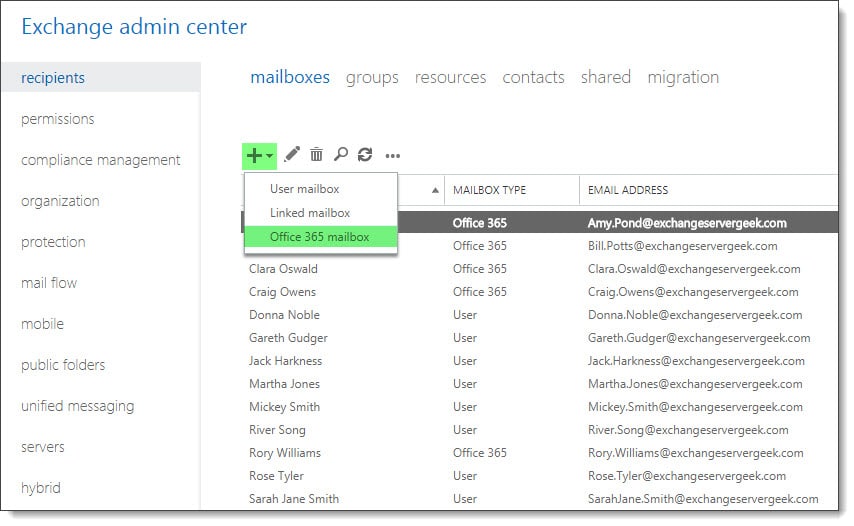
From your on-premises Exchange 2016 server, log into the Exchange Admin Center. Select the Recipients tab and Mailboxes sub-tab. Click the New (plus sign) and select Office 365 mailbox.

Note: If you do not see this option you may be missing the required RBAC permissions, or, there is an issue with your hybrid configuration.

Create a new Office 365 mailbox

Selecting this option walks you through the process of creating a remote mailbox in Office 365. The benefit here is that you do not need to migrate the mailbox after it is created as it already exists as an object in the cloud. Keep in mind that you will not see this mailbox in the Office 365 tenant until directory synchronization has run.

[Read more…] about How to create an Office 365 mailbox (in hybrid)
Print Friendly, PDF & Email

Filed Under: Exchange Tutorials, Office 365 Tutorials

  • « Go to Previous Page
  • Page 1
  • Interim pages omitted …
  • Page 17
  • Page 18
  • Page 19
  • Page 20
  • Page 21
  • Interim pages omitted …
  • Page 51
  • Go to Next Page »

Primary Sidebar

Want to stay up to date?

Sidebar Form

Join thousands of IT professionals and get the latest Exchange & Office 365 tips and tutorials direct to your inbox

DigiCert Banner 300x348

(help support us using our affiliate link)

Footer

Site Navigation

  • Subscribe to blog
  • About SuperTekBoy
  • Disclaimer
  • Privacy & Cookies
  • Contact Us

Want to stay up to date?

Footer Form

Join thousands of IT professionals and get the latest Exchange & Office 365 tips and tutorials direct to your inbox

Join the conversation

  • Twitter
  • LinkedIn
  • Facebook
  • RSS

Copyright © 2026 · SuperTekBoy LLC