• Skip to primary navigation
  • Skip to main content
  • Skip to primary sidebar
  • Skip to footer

SuperTekBoy

Practical Help for Exchange & Office 365

  • Exchange
    • News
    • Tutorials
    • Solve a Problem
  • Office 365
    • News
    • Tutorials
    • Solve a Problem
  • Outlook
    • Tutorials
    • Solve a Problem
  • Books
  • Podcasts
  • Quick Links…
    • Generate or Renew SSL Certs for Exchange
    • Connect PowerShell to Exchange Online
    • Connect PowerShell to Office 365
    • Extend Schema for Exchange
    • Exchange Schema & Build Numbers
  • More…
    • Kemp Load Balancers
    • Other tech…
    • Videos
    • About SuperTekBoy
    • Contact Us

Unable to delete newly created calendar in Outlook on the Web (OWA)

June 19, 2017 By Gareth Gudger 3 Comments

Share
Tweet
Share

If you created a new calendar in Outlook on the Web you may notice the option to delete it might be missing. I see this question come up quite a lot so I figured it was time to address it with a blog post.

The issue occurs when a user creates a calendar in Outlook on the Web. Often the calendar is created in error because the user was trying to add a shared calendar instead. When the user right-clicks the calendar they will see no option to delete.

We have an example of this in the screenshot below. The user has created a calendar titled, “My New Calendar”. However, when they right-click there is no option to delete.


Outlook on the web OWA can not delete calendar
[Read more…] about Unable to delete newly created calendar in Outlook on the Web (OWA)
Print Friendly, PDF & Email

Filed Under: Office 365 Solutions, Outlook Solutions

Quickly copy an Anonymous Receive Connector “Relay” between servers

June 18, 2017 By Gareth Gudger 1 Comment

Share
Tweet
Share

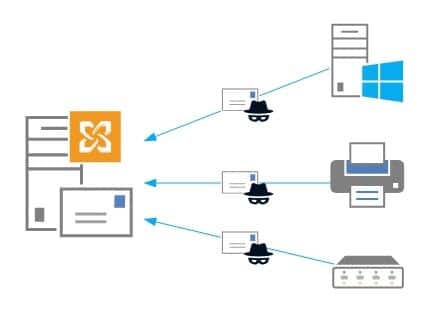
In this article, we are going to take a look at just how easy it can be to copy an anonymous receive connector from one server to another using PowerShell.

Anonymous Receive Connector Relay

This is especially important in scenarios where a receive connector may have dozens–if not hundreds–of IPs. Adding each IP using the graphical user interface would be insanely time-consuming. It would also be prone to human error. This challenge only multiplies if you have many servers to repeat this process on. With PowerShell, we can cut this task down to mere seconds.

The first part of this article is a primer on how to configure an anonymous receive connector. If you are just interested in how to copy all IPs from one connector to another jump to the section titled Copying an Anonymous “Relay” Connector between servers.

Note: While this article focuses on moving an anonymous receive connector it can be adapted for any custom receive connector you have created.

A quick primer on anonymous receive connectors

Before we explore how to move a receive connector let’s take a refresher on how we create a receive connector with PowerShell. For this task, we use the New-ReceiveConnector cmdlet. For example, to create an anonymous receive connector our command might look like this.

 C:\> New-ReceiveConnector -Name "Anonymous Relay" -Server EX16-01 -Usage Custom -TransportRole FrontEndTransport -PermissionGroups AnonymousUsers -Bindings 0.0.0.0:25 -RemoteIPRanges 10.0.0.25, 10.0.0.26, 10.0.0.50-10.0.0.59

In this command, we create a receive connector named “Anonymous Relay”. We use the -Server parameter to identify which server we want the connector to be created on. We identify that the -Usage of the connector will be Custom. Custom is one of five connector types and is used for anonymous relays.

[Read more…] about Quickly copy an Anonymous Receive Connector “Relay” between servers
Print Friendly, PDF & Email

Filed Under: Exchange Tutorials

Don’t install .NET Framework 4.7 on Exchange Servers

June 17, 2017 By Gareth Gudger Leave a Comment

Share
Tweet
Share
.NET Framework 4.7

The Exchange Team posted a quick note Tuesday addressing the release of .NET Framework 4.7 and Exchange. As of right now (June 2017) .NET 4.7 is not supported. While the Exchange team has not documented any known compatibility issues (like we saw when previous releases first shipped) they report the update has not been fully tested with Exchange and recommend all customers block the update until further notice.

As with any series of patching it is always critical to review all updates against the Exchange Supportability Matrix. If you want support from Microsoft you must be within the boundaries of that matrix. At the time of writing .NET 4.6.2 is the latest version supported by Exchange 2013 and Exchange 2016, provided you are on the latest cumulative updates. Older cumulative updates only support older versions of .NET. The Exchange Supportability matrix states that any version of .NET not listed on that site should be considered unsupported.

If you have already applied .NET 4.7 to your Exchange servers the product group recommends rolling back. They have identified this process in their latest blog post.

For an environment that uses patch management software such as WSUS or System Center, it is always a good idea to put Exchange servers in their own update group. This allows you to isolate Exchange into its own update cycle. If you don’t have a patch management system you can temporarily block .NET through the registry. Although this registry change will need to be performed against each Exchange server.

With future cumulative updates .NET Framework 4.7 will eventually be supported. We will update this space when this occurs.

Twitter

Do you think Exchange should have day-one support for the .NET Framework? Join the conversation on Twitter @SuperTekBoy.

Print Friendly, PDF & Email

Filed Under: Exchange News

Exchange March 2017 Updates

March 22, 2017 By Gareth Gudger 1 Comment

Share
Tweet
Share
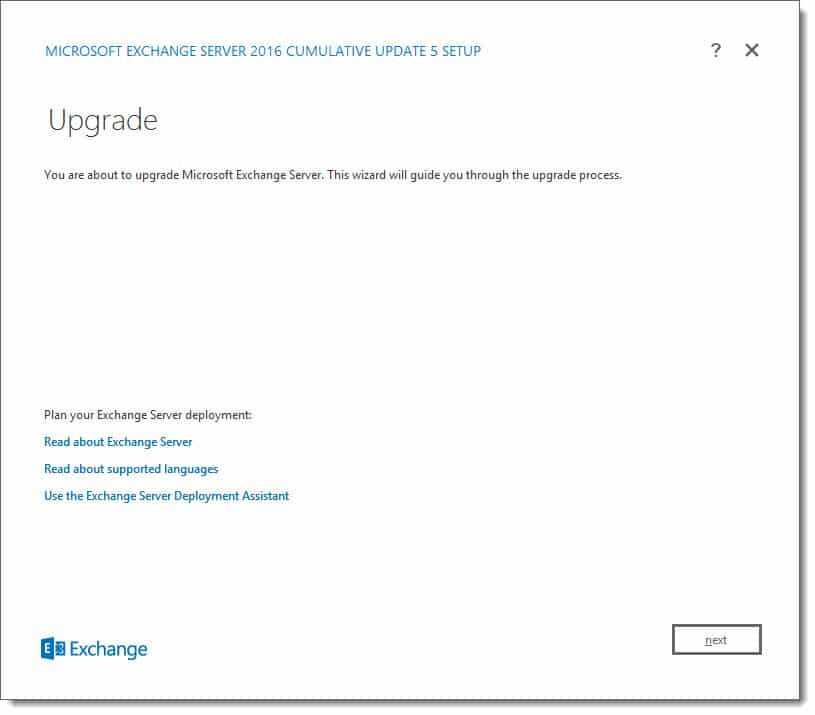
Exchange 2016 CU5

It was a big month for Exchange updates. Not only did we get Cumulative Update 16 for Exchange 2013, but we also got Cumulative Update 5 for Exchange 2016.

As always, test these updates in a lab first! I recommend checking out this 7-part guide on configuring Exchange in your lab. It doesn’t take much to get one going.

The updates are as follows:

Exchange 2016 Mini

Exchange Server 2016 Cumulative Update 5 | KB4012106 | UM Language Pack

Exchange 2013 Cumulative Update 9

Exchange Server 2013 Cumulative Update 16 | KB4012112 | UM Language Pack

Exchange 2010 Mini

Exchange Server 2010 SP3 Update Rollup 17 | KB4011326

Exchange 2007 Mini

Exchange Server 2007 SP3 Update Rollup 23 | KB4011325 (final update for 2007)

A quick word on Exchange 2007

It’s time to update. Exchange 2007 will go end of life on April 11th, 2017. At the time of writing that is 20 days. On April 12th you will receive no more patches and no more telephone support. In fact, Update Rollup 23 will be the final patch for Exchange 2007. No more daylight savings updates will be provided from here on out.

If the lack of security updates from Microsoft isn’t convincing enough, check this article for a list of cool things Exchange 2013 can do. (P.S. Like the fact Exchange 2013 uses fewer IOPS per mailbox than 2007…say what?)

[Read more…] about Exchange March 2017 Updates
Print Friendly, PDF & Email

Filed Under: Exchange News

Three65 podcast with MVP Mark Vale – What’s new in Exchange

March 6, 2017 By Gareth Gudger 5 Comments

Share
Tweet
Share

On March 4th I had the great pleasure of being a guest on the Three65 podcast. I joined host Mark Vale to discuss the latest from Exchange and Exchange Online.

Three65 Podcast with MVP Mark Vale & Gareth Gudger

(Originally posted at https://channel9.msdn.com/Blogs/MVP-Office-Servers-and-Services/Three65-Exchange-Exchange-Updates-with-Gareth-Gudger)

[Read more…] about Three65 podcast with MVP Mark Vale – What’s new in Exchange
Print Friendly, PDF & Email

Filed Under: Exchange News, Office 365 News, Podcasts

Changing the meeting layout in Skype for Business

March 2, 2017 By Gareth Gudger 7 Comments

Share
Tweet
Share

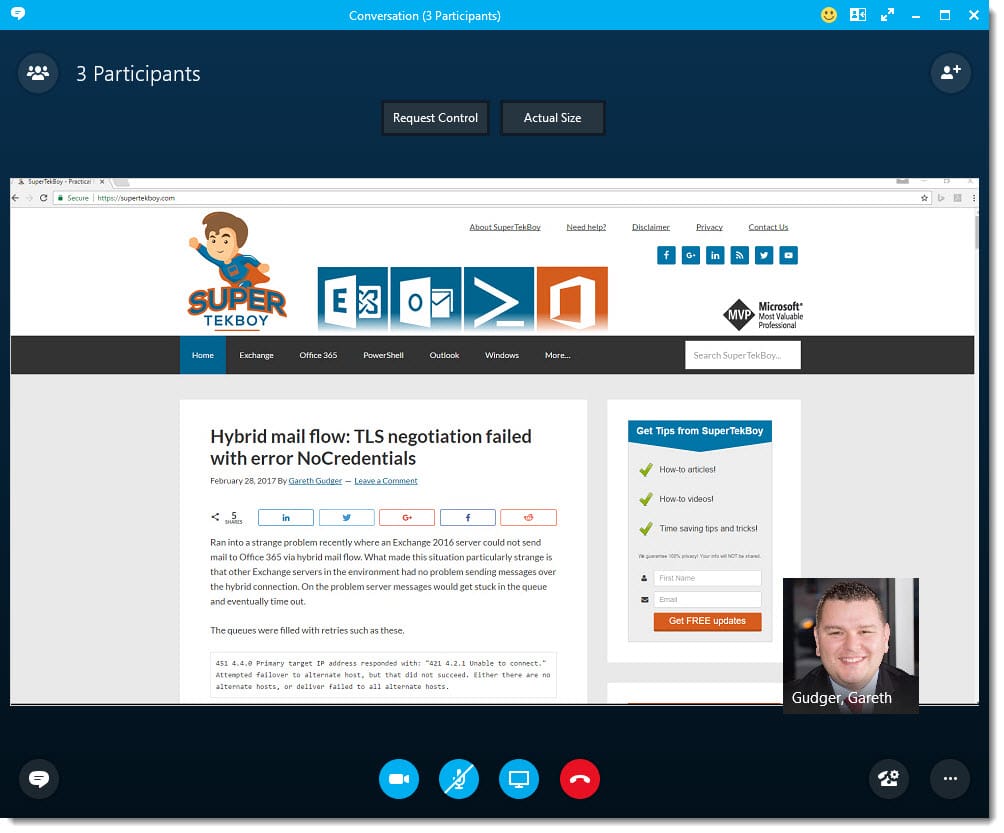
When you enter a Skype for Business meeting it is launched in speaker view. The Speaker view adds the portrait of the presenter to the lower right of the screen. The portrait will change to whoever is currently speaking. This view is especially useful when the presenter is using a webcam as the picture is replaced with their video stream. Unfortunately, this can cover part of the presentation as shown below. This view can be changed but the option to do so is not in an intuitive location. In total there are three views for a Skype meeting. In this article, we will look at all three and how to switch between them.

Skype for Business Speaker View

To change from speaker view we use the Pick a Layout button (). This button is located at the top right of the screen in the title bar. If you select this button a checkmark will indicate what view you are currently in. In our case, we are in Speaker View. To pick another view select it from the list.

[Read more…] about Changing the meeting layout in Skype for Business
Print Friendly, PDF & Email

Filed Under: Office 365 RSS, Office 365 Tutorials

  • « Go to Previous Page
  • Page 1
  • Interim pages omitted …
  • Page 19
  • Page 20
  • Page 21
  • Page 22
  • Page 23
  • Interim pages omitted …
  • Page 51
  • Go to Next Page »

Primary Sidebar

Want to stay up to date?

Sidebar Form

Join thousands of IT professionals and get the latest Exchange & Office 365 tips and tutorials direct to your inbox

DigiCert Banner 300x348

(help support us using our affiliate link)

Footer

Site Navigation

  • Subscribe to blog
  • About SuperTekBoy
  • Disclaimer
  • Privacy & Cookies
  • Contact Us

Want to stay up to date?

Footer Form

Join thousands of IT professionals and get the latest Exchange & Office 365 tips and tutorials direct to your inbox

Join the conversation

  • Twitter
  • LinkedIn
  • Facebook
  • RSS

Copyright © 2026 · SuperTekBoy LLC