• Skip to primary navigation
  • Skip to main content
  • Skip to primary sidebar
  • Skip to footer

SuperTekBoy

Practical Help for Exchange & Office 365

  • Exchange
    • News
    • Tutorials
    • Solve a Problem
  • Office 365
    • News
    • Tutorials
    • Solve a Problem
  • Outlook
    • Tutorials
    • Solve a Problem
  • Books
  • Podcasts
  • Quick Links…
    • Generate or Renew SSL Certs for Exchange
    • Connect PowerShell to Exchange Online
    • Connect PowerShell to Office 365
    • Extend Schema for Exchange
    • Exchange Schema & Build Numbers
  • More…
    • Kemp Load Balancers
    • Other tech…
    • Videos
    • About SuperTekBoy
    • Contact Us

Exchange 2016: Public Folder migration made easy

March 9, 2016 By Gareth Gudger 28 Comments

Share
Tweet
Share

If you are in the planning stages for migration from Exchange 2010 to Exchange 2016, then you have probably seen this TechNet article.

At first, it may seem daunting.

So many scripts. So many PowerShell commands.

If you are not comfortable with PowerShell it may seem a bit overwhelming.

Plus, it is vastly different than any previous migration process.

Why the change?

Architecture

Beginning with Exchange 2013–and continued with 2016–public folders underwent a major architectural change.

This new architecture is referred to as Modern Public Folders. The old architecture is now known as Legacy Public Folders. But its much more than a name change. Gone is the Public Folder database. And hello are the new Public Folder Mailboxes.

The benefit?

No more Public Folder Replication. Boy, did that used to be a pain!

With Public Folders stored as a mailbox, that mailbox can now be part of a Database Availability Group (DAG). And with that, all the benefits of Windows Failover Clustering.

This makes the migration process vastly different.

On a high level, it is the process of moving all data out of a database and into a special mailbox. That is where the scripts come in. I’ll explain along the way.

Let’s get started!

Works with 2013: This process also works with migrations to Exchange 2013 (from 2007 SP3 RU15 or 2010 SP3 RU8). It requires Exchange 2013 be on Cumulative Update 7 or later. If not, you will need to perform the older serial migration method documented here.

[Read more…] about Exchange 2016: Public Folder migration made easy

Print Friendly, PDF & Email
Share
Tweet
Share

Filed Under: Exchange, Exchange Tutorials

RemoteExchange.ps1 cannot be loaded

March 7, 2016 By Gareth Gudger 1 Comment

Share
Tweet
Share
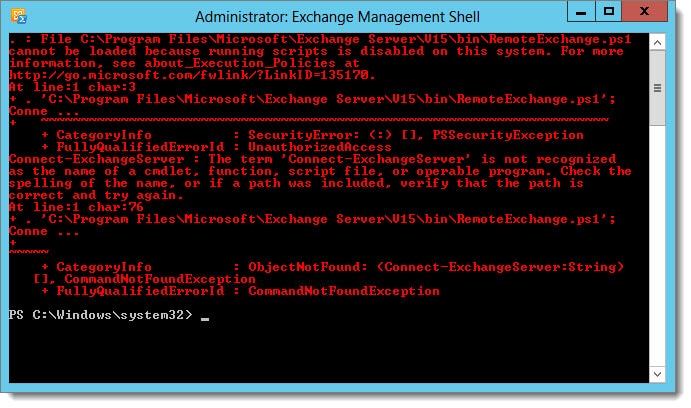
Cannot be loaded because running scripts is disabled on this system
File .\RemoteExchange.ps1 cannot be loaded because running scripts is disabled on this system. For more information, see about_Execution_Policies at http://go.microsoft.com/fwlink/?LinkID=135170.

If you see the above error the fix is actually quite simple. The error is caused when your execution policy in PowerShell is too restrictive. You can determine the level of restriction by typing Get-ExecutionPolicy cmdlet. You may see a response similar to that of the following:

 C:\> Get-ExecutionPolicy
Restricted

By default, Exchange needs its execution policy to be at RemoteSigned. Remote signed implies the following characteristics.

[Read more…] about RemoteExchange.ps1 cannot be loaded
Print Friendly, PDF & Email
Share
Tweet
Share

Filed Under: Exchange, Exchange Solutions

Webcast: Exchange 2016 and the Preferred Architecture

February 22, 2016 By Gareth Gudger Leave a Comment

Share
Tweet
Share

Thursday night I had the great pleasure of being a guest on The Current Status. We had an awesome discussion on Exchange 2016 and the preferred architecture. Check out the video below.

Tip: For everything new to Exchange 2016 check this article.

[Read more…] about Webcast: Exchange 2016 and the Preferred Architecture
Print Friendly, PDF & Email
Share
Tweet
Share

Filed Under: Exchange News, Office 365 News, Podcasts

Incompatible Office products are installed on your machine

February 16, 2016 By Gareth Gudger 3 Comments

Share
Tweet
Share
OneDrive for Business Incompatible Office Products are installed on your machine
Sorry, we can't perform this action. Incompatible Office products are installed on your machine.

This error is caused when you have a mix of differently licensed Office products on your computer. For example, you may have Office 365 ProPlus which is the click-to-run version that operates off a subscription. On the same computer, you may also have a volume licensed Office product, such as Visio or Project, that may have been delivered by ISO or MSI. If this is the case you will constantly receive this nag message from OneDrive for Business. This will likely also cause transfer issues if you are using sync libraries.

Unfortunately, the only way to remedy this is to uninstall either one of the competing products (or remove OneDrive for Business). In probably all cases I would expect the Office 365 suite to be the victor. That said you will need to license the offending software–Visio or Project–through an Office 365 subscription.

Not good news I’m afraid. I doubt Microsoft will remedy this as I suspect all products will eventually become a subscription. But this is the fix.

Twitter

Join the conversation on Twitter @SuperTekBoy.

Print Friendly, PDF & Email
Share
Tweet
Share

Filed Under: Office 365 RSS, Office 365 Solutions, Other Tech

Exchange 2013 won’t update after installing Exchange 2016 Preview

February 15, 2016 By Gareth Gudger Leave a Comment

Share
Tweet
Share

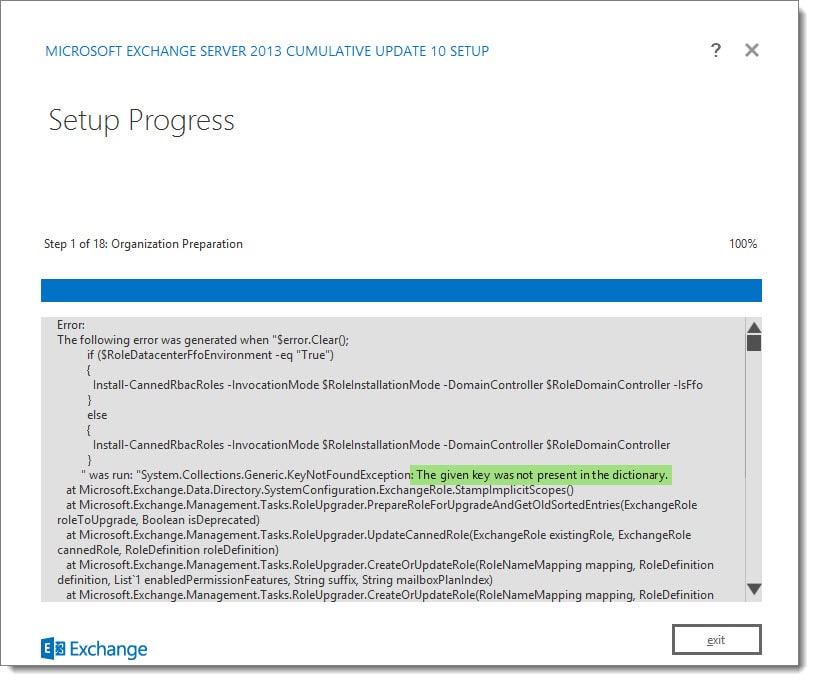
If you are like me and eagerly deployed Exchange 2016 Preview in your 2013 lab (before official support was available) then you will likely have encountered this error when you upgraded to CU 10 and beyond.

The given key was not present in the dictionary.
[ERROR] The given key was not present in the dictionary.

If we review the Exchange setup log let’s see the last thing the installer was working on.

[2] Used domain controller DC.SKARO.LOCAL to read object CN=My Custom Apps,CN=Roles,CN=RBAC,CN=SKARO,CN=Microsoft Exchange,CN=Sevices,CN=Configuration,DC=SKARO,DC=LOCAL.
[2] Used domain controller DC.SKARO.LOCAL to write object CN=My Custom Apps,CN=Roles,CN=RBAC,CN=SKARO,CN=Microsoft Exchange,CN=Services,CN=Configuration,DC=SKARO,DC=LOCAL.
[2] Saving object "My Custom Apps" of type "ExchangeRole" and state "Unchanged".
[2] Used domain controller DC.SKARO.LOCAL to read object CN=My Marketplace Apps,CN=Roles,CN=RBAC,CN=SKARO,CN=Microsoft Exchange,CN=Services,CN=Configuration,DC=SKARO,DC=LOCAL.
[2] Used domain controller DC.SKARO.LOCAL to write object CN=My Marketplace Apps,CN=Roles,CN=RBAC,CN=SKARO,CN=Microsoft Exchange,CN=Services,CN=Configuration,DC=SKARO,DC=LOCAL.
[2] Saving object "My Marketplace Apps" of type "ExchangeRole" and state "Unchanged".
[2] Used domain controller DC.SKARO.LOCAL to read object CN=My ReadWriteMailbox Apps,CN=Roles,CN=RBAC,CN=SKARO,CN=Microsoft Exchange,CN=Services,CN=Configuration,DC=SKARO,DC=LOCAL.
[ERROR] The given key was not present in the dictionary.
[WARNING] An unexpected error has occurred and a Watson dump is being generated: The given key was not present in the dictionary.
[1] The following 1 error(s) occurred during task execution:
[1] 0. ErrorRecord: The given key was not present in the dictionary.
[1] 0. ErrorRecord: System.Collections.Generic.KeyNotFoundException: The given key was not present in the dictionary.

I have color-coded the setup log to help illustrate the process. During the organization preparation, Exchange is making changes to the RBAC roles.  This is where it is failing.

In blue, it reads in each RBAC role from our DC named dc.skaro.local.
In green, it specifies which DC it will use to write any changes.
In orange, it identifies what, if any, changes were made.

We can see it successfully completes its configuration on the “My Custom Apps” and “My Marketplace Apps” user roles. Yet the error occurs immediately after reading in “My ReadWrite Mailbox Apps”.

Something is preventing the Exchange 2013 setup from reading this role from Active Directory. Let’s check it out in ADSI Edit. The setup log gives us a direct path to the object.

[Read more…] about Exchange 2013 won’t update after installing Exchange 2016 Preview
Print Friendly, PDF & Email
Share
Tweet
Share

Filed Under: Exchange Solutions

Two Prereqs for Exchange 2013 CU11 on 2012 RTM

February 12, 2016 By Gareth Gudger 1 Comment

Share
Tweet
Share

For those of you with Exchange 2013 on Server 2012 RTM (not R2), you will run across two additional prerequisites while upgrading to the latest cumulative update.

The first prerequisite is a hotfix for the Resilient File System (KB 2894875). While it was only with the advent of Exchange 2016 that ReFS made it into the preferred architecture, ReFS was supported in Exchange 2013. Whether or not you are using ReFS you are still required to get the update. The hotfix addresses an issue where the operating system can freeze while trying to perform a DIR command on a ReFS volume. Nuts huh?

The second prerequisite is a hotfix for the Virtual Disk Service (KB 2884597). To quote Microsoft.

When you use certain applications that use the Virtual Disk Service (Vds.exe) on a computer that is running Windows Server 2012, the Virtual Disk Service or the applications that use the Virtual Disk Service crash or freeze. 

That does not sound good!

Download the fixes

For more information and to download both hotfixes check these links:

Hotfix Download Available

Windows Server 2012-based computer freezes when you run the “dir” command on a ReFS volume

Hotfix Download Available

Virtual Disk Service or applications that use the Virtual Disk Service crash or freeze in Windows Server 2012

The hotfixes are only available by registering an email address to download.

Both fixes will require a reboot once you install them. The installer will also stop you from continuing until you have them.

Print Friendly, PDF & Email
Share
Tweet
Share

Filed Under: Exchange Solutions

  • « Go to Previous Page
  • Page 1
  • Interim pages omitted …
  • Page 25
  • Page 26
  • Page 27
  • Page 28
  • Page 29
  • Interim pages omitted …
  • Page 51
  • Go to Next Page »

Primary Sidebar

Want to stay up to date?

Sidebar Form

Join thousands of IT professionals and get the latest Exchange & Office 365 tips and tutorials direct to your inbox

DigiCert Banner 300x348

(help support us using our affiliate link)

Footer

Site Navigation

  • Subscribe to blog
  • About SuperTekBoy
  • Disclaimer
  • Privacy & Cookies
  • Contact Us

Want to stay up to date?

Footer Form

Join thousands of IT professionals and get the latest Exchange & Office 365 tips and tutorials direct to your inbox

Join the conversation

  • Twitter
  • LinkedIn
  • Facebook
  • RSS

Copyright © 2026 · SuperTekBoy LLC