• Skip to primary navigation
  • Skip to main content
  • Skip to primary sidebar
  • Skip to footer

SuperTekBoy

Practical Help for Exchange & Office 365

  • Exchange
    • News
    • Tutorials
    • Solve a Problem
  • Office 365
    • News
    • Tutorials
    • Solve a Problem
  • Outlook
    • Tutorials
    • Solve a Problem
  • Books
  • Podcasts
  • Quick Links…
    • Generate or Renew SSL Certs for Exchange
    • Connect PowerShell to Exchange Online
    • Connect PowerShell to Office 365
    • Extend Schema for Exchange
    • Exchange Schema & Build Numbers
  • More…
    • Kemp Load Balancers
    • Other tech…
    • Videos
    • About SuperTekBoy
    • Contact Us

.NET Framework 4.6.1 and Exchange compatibility

February 11, 2016 By Gareth Gudger Leave a Comment

Share
Tweet
Share

UPDATE: .NET 4.6.1 is now supported beginning with Exchange 2013 CU13 and Exchange 2016 CU2 (.NET 4.6.2 Preview is not currently supported).

NET-Framework

The Exchange Team posted a quick note yesterday addressing a compatibility issue between .NET framework 4.6.1 and Exchange. As of right now (Feb 2016) .NET 4.6.1 is not supported.  Framework 4.6 is also unsupported.

The currently supported version for Exchange 2013 and 2016 is 4.5.2. Framework 4.5 can also be installed on Exchange 2010–although 2010 will only use the OS installed 3.5.

The urgency of this statement is that 4.6.1 is now being pushed as a recommended update in Windows Update.

As with any series of patching it is always critical to review all updates against the Exchange Supportability Matrix. If you want support from Microsoft you must be within the boundaries of that matrix

If you are using WSUS it is always a good idea to put Exchange in its own update group. If you don’t have a patch management system then keep your servers on notify and download. Whichever update method you use, be sure to not blanket accept all updates.

Microsoft has identified one possible compatibility issue with 4.6.1, where a mailbox may be accidentally quarantined, its databases dismount, or, an unnecessary failover to another DAG member. More info can be found in this KB article.

If you have already installed 4.6.1 (or 4.6) Microsoft recommends you uninstall the update.

Below is the note from Microsoft on the supportability of 4.6.1.

We wanted to post a quick note to call out that since yesterday, the .NET Framework 4.6.1 has been made a recommended update on WU (Windows Update).

As we have already stated in the Exchange Supportability Matrix, at this time, this version of .NET framework is not supported by Exchange. In fact, we know of some issues if it is installed.

We are working with the .NET team to ensure that Exchange customers have a smooth transition to .NET Framework 4.6.1, but in the meantime, delay this particular .NET update on your Exchange servers (information on how this can be accomplished can be found in the KB article 3133990, How to temporarily block the installation of the .NET Framework 4.6.1).Nino Bilic

Twitter

Join the conversation on Twitter @SuperTekBoy.

Print Friendly, PDF & Email
Share
Tweet
Share

Filed Under: Exchange News

Microsoft announces Exchange 2016 beta exam

January 13, 2016 By Gareth Gudger Leave a Comment

Share
Tweet
Share
exchange 2016 beta exam

On January 8th Microsoft announced the first Exchange 2016 beta exam. The exam titled ‘Designing and Deploying Microsoft Exchange Server 2016′ (Exam # 70-345) is currently in beta and is proctored by Pearson VUE.

It’s currently uncertain what exams will be required to achieve MCSE Messaging in Exchange 2016. In 2013 there were two paths. One could first either achieve an MCSA in Server 2012 or Office 365. Then you had the two core Exchange 2013 exams to complete your MCSE. At the time of writing beta exam 70-345 is the only announced Exchange 2016 exam. I suspect it won’t be long until we learn more.

Beta exams differ from live exams in that they offer no score at the end. In fact, candidates often have to wait as much as twelve weeks after the conclusion of the beta period before they are notified of their score. You may wonder, why take a beta exam only to wait months on end? Simply put–to demonstrate early competency. Being one of the first to certify on a product can certainly aide career growth. Especially if you are a consultant.

The challenge of sitting a beta exam is the sheer lack of certification books and study material available. However, with the striking resemblance to its predecessor, a strong and well-rounded understanding of Exchange 2013 will provide a great head start. But it’s only a head start. Being an early adopter of Exchange 2016 is critical. It doesn’t have to be early adoption in your work environment, or, at your customer’s sites. The early adoption could be your own lab. A sandbox where you can build and break and play. It doesn’t cost must to get a lab going. My current lab costs a few hundred dollars on a popular auction site. Exchange MVP Jeff Guillet recently posted his specs for a few different lab servers depending on budget. Hosting a lab in Azure is also possible but may come at a bit of a steep price tag. Whatever you decide a lab is a brilliant way to learn and gain exposure to Exchange 2016.

[Read more…] about Microsoft announces Exchange 2016 beta exam
Print Friendly, PDF & Email
Share
Tweet
Share

Filed Under: Exchange News

Add a legal disclaimer to all outbound email (Exchange/O365)

January 7, 2016 By Gareth Gudger 7 Comments

Share
Tweet
Share

Adding a legal disclaimer to all outbound email is an important task. Thankfully, this is a simple process in Exchange on-premises and Office 365. In fact, the instructions are identical for Exchange 2013, Exchange 2016 and Office 365.

For this article, our example company, Time Travel Research, wishes that all email leaving the organization have a legal disclaimer. Time Travel Research is not concerned about applying a disclaimer if the message remains inside the organization. For example, a disclaimer between two employees is not necessary. However, they would like all external messages, whether it be to a customer or a vendor, to have this disclaimer.

Let’s get started!

Add a legal disclaimer to all outbound email

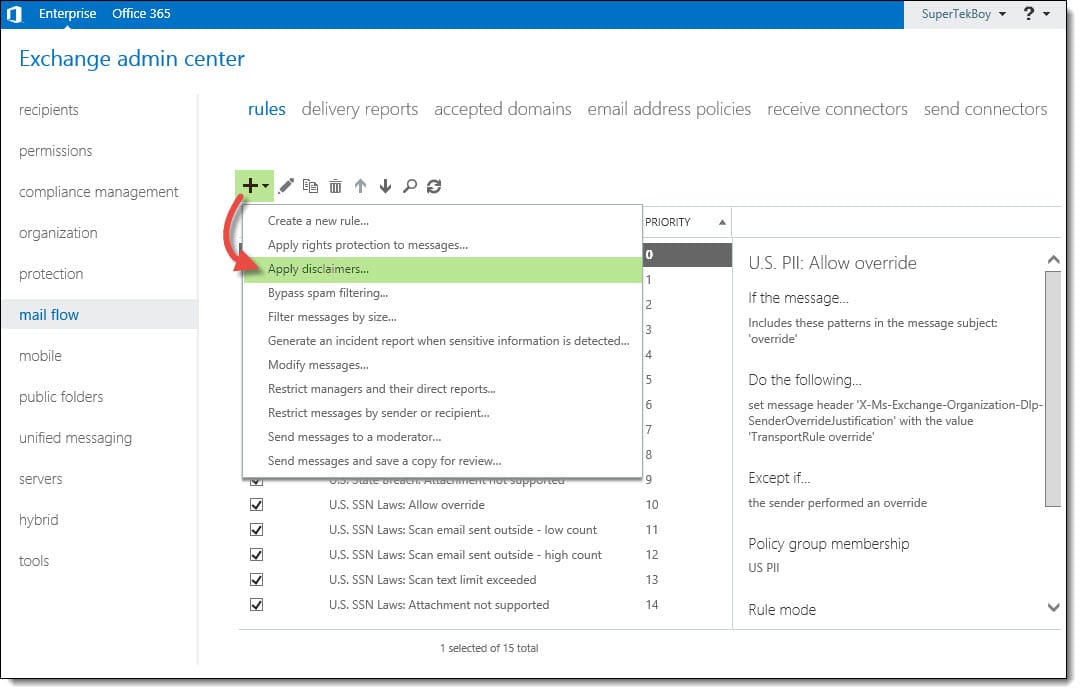
Log in to the Exchange Admin Center. Once logged in, navigate to Mail Flow >> Rules. Click the New (Excchange 2016 New) button.

From the drop-down menu, you will notice several choices. These choices are rule templates. We could just select Create a new rule. That would start us with a blank rule with no conditions. However, to give us a head start lets pick the Apply disclaimers template. This will configure a couple of items for us.

Add a legal disclaimer to all outbound email Exchange Office 365
[Read more…] about Add a legal disclaimer to all outbound email (Exchange/O365)
Print Friendly, PDF & Email
Share
Tweet
Share

Filed Under: Exchange Tutorials, Office 365 RSS, Office 365 Tutorials

2015: What a great year!

December 28, 2015 By Gareth Gudger Leave a Comment

Share
Tweet
Share

As 2015 wraps up I wanted to thank everyone for making this blog a resounding success. Your comments, your shares, and your feedback mean a lot to me and I want to thank you for your continued support.

Blog Success

As we wrap up the second year at SuperTekBoy I wanted to share some numbers with you.

  • In 2014, SuperTekBoy welcomed 205,000 visitors who viewed 280,000 pages.
  • In 2015, SuperTekBoy welcomed 320,000 visitors who viewed 450,000 pages.

That’s 60% growth. Thank you!

With your continued support–your shares, your likes, your follows–I am sure we can continue this upward trend.

Never could I have imagined 2 years ago that this site would grow to the extent it has. Thank you!

Without you, there is no need for me. So, as always, I desire your feedback. Good or bad.

[Read more…] about 2015: What a great year!
Print Friendly, PDF & Email
Share
Tweet
Share

Filed Under: Site News

Outlook has stopped working while launching

December 22, 2015 By Gareth Gudger 44 Comments

Share
Tweet
Share

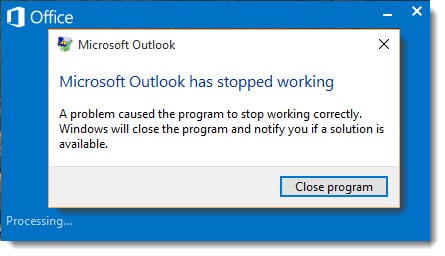
When launching Outlook you may receive the following error.

Microsoft Outlook has stopped working

Microsoft Outlook has stopped working.

A problem caused the program to stop working correctly.
Windows will close the program and notify you if a solution is available.

How to fix Outlook has stopped working?

This error could occur for a number of different reasons. The possible causes we cover in this article include:

  • Disable the add-ins
  • Corrupt OST
  • Corrupt PST
  • Check the Event Viewer
  • Create a new Outlook profile
  • Repair Office

Disable the Add-ins

One possibility–and always the first thing to check–is that an Outlook add-in could be causing the error. To determine if this is the root cause open outlook in Safe Mode.

To do this, hold the CTRL-key on your keyboard while clicking the Outlook icon. You will receive a prompt asking whether you want to open Outlook in safe mode. Click Yes.

Outlook will then launch with all add-ins disabled. Furthermore, the reading pane and any toolbar customization will be disabled. You can then navigate to File >> Options.

Outlook 2013 options

Once in options select Add-Ins. From here you can see all add-ins that load when Outlook is opened in normal mode. To disable an add-in click the Go… button.

Outlook 2013 options B

From the Add-Ins dialog, you can deselect an add-in to disable it. Click Ok then restart Outlook. You can repeat this process until you find the add-in preventing Outlook from starting

Outlook 2013 Add-Ins Disable
[Read more…] about Outlook has stopped working while launching
Print Friendly, PDF & Email
Share
Tweet
Share

Filed Under: Outlook Solutions

Exchange December 2015 Updates

December 21, 2015 By Gareth Gudger Leave a Comment

Share
Tweet
Share
Exchange 2013 Big Logo

The Exchange Team has announced Cumulative Update 11 for Exchange 2013. But wait? Where is Exchange 2016? Nothing new there yet, I’m afraid. I recommend checking out this video by Greg Taylor. At the 2:15 minute mark, Greg informs us that the first CU will be released early 2016–most likely April.

As always, test these updates in a lab first! I recommend checking out this 7-part guide on configuring Exchange in your lab.

The updates are as follows:

Exchange 2013 Cumulative Update 9

Exchange Server 2013 Cumulative Update 11

Exchange 2013 Mini

UM Language Packs for Cumulative Update 11

Exchange 2010 Mini

Exchange Server 2010 SP3 Update Rollup 12

Exchange 2007 Mini

Exchange Server 2007 SP3 Update Rollup 18

So what’s new?

This update is a culmination of bug fixes and feature tweaks. Most notably it now blocks the ability to mix Exchange 2013 and 2016 mailbox servers in the same Database Availability Group (DAG). An issue Exchange MVP Paul Cunningham wrote about on his blog in October.

Another major change is the introduction of Mailbox Anchoring in the Exchange Management Shell. This function will also be introduced in Exchange 2016 CU1. The Exchange Team writes about it here.

In essence when you open Exchange Management Shell mailbox anchoring always proxies you to the server that hosts your admin mailbox. If your admin account doesn’t have a mailbox then it proxies you to a server hosting an arbitration mailbox. Should an outage make your admin mailbox unavailable, then the server hosting an arbitration mailbox is used instead. If neither is available then Exchange Management Shell fails to connect. As a workaround, you will have to add the Exchange snap-in for your local PowerShell. That process is documented here under Mail Flow.

This change is to make sure that an admin is always getting the same experience when connecting to Exchange. This is especially important in an environment where Exchange 2013 and 2016 are load balanced in the same pool. Microsoft recommends moving your admin and arbitration mailboxes to the latest version of Exchange.

[Read more…] about Exchange December 2015 Updates
Print Friendly, PDF & Email
Share
Tweet
Share

Filed Under: Exchange News

  • « Go to Previous Page
  • Page 1
  • Interim pages omitted …
  • Page 26
  • Page 27
  • Page 28
  • Page 29
  • Page 30
  • Interim pages omitted …
  • Page 51
  • Go to Next Page »

Primary Sidebar

Want to stay up to date?

Sidebar Form

Join thousands of IT professionals and get the latest Exchange & Office 365 tips and tutorials direct to your inbox

DigiCert Banner 300x348

(help support us using our affiliate link)

Footer

Site Navigation

  • Subscribe to blog
  • About SuperTekBoy
  • Disclaimer
  • Privacy & Cookies
  • Contact Us

Want to stay up to date?

Footer Form

Join thousands of IT professionals and get the latest Exchange & Office 365 tips and tutorials direct to your inbox

Join the conversation

  • Twitter
  • LinkedIn
  • Facebook
  • RSS

Copyright © 2026 · SuperTekBoy LLC