• Skip to primary navigation
  • Skip to main content
  • Skip to primary sidebar
  • Skip to footer

SuperTekBoy

Practical Help for Exchange & Office 365

  • Exchange
    • News
    • Tutorials
    • Solve a Problem
  • Office 365
    • News
    • Tutorials
    • Solve a Problem
  • Outlook
    • Tutorials
    • Solve a Problem
  • Books
  • Podcasts
  • Quick Links…
    • Generate or Renew SSL Certs for Exchange
    • Connect PowerShell to Exchange Online
    • Connect PowerShell to Office 365
    • Extend Schema for Exchange
    • Exchange Schema & Build Numbers
  • More…
    • Kemp Load Balancers
    • Other tech…
    • Videos
    • About SuperTekBoy
    • Contact Us

Renew a Certificate in Exchange 2013 (and older versions of 2016 & 2019)

August 2, 2016 By Gareth Gudger 6 Comments

Share
Tweet
Share

How to renew a certificate in Exchange

In this article, we explore the process of renewing a certificate in Exchange. We demonstrate how to accomplish this using the Exchange Admin Center and PowerShell. The high-level steps include:

  • Create a new certificate signing request
  • Upload the certificate signing request to your certificate provider
  • Download the processed certificate from your certificate provider
  • Install the certificate on Exchange
  • Export the new certificate to a PFX file
  • Import the certificate to all other Exchange servers
  • Assign Exchange services to the new certificate on each server
  • Delete the old certificate

Let’s get started!

Note: These steps are identical for Exchange 2013, Exchange 2016 CU22 and earlier, and Exchange 2019 CU11 and earlier. If you are using Exchange 2016 CU23 or greater or Exchange 2019 CU12 or greater, you must renew your certificate with all new PowerShell commands covered in the following article.

Renew a Certificate with Exchange Admin Center

Log in to the Exchange Admin Center (EAC). Select the Servers tab and Certificates sub-tab.

This page displays all currently installed Exchange certificates. In our example, we see four self-signed certificates. We also see the certificate that we acquired from a trusted certificate authority (affiliate). This certificate is named webmail.exchangeservergeek.com. This is the certificate we will be renewing.
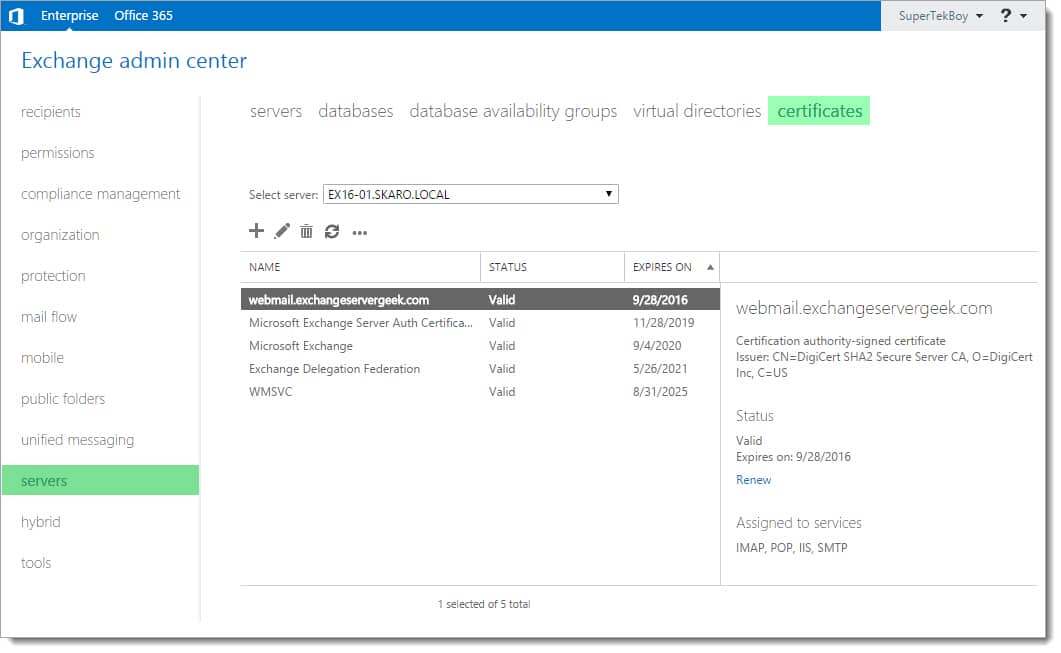
Renewing an Exchange certificate

Select the certificate to be renewed (in our case webmail.exchangeservergeek.com) and click the Renew link in the task pane to the right.

Renewing an Exchange certificate 2

The renewal process will create a new certificate request to submit to our certificate authority. Specify a location to save this certificate request. This location must be in the form of a UNC path. In our example, we specify a file called certreq.txt at the path \\ex16-01\c$\users\supertekboy\desktop\. This will create a text file on our server’s desktop. Click Ok.
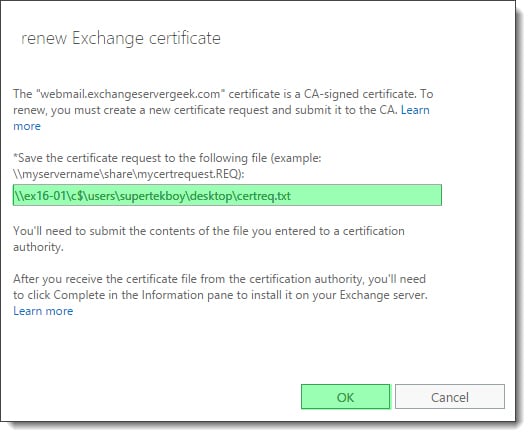

Renewing an Exchange certificate 3
[Read more…] about Renew a Certificate in Exchange 2013 (and older versions of 2016 & 2019)
Print Friendly, PDF & Email

Filed Under: Exchange Tutorials

How to apply an Exchange product key

July 26, 2016 By Gareth Gudger Leave a Comment

Share
Tweet
Share

In this article, we explore applying the Exchange product key. We will illustrate this process through both the Exchange Admin Center (EAC) and PowerShell. We will also look at how to license multiple servers at once and how to locate all unlicensed servers in your environment. This process is the same for both Exchange 2013 and 2016.

Apply the product key with Exchange Admin Center

To apply the product key through the Exchange Admin Center follow these steps.

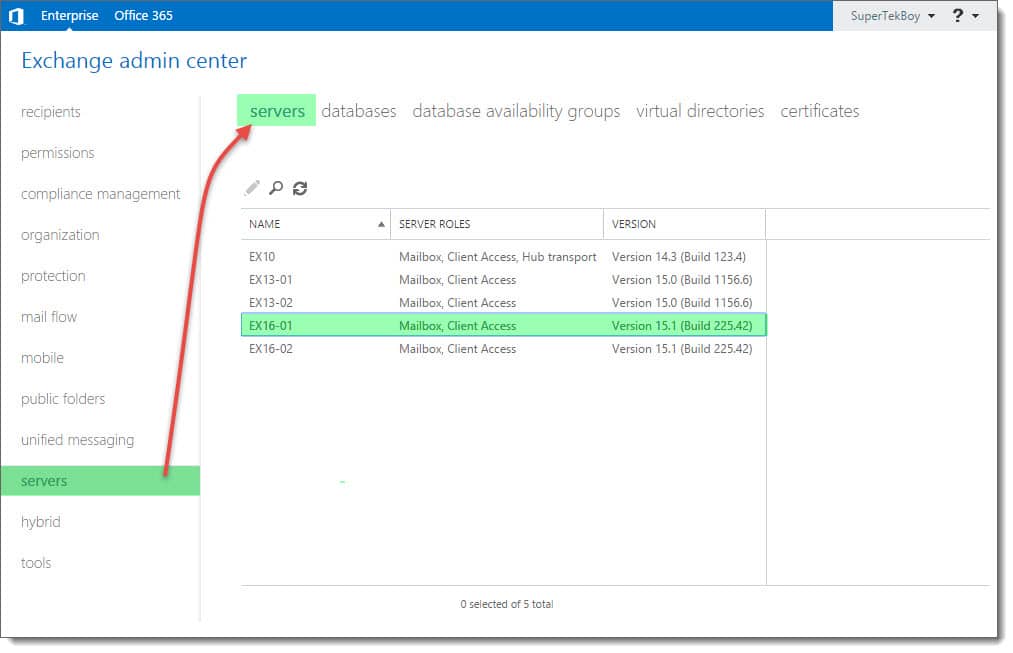
Log into the Exchange Admin Center (EAC). Navigate to the Servers tab and then the Servers sub-tab at the top.

Exchange Admin Center Servers Tab

Select the server you wish to apply the key and click the Edit (Edit button) button.

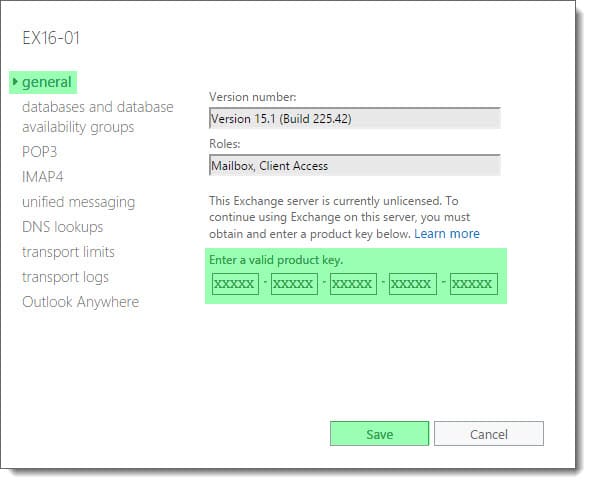
From the General tab enter your 25-character product key into the 5 boxes under Enter a valid product key section.

Exchange Admin Center Entering Product Key
[Read more…] about How to apply an Exchange product key
Print Friendly, PDF & Email

Filed Under: Exchange Tutorials

My first Microsoft Most Valuable Professional (MVP) award

July 4, 2016 By Gareth Gudger Leave a Comment

Share
Tweet
Share

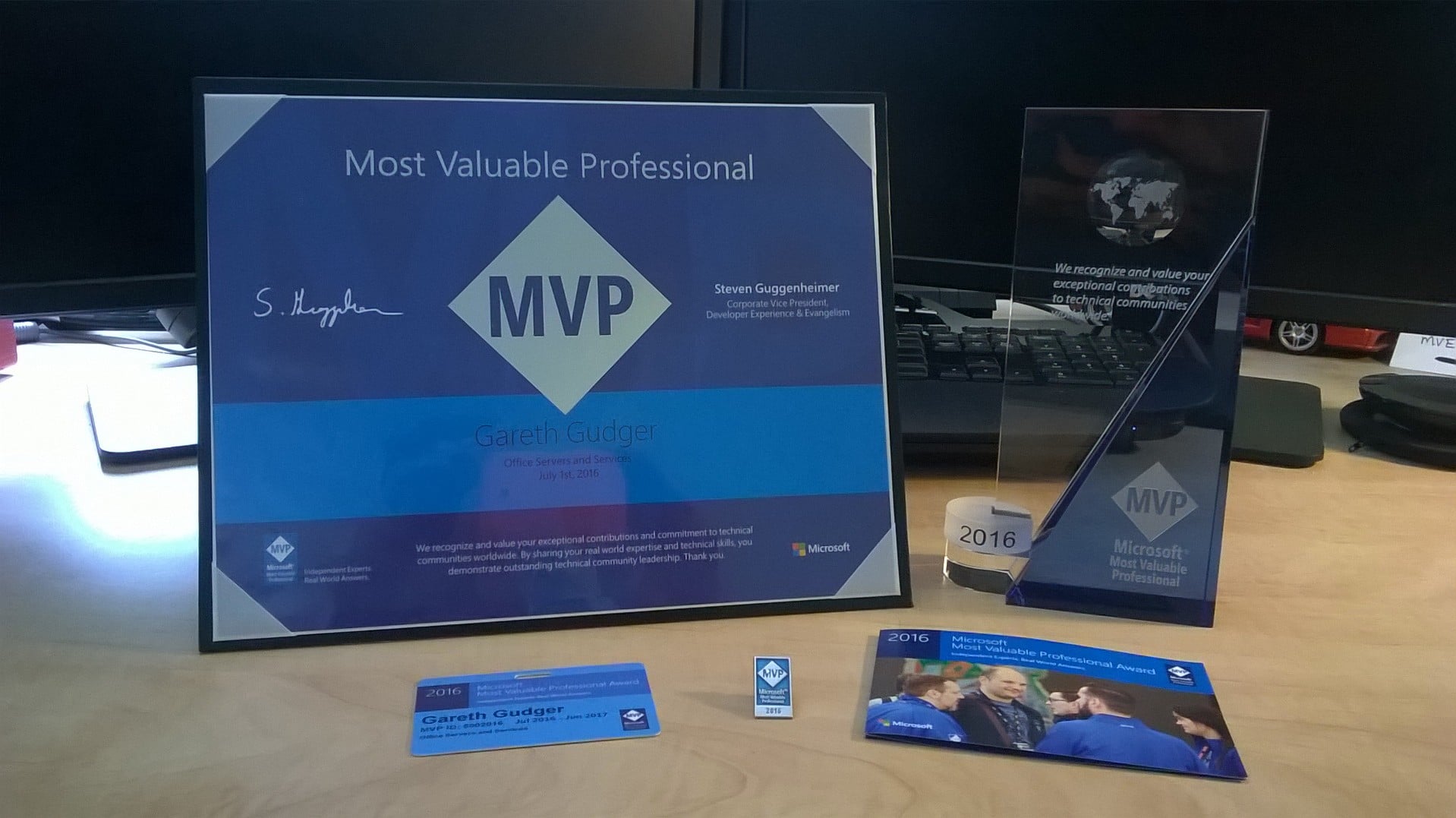
On July 1st I had the great pleasure of receiving my first ever Microsoft Most Valuable Professional (MVP) award. It is truly a great honor. I am humbled that I was nominated.

Microsoft Most Valuable Professionals, or MVPs, are community leaders who’ve demonstrated an exemplary commitment to helping others get the most out of their experience with Microsoft technologies. They share their exceptional passion, real-world knowledge, and technical expertise with the community and with Microsoft.Microsoft

I want to offer a big thank you to everyone who has helped me get here. I couldn’t have done it without you. Thank you.

Microsoft MVP Logo Vertical

I also want to thank Microsoft for choosing to bestow this great honor upon me. I am truly ecstatic and beyond joy.

I want to give a special shout out to everyone who supports this blog. Your comments, your follows, your likes and your shares–they have all got me to this point. Thank you.

I would like to offer special thanks to my family, friends, colleagues, and employer. Thank you for your continued support and for challenging me to the best I can be.

For more information on the Microsoft MVP program check out this link. To nominate someone for the MVP award, check this link.

You can find my MVP profile here.

MVP Award
Print Friendly, PDF & Email

Filed Under: Site News

Enable explicit DKIM signing in Office 365

June 27, 2016 By Gareth Gudger 19 Comments

Share
Tweet
Share

In this article, we will take a look at how to enable explicit DKIM signing in Office 365.

What exactly is DKIM?

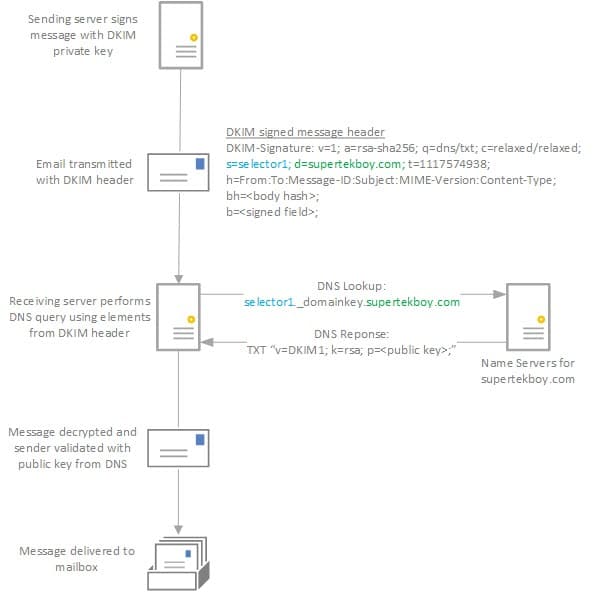
DomainKeys Identified Mail (DKIM) is an email authentication mechanism designed to prevent email spoofing. DKIM utilizes a cryptographic key pair and DNS records to provide sender validation and message integrity. It does this in the following way.

DKIM

The sender encrypts selected parts of the message header with its private key. This is defined by the “h” field in the diagram above. In our example, we are encrypting the From, To, and Subject fields to name a few. Portions or all of the message body may also be hashed. The DKIM header itself is not encrypted. In the DKIM header, the “d” value identifies the sender domain. The “s” value identifies a unique selector defined by the sender.

The recipient combines the selector and domain values to form a DNS query. Using our diagram above the domain field is marked as supertekboy.com and the selector field is marked as selector1. Using these values the recipient forms the following DNS query.

selector1._domainkey.supertekboy.com

The _domainkey portion of the query is a fixed part of the protocol.

The name servers for the sender respond with a TXT record containing the public key. The recipient can then use this public key to decrypt the header (and any parts of the body).

Successful decryption validates the sender. A DKIM=Pass is attached to the message header which increases the confidence level of the message.

One of the drawbacks of DKIM is that it doesn’t prevent close misspellings of a domain. For example, I could register supertecboy.com and configure DKIM signing. DKIM will pass because the messages are coming from supertecboy.com. But to an untrained eye, supertekboy.com and supertecboy.com might be considered the same entity. When in fact the latter is a spoofer.

[Read more…] about Enable explicit DKIM signing in Office 365
Print Friendly, PDF & Email

Filed Under: Office 365 RSS, Office 365 Tutorials

Recognized as Top 25 Exchange Expert by CodeTwo

June 24, 2016 By Gareth Gudger Leave a Comment

Share
Tweet
Share

I am absolutely honored to have been included in this recent blog post by CodeTwo. I look up to all the people on this list. I consider each and every one of them masters in Exchange, Office 365 and beyond. I recommend absorbing as much as you can from each of them. I certainly do!

Best ways to do this:

  • Follow them on social media
  • Subscribe to their mailing lists
  • Read their blogs
  • Listen to their podcasts
  • Watch their videos
  • Attend their user groups and conference sessions

25 (+1) Exchange Server experts to follow
http://www.codetwo.com/blog/25-1-exchange-server-experts-to-follow/

Top 25 Exchange Server experts to follow

I want to offer a special shout out to Paweł Krzemiński and CodeTwo for an expertly crafted article. Thank you for providing a comprehensive list of blogs and Twitter handles to follow each expert on.

Who is CodeTwo?

CodeTwo was founded in 2007 by Michal and Jarek Bednarz. Since establishing the company, CodeTwo’s enterprise and freeware applications have been utilized by millions of people worldwide.

Our flagship products have been critically acclaimed and, among others, received the highest ranks from such well-known software portals like CNET or MSExchange.org.

In 8 years we have managed to become one of the most recognizable companies developing programs based on Microsoft Exchange Server, Office 365 and Microsoft Office Outlook platforms in the World.CodeTwo

Print Friendly, PDF & Email

Filed Under: Site News

Exchange June 2016 Updates

June 22, 2016 By Gareth Gudger Leave a Comment

Share
Tweet
Share
Exchange 2013 Big Logo

Earlier this month was a big day for Exchange updates. Not only did we get Cumulative Update 13 for Exchange 2013, but we also got our second update for Exchange 2016.

As always, test these updates in a lab first! I recommend checking out this 7-part guide on configuring Exchange in your lab. It doesn’t take much to get one going.

The updates are as follows:

Exchange 2016 Mini

Exchange Server 2016 Cumulative Update 2 | UM Language Pack Download

Exchange 2013 Cumulative Update 9

Exchange Server 2013 Cumulative Update 13 | UM Language Pack Download

Exchange 2010 Mini

Exchange Server 2010 SP3 Update Rollup 14

Exchange 2007 Mini

Exchange Server 2007 SP3 Update Rollup 20

Update: Special thanks to Keith Kroslow who pointed out that Exchange 2010 and 2007 did get an update. Their updates fix a potential elevation issue for Oracle products installed on an Exchange server. Check out KB 3151097 for 2010 and KB 3151086 for 2007.

So what’s new?

This update is a culmination of bug fixes and feature tweaks. Most notably we now see official support for .NET 4.6.1. The lack of support became a particular issue when Windows Updates began recommending this update back in February. Thankfully all stability issues have since been resolved. Microsoft recommends updating to CU2 and CU13 before installing .NET 4.6.1.

In the last update, we saw the end of SHA-1 certificates for S/MIME. This update follows suit by dropping SHA-1 from Exchange’s self-signed certificates. To get this added security you will need to regenerate your existing self-signed certificates. SHA-2 will be deployed by default for newly installed Exchange servers.

Another important update is the resolution of potential data loss when migrating public folders. You can read more about it in KB 3161916.

We also see added support for BitLocker during AutoReseed operations. Up to this point, you had to manually encrypt a hot spare either before or after an AutoReseed operation. With this update, we can now have Disk Reclaimer automatically encrypt the drive during AutoReseed operations. You will need to enable this functionality on your DAG.

 C:\> Set-DatabaseAvailabilityGroup <Name> -AutoDagBitLockerEnabled $true
[Read more…] about Exchange June 2016 Updates
Print Friendly, PDF & Email

Filed Under: Exchange, Exchange News

  • « Go to Previous Page
  • Page 1
  • Interim pages omitted …
  • Page 23
  • Page 24
  • Page 25
  • Page 26
  • Page 27
  • Interim pages omitted …
  • Page 51
  • Go to Next Page »

Primary Sidebar

Want to stay up to date?

Sidebar Form

Join thousands of IT professionals and get the latest Exchange & Office 365 tips and tutorials direct to your inbox

DigiCert Banner 300x348

(help support us using our affiliate link)

Footer

Site Navigation

  • Subscribe to blog
  • About SuperTekBoy
  • Disclaimer
  • Privacy & Cookies
  • Contact Us

Want to stay up to date?

Footer Form

Join thousands of IT professionals and get the latest Exchange & Office 365 tips and tutorials direct to your inbox

Join the conversation

  • Twitter
  • LinkedIn
  • Facebook
  • RSS

Copyright © 2026 · SuperTekBoy LLC