• Skip to primary navigation
  • Skip to main content
  • Skip to primary sidebar
  • Skip to footer

SuperTekBoy

Practical Help for Exchange & Office 365

  • Exchange
    • News
    • Tutorials
    • Solve a Problem
  • Office 365
    • News
    • Tutorials
    • Solve a Problem
  • Outlook
    • Tutorials
    • Solve a Problem
  • Books
  • Podcasts
  • Quick Links…
    • Generate or Renew SSL Certs for Exchange
    • Connect PowerShell to Exchange Online
    • Connect PowerShell to Office 365
    • Extend Schema for Exchange
    • Exchange Schema & Build Numbers
  • More…
    • Kemp Load Balancers
    • Other tech…
    • Videos
    • About SuperTekBoy
    • Contact Us

Exchange

Errors Migrating to Modern Public Folders

March 14, 2016 By Gareth Gudger Leave a Comment

Share
Tweet
Share

Recently while crafting an article to describe the migration process to Modern Public Folders I ran into some strange errors. They both occurred while the migration batch was attempting to copy data.

Here is the first.
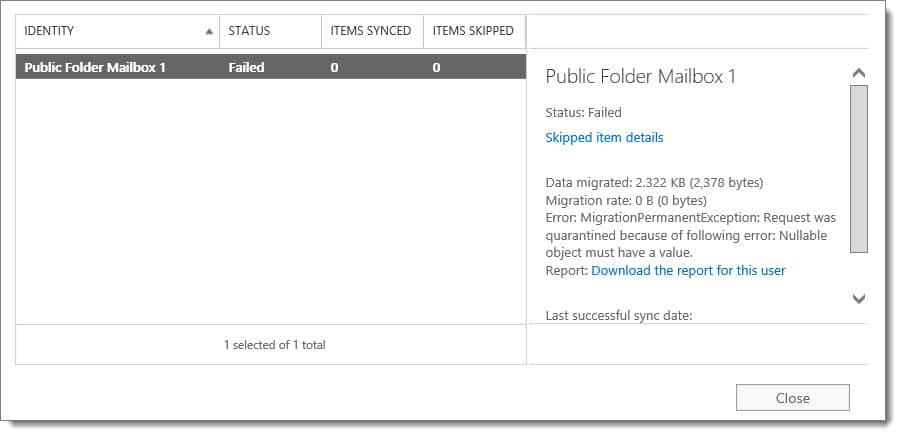
Request was quarantined because of following error Nullable object must have a value
Error: MigrationPermanentException: Request was quarantined because of the following error: Nullable object must have a value.

Cryptic huh? Nothing much on the interwebs either.

When I attempted to resume the batch I then received this error.
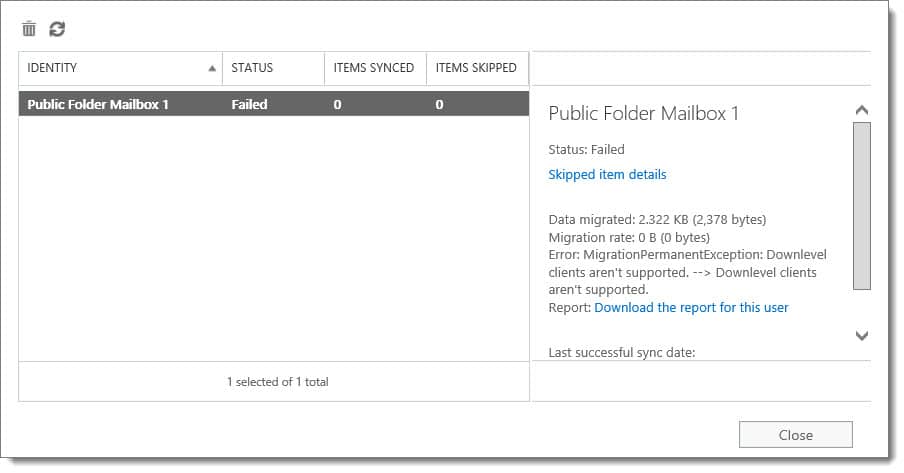
Downlevel clients aren't supported.
Error: MigrationPermanentException: Downlevel clients aren't supported. --> Downlevel clients aren't supported.

This one got me thinking. I suddenly wondered if I had ever upgraded Exchange 2016 in my lab from preview to RTM. A quick check of the build numbers revealed I had not. D’oh!

If you get this error make sure you are not still on the preview of 2016. In addition, once you upgrade and reboot your 2016 lab server, you will need to delete and recreate the batch. Then you should be able to test the migration process successfully.

Twitter

Join the conversation on Twitter @SuperTekBoy.
Share
Tweet
Share

Filed Under: Exchange Solutions

Exchange 2016: Public Folder migration (Part 2)

March 11, 2016 By Gareth Gudger 61 Comments

Share
Tweet
Share

PREVIOUS: Exchange 2016: Public Folder migration Part 1

In part one of public folder migration, we prepared our environment. Then we ran all the necessary scripts to size and create the new public folder mailbox hierarchy.

In this second and final part of our series, we will copy the data from the legacy public folder databases into our newly created modern public folders. We will also finalize the migration process.

Step 3: Data Migration

Let’s start moving our data. First, let’s create the migration batch. From the Exchange 2016 server issue the following command.

 C:\> New-MigrationBatch -Name PFMigration -SourcePublicFolderDatabase (Get-PublicFolderDatabase -Server EX10) -CSVData (Get-Content C:\PFScripts\FolderToMailbox.csv -Encoding Byte) -NotificationEmails headgeek@exchangeservergeek.com

In our example:

-Name specifies a display name to help identify the batch.
-SourcePublicFolderDatabase (-Server) specifies the 2010 server hosting the public folder database. In my lab, this is called EX10.
-CSVData specifies the path to our map file we created in part one of our series. We had called this FolderToMailbox.csv and saved it to C:\PFScripts.
-NotificationEmails specifies where to email the batch migration report. This is optional.

 C:\> New-MigrationBatch -Name PFMigration -SourcePublicFolderDatabase (Get-PublicFolderDatabase -Server EX10) -CSVData (Get-Content 
C:\PFScripts\FolderToMailbox.csv -Encoding Byte) -NotificationEmails headgeek@exchangeservergeek.com

Identity         Status       Type              TotalCount
--------         ------       ----              ----------
PFMigration      Created      PublicFolder      1

[PS] C:\>

This only creates the job. To start the actual data copy run the following command. If you named your job anything other than PFMigration you will need to change that here.

 C:\> Start-MigrationBatch PFMigration

We can check the progress of the batch by logging into the Exchange Admin Center. Once logged in, navigate to Recipients >> Migration tab.

[Read more…] about Exchange 2016: Public Folder migration (Part 2)
Share
Tweet
Share

Filed Under: Exchange, Exchange Tutorials

Exchange 2016: Public Folder migration made easy

March 9, 2016 By Gareth Gudger 28 Comments

Share
Tweet
Share

If you are in the planning stages for migration from Exchange 2010 to Exchange 2016, then you have probably seen this TechNet article.

At first, it may seem daunting.

So many scripts. So many PowerShell commands.

If you are not comfortable with PowerShell it may seem a bit overwhelming.

Plus, it is vastly different than any previous migration process.

Why the change?

Architecture

Beginning with Exchange 2013–and continued with 2016–public folders underwent a major architectural change.

This new architecture is referred to as Modern Public Folders. The old architecture is now known as Legacy Public Folders. But its much more than a name change. Gone is the Public Folder database. And hello are the new Public Folder Mailboxes.

The benefit?

No more Public Folder Replication. Boy, did that used to be a pain!

With Public Folders stored as a mailbox, that mailbox can now be part of a Database Availability Group (DAG). And with that, all the benefits of Windows Failover Clustering.

This makes the migration process vastly different.

On a high level, it is the process of moving all data out of a database and into a special mailbox. That is where the scripts come in. I’ll explain along the way.

Let’s get started!

Works with 2013: This process also works with migrations to Exchange 2013 (from 2007 SP3 RU15 or 2010 SP3 RU8). It requires Exchange 2013 be on Cumulative Update 7 or later. If not, you will need to perform the older serial migration method documented here.

[Read more…] about Exchange 2016: Public Folder migration made easy
Share
Tweet
Share

Filed Under: Exchange, Exchange Tutorials

RemoteExchange.ps1 cannot be loaded

March 7, 2016 By Gareth Gudger 1 Comment

Share
Tweet
Share
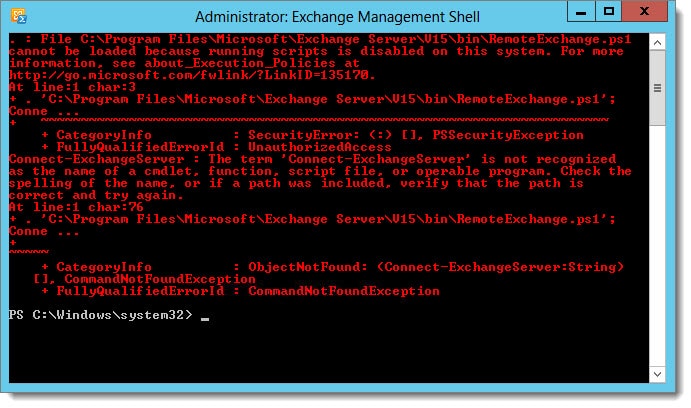
Cannot be loaded because running scripts is disabled on this system
File .\RemoteExchange.ps1 cannot be loaded because running scripts is disabled on this system. For more information, see about_Execution_Policies at http://go.microsoft.com/fwlink/?LinkID=135170.

If you see the above error the fix is actually quite simple. The error is caused when your execution policy in PowerShell is too restrictive. You can determine the level of restriction by typing Get-ExecutionPolicy cmdlet. You may see a response similar to that of the following:

 C:\> Get-ExecutionPolicy
Restricted

By default, Exchange needs its execution policy to be at RemoteSigned. Remote signed implies the following characteristics.

[Read more…] about RemoteExchange.ps1 cannot be loaded
Share
Tweet
Share

Filed Under: Exchange, Exchange Solutions

Webcast: Exchange 2016 and the Preferred Architecture

February 22, 2016 By Gareth Gudger Leave a Comment

Share
Tweet
Share

Thursday night I had the great pleasure of being a guest on The Current Status. We had an awesome discussion on Exchange 2016 and the preferred architecture. Check out the video below.

Tip: For everything new to Exchange 2016 check this article.

[Read more…] about Webcast: Exchange 2016 and the Preferred Architecture
Share
Tweet
Share

Filed Under: Exchange News, Office 365 News, Podcasts

Exchange 2013 won’t update after installing Exchange 2016 Preview

February 15, 2016 By Gareth Gudger Leave a Comment

Share
Tweet
Share

If you are like me and eagerly deployed Exchange 2016 Preview in your 2013 lab (before official support was available) then you will likely have encountered this error when you upgraded to CU 10 and beyond.

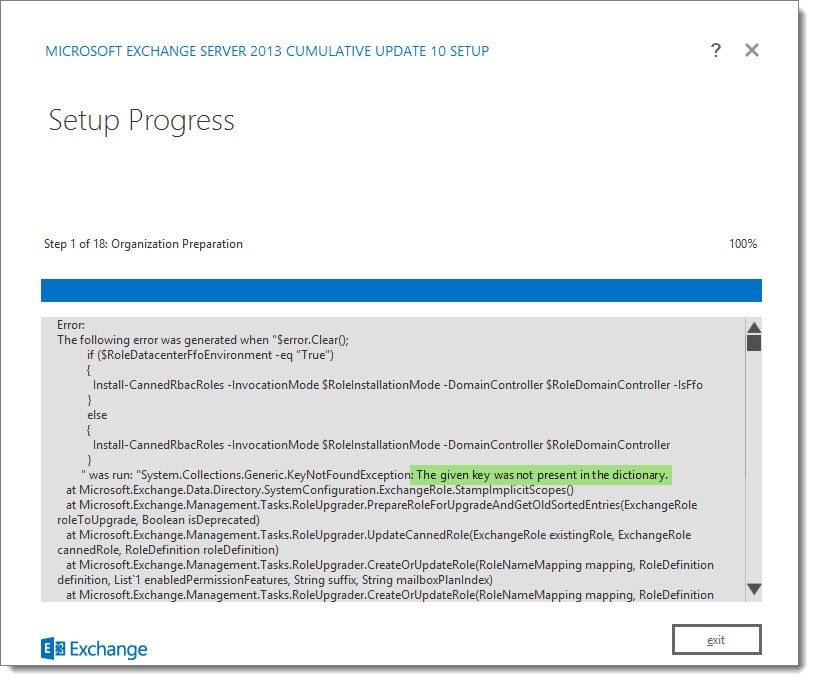
The given key was not present in the dictionary.
[ERROR] The given key was not present in the dictionary.

If we review the Exchange setup log let’s see the last thing the installer was working on.

[2] Used domain controller DC.SKARO.LOCAL to read object CN=My Custom Apps,CN=Roles,CN=RBAC,CN=SKARO,CN=Microsoft Exchange,CN=Sevices,CN=Configuration,DC=SKARO,DC=LOCAL.
[2] Used domain controller DC.SKARO.LOCAL to write object CN=My Custom Apps,CN=Roles,CN=RBAC,CN=SKARO,CN=Microsoft Exchange,CN=Services,CN=Configuration,DC=SKARO,DC=LOCAL.
[2] Saving object "My Custom Apps" of type "ExchangeRole" and state "Unchanged".
[2] Used domain controller DC.SKARO.LOCAL to read object CN=My Marketplace Apps,CN=Roles,CN=RBAC,CN=SKARO,CN=Microsoft Exchange,CN=Services,CN=Configuration,DC=SKARO,DC=LOCAL.
[2] Used domain controller DC.SKARO.LOCAL to write object CN=My Marketplace Apps,CN=Roles,CN=RBAC,CN=SKARO,CN=Microsoft Exchange,CN=Services,CN=Configuration,DC=SKARO,DC=LOCAL.
[2] Saving object "My Marketplace Apps" of type "ExchangeRole" and state "Unchanged".
[2] Used domain controller DC.SKARO.LOCAL to read object CN=My ReadWriteMailbox Apps,CN=Roles,CN=RBAC,CN=SKARO,CN=Microsoft Exchange,CN=Services,CN=Configuration,DC=SKARO,DC=LOCAL.
[ERROR] The given key was not present in the dictionary.
[WARNING] An unexpected error has occurred and a Watson dump is being generated: The given key was not present in the dictionary.
[1] The following 1 error(s) occurred during task execution:
[1] 0. ErrorRecord: The given key was not present in the dictionary.
[1] 0. ErrorRecord: System.Collections.Generic.KeyNotFoundException: The given key was not present in the dictionary.

I have color-coded the setup log to help illustrate the process. During the organization preparation, Exchange is making changes to the RBAC roles.  This is where it is failing.

In blue, it reads in each RBAC role from our DC named dc.skaro.local.
In green, it specifies which DC it will use to write any changes.
In orange, it identifies what, if any, changes were made.

We can see it successfully completes its configuration on the “My Custom Apps” and “My Marketplace Apps” user roles. Yet the error occurs immediately after reading in “My ReadWrite Mailbox Apps”.

Something is preventing the Exchange 2013 setup from reading this role from Active Directory. Let’s check it out in ADSI Edit. The setup log gives us a direct path to the object.

[Read more…] about Exchange 2013 won’t update after installing Exchange 2016 Preview
Share
Tweet
Share

Filed Under: Exchange Solutions

  • « Go to Previous Page
  • Page 1
  • Interim pages omitted …
  • Page 17
  • Page 18
  • Page 19
  • Page 20
  • Page 21
  • Interim pages omitted …
  • Page 31
  • Go to Next Page »

Primary Sidebar

Want to stay up to date?

Sidebar Form

Join thousands of IT professionals and get the latest Exchange & Office 365 tips and tutorials direct to your inbox

DigiCert Banner 300x348

(help support us using our affiliate link)

Footer

Site Navigation

  • Subscribe to blog
  • About SuperTekBoy
  • Disclaimer
  • Privacy & Cookies
  • Contact Us

Want to stay up to date?

Footer Form

Join thousands of IT professionals and get the latest Exchange & Office 365 tips and tutorials direct to your inbox

Join the conversation

  • Twitter
  • LinkedIn
  • Facebook
  • RSS

Copyright © 2026 · SuperTekBoy LLC