• Skip to primary navigation
  • Skip to main content
  • Skip to primary sidebar
  • Skip to footer

SuperTekBoy

Practical Help for Exchange & Office 365

  • Exchange
    • News
    • Tutorials
    • Solve a Problem
  • Office 365
    • News
    • Tutorials
    • Solve a Problem
  • Outlook
    • Tutorials
    • Solve a Problem
  • Books
  • Podcasts
  • Quick Links…
    • Generate or Renew SSL Certs for Exchange
    • Connect PowerShell to Exchange Online
    • Connect PowerShell to Office 365
    • Extend Schema for Exchange
    • Exchange Schema & Build Numbers
  • More…
    • Kemp Load Balancers
    • Other tech…
    • Videos
    • About SuperTekBoy
    • Contact Us

Exchange

How to apply an Exchange product key

July 26, 2016 By Gareth Gudger Leave a Comment

Share
Tweet
Share

In this article, we explore applying the Exchange product key. We will illustrate this process through both the Exchange Admin Center (EAC) and PowerShell. We will also look at how to license multiple servers at once and how to locate all unlicensed servers in your environment. This process is the same for both Exchange 2013 and 2016.

Apply the product key with Exchange Admin Center

To apply the product key through the Exchange Admin Center follow these steps.

Log into the Exchange Admin Center (EAC). Navigate to the Servers tab and then the Servers sub-tab at the top.
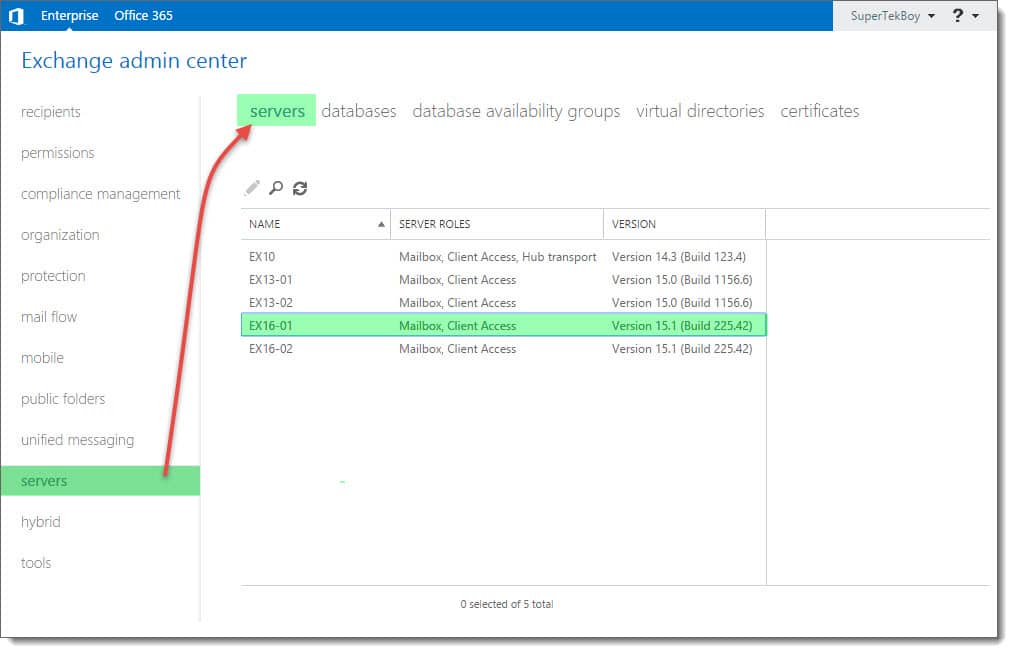
Exchange Admin Center Servers Tab

Select the server you wish to apply the key and click the Edit (Edit button) button.

From the General tab enter your 25-character product key into the 5 boxes under Enter a valid product key section.
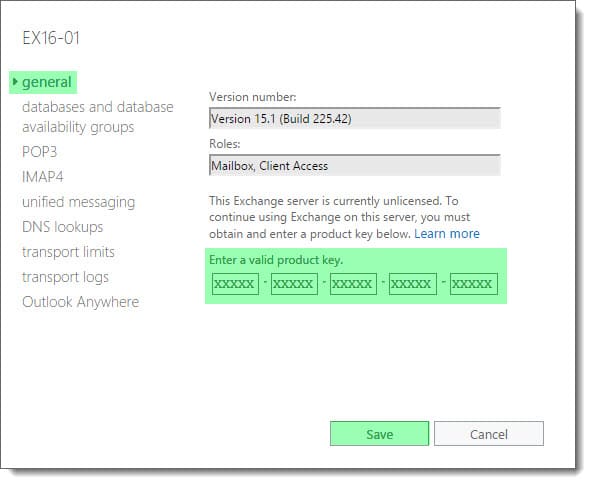
Exchange Admin Center Entering Product Key
[Read more…] about How to apply an Exchange product key

Filed Under: Exchange Tutorials

Exchange June 2016 Updates

June 22, 2016 By Gareth Gudger Leave a Comment

Share
Tweet
Share
Exchange 2013 Big Logo

Earlier this month was a big day for Exchange updates. Not only did we get Cumulative Update 13 for Exchange 2013, but we also got our second update for Exchange 2016.

As always, test these updates in a lab first! I recommend checking out this 7-part guide on configuring Exchange in your lab. It doesn’t take much to get one going.

The updates are as follows:

Exchange 2016 Mini

Exchange Server 2016 Cumulative Update 2 | UM Language Pack Download

Exchange 2013 Cumulative Update 9

Exchange Server 2013 Cumulative Update 13 | UM Language Pack Download

Exchange 2010 Mini

Exchange Server 2010 SP3 Update Rollup 14

Exchange 2007 Mini

Exchange Server 2007 SP3 Update Rollup 20

Update: Special thanks to Keith Kroslow who pointed out that Exchange 2010 and 2007 did get an update. Their updates fix a potential elevation issue for Oracle products installed on an Exchange server. Check out KB 3151097 for 2010 and KB 3151086 for 2007.

So what’s new?

This update is a culmination of bug fixes and feature tweaks. Most notably we now see official support for .NET 4.6.1. The lack of support became a particular issue when Windows Updates began recommending this update back in February. Thankfully all stability issues have since been resolved. Microsoft recommends updating to CU2 and CU13 before installing .NET 4.6.1.

In the last update, we saw the end of SHA-1 certificates for S/MIME. This update follows suit by dropping SHA-1 from Exchange’s self-signed certificates. To get this added security you will need to regenerate your existing self-signed certificates. SHA-2 will be deployed by default for newly installed Exchange servers.

Another important update is the resolution of potential data loss when migrating public folders. You can read more about it in KB 3161916.

We also see added support for BitLocker during AutoReseed operations. Up to this point, you had to manually encrypt a hot spare either before or after an AutoReseed operation. With this update, we can now have Disk Reclaimer automatically encrypt the drive during AutoReseed operations. You will need to enable this functionality on your DAG.

 C:\> Set-DatabaseAvailabilityGroup <Name> -AutoDagBitLockerEnabled $true
[Read more…] about Exchange June 2016 Updates

Filed Under: Exchange, Exchange News

Make inbound SMTP highly available with Kemp LoadMaster

June 17, 2016 By Gareth Gudger 5 Comments

Share
Tweet
Share
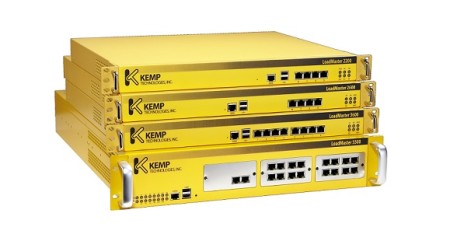
Load Balancer Produkte Familie Kemp Technologies

In a previous article, Configure Kemp Load Balancer for Exchange 2016, we explored how to make client access services highly available for Exchange 2016. In this article, we continue that trend by making the Simple Mail Transfer Protocol (otherwise known as SMTP) highly available.

If you don’t have a load balancer, you can download one for free from Kemp. Kemp’s free appliance is what we will use in this guide.

Don’t worry. Despite the focus being on Kemp, you can translate these principles to any vendor.

Let’s get started!

Disclaimer: I need to point out that I am not sponsored by Kemp in any way. However, this document does contain some affiliate links.

The environment

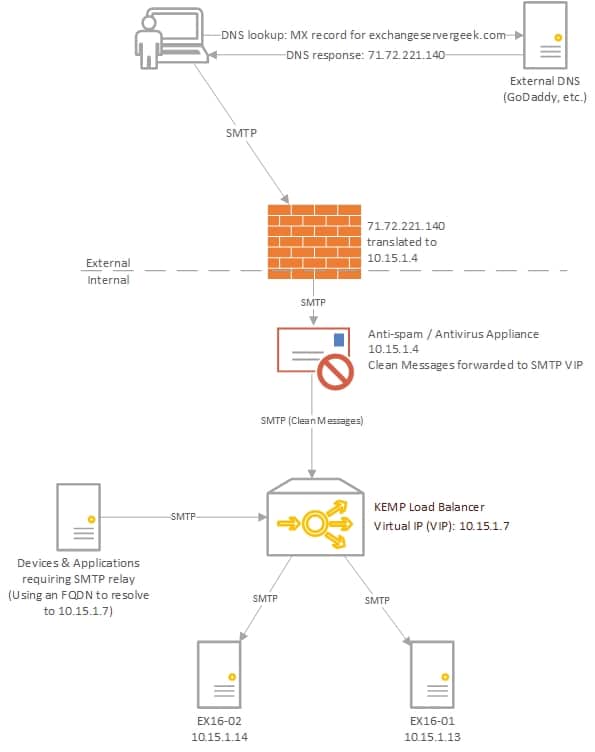
In our example below, we plan to have two Exchange 2016 servers behind a load balancer in a single site; EX16-01 and EX16-02.

Make inbound SMTP highly available with Kemp LoadMasters
[Read more…] about Make inbound SMTP highly available with Kemp LoadMaster

Filed Under: Exchange Tutorials, Kemp Load Balancers, Other Tech

Extend, Prepare and Verify Active Directory for Exchange Server

June 15, 2016 By Gareth Gudger 3 Comments

Share
Tweet
Share

UPDATED: 1/19/2023

Before you install a new version of Exchange, you will need to perform a number of tasks in Active Directory. This is true for both migrating an older version of Exchange, or, installing into a greenfield that has had no prior iteration of Exchange. This will involve the following tasks.

  1. Extend the schema
  2. Prepare the organization
  3. Prepare the domains

Setup will perform these steps during its main installation if it determines they have not been run. So, you may wonder why you would ever perform these steps manually.

One possibility is that a company operates in a split-permissions model. In large organizations, two separate teams may manage Active Directory and Exchange. If least privilege is in place, it is likely that the Exchange team cannot perform elevated Active Directory tasks such as schema extensions. Similarly, the Active Directory team may not have permission to manage Exchange. In this case, the Active Directory team will need to run the commands manually before the main setup.

Another possibility is that a company may have a large geographically dispersed network with multiple Active Directory sites. It could have its schema master in one site and its Exchange servers in a totally different site. The links between these sites could have any number of restrictions upon them, such as a long interval between replication cycles. In that case, the company will need to run the command manually in the site hosting the schema master and allow time for replication.

This article illustrates how to perform these tasks from a command line.

Tip: These same instructions work for Exchange 2010, 2013, 2016, and 2019 installations. In addition, these tasks often have to be repeated when performing cumulative updates. For more information on whether your cumulative update requires these commands, be sure to check official Microsoft documentation.

Extending the Schema

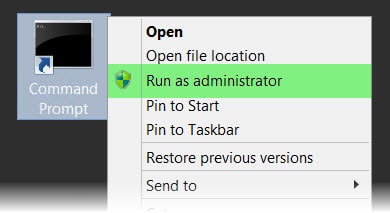
To do this, we must first open an elevated command prompt. We need to do this from a machine running a 64-bit version of Windows. The minimum version of Windows required is dictated by the Exchange Supportability Matrix. This machine must also be in the same site and domain as the schema master. The computer we execute this from does not have to be a domain controller. For smaller companies with a single-domain/single-site environment, we can simply run these commands from the intended Exchange server.

Tip: To perform this update, you must be a member of both the Enterprise and Schema admin groups.

Command Prompt Run As Administrator

Change to the directory containing your Exchange setup files and issue the following command. Be sure to include the license agreement switch.

Tip: Starting with Exchange 2016 CU22 and Exchange 2019 CU11, Microsoft replaced the /IAcceptExchangeServerLicenseTerms parameter with the option to send diagnostic data to Microsoft. To send the optional data, use the /IAcceptExchangeServerLicenseTerms_DiagnosticDataON parameter. If you do not wish to send any data, use /IAcceptExchangeServerLicenseTerms_DiagnosticDataOFF. Note that this can be changed post-installation using the Set-ExchangeServer cmdlet.

C:\Ex2016Setup> Setup.exe /PrepareSchema /IAcceptExchangeServerLicenseTerms_DiagnosticDataON

After several minutes the command will complete. You should see an output similar to the following.

[Read more…] about Extend, Prepare and Verify Active Directory for Exchange Server

Filed Under: Exchange Tutorials

Using SRV records for multiple Autodiscover domains

May 17, 2016 By Gareth Gudger 1 Comment

Share
Tweet
Share

In most situations adding a second email domain, is simply just a matter of configuring the necessary mail flow. However, in situations such as an acquisition or merger, you may need users to configure Outlook with an email domain that is different from the one configured in your autodiscover URI. This is especially true for companies that offer hosted Exchange in a multi-tenancy business model. 

In this article, we take a look at a couple of case studies where an SRV record might be preferred over adding additional names to a certificate. We then explore how to configure an SRV record in a popular DNS management system. Finally, we look at two different ways to test that SRV record.

Tip: Not all ActiveSync devices support SRV records (some don’t support Autodiscover at all). In these cases you may need to manually configure each device with the server name, or, look into a different autodiscover method.

Case Study 1: Acquisitions and Divestiture

One solution is to simply add each domain to your UC / SAN certificate (also called a multi-domain certificate). This may seem like a quick and easy solution but it all depends on volume. Re-keying your certificate for a one-time acquisition or merger may seem like a minute task. But consider a company that frequently acquires or divests other companies. You may find yourself re-keying that certificate every couple of months. This may still seem trivial but consider the size of your environment. If you have a large Exchange deployment with dozens of servers and multiple load balancers then each will need the new certificate every time it is re-keyed. This pales in comparison to the single SRV record that can be easily added to the new domain. It not only saves you time but also money. Adding each domain may incur additional charges. Some certificate providers even charge a fee for re-keying a certificate.

Case Study 2: Multi-tenant hosted Exchange providers

With a hosted Exchange provider the acquisition and departure of clients are likely to be even more volatile. That said, you don’t want to be re-keying your certificate every time you onboard or off-board a client. Adding each domain to your certificate will eventually become cost-prohibitive affecting your bottom line. Like any business your bottom line is important. So choosing the SRV redirect method over a cost-prohibitive multi-domain certificate is more attractive (and also simpler to configure).

Scenario

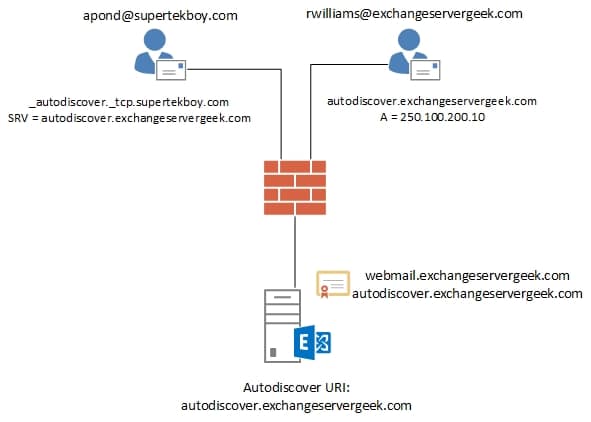
For the purposes of this article ExchangeServerGeek has recently acquired SuperTekBoy. STB users have an email address of SuperTekBoy.com. Whereas ESG users have an email address of ExchangeServerGeek.com. Mail data from STB has already been migrated to the ESG. The company requires STB users to keep using their SuperTekBoy.com email addresses to configure their Outlook profiles. The company does not want to make any changes to its current SSL certificate as this will incur additional fees. The Exchange administrator determines the best solution is to configure an SRV record.

Exchange Autodiscover SRV Records
[Read more…] about Using SRV records for multiple Autodiscover domains

Filed Under: Exchange Tutorials

Exchange March 2016 Updates

March 24, 2016 By Gareth Gudger Leave a Comment

Share
Tweet
Share
Exchange 2013 Big Logo

Earlier this month was a big day for Exchange updates. Not only did we get Cumulative Update 12 for Exchange 2013, but we also got our first update for Exchange 2016. Yay!

As always, test these updates in a lab first! I recommend checking out this 7-part guide on configuring Exchange in your lab. It doesn’t take much to get one going.

The updates are as follows:

Exchange 2013 Mini

Exchange Server 2016 Cumulative Update 1 | UM Language Pack Download

Exchange 2013 Cumulative Update 9

Exchange Server 2013 Cumulative Update 12 | UM Language Pack Download

Exchange 2010 Mini

Exchange Server 2010 SP3 Update Rollup 13

Exchange 2007 Mini

Exchange Server 2007 SP3 Update Rollup 19

So what’s new?

This update is a culmination of bug fixes and feature tweaks. Most notably the OWA S/MIME control ditches its SHA-1 signing certificate in favor of the more secure and robust SHA-2. This signing change makes it to all supported versions of Exchange. For 2007, which is in extended support, this is the only thing Rollup 19 addresses. Exchange 2010, also in extended support, similarly sees this update and just one other minor tweak–which is the introduction of a link to the new Hybrid Configuration Wizard.

Despite the inclusion of this link in EMC, the new Hybrid Configuration Wizard was able to run against prior roll-ups of Exchange 2010. This update simply adds a link for ease of access. Be sure to check out this blog post from the Exchange Team for more info on the new HCW for Exchange 2010.

Another cool update, that flew under the radar, is that the web.config file for Outlook on the Web will now be preserved during a cumulative update. This is neat because it will preserve any customization admins may have made to that file. Sadly this change only applies to Exchange 2016 deployments but let us keep our fingers crossed this will be ported back to Exchange 2013.

One surprising plot twist was the retraction of Mailbox Anchoring in the Exchange Management Shell. This had been implemented in the previous 2013 update and was set to ship with 2016 CU1. Exchange CU12 sees this change reverted and 2016 never sees it at all.

Mailbox Anchoring was the concept of making sure that an admin was always getting the same experience when connecting to the Exchange Management Shell. This was especially important in an environment where Exchange 2013 and 2016 are load balanced in the same pool.

In essence, when you opened Exchange Management Shell mailbox anchoring would always proxy you to the server that hosted your admin mailbox. If your admin account didn’t have a mailbox, or, it was unavailable, then it would proxy you to a server hosting the arbitration mailbox. If neither were available then the Exchange Management Shell would fail to connect. At this point, your only option was to connect through local PowerShell and add the Exchange snap-in.

Microsoft has reverted this change in response to community feedback.

As mentioned in a previous post .NET 4.6.1 continues to remain unsupported. The Exchange Team has indicated that support will be added in a future cumulative update. For now, keep that update away from your Exchange servers. As of writing 4.5.2 remains the highest supported version for Exchange 2013 & 2016.

Other items of note include:

  • Exchange 2016 receives 17 new languages in Outlook on the Web.
  • Exchange 2016 ditches self-extracting packages in favor of ISOs for delivery.
  • Workaround for .Net update KB3097966 causing significant slowdowns in Exchange installations is documented here.
  • Lag Replay Manager is enabled by default in 2016 CU1 (but can be disabled).
[Read more…] about Exchange March 2016 Updates
Share
Tweet
Share

Filed Under: Exchange News, Office 365 News

  • « Go to Previous Page
  • Page 1
  • Interim pages omitted …
  • Page 16
  • Page 17
  • Page 18
  • Page 19
  • Page 20
  • Interim pages omitted …
  • Page 31
  • Go to Next Page »

Primary Sidebar

Want to stay up to date?

Sidebar Form

Join thousands of IT professionals and get the latest Exchange & Office 365 tips and tutorials direct to your inbox

DigiCert Banner 300x348

(help support us using our affiliate link)

Footer

Site Navigation

  • Subscribe to blog
  • About SuperTekBoy
  • Disclaimer
  • Privacy & Cookies
  • Contact Us

Want to stay up to date?

Footer Form

Join thousands of IT professionals and get the latest Exchange & Office 365 tips and tutorials direct to your inbox

Join the conversation

  • Twitter
  • LinkedIn
  • Facebook
  • RSS

Copyright © 2026 · SuperTekBoy LLC