• Skip to primary navigation
  • Skip to main content
  • Skip to primary sidebar
  • Skip to footer

SuperTekBoy

Practical Help for Exchange & Office 365

  • Exchange
    • News
    • Tutorials
    • Solve a Problem
  • Office 365
    • News
    • Tutorials
    • Solve a Problem
  • Outlook
    • Tutorials
    • Solve a Problem
  • Books
  • Podcasts
  • Quick Links…
    • Generate or Renew SSL Certs for Exchange
    • Connect PowerShell to Exchange Online
    • Connect PowerShell to Office 365
    • Extend Schema for Exchange
    • Exchange Schema & Build Numbers
  • More…
    • Kemp Load Balancers
    • Other tech…
    • Videos
    • About SuperTekBoy
    • Contact Us

Office 365 Tutorials

Enabling Dark Mode in Outlook on the Web

October 20, 2018 By Gareth Gudger 4 Comments

Share
Tweet
Share

One of the newest features announced at Ignite was the ability to enable dark mode in Outlook on the Web. It is worth noting that this feature is only available in Office 365. There are no plans to bring it to Exchange 2019 at this time.

I have always been a big fan of dark mode for any application as I spend more hours than I care to admit at my computer, so eye strain is always a concern.

Dark mode lets us protect our eyeballs from the harsh glare of a white screen, and it may just conserve a little more battery life on our mobile devices.

Note: These instructions will also work with Outlook.com

Enabling dark mode

To enable the dark theme, log onto Outlook on the Web and click the toggle next to Try the new Outlook so it moves to the right (on).

Enabling Dark Mode in Outlook on the Web 1
[Read more…] about Enabling Dark Mode in Outlook on the Web

Filed Under: Office 365 Tutorials, Outlook Tutorials

Change which organizational units (OUs) are synced to Office 365

December 31, 2017 By Gareth Gudger 19 Comments

Share
Tweet
Share

In this article, we are going to take a look at changing which objects get synced to Office 365 through organizational unit (OU) filtering. By default, Azure AD Connect is configured to sync all objects in all OUs. Filtering allows us to exclude OUs, and the objects they contain, so they are not synchronized to Office 365. An example of this may be to exclude an OU that contains service accounts for on-premises applications.

In our example, we are going to narrow our sync scope to just a few select organizational units in the domain skaro.local. We will be working with the latest version of Azure AD Connect and a single forest environment.

Let’s get started!

UPDATE 08/04/18: While these steps do still work, Microsoft recommends changing your OUs by rerunning the Azure AD Connect wizard. This can be done by double-clicking the Azure AD Connect icon. If the wizard does not work, you can use these steps as a fallback method.

Selecting which OUs to synchronize

First, log onto the server where you have Azure AD Connect installed and open the Synchronization Service program.

Synchronization Service Azure AD Connect

This opens the Synchronization Service Manager. From here select the Connectors tab. Under the Connectors section double-click the name of your local Active Directory. In my example, this is SKARO.LOCAL. This will bring up the Properties screen for that connector.

Azure AD Connect - Connectors tab - Local AD Properties
[Read more…] about Change which organizational units (OUs) are synced to Office 365

Filed Under: Office 365 Tutorials

How to create an Office 365 mailbox (in hybrid)

September 2, 2017 By Gareth Gudger 28 Comments

Share
Tweet
Share

When a company has implemented Exchange hybrid and has moved some or all their users to Office 365, the question “How do I create a mailbox in Office 365?” frequently comes up.

In this article, we explore how to create a mailbox in Exchange Online when directory synchronization is in place. For this article, we will explore this process using Exchange 2016. We will look at how to complete this task with the GUI and PowerShell. Note that these steps are identical for Exchange 2013.

Using the Exchange Admin Center

This is the simplest and quickest way to create a mailbox in Office 365. The drawback of this solution is that it only allows you to create an entirely new Active Directory user. A preexisting user without a mailbox cannot be enabled for an Office 365 mailbox using the GUI. To grant an existing user an Office 365 mailbox you will need to use PowerShell. Alternatively, that user could be given an on-prem mailbox and then move that mailbox to Office 365.

If your current process is to create a new account in Active Directory first and then enable the mailbox in Exchange second, I would recommend reversing these steps. Using the method below allows you to create a basic user in Active Directory with a mailbox in Office 365. Then you can go back into Active Directory to make any additional changes to the new account, such as group memberships.

For our example, we are going to create a new user called Wilfred Mott who will have a mailbox in Office 365. Wilfred does not currently have a user account in Active Directory so we can use this method. Wilfred’s email will be wilfred.mott@exchangeservergeek.com.

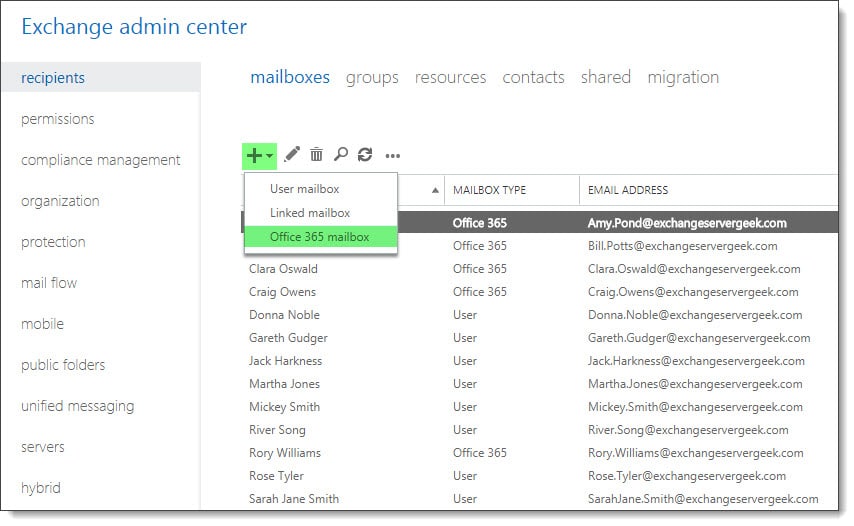
From your on-premises Exchange 2016 server, log into the Exchange Admin Center. Select the Recipients tab and Mailboxes sub-tab. Click the New (plus sign) and select Office 365 mailbox.

Note: If you do not see this option you may be missing the required RBAC permissions, or, there is an issue with your hybrid configuration.

Create a new Office 365 mailbox

Selecting this option walks you through the process of creating a remote mailbox in Office 365. The benefit here is that you do not need to migrate the mailbox after it is created as it already exists as an object in the cloud. Keep in mind that you will not see this mailbox in the Office 365 tenant until directory synchronization has run.

[Read more…] about How to create an Office 365 mailbox (in hybrid)

Filed Under: Exchange Tutorials, Office 365 Tutorials

Changing the meeting layout in Skype for Business

March 2, 2017 By Gareth Gudger 7 Comments

Share
Tweet
Share

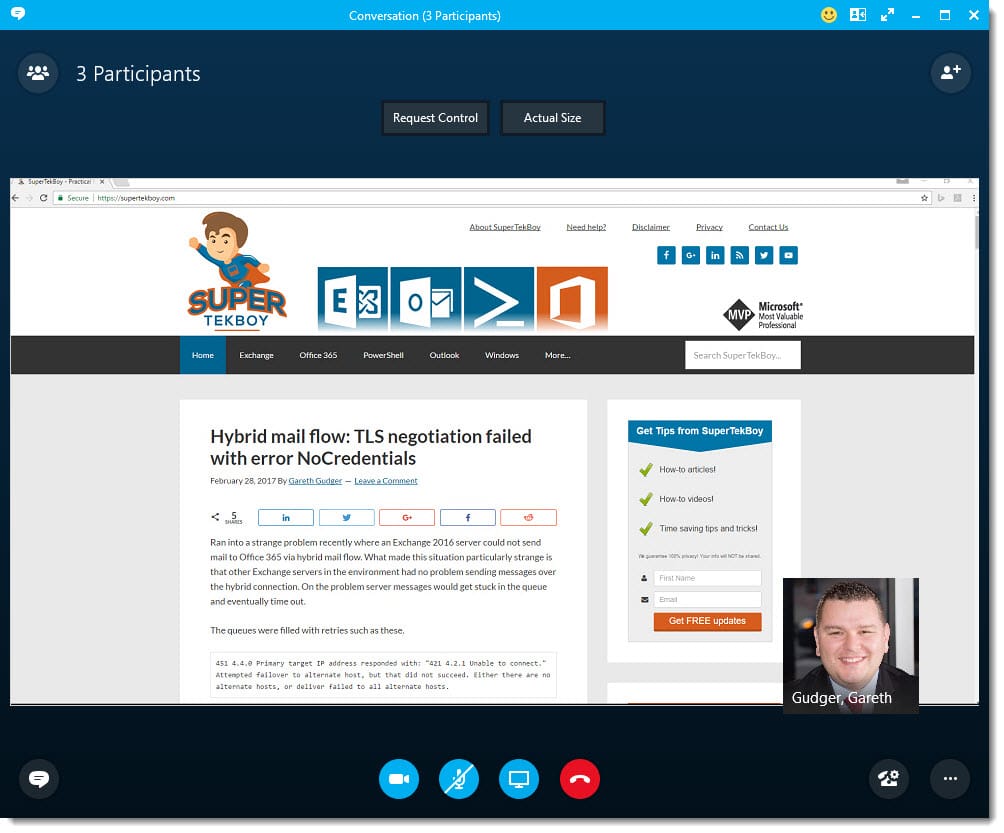
When you enter a Skype for Business meeting it is launched in speaker view. The Speaker view adds the portrait of the presenter to the lower right of the screen. The portrait will change to whoever is currently speaking. This view is especially useful when the presenter is using a webcam as the picture is replaced with their video stream. Unfortunately, this can cover part of the presentation as shown below. This view can be changed but the option to do so is not in an intuitive location. In total there are three views for a Skype meeting. In this article, we will look at all three and how to switch between them.

Skype for Business Speaker View

To change from speaker view we use the Pick a Layout button (). This button is located at the top right of the screen in the title bar. If you select this button a checkmark will indicate what view you are currently in. In our case, we are in Speaker View. To pick another view select it from the list.
[Read more…] about Changing the meeting layout in Skype for Business

Filed Under: Office 365 RSS, Office 365 Tutorials

Change the notification email for directory synchronization failures

January 1, 2017 By Gareth Gudger 3 Comments

Share
Tweet
Share

In this article, we explore how to change the email address that receives the Office 365 directory synchronization failure notifications. We will explore how to do this with PowerShell.

Let’s get started!

Getting connected

First, you will need to have access to the Windows Azure Active Directory Module for Windows PowerShell. An article detailing how to install this module and all prerequisites can be found here.

You should have an icon on your desktop named Windows Azure Active Directory Module for Windows PowerShell. Right-click on this icon and select Run As Administrator from the context menu.

Windows Azure Active Directory Module for Windows PowerShell Icon

At the PowerShell prompt enter the following command and hit enter.

 C:\> Set-ExecutionPolicy –ExecutionPolicy RemoteSigned

Execution Policy Change
The execution policy helps protect you from scripts that you do not trust. Changing the execution policy might expose you to the security risks described in the
about_Execution_Policies help topic at http://go.microsoft.com/fwlink/?LinkID=135170. Do you want to change the execution policy?
[Y] Yes [A] Yes to All [N] No [L] No to All [S] Suspend [?] Help (default is "N"):

Press Y for yes and hit Enter.

[Read more…] about Change the notification email for directory synchronization failures

Filed Under: Office 365 Tutorials

Enable explicit DKIM signing in Office 365

June 27, 2016 By Gareth Gudger 19 Comments

Share
Tweet
Share

In this article, we will take a look at how to enable explicit DKIM signing in Office 365.

What exactly is DKIM?

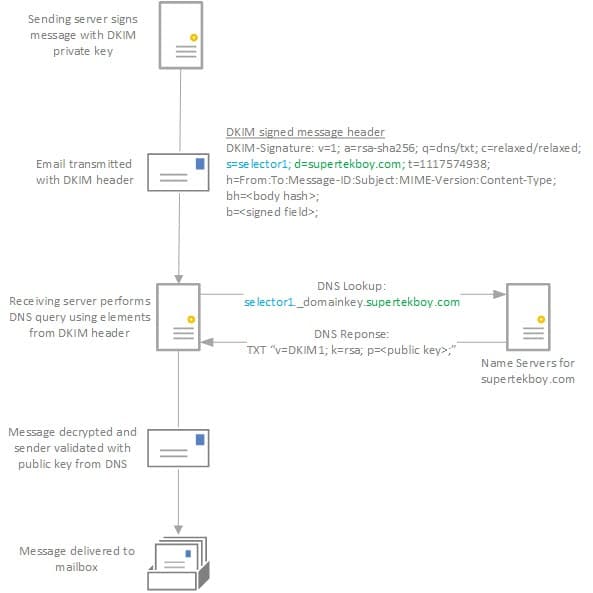
DomainKeys Identified Mail (DKIM) is an email authentication mechanism designed to prevent email spoofing. DKIM utilizes a cryptographic key pair and DNS records to provide sender validation and message integrity. It does this in the following way.

DKIM

The sender encrypts selected parts of the message header with its private key. This is defined by the “h” field in the diagram above. In our example, we are encrypting the From, To, and Subject fields to name a few. Portions or all of the message body may also be hashed. The DKIM header itself is not encrypted. In the DKIM header, the “d” value identifies the sender domain. The “s” value identifies a unique selector defined by the sender.

The recipient combines the selector and domain values to form a DNS query. Using our diagram above the domain field is marked as supertekboy.com and the selector field is marked as selector1. Using these values the recipient forms the following DNS query.

selector1._domainkey.supertekboy.com

The _domainkey portion of the query is a fixed part of the protocol.

The name servers for the sender respond with a TXT record containing the public key. The recipient can then use this public key to decrypt the header (and any parts of the body).

Successful decryption validates the sender. A DKIM=Pass is attached to the message header which increases the confidence level of the message.

One of the drawbacks of DKIM is that it doesn’t prevent close misspellings of a domain. For example, I could register supertecboy.com and configure DKIM signing. DKIM will pass because the messages are coming from supertecboy.com. But to an untrained eye, supertekboy.com and supertecboy.com might be considered the same entity. When in fact the latter is a spoofer.

[Read more…] about Enable explicit DKIM signing in Office 365

Filed Under: Office 365 RSS, Office 365 Tutorials

  • « Go to Previous Page
  • Page 1
  • Page 2
  • Page 3
  • Page 4
  • Page 5
  • Go to Next Page »

Primary Sidebar

Want to stay up to date?

Sidebar Form

Join thousands of IT professionals and get the latest Exchange & Office 365 tips and tutorials direct to your inbox

DigiCert Banner 300x348

(help support us using our affiliate link)

Footer

Site Navigation

  • Subscribe to blog
  • About SuperTekBoy
  • Disclaimer
  • Privacy & Cookies
  • Contact Us

Want to stay up to date?

Footer Form

Join thousands of IT professionals and get the latest Exchange & Office 365 tips and tutorials direct to your inbox

Join the conversation

  • Twitter
  • LinkedIn
  • Facebook
  • RSS

Copyright © 2026 · SuperTekBoy LLC