• Skip to primary navigation
  • Skip to main content
  • Skip to primary sidebar
  • Skip to footer

SuperTekBoy

Practical Help for Exchange & Office 365

  • Exchange
    • News
    • Tutorials
    • Solve a Problem
  • Office 365
    • News
    • Tutorials
    • Solve a Problem
  • Outlook
    • Tutorials
    • Solve a Problem
  • Books
  • Podcasts
  • Quick Links…
    • Generate or Renew SSL Certs for Exchange
    • Connect PowerShell to Exchange Online
    • Connect PowerShell to Office 365
    • Extend Schema for Exchange
    • Exchange Schema & Build Numbers
  • More…
    • Kemp Load Balancers
    • Other tech…
    • Videos
    • About SuperTekBoy
    • Contact Us

Office 365

Secure files in OneDrive Personal Vault

October 13, 2019 By Gareth Gudger Leave a Comment

Share
Tweet
Share

Microsoft recently released a new feature in OneDrive Consumer called Personal Vault.

Personal Vault adds a layer of security within OneDrive. This means if anyone gains access to your OneDrive (for example, by circumventing your device’s security), they still need to authenticate to get access to the Vault.

This makes the Personal Vault great for securing those critically confidential files, such as a scan of your Passport, Driver’s license, or, Tax ID card.

Personal Vault is available anywhere OneDrive is available. In this article, we explore setting up Vault for the first time and accessing Vault from desktop, mobile, and web.

Note: Free OneDrive plans (like those through Outlook.com) are limited to 3 files in the Vault. Office 365 for Home or Personal does not have this limitation.

Setting up OneDrive Personal Vault on mobile

OneDrive Personal Vault Mobile Setup A

From your mobile device, open your OneDrive app and select the Files tab. You should see a new folder called Personal Vault.

The first time you open Vault, it will walk you through a setup wizard. Click Personal Vault.

The first screen will give you an overview of the Personal Vault. Click Continue. You will then be asked to verify your identity. Click Verify Identity.

Note: The identity verification process will vary based on the mobile device you own and the security you set up with your Microsoft account. For example, you may be required to enter a code from a text or authenticator app.

  • OneDrive Personal Vault Mobile Setup B
  • OneDrive Personal Vault Mobile Setup C
[Read more…] about Secure files in OneDrive Personal Vault

Filed Under: Office 365 Tutorials

Exchange September 2019 Updates

September 22, 2019 By Gareth Gudger Leave a Comment

Share
Tweet
Share
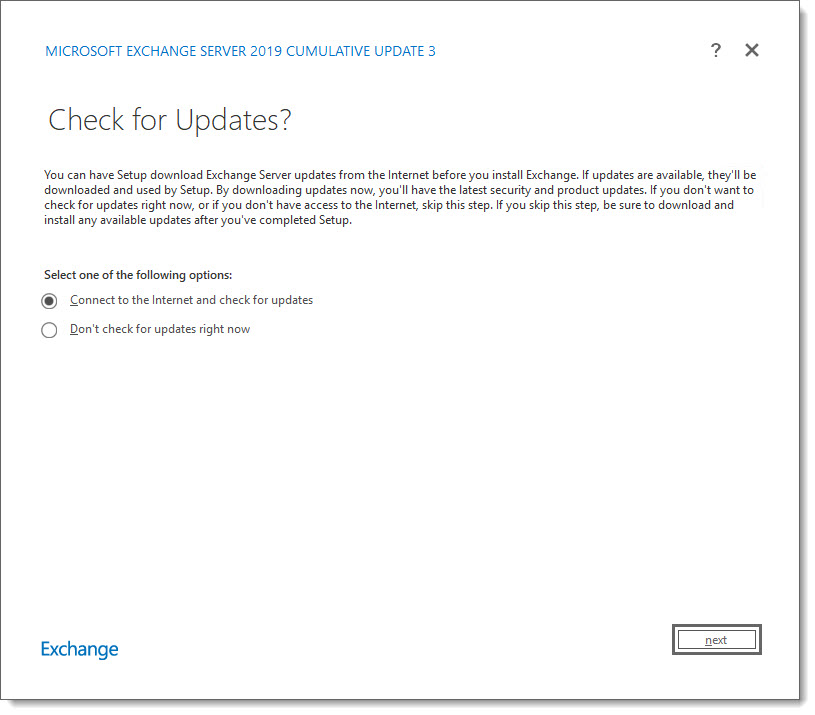
Exchange 2019 Cumulative Update 3

This week was a big week for Exchange. Microsoft released its third cumulative update for Exchange 2019 as well as a cumulative update for Exchange 2016. At the time of writing, there is no cumulative update for Exchange 2013.

As always, test these updates in a lab first! I recommend checking out this 7-part guide on configuring Exchange in your lab. It doesn’t take much to get one going.

The updates are as follows:

Exchange Logo Mini

Exchange 2019 Cumulative Update 3 (VLSC)| KB4514141

Exchange 2013 Cumulative Update 9

Exchange 2016 Cumulative Update 14 | KB4514140 | UM Language Pack

Exchange 2010 Mini

Exchange 2010 SP3 Rollup 29 | KB4509410 (Released in July)

Exchange 2010 support extended

In a recent blog post, the Exchange Team announced that is was extending support for Exchange 2010 by nine months. Exchange 2010 now shares the same end-of-life date as Office 2010 and SharePoint 2010, which is October 13th, 2020.

While this extension allows for a little more breathing room, it does not extend support for Windows Server 2008 R2, which is the underlying operating system for many Exchange 2010 installations. Server 2008 R2 will still go end of life on January 14th, 2020.

The Exchange Team has provided this extension to allow companies more time to migrate to a newer email platform, such as Office 365, or, Exchange 2016.

Unfortunately, there is no direct path to Exchange 2019 from 2010. If you do plan to stay on-prem, you will need to migrate to either 2013 or 2016 (I’d recommend 2016 as 2013 is now in extended support). From there you can migrate to 2019.

For more information on migrating from Exchange 2010 to 2016, check out this recent blog article from the Exchange Team: Exchange On-Premises Best Practices for Migrations from 2010 to 2016

So, what’s new in these Cumulative Updates?

In this series of cumulative updates, Microsoft has resolved a number of security and non-security issues. You can read more about those in KBs 4514141 and 4514140. In addition, this set of cumulative updates addresses changes to daylight savings.

[Read more…] about Exchange September 2019 Updates

Filed Under: Exchange News, Office 365 News

Dark Mode Compilation

September 15, 2019 By Gareth Gudger Leave a Comment

Share
Tweet
Share

I have always been a big fan of dark mode for any application as I spend more hours than I care to admit at my computer, so eye strain is always a concern.

Dark mode lets us protect our eyeballs from the harsh glare of a white screen, and it may just conserve a little more battery life on our mobile devices.

The articles below are a compilation of tutorials with easy to follow steps on setting a dark theme in your favorite app.

Outlook Mobile Inbox in Dark Mode Thumbnail 2

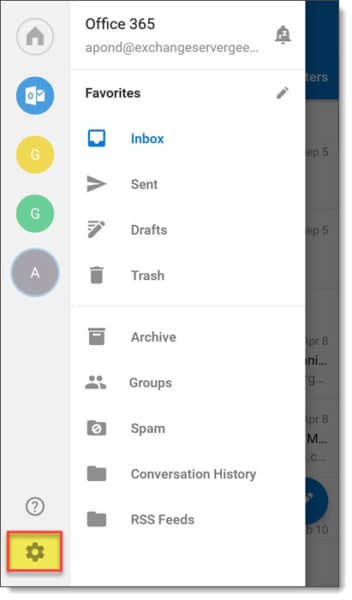
Outlook Mobile

In this article, we explore how to enable dark mode in Outlook Mobile. Read more…

Outlook on Windows Black Theme Thumbnail

Outlook Desktop

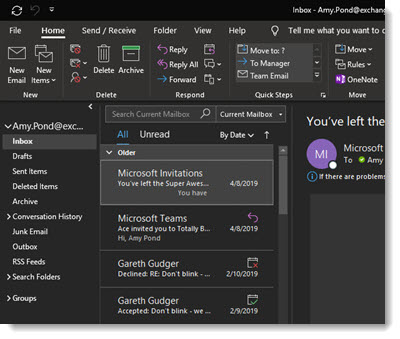
In this article, we explore the dark theme in Outlook Desktop. We also explore how to turn the lights on and off temporarily and permanently in the reading and composition panes. Read more…

Outlook on the Web Dark Theme Thumbnail

Outlook on the Web

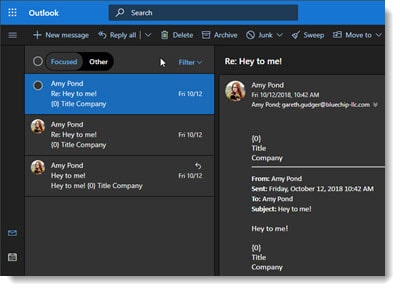
In this article, we explore dark mode in Outlook on the Web (OWA). We also explore how to turn the lights on and off in the reading and composition panes. Read more…

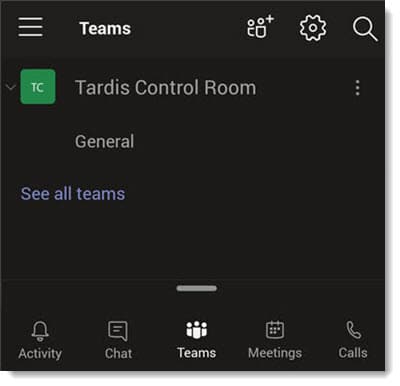
Teams Dark Mode Thumbnail

Teams Mobile

In this article, we explore how to enable dark mode in Microsoft Teams mobile. Read more…

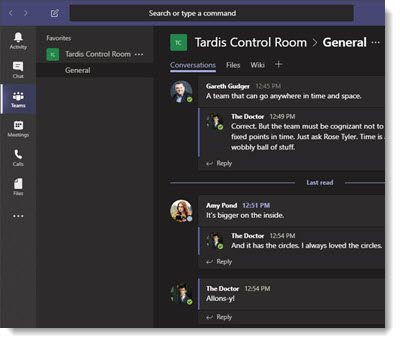
Microsoft Teams Dark Theme Thumbnail

Teams Desktop

In this article, we explore setting Microsoft Teams to a dark theme. Read more…

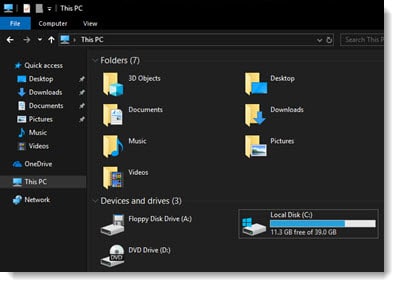
Windows 10 1809 Dark Mode Thumbnail

Windows 10

In this article, we explore how to set Windows 10 to a dark theme. This includes changing Windows Explorer to dark mode. Read more…

Twitter

Which app do you prefer in dark mode? Is there an app I should add to the list? Drop a comment below or join the conversation on Twitter @SuperTekBoy.

Filed Under: Office 365 Tutorials, Outlook Tutorials

Enabling Dark Mode in Outlook Mobile

September 12, 2019 By Gareth Gudger 1 Comment

Share
Tweet
Share

If you are like me and like to work on a mobile device at night, or, just work with the lights off, then dark mode is for you. I find a dark theme helps with eye strain. In addition, many sources also report that a dark color scheme helps conserve battery power on mobile devices.

The mobile client of Outlook has such a mode.

Let’s get started!

Enabling Dark Theme in Outlook Mobile

To enable dark theme in Outlook Mobile, click the Menu button in the top-left and then Settings (represented by a gear icon).

Outlook Mobile Menu
Outlook Mobile Settings

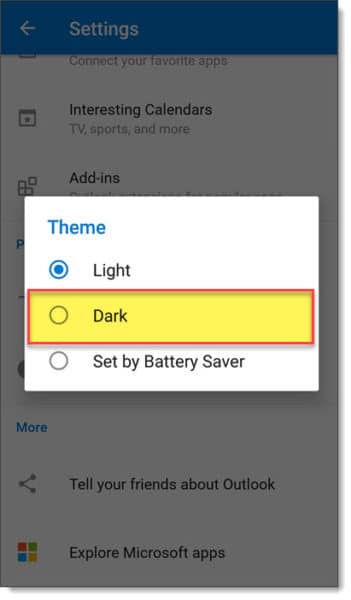
From the Settings page scroll down to the Preferences section. Click Theme. From the Theme pop-up select Dark.

Note: The Set by Battery Saver mode adjusts between the light and dark themes based on your device’s battery conservation settings. Microsoft states switching to dark mode consumes less device power.

Outlook Mobile Setting Dark Theme

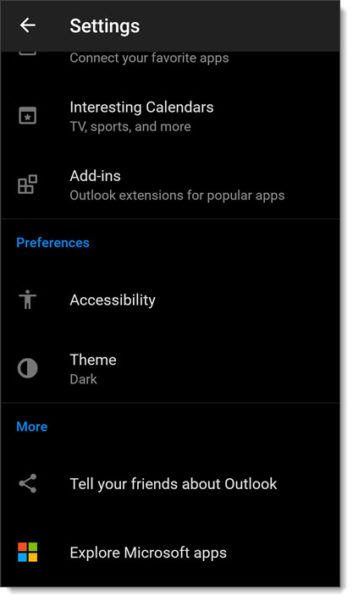
The Preferences section now identifies your theme as Dark. To change to another theme, click Theme again and make a new selection. To revert to the default theme click Light.

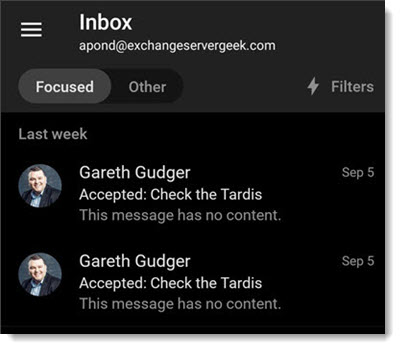
Once satisfied, click the back arrow in the top left of the screen. Your inbox will now reflect your current theme. In our screenshot below, our inbox has updated to the dark theme.

Outlook Mobile Settings in Dark Mode
Outlook Mobile Inbox in Dark Mode
[Read more…] about Enabling Dark Mode in Outlook Mobile

Filed Under: Office 365 Tutorials, Outlook Tutorials

Enabling Dark Mode in Teams Mobile

September 3, 2019 By Gareth Gudger 1 Comment

Share
Tweet
Share

If you are like me and like to work on a mobile device at night, or, just work with the lights off, then dark mode is for you. I find dark mode helps with eye strain. In addition, many sources also report that a dark color scheme helps conserve battery power on mobile devices.

The mobile client of Microsoft Teams has such a mode.

Let’s get started!

Enabling Dark Theme in Teams Mobile

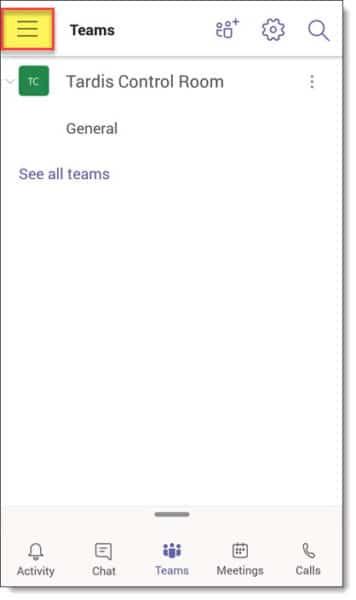
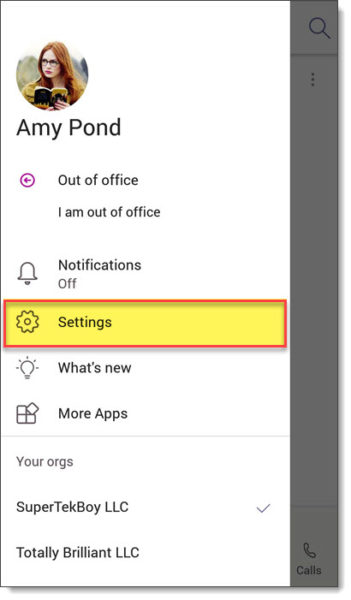
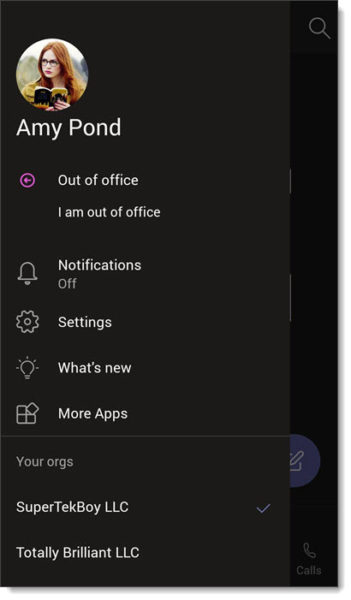
To enable dark theme in Microsoft Teams Mobile, click the Menu button in the top-left and then Settings.

  • Accessing Microsoft Teams Mobile Menu
  • Accessing Microsoft Teams Mobile Settings Page

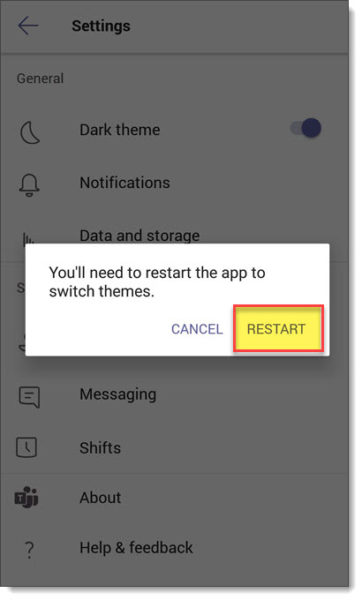
From the Settings page click the toggle to the right of Dark theme to on. When you do this, you will be prompted to restart the application. Click Restart. The Teams app will now restart.

  • Switching Microsoft Teams Mobile to Dark Mode C
  • Restarting Microsoft Teams Mobile app

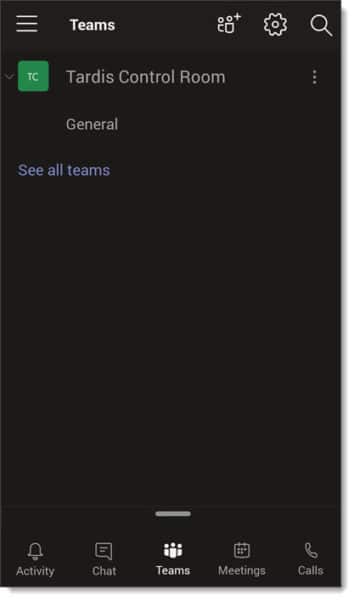
When the Microsoft Teams client restarts it will now be in dark mode.

  • Microsoft Teams app in Dark Mode
  • Microsoft Teams app in Dark Theme

To revert simply repeat the above steps, but toggle the Dark theme to the off position.

Twitter

What do you think about this feature? Drop a comment below or join the conversation on Twitter @SuperTekBoy.

Filed Under: Office 365 Tutorials

Improved Dark Mode in Outlook for Windows

July 4, 2019 By Gareth Gudger 35 Comments

Share
Tweet
Share

The black theme has been around in Outlook for Windows for some time. However, unlike Outlook Web App, or, Microsoft Teams, the black theme was not a true dark mode. Some aspects of the black theme were still fully illuminated, such as when you read or composed a message.

The screenshot below is an example of how the black theme changes certain aspects such as the folder view and toolbars to black but leaves the email preview pane in white.

Outlook on Windows Black Theme Read Email

Similarly, when you compose an email the message body is also in white.

Outlook on Windows Black Theme Compose Email

The new Black Theme for Outlook

Starting with version 1907 for Office Insiders, the Outlook team has extended the black theme so it now incorporates the message body and the composition panes.

Note: Anyone can enroll in the Office Insider program. However, Office Insiders receive weekly updates, which could be subject to bugs.

UPDATE 10-5-19: For those on the Monthly Channel, you can get dark mode with the 1909 monthly channel update (released September 30th).

With version 1907 the message preview pane defaults to black.

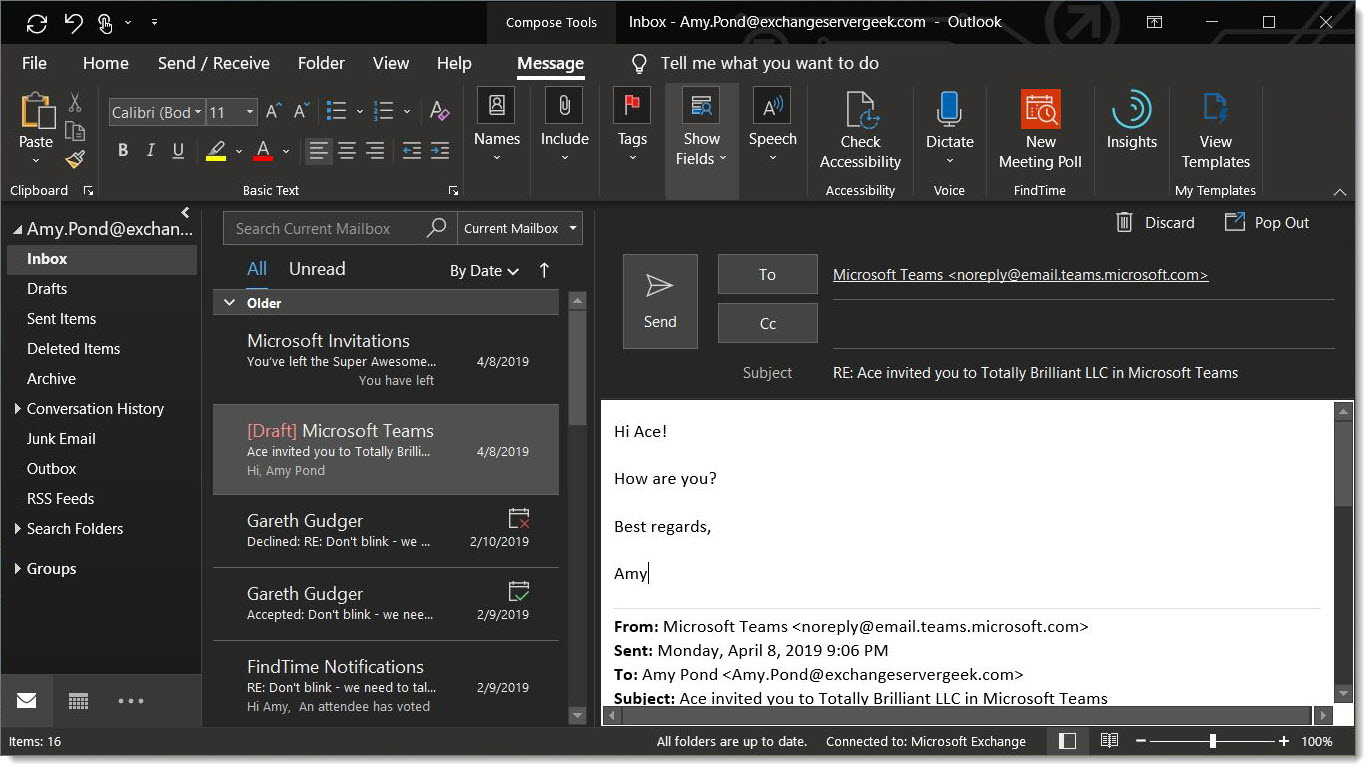
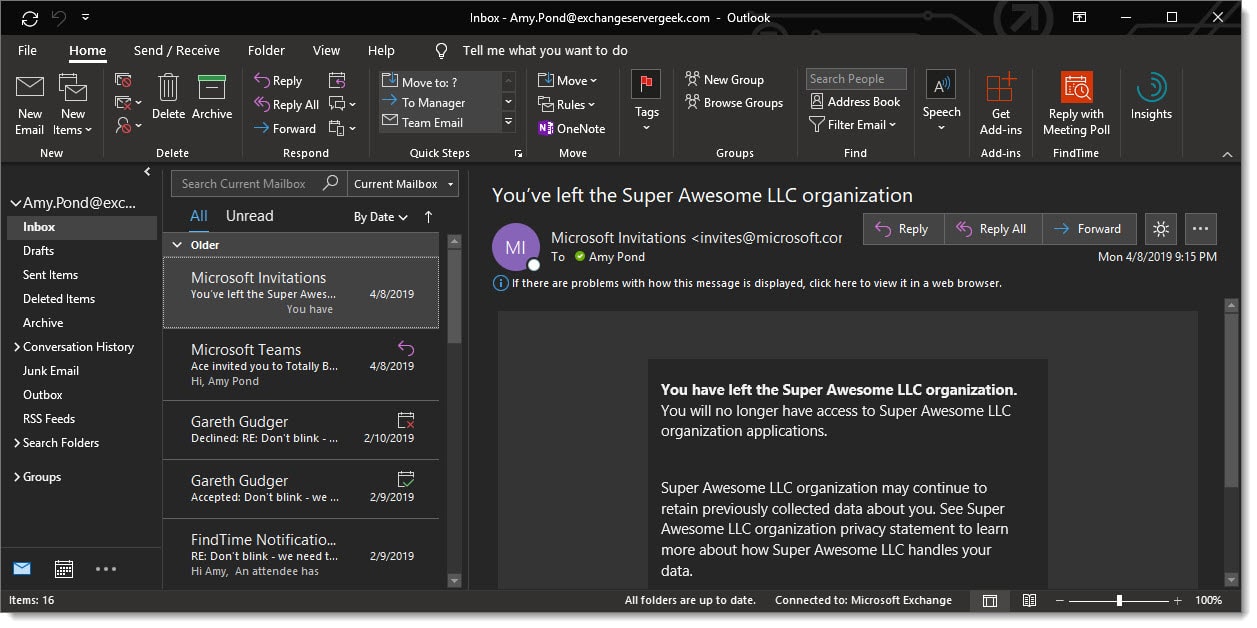
Outlook on Windows Black Theme Read Email Version 1907

Similarly, when you compose an email the message body is now black.

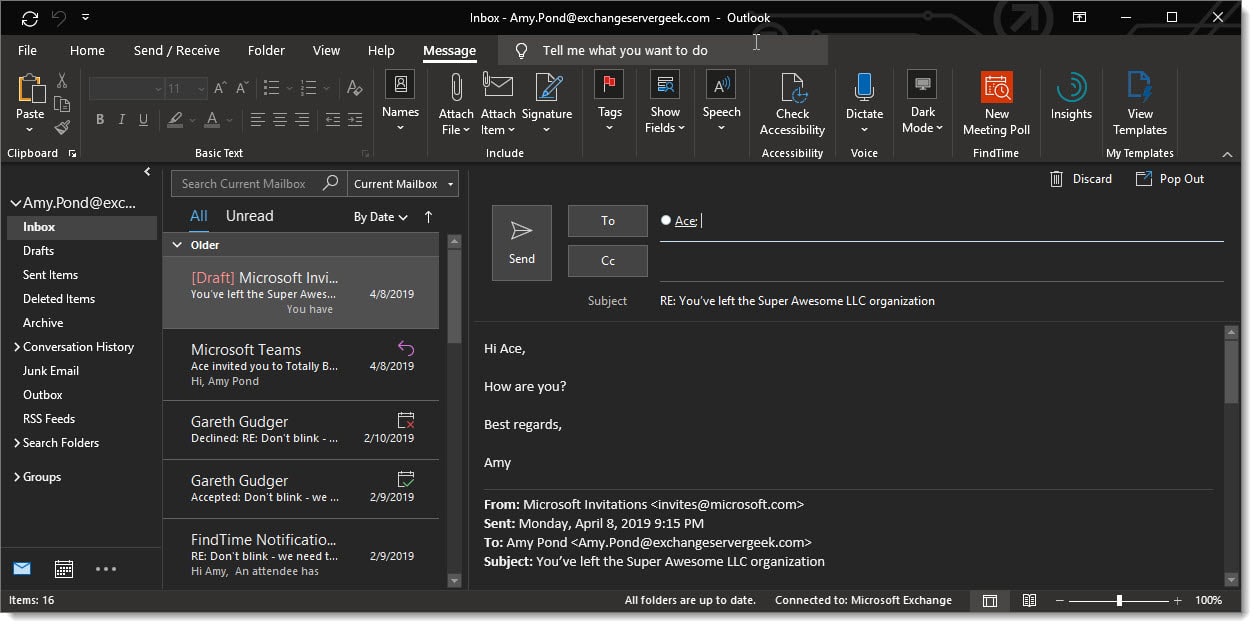
Outlook on Windows Black Theme Compose Email 1907
[Read more…] about Improved Dark Mode in Outlook for Windows

Filed Under: Office 365 Tutorials, Outlook Tutorials

  • « Go to Previous Page
  • Page 1
  • Interim pages omitted …
  • Page 5
  • Page 6
  • Page 7
  • Page 8
  • Page 9
  • Interim pages omitted …
  • Page 16
  • Go to Next Page »

Primary Sidebar

Want to stay up to date?

Sidebar Form

Join thousands of IT professionals and get the latest Exchange & Office 365 tips and tutorials direct to your inbox

DigiCert Banner 300x348

(help support us using our affiliate link)

Footer

Site Navigation

  • Subscribe to blog
  • About SuperTekBoy
  • Disclaimer
  • Privacy & Cookies
  • Contact Us

Want to stay up to date?

Footer Form

Join thousands of IT professionals and get the latest Exchange & Office 365 tips and tutorials direct to your inbox

Join the conversation

  • Twitter
  • LinkedIn
  • Facebook
  • RSS

Copyright © 2026 · SuperTekBoy LLC