• Skip to primary navigation
  • Skip to main content
  • Skip to primary sidebar
  • Skip to footer

SuperTekBoy

Practical Help for Exchange & Office 365

  • Exchange
    • News
    • Tutorials
    • Solve a Problem
  • Office 365
    • News
    • Tutorials
    • Solve a Problem
  • Outlook
    • Tutorials
    • Solve a Problem
  • Books
  • Podcasts
  • Quick Links…
    • Generate or Renew SSL Certs for Exchange
    • Connect PowerShell to Exchange Online
    • Connect PowerShell to Office 365
    • Extend Schema for Exchange
    • Exchange Schema & Build Numbers
  • More…
    • Kemp Load Balancers
    • Other tech…
    • Videos
    • About SuperTekBoy
    • Contact Us

Office 365

Using Exchange Cmdlets in Azure Cloud Shell

June 25, 2019 By Gareth Gudger Leave a Comment

Share
Tweet
Share

The Exchange Team has announced the general availability of the Exchange Online PowerShell Module in Azure Cloud Shell.

Azure Cloud Shell is a web-based version of PowerShell that can be launched from within any web browser by navigating to shell.azure.com, or, clicking the PowerShell icon in the Azure portal (portal.azure.com).

In this article, we will explore how to initially configure Azure Cloud Shell, cover the basics of the interface, connect to Exchange Online, and perform some basic Cloud Shell tasks, such as managing files and running some Exchange cmdlets.

Let’s get started!

Running the Azure Cloud Shell for the first time

To get started with Azure Cloud Shell you can either navigate to shell.azure.com or, click the PowerShell icon in the Azure Portal. The icon is at the top of the screen, to the right of the search box (pictured in the screenshot below)
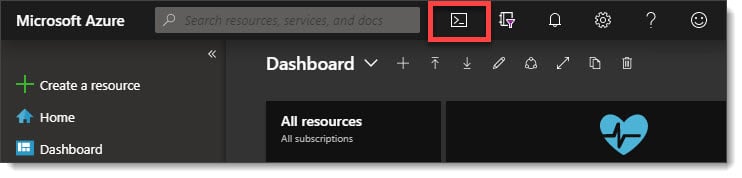
Access Azure Cloud Shell

The first time you open Cloud Shell you will be asked if you want to connect to PowerShell or Bash. Click PowerShell.
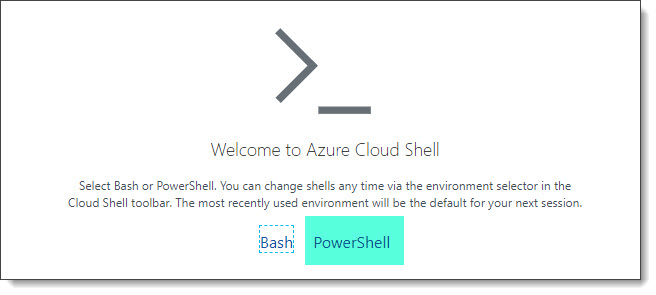
Cloud Shell PowerShell or Bash

You will then be prompted to create storage for use with Cloud Shell. You will be given a drop down of all your available Azure subscriptions. Pick an Azure subscription with active credit and click Create Storage.

[Read more…] about Using Exchange Cmdlets in Azure Cloud Shell
Filed Under: Exchange Tutorials, Office 365 Tutorials

Exchange June 2019 Updates

June 20, 2019 By Gareth Gudger Leave a Comment

Share
Tweet
Share
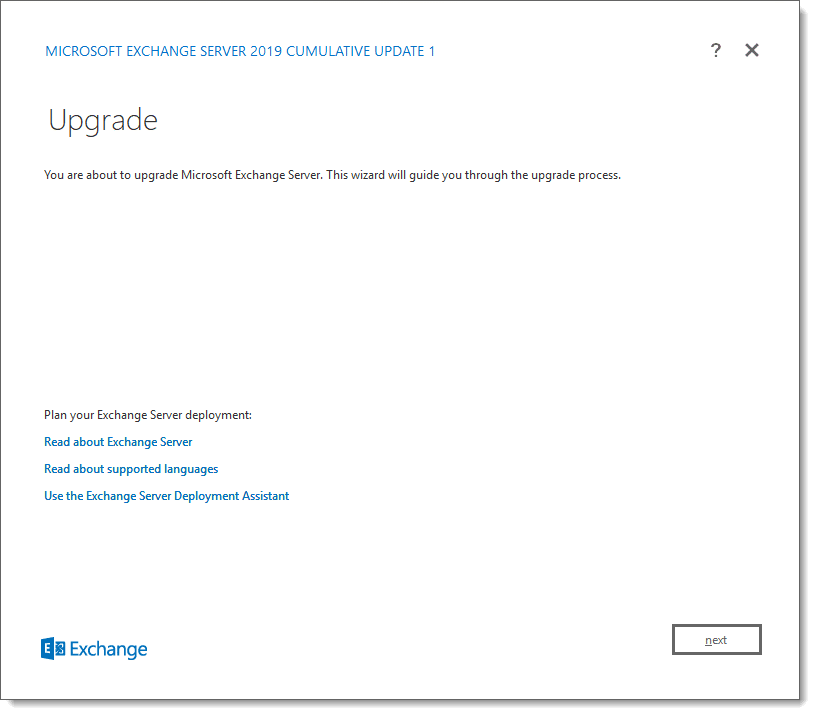
Exchange 2019 Cumulative Update 1

This week was a big week for Exchange. Microsoft released its second cumulative update for Exchange 2019 as well as cumulative updates for Exchange 2016 and 2013.

As always, test these updates in a lab first! I recommend checking out this 7-part guide on configuring Exchange in your lab. It doesn’t take much to get one going.

The updates are as follows:

Exchange 2013 Cumulative Update 9

Exchange 2019 Cumulative Update 2 (VLSC)| KB4488401

Exchange 2016 Mini

Exchange 2016 Cumulative Update 13 | KB4488406 | UM Language Pack

Exchange 2013 Cumulative Update 9

Exchange 2013 Cumulative Update 23 | KB4489622 | UM Language Pack

Exchange 2010 Mini

Exchange 2010 SP3 Rollup 27 | KB4491413

The final countdown – 208 days left for Exchange 2010

Here is a quick reminder that extended support for Exchange 2010 is coming to an end. After January 14th, 2020, no further technical support or updates will be available. This includes security, bug and time zone updates.

Unfortunately, there is no direct path to Exchange 2019 from 2010. If you do plan to stay on-prem you will need to migrate to either 2013 or 2016 (I’d recommend 2016 as 2013 is now in extended support). From there you can migrate to 2019. Alternatively, you can migrate to Office 365.

For more information about the Exchange 2010 life-cycle check out the Exchange Team blog.

So, what’s new in these Cumulative Updates?

In the last set of cumulative updates, Microsoft reduced the number of permissions Exchange had in Active Directory. In an ongoing effort to further tighten the security posture of Exchange, Microsoft has further reduced Exchange’s permissions in Active Directory.

This includes two notable changes. The first is that Exchange can no longer assign service principal names (SPN). Second, a deny attribute has been added to the DNS Admins group. The Exchange Team determined neither of these rights was necessary for the operation of Exchange.

In the previous Exchange 2019 cumulative update, you could disable legacy protocols on a per-user basis. In cumulative update 2, you can now globally disable legacy authentication at the organization level.

This series of updates also introduces support for .NET Framework 4.8. While optional now, 4.8 will be mandatory as part of the December 2019 updates.

[Read more…] about Exchange June 2019 Updates

Filed Under: Exchange News, Office 365 News

Revoke your guest access to an Office 365 tenant (and Teams)

April 13, 2019 By Gareth Gudger 3 Comments

Share
Tweet
Share

As a consultant, I am often invited to collaborate in other Office 365 tenants. This is often presented in the form of guest access into that tenant, which allows me to access applications such as Microsoft Teams or share files with SharePoint Online.

The benefit of guest access is that I can collaborate as if I were a member of that organization without consuming a license, or, requiring an identity in that tenant. For example, my guest access into that tenant could easily be attached to a personal email account hosted at outlook.com.

I often see guest access granted in mergers and acquisitions where the two companies need to collaborate at a business level well before any technology to integrate the two companies has been implemented.

But other scenarios that drive guest access include a company needing to collaborate with its vendors or partners, or, a consultant working with a customer on a project.

But what happens when that guest access is no longer needed?

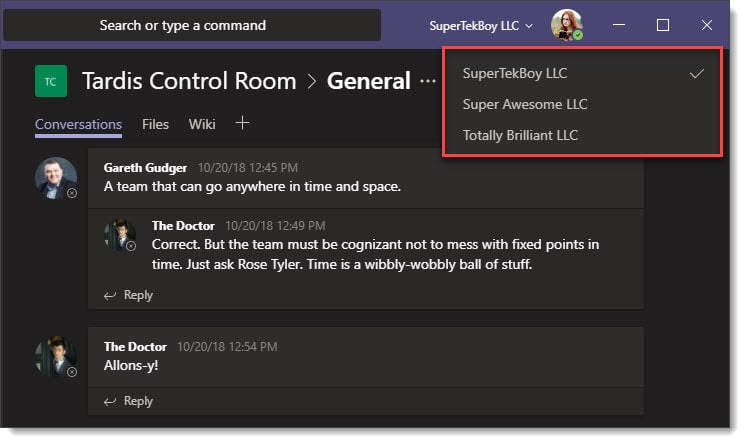
For our example, Amy Pond successfully completed a project at Super Awesome LLC. Amy collaborated with Super Awesome employees using Microsoft Teams and would like to remove Super Awesome from her Microsoft Teams client. Amy needs to maintain access to Totally Brilliant LLC, which is her new project, and SuperTekBoy LLC, which is her employer. The screenshot below is how Amy’s Microsoft Teams client looks today.

Guest Access to other Microsoft Teams

In this article, Amy will leave Super Awesome’s Office 365 tenant by revoking her own guest access. After she revokes her access she will no longer have any access to any Super Awesome apps or data.

Let’s get started!

[Read more…] about Revoke your guest access to an Office 365 tenant (and Teams)

Filed Under: Office 365 Solutions

Exchange February 2019 Updates

February 23, 2019 By Gareth Gudger 5 Comments

Share
Tweet
Share
Exchange 2019 CU1

Last week was a big week for Exchange. Microsoft released its first cumulative update for Exchange 2019 as well as cumulative updates for Exchange 2016 and 2013.

As always, test these updates in a lab first! I recommend checking out this 7-part guide on configuring Exchange in your lab. It doesn’t take much to get one going.

The updates are as follows:

Exchange 2013 Cumulative Update 9

Exchange 2019 Cumulative Update 1 (VLSC)| KB4471391

Exchange 2016 Mini

Exchange 2016 Cumulative Update 12 | KB4471392 | UM Language Pack

Exchange 2013 Cumulative Update 9

Exchange 2013 Cumulative Update 22 | KB4345836 | UM Language Pack

Exchange 2010 Mini

Exchange 2010 SP3 Rollup 26 | KB4487052 (released February)

Exchange 2010 Mini

Exchange 2010 SP3 Rollup 25 | KB4468742 (released January)

Only 325 days left for Exchange 2010

Here is a quick reminder that extended support for Exchange 2010 is coming to an end. After January 14th, 2020, no further technical support or updates will be available. This includes security, bug, and time zone updates.

Unfortunately, there is no direct path to Exchange 2019 from 2010. If you do plan to stay on-prem you will need to migrate to either 2013 or 2016 (I’d recommend 2016 as 2013 is now in extended support). From there you can migrate to 2019. Alternatively, you can migrate to Office 365.

For more information about the Exchange 2010 life-cycle check out the Exchange Team blog.

So, what’s new in these Cumulative Updates?

Push notifications are one type of notification a developer can leverage in their application to add value. An example of a push notification might be the notification of new mail on a mobile device.

In this series of cumulative updates, the Exchange Team has changed the way it initiates push notifications through Exchange Web Services. This is in direct response to a security flaw where an attacker could intercept push notifications to gain access to credentials streamed via NTLM. These cumulative updates mitigate this attack by removing these credentials from the stream. Microsoft documents this resolution in KB4490060.

After applying this cumulative update, Microsoft recommends forcing the computer account to change its password by using either the Reset-ComputerMachinePassword cmdlet or, NETDOM. In addition, Microsoft recommends every organization review its user password expiration policies.

In further response to the security flaw, Microsoft is reducing the number of rights Exchange has in Active Directory when operating in a shared permission model.

In a shared permission model, Exchange administrators have the ability to create security principals in Active Directory and mail-enable those security principals. This includes the ability to create a new user as you are creating a mailbox, or, the ability to remove a user when you remove a mailbox. This also extends to tasks such as being able to create a distribution group, or, modify distribution group members.

In a split permission model, the Exchange administrator is restricted from these tasks and can only mail-enable, or, mail-disable existing objects (e.g. users, groups, or contacts) that were created by an administrator with Active Directory rights.

Going forward the shared permission model will have fewer Active Directory rights, but that does not mean reduced functionality for Exchange administrators.

[Read more…] about Exchange February 2019 Updates

Filed Under: Exchange News, Office 365 News

Presence missing in Outlook after Teams Only switch

February 17, 2019 By Gareth Gudger 50 Comments

Share
Tweet
Share

If you have recently made the switch from Skype to Teams Only mode in Office 365, you may have lost your presence data in Outlook.

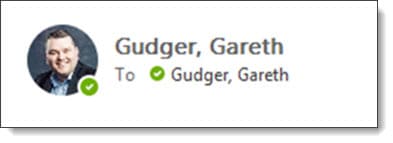
Skype and Teams share their presence data with Outlook. When viewing or composing an email in Outlook you can also see the presence of anyone internal in your organization and any external users you have federated presence data with. That presence date will look like the screenshot below.

Presence data from Teams and Skype in Microsoft Outlook

In the example above, I have a green checkmark which identifies my presence as available. This could also be yellow to show away, red to show busy and, other presences such as do-not-disturb, out of office, or, unknown. This presence data can show up in other Office applications as well, such as Microsoft Word when co-authoring a document in real-time.

If you have recently switched to Teams-Only mode and there is no presence circle at all, then you may need to reconfigure your Teams client to share presence data. Below is an example of what that will look like.

Note: Presence data will also be missing if your Microsoft Teams client is not running.

Missing Presence Data in Microsoft Outlook
[Read more…] about Presence missing in Outlook after Teams Only switch

Filed Under: Office 365 Solutions, Outlook Solutions

Save Time with FindTime

February 9, 2019 By Gareth Gudger 4 Comments

Share
Tweet
Share

UPDATED 5/24/23

One of the great plugins for Outlook is FindTime. FindTime makes scheduling meetings easy by allowing organizers to poll attendees for their preferred date and time to meet. But FindTime is more than just a simple polling app, it integrates fully into your calendar. FindTime recommends meeting times, can place tentative placeholders on your calendar for each proposed time, and can automatically schedule the meeting if a consensus is met. Gone are the days of emails flying back and forth to find a time that works for everyone.

Note: If you have the April 2023 build of M365 Apps FindTime is now integrated as the “Scheduling Poll” feature. Older versions of Office can still leverage FindTime as an independent app.

Installing FindTime

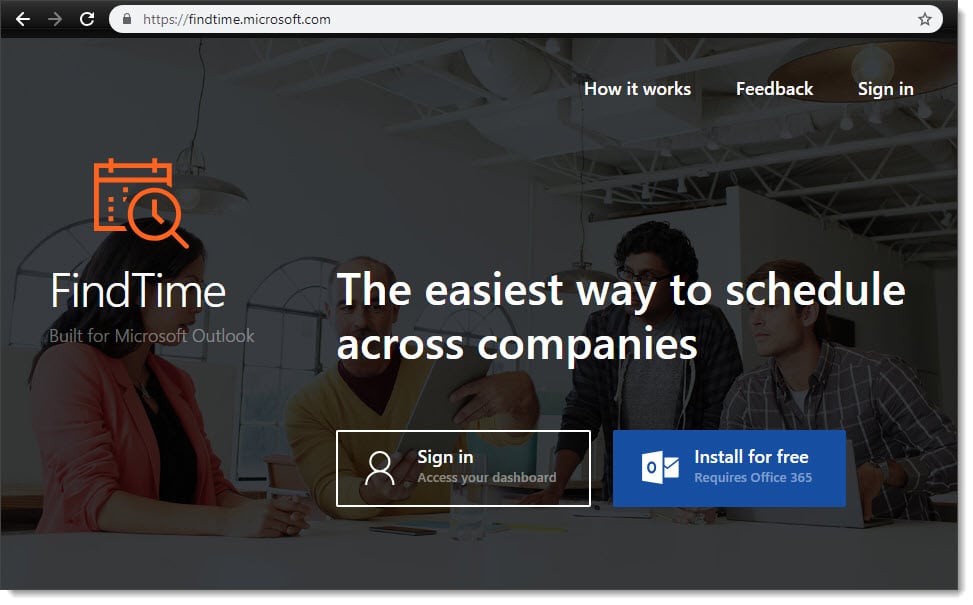
To install FindTime, navigate to findtime.microsoft.com (alternatively, you can install FindTime from the Office 365 App Store – to do this, log into Office 365 and select Add-Ins). 

From the website, click Install For Free (Requires Office 365).

Installing FindTime for Outlook

Select whether to receive FindTime announcements, updates, and information. Click I’m Ready.

Installing FindTime for Outlook
[Read more…] about Save Time with FindTime

Filed Under: Office 365 Tutorials, Outlook Tutorials

  • « Go to Previous Page
  • Page 1
  • Interim pages omitted …
  • Page 6
  • Page 7
  • Page 8
  • Page 9
  • Page 10
  • Interim pages omitted …
  • Page 16
  • Go to Next Page »

Primary Sidebar

Want to stay up to date?

Sidebar Form

Join thousands of IT professionals and get the latest Exchange & Office 365 tips and tutorials direct to your inbox

DigiCert Banner 300x348

(help support us using our affiliate link)

Footer

Site Navigation

  • Subscribe to blog
  • About SuperTekBoy
  • Disclaimer
  • Privacy & Cookies
  • Contact Us

Want to stay up to date?

Footer Form

Join thousands of IT professionals and get the latest Exchange & Office 365 tips and tutorials direct to your inbox

Join the conversation

  • Twitter
  • LinkedIn
  • Facebook
  • RSS

Copyright © 2026 · SuperTekBoy LLC