• Skip to primary navigation
  • Skip to main content
  • Skip to primary sidebar
  • Skip to footer

SuperTekBoy

Practical Help for Exchange & Office 365

  • Exchange
    • News
    • Tutorials
    • Solve a Problem
  • Office 365
    • News
    • Tutorials
    • Solve a Problem
  • Outlook
    • Tutorials
    • Solve a Problem
  • Books
  • Podcasts
  • Quick Links…
    • Generate or Renew SSL Certs for Exchange
    • Connect PowerShell to Exchange Online
    • Connect PowerShell to Office 365
    • Extend Schema for Exchange
    • Exchange Schema & Build Numbers
  • More…
    • Kemp Load Balancers
    • Other tech…
    • Videos
    • About SuperTekBoy
    • Contact Us

Outlook

Duplicating Meetings & Appointments in Outlook

September 3, 2019 By Gareth Gudger 59 Comments

Share
Tweet
Share

One of the best-kept secrets in Outlook is the hotkey that allows you to quickly and easily duplicate meetings and appointments on your Outlook calendar.

One particular use case is if you have a meeting and need to quickly schedule a follow-up meeting. This meeting may have all the same participants and agenda. If the meeting was not previously set up as a recurring meeting, only needs a single follow-up and, you want to maintain the original meeting on the calendar, then copying the meeting is the best way to go.

To copy a meeting, select the meeting, hold the CTRL button on your keyboard and drag the meeting to a new spot. Once in the new spot, release both your mouse button and the CTRL-key.

A duplicate meeting appears in that new spot and the existing meeting is preserved for historical purposes. The new meeting will contain all the same attendees and content from the old meeting.

You will then need to open the new meeting and click the Send button so all attendees get the new meeting invite.

If you want to duplicate appointments the process is identical.
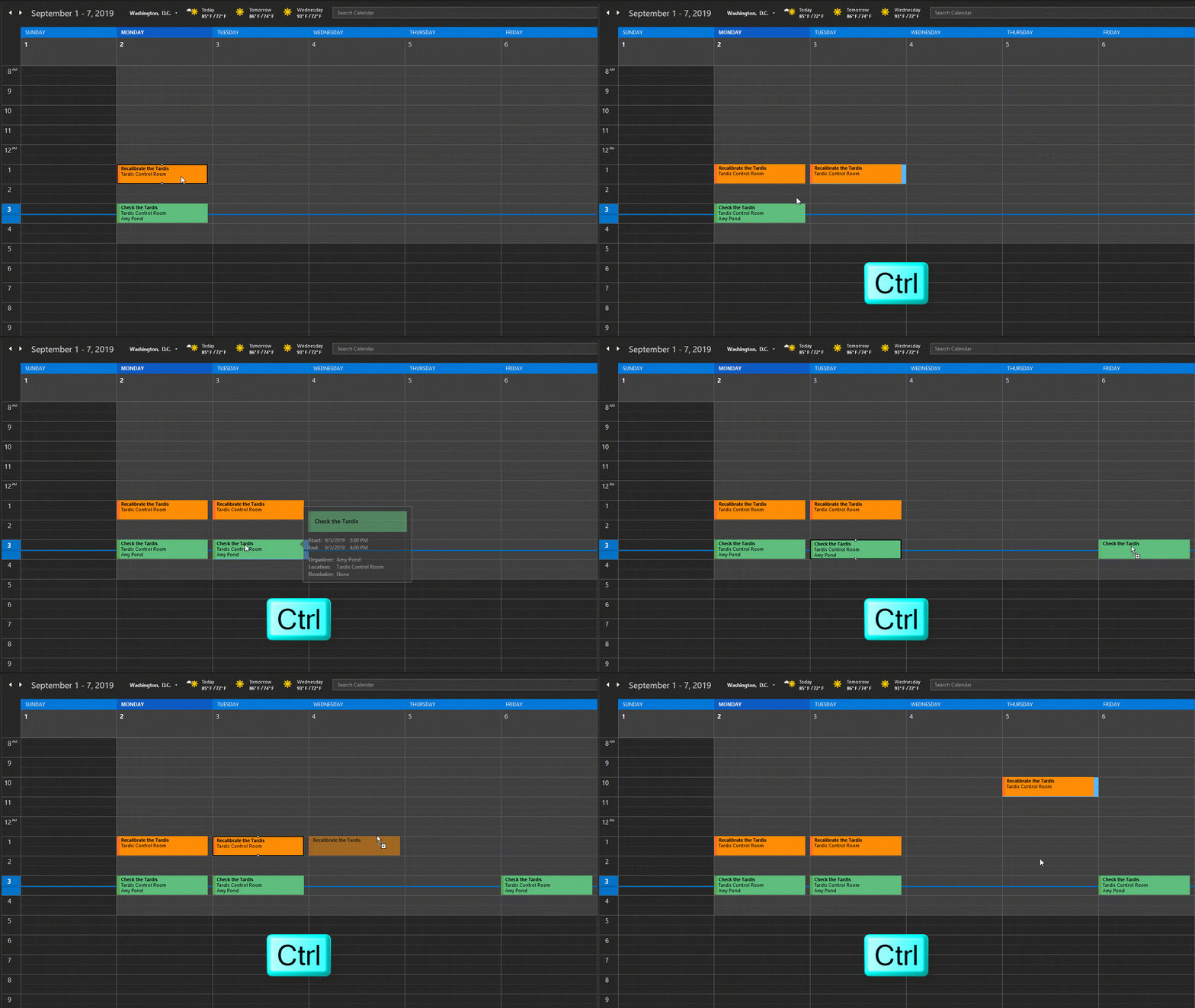
Copying Meetings and Appointments in Outlook

You are all set!

Twitter

So, what do you think about this option to quickly duplicate meetings and appointments in Outlook? Drop a comment below or join the conversation on Twitter @SuperTekBoy.
Filed Under: Outlook Tutorials

Improved Dark Mode in Outlook for Windows

July 4, 2019 By Gareth Gudger 35 Comments

Share
Tweet
Share

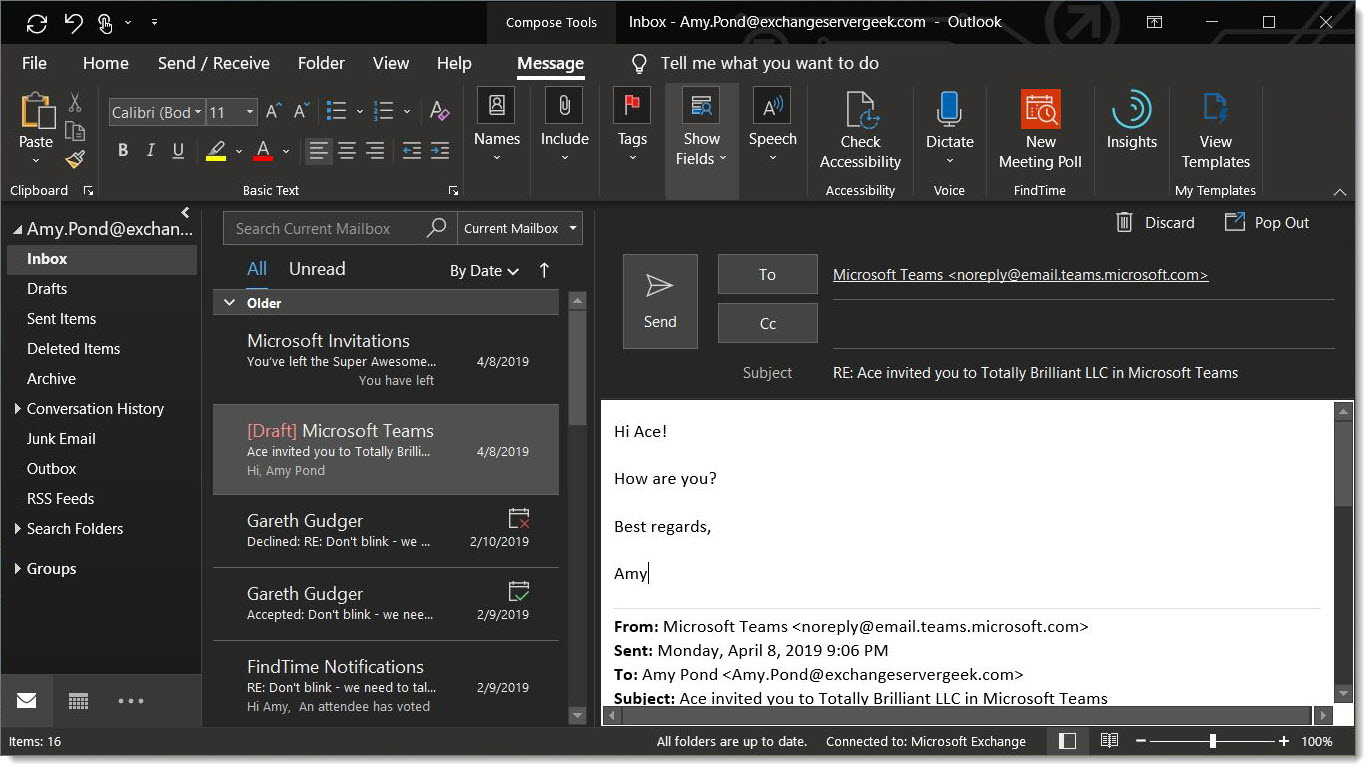
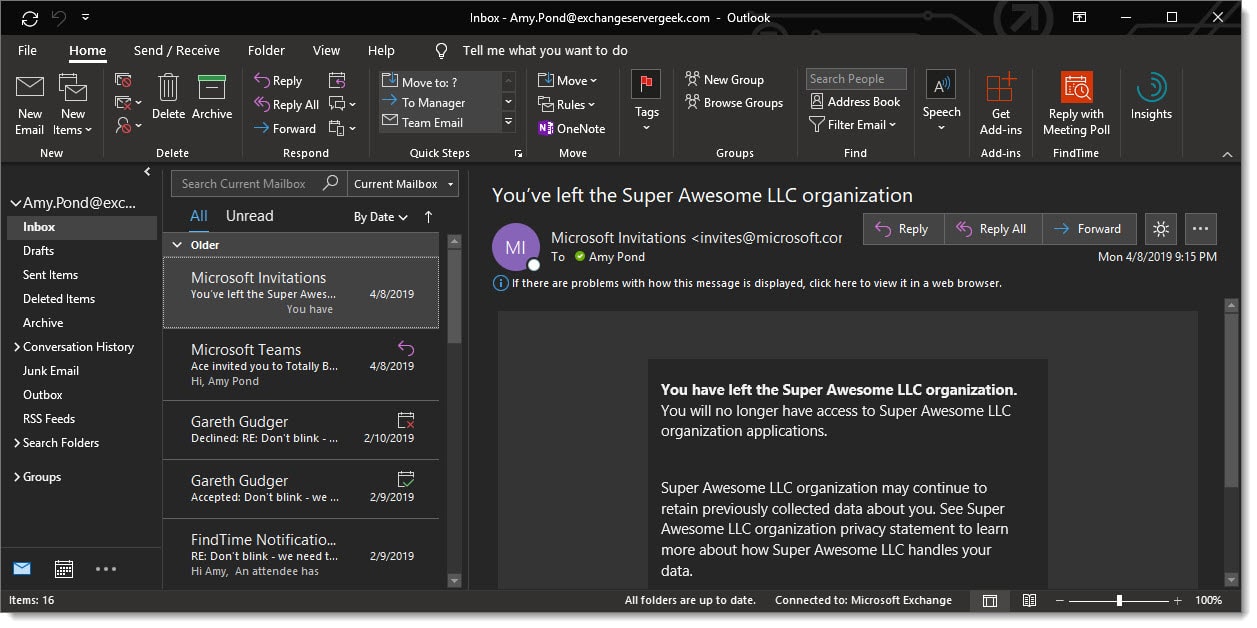
The black theme has been around in Outlook for Windows for some time. However, unlike Outlook Web App, or, Microsoft Teams, the black theme was not a true dark mode. Some aspects of the black theme were still fully illuminated, such as when you read or composed a message.

The screenshot below is an example of how the black theme changes certain aspects such as the folder view and toolbars to black but leaves the email preview pane in white.

Outlook on Windows Black Theme Read Email

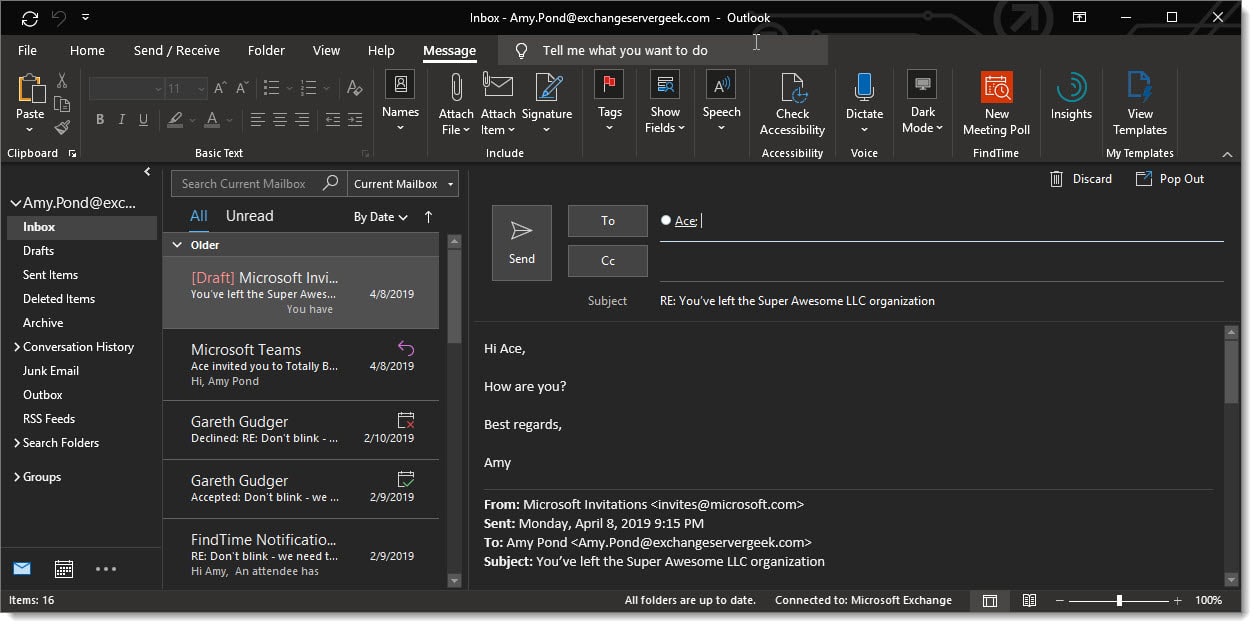
Similarly, when you compose an email the message body is also in white.

Outlook on Windows Black Theme Compose Email

The new Black Theme for Outlook

Starting with version 1907 for Office Insiders, the Outlook team has extended the black theme so it now incorporates the message body and the composition panes.

Note: Anyone can enroll in the Office Insider program. However, Office Insiders receive weekly updates, which could be subject to bugs.

UPDATE 10-5-19: For those on the Monthly Channel, you can get dark mode with the 1909 monthly channel update (released September 30th).

With version 1907 the message preview pane defaults to black.

Outlook on Windows Black Theme Read Email Version 1907

Similarly, when you compose an email the message body is now black.

Outlook on Windows Black Theme Compose Email 1907
[Read more…] about Improved Dark Mode in Outlook for Windows

Filed Under: Office 365 Tutorials, Outlook Tutorials

Presence missing in Outlook after Teams Only switch

February 17, 2019 By Gareth Gudger 50 Comments

Share
Tweet
Share

If you have recently made the switch from Skype to Teams Only mode in Office 365, you may have lost your presence data in Outlook.

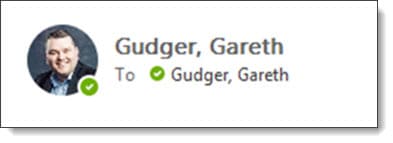
Skype and Teams share their presence data with Outlook. When viewing or composing an email in Outlook you can also see the presence of anyone internal in your organization and any external users you have federated presence data with. That presence date will look like the screenshot below.

Presence data from Teams and Skype in Microsoft Outlook

In the example above, I have a green checkmark which identifies my presence as available. This could also be yellow to show away, red to show busy and, other presences such as do-not-disturb, out of office, or, unknown. This presence data can show up in other Office applications as well, such as Microsoft Word when co-authoring a document in real-time.

If you have recently switched to Teams-Only mode and there is no presence circle at all, then you may need to reconfigure your Teams client to share presence data. Below is an example of what that will look like.

Note: Presence data will also be missing if your Microsoft Teams client is not running.

Missing Presence Data in Microsoft Outlook
[Read more…] about Presence missing in Outlook after Teams Only switch

Filed Under: Office 365 Solutions, Outlook Solutions

Save Time with FindTime

February 9, 2019 By Gareth Gudger 4 Comments

Share
Tweet
Share

UPDATED 5/24/23

One of the great plugins for Outlook is FindTime. FindTime makes scheduling meetings easy by allowing organizers to poll attendees for their preferred date and time to meet. But FindTime is more than just a simple polling app, it integrates fully into your calendar. FindTime recommends meeting times, can place tentative placeholders on your calendar for each proposed time, and can automatically schedule the meeting if a consensus is met. Gone are the days of emails flying back and forth to find a time that works for everyone.

Note: If you have the April 2023 build of M365 Apps FindTime is now integrated as the “Scheduling Poll” feature. Older versions of Office can still leverage FindTime as an independent app.

Installing FindTime

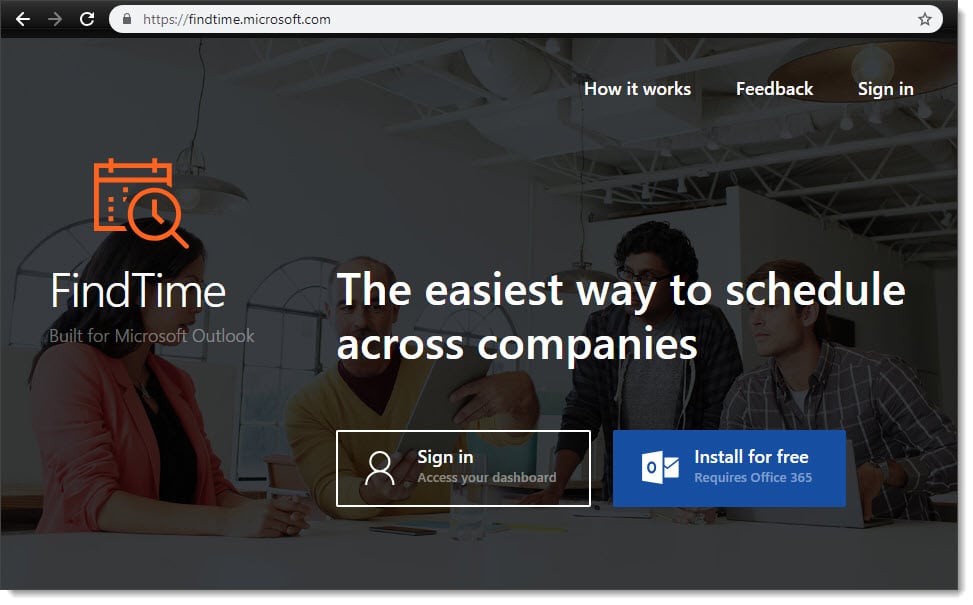
To install FindTime, navigate to findtime.microsoft.com (alternatively, you can install FindTime from the Office 365 App Store – to do this, log into Office 365 and select Add-Ins). 

From the website, click Install For Free (Requires Office 365).

Installing FindTime for Outlook

Select whether to receive FindTime announcements, updates, and information. Click I’m Ready.

Installing FindTime for Outlook
[Read more…] about Save Time with FindTime

Filed Under: Office 365 Tutorials, Outlook Tutorials

Enabling Dark Mode in Outlook on the Web

October 20, 2018 By Gareth Gudger 4 Comments

Share
Tweet
Share

One of the newest features announced at Ignite was the ability to enable dark mode in Outlook on the Web. It is worth noting that this feature is only available in Office 365. There are no plans to bring it to Exchange 2019 at this time.

I have always been a big fan of dark mode for any application as I spend more hours than I care to admit at my computer, so eye strain is always a concern.

Dark mode lets us protect our eyeballs from the harsh glare of a white screen, and it may just conserve a little more battery life on our mobile devices.

Note: These instructions will also work with Outlook.com

Enabling dark mode

To enable the dark theme, log onto Outlook on the Web and click the toggle next to Try the new Outlook so it moves to the right (on).

Enabling Dark Mode in Outlook on the Web 1
[Read more…] about Enabling Dark Mode in Outlook on the Web

Filed Under: Office 365 Tutorials, Outlook Tutorials

Intelligent Do Not Disturb in Outlook mobile app

July 21, 2018 By Gareth Gudger 34 Comments

Share
Tweet
Share

Do not disturb in the Outlook mobile app is an amazing option. In fact, Microsoft CEO Satya Nadella recently demonstrated this functionality during his keynote at Microsoft Inspire 2018.

With Outlook mobile you have two great options when it comes to setting do not disturb. You can either set do not disturb globally across all email accounts, or, you can set it individually for each email account. The former is a great solution when you need general quiet time from all your email accounts. The latter might be better when you need to dedicate time between work and personal accounts.

For example, you could set do not disturb on personal email during business hours and, do not disturb on work email during weekends. In this article, we are going to implement this very example.

Setting Do Not Disturb

Open your Outlook mobile app and select the Waffle menu.

Setting up Outlook for Android and iOS Do Not Disturb DND options

Make sure the email account you want to set the do not disturb on is active. You can verify which email account is active by the title in the menu. In the screenshot below we can see our work account gareth@supertekboy.com is active.

Select the Do not disturb (Outlook Mobile Do Not Disturb Icon) icon in the top right-hand corner of the menu.
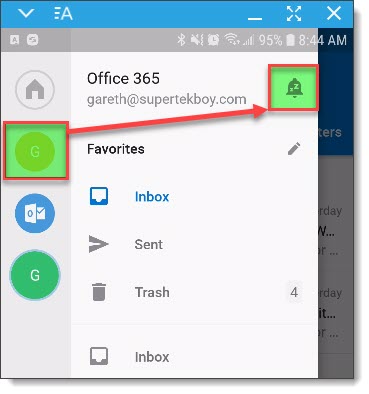
Tip: If you want to set a blanket do not disturb across all accounts, select the Home icon. This will select All Accounts. Then select the Do not disturb (Outlook Mobile Do Not Disturb Icon) icon.

[Read more…] about Intelligent Do Not Disturb in Outlook mobile app

Filed Under: Outlook Tutorials

  • « Go to Previous Page
  • Page 1
  • Page 2
  • Page 3
  • Page 4
  • Page 5
  • Go to Next Page »

Primary Sidebar

Want to stay up to date?

Sidebar Form

Join thousands of IT professionals and get the latest Exchange & Office 365 tips and tutorials direct to your inbox

DigiCert Banner 300x348

(help support us using our affiliate link)

Footer

Site Navigation

  • Subscribe to blog
  • About SuperTekBoy
  • Disclaimer
  • Privacy & Cookies
  • Contact Us

Want to stay up to date?

Footer Form

Join thousands of IT professionals and get the latest Exchange & Office 365 tips and tutorials direct to your inbox

Join the conversation

  • Twitter
  • LinkedIn
  • Facebook
  • RSS

Copyright © 2026 · SuperTekBoy LLC